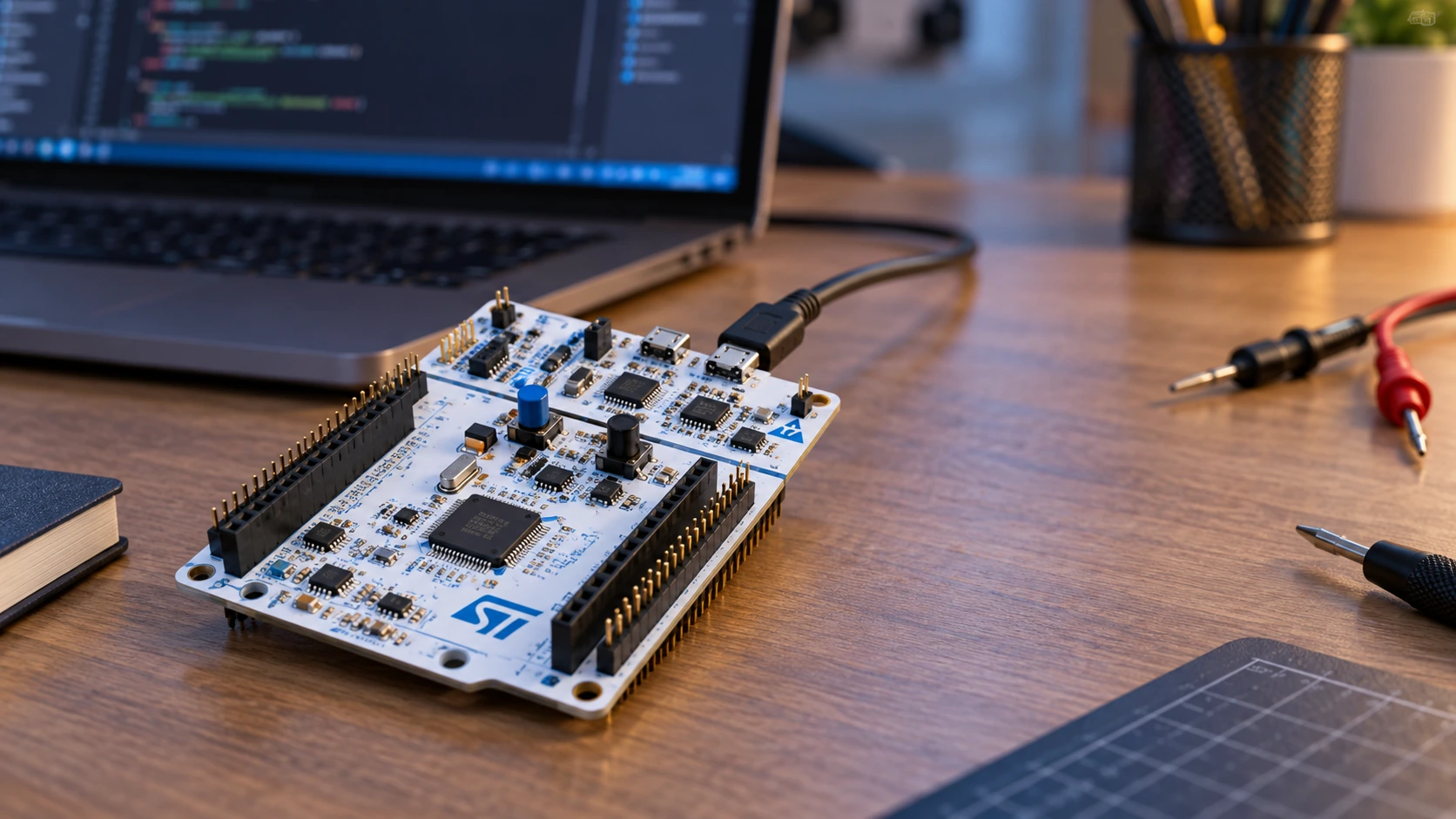
The NUCLEO-F446RE is one of the most useful STM32 boards for learning professional embedded development without giving up maker-friendly wiring. It has an STM32F446RET6 Cortex-M4F microcontroller, Arduino Uno R3AliExpress price-compatible female headers, two long ST Morpho headers and an onboard ST-LINK programmerAliExpress price/debugger. In other words, you do not need to buy a separate ST-LINKAliExpress price, guess where to attach debug wires or solder an LED onto a Blue Pill to run your first program.
The catch is that Arduino connector labels are not STM32 GPIO names. Arduino D13 is PA5, D0 is PA3, D1 is PA2, and analog A4/A5 are not necessarily wired as I²C. Even a perfectly compiling program can fail when code and wiring use different naming systems. This guide ties those systems together, explains the most common header conflicts and provides practical CubeMX/CubeIDE examples for LED blinking, serial output, ADC measurement, I²C sensors and PWM.
Quick answer: On a standard NUCLEO-F446RE, D13 = PA5 = green LD2 LED, D1 = PA2 = USART2_TX, D0 = PA3 = USART2_RX, A0 = PA0 = ADC input, D15 = PB8 = I²C1_SCL, and D14 = PB9 = I²C1_SDA. The board has an onboard ST-LINK/V2-1 debug interface, so simply connect the ST-LINK USB cable, create a project for NUCLEO-F446RE, enable SWD, and build/debug. Verify board revision and solder bridges if any header behaves differently. Primary hardware reference: ST UM1724 Nucleo-64 user manual.
STM32F446RE specifications: what you get for the money
The NUCLEO-F446RE is an official ST development board, not an arbitrary module using a similar microcontroller. Its MB1136 hardware platform provides a predictable baseline for debugging and shield compatibility. The STM32F446RE silicon itself is significantly more capable than the STM32F103C8 Blue Pill and the F401 Black Pill discussed elsewhere on this site.
| Feature | STM32F446RET6 / NUCLEO-F446RE |
|---|---|
| CPU | Arm Cortex-M4F, hardware FPU and DSP instructions |
| Maximum CPU frequency | 180 MHz under specified supply/clock conditions |
| Flash memory | 512 KiB internal |
| SRAM | 128 KiB internal |
| Package | STM32F446RET6 in LQFP64 |
| Analog | Three 12-bit ADC units, two DAC outputs (available signals depend on package) |
| Timers | General-purpose and advanced-control timers, PWM and capture |
| Communication | USART/UART, I²C, SPI/I²S, USB OTG, CAN and more at MCU level |
| Expansion | Arduino Uno R3-style headers and ST Morpho CN7/CN10 |
| Programming | Integrated ST-LINK/V2-1 over the board’s debug USB |
| User I/O | Green LD2 LED, B1 user button and reset button |
| GPIO signal level | 3.3 V logic; selected pins have conditional 5 V tolerance only |
These figures describe the microcontroller, not a promise that every interface has a physical connector on the board. For example, the STM32F446RE MCU supports USB, but the Nucleo board’s ST-LINK USB connector is for the debug probe and its virtual COM port. That connector does not become an arbitrary user USB connector just because the MCU can run USB device firmware. Likewise, a CAN controller is not the same thing as a CAN transceiver. See the official NUCLEO-F446RE product page and STM32F446RE chip details.
NUCLEO-F446RE versus F401 Black Pill and F407VET6
Choose the F446RE Nucleo if debugging convenience, documented headers and reproducible tutorials matter more than miniature board size. The F401 Black Pill pinout guide covers a smaller 84 MHz module better suited to tight builds. The F407VET6 board guide focuses on larger feature-rich third-party boards, where onboard parts and header layouts can vary. The Nucleo sits comfortably between these extremes: accessible Arduino headers, reliable ST documentation and no external SWD dongle.
Understand the board before connecting anything
The NUCLEO-F446RE consists of two functional regions. Near the debug USB connector is the ST-LINK/V2-1 programmer/debugger circuitry. The target section contains the STM32F446RET6 and the Arduino, Morpho, LED, power and reset connections. Normally the integrated debugger communicates with the target over SWD, while a second onboard route provides a USB virtual COM port (VCP) mapped to USART2 PA2/PA3 through configurable solder bridges.
The board’s Arduino sockets are CN5, CN6, CN8 and CN9, while the longer ST Morpho expansion connectors are CN7 and CN10. Those Morpho connectors expose additional MCU signals and power connections that are not on the Arduino footprint. They also expose some signals already shared with the Arduino headers; treating them as independent pin banks can lead to conflicting external circuitry.
| Physical area | Connector or component | Why it matters |
|---|---|---|
| Debug USB and onboard ST-LINK | USB on ST-LINK section | Flash, debug, virtual COM port, and in some configurations mass-storage programming |
| Arduino digital SPI/I²C side | CN5 | D8–D15, SPI signals, SDA/SCL, ground and AREF |
| Arduino lower digital side | CN9 | D0–D7 including USART2 D0/D1 and several PWM pins |
| Arduino power side | CN6 | IOREF, RESET, 3V3, 5V, GND and VIN |
| Arduino analog side | CN8 | A0–A5, including A4/A5 solder-bridge variants |
| ST Morpho sides | CN7 and CN10 | Wider selection of MCU GPIO, analog and peripheral signals |
| Target user LED | LD2 | Green LED connected to PA5 / Arduino D13 by default |
| Target user button | B1 | User button on PC13 in standard configuration |
The USB connector on this board may use a Mini-B connection for its integrated ST-LINK/V2-1, depending on hardware production details. Identify your actual board before choosing a cable. A suitable data-capable USB cable is essential; a charge-only cable can supply power without making the debugger appear in your operating system.
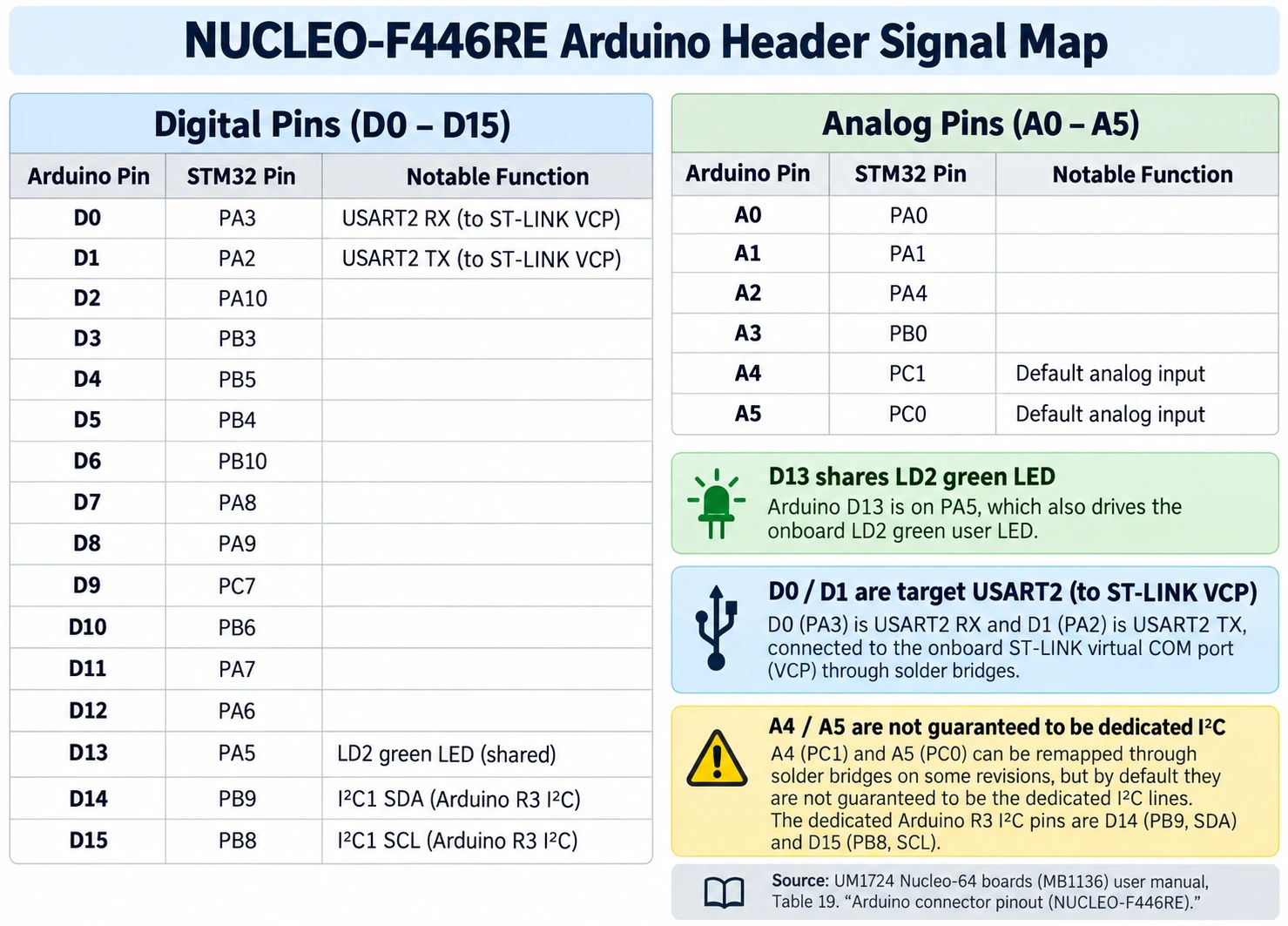
Complete Arduino digital header pin mapping (D0–D15)
The following board-level mapping comes from the NUCLEO-F446RE connector table in UM1724. The GPIO name is the name to select in CubeMX and STM32 HAL. The Arduino name is what an Arduino shield usually prints on its silkscreen. Check the alternate-function configuration before assuming a peripheral is routed to a particular pin.
| Arduino signal | STM32F446RE pin | Common function or note |
|---|---|---|
| D0 | PA3 | USART2_RX; also shared with ST-LINK VCP routing |
| D1 | PA2 | USART2_TX; also shared with ST-LINK VCP routing |
| D2 | PA10 | GPIO / alternate peripheral functions |
| D3 | PB3 | TIM2_CH2 PWM possible |
| D4 | PB5 | GPIO / other alternate functions |
| D5 | PB4 | TIM3_CH1 PWM possible |
| D6 | PB10 | TIM2_CH3 PWM possible |
| D7 | PA8 | GPIO / timer and clock options |
| D8 | PA9 | GPIO / USART1_TX alternate function |
| D9 | PC7 | TIM8_CH2 PWM possible |
| D10 | PB6 | TIM4_CH1 PWM / often shield SPI chip select |
| D11 | PA7 | SPI1_MOSI / TIM14_CH1 alternate function |
| D12 | PA6 | SPI1_MISO |
| D13 | PA5 | SPI1_SCK and onboard LD2 LED |
| D14 / SDA | PB9 | I²C1_SDA (dedicated Arduino R3 SDA header) |
| D15 / SCL | PB8 | I²C1_SCL (dedicated Arduino R3 SCL header) |
Important SPI detail: D13/PA5 is shared with the green LD2 LED. A blinking LED on that net while SPI1 runs does not imply an SPI fault. Conversely, an external shield could load the SCK signal; consult the schematic and consider any series components or solder-bridge options if you use high-speed SPI. D10/PB6 is not a fixed hardware NSS requirement: software-controlled chip select is perfectly legitimate, and the SPI1 hardware pin mapping may use a different alternate-function pin depending on configuration.
D0/D1, virtual COM, and why UART behaves unexpectedly
ST-LINK/V2-1 supplies a useful virtual serial interface without an external USB-to-TTL dongle. Configure target USART2 asynchronous mode, use PA2 TX and PA3 RX, and open the ST-LINK virtual COM port in a terminal. The Arduino D1 and D0 signals correspond to those same MCU pins, so an Arduino shield wired there can potentially conflict with onboard ST-LINK serial routing. The relevant solder bridges include SB13/SB14 for the ST-LINK USART connection and SB62/SB63 for routing to the Arduino side; consult the board-revision table before changing hardware. If a UART problem persists despite correct firmware, inspect those bridges rather than swapping PA2 and PA3 by trial and error.
Analog headers A0–A5: the A4/A5 trap
Arduino Uno users often assume A4 and A5 are always the I²C lines. On the NUCLEO-F446RE they default to analog GPIO connections on many standard MB1136 boards, while I²C1 is present on D14/D15. The MB1136 solder-bridge network can reroute A4/A5 for older Arduino-shield conventions, but the two routings are not simply shorted together by default.
| Arduino analog pin | STM32 signal in standard analog arrangement | Analog function / caveat |
|---|---|---|
| A0 | PA0 | ADC123_IN0 |
| A1 | PA1 | ADC123_IN1 |
| A2 | PA4 | ADC12_IN4 |
| A3 | PB0 | ADC12_IN8 |
| A4 | PC1 | ADC123_IN11; optionally PB9/I²C1_SDA after bridge changes |
| A5 | PC0 | ADC123_IN10; optionally PB8/I²C1_SCL after bridge changes |
For modern Arduino Uno R3 shields, prefer the dedicated SDA/SCL positions, D14/PB9 and D15/PB8. If a legacy shield expects I²C on A4/A5, the board may require SB46/SB52 closed and SB51/SB56 open, according to UM1724. Bridge numbers and board-revision diagrams should be checked before heating a soldering iron. You must never join analog PC1/PC0 and digital I²C PB9/PB8 indiscriminately; that would place two pins on the same external net and may cause a driver conflict.
ADC voltage reminder: The ADC input must remain within its electrical limits relative to VDDA and VSSA. A 5 V analog sensor signal is not safe to connect directly to A0 merely because an Arduino shield provides 5 V somewhere else. Use an appropriately designed divider, buffer or analog front end and verify source impedance, acquisition time and overvoltage behavior.
ST Morpho headers CN7 and CN10: what Arduino connectors omit
The Morpho headers are especially useful for projects involving multiple UARTs, timers, analog signals, CAN, or USB data lines. The extra signals can include PA11/PA12 (MCU USB D−/D+), PA13/PA14 (SWD), PC13 (user button), and other GPIO depending on package and board routing. They also expose several power pins, grounds and the MCU’s reset and boot control signals. The Morpho physical pin numbers must be read from ST’s board diagram; a functional label in this article is not a numbered CN7/CN10 header diagram.
Three rules prevent expensive mistakes. First, a Morpho GPIO shared with an Arduino socket is the same silicon pin, not an extra copy. Second, a Morpho pin with an alternate function is not automatically configured to that function—CubeMX must enable the correct peripheral, pin mux and clock. Third, the MCU is 3.3 V logic even if the header also exposes regulated or USB-derived 5 V power. Use the STM32F446RE datasheet to check exactly which pads are five-volt tolerant under the relevant mode and power state.
USB OTG, CAN and other MCU capabilities are not populated accessories
The STM32F446RE silicon has USB OTG capabilities and CAN-controller functionality, but NUCLEO-F446RE does not furnish every corresponding external device or connector. To build a target USB device, you need the MCU’s correct D−/D+ pins, a suitable connector, VBUS and USB protection/power design as applicable, a valid 48 MHz clock and firmware that actually enumerates. The onboard ST-LINK USB connector is not a shortcut to the MCU’s target USB peripheral.
For CAN you need an appropriate 3.3 V-compatible CAN transceiver between the MCU CAN_TX/CAN_RX and the CAN_H/CAN_L differential network, with correct network termination and protection. Do not connect the microcontroller pins directly to a vehicle CAN bus. Similarly, the chip’s USB, timer and ADC features describe peripheral blocks, not preassembled breakout modules.
Powering the NUCLEO-F446RE safely
The easiest first setup is USB power through the onboard ST-LINK interface with the board left in its documented default jumper configuration. The Nucleo also supports external power paths through VIN or E5V according to UM1724. Because the board may contain user-modified jumpers or solder bridges, do not assume every 5 V connector is a protected input in every configuration.
| Net or feature | What it means | Safe practice |
|---|---|---|
| U5V / ST-LINK USB | USB-derived 5 V on the board | Use for standard USB-powered development within documented budgets |
| +5V Arduino header | Board 5 V rail/output in the standard configuration | Do not backfeed from a shield without checking jumper settings |
| +3V3 Arduino header | Regulated target 3.3 V logic rail | Do not apply 5 V to the 3V3 pin |
| VIN / E5V | External power arrangements | Consult the exact UM1724 power section and JP5/related configuration |
| IOREF | Logic-voltage reference for compatible shields | Approximately 3.3 V on this board, not an instruction to drive GPIO at 5 V |
| GND / AGND | Common reference / analog ground | Share a suitable reference for external signals; keep noisy power currents out of analog return paths |
The Arduino mechanical pinout compatibility is not 5 V GPIO compatibility. Arduino Uno shields built around 5 V push-pull digital outputs or 5 V pull-ups may require level translation. Even FT-rated MCU pins have mode, supply and absolute-limit conditions. If an attached shield causes the debugger to disconnect, remove the shield and restore the simplest USB-only test arrangement before investigating software.
First STM32 project: install CubeMX and CubeIDE 2.x
STM32CubeIDE 2.x changed the familiar STM32 workflow: STM32CubeMX is a separate configuration tool. For this tutorial use standalone classic STM32CubeMX to configure the board and generate an STM32CubeIDE project; then import it into CubeIDE to compile and debug. This avoids out-of-date instructions telling you to open the MCU pin configurator inside newer CubeIDE installations. Our CubeIDE 2.x and CubeMX setup guide covers the general setup in detail.
- Install current STM32CubeMX, STM32CubeIDE 2.x, the STM32CubeF4 firmware package and the ST-LINK driver if your operating system requires one.
- Connect the NUCLEO-F446RE to your computer using its ST-LINK USB data connection. Confirm that the debugger is detected by STM32CubeProgrammer or the operating system.
- In standalone CubeMX create a project by Board Selector and choose NUCLEO-F446RE; verify the target MCU is STM32F446RET6.
- Reserve SYS → Debug = Serial Wire to preserve SWD access. Keep PA13 and PA14 free from conflicting external hardware.
- Configure PA5 as GPIO_Output (user LED LD2). Do not accidentally configure PA5 as SPI1_SCK at the same time.
- In Project Manager, set Toolchain/IDE to STM32CubeIDE, choose a descriptive project name, and generate code. Enable separate peripheral
.c/.hfiles if helpful. - Open CubeIDE 2.x, choose its import workflow for an existing STM32CubeMX/STM32CubeIDE project, select the generated project, build and start a debug session through the onboard ST-LINK.
Build the untouched project once before writing custom code. That isolates toolchain, pack, import and debugger problems from application mistakes. Also keep the .ioc file under source control: regenerate using standalone CubeMX after hardware-configuration changes, refresh the IDE project, and put user code only inside the generated USER CODE BEGIN/END sections.
Blink the onboard LD2 LED (PA5 / Arduino D13)
The LED is an ideal first test because it needs no jumper wires. In a standard NUCLEO-F446RE configuration, LD2 is on PA5 and turns on when the pin is driven HIGH. In CubeMX, set PA5 to GPIO_Output, output push-pull, no pull-up/down and an appropriate low/medium GPIO speed. Let CubeMX generate MX_GPIO_Init() and place the following example inside the while (1) loop of Core/Src/main.c:
/* USER CODE BEGIN WHILE */
while (1)
{
    HAL_GPIO_TogglePin(GPIOA, GPIO_PIN_5);  /* LD2 / D13 */
    HAL_Delay(500);                       /* 500 ms each state */
}
/* USER CODE END WHILE */
This produces a one-second complete ON/OFF cycle: the LED toggles every 500 ms. If it never lights, check that PA5 is output, the GPIOA peripheral clock was enabled by generated initialization, and the project actually reaches main() rather than stopping at a breakpoint. If the pin toggles but the LED does not, inspect SB21, which connects/disconnects the user LED on MB1136. If an Arduino shield occupies D13, temporarily remove it and retry.
Check the program under the debugger
Use the CubeIDE debug configuration with the integrated ST-LINK. Set a breakpoint at HAL_GPIO_TogglePin, start a session, inspect GPIOA->ODR or the HAL argument and step through the loop. You can distinguish a GPIO configuration error from a board-level connection error without guessing. Remember that HAL_Delay requires a working HAL tick source; avoid blocking it from an interrupt with an inappropriate priority scheme.
Clock setup: 8 MHz ST-LINK MCO is not an HSE crystal
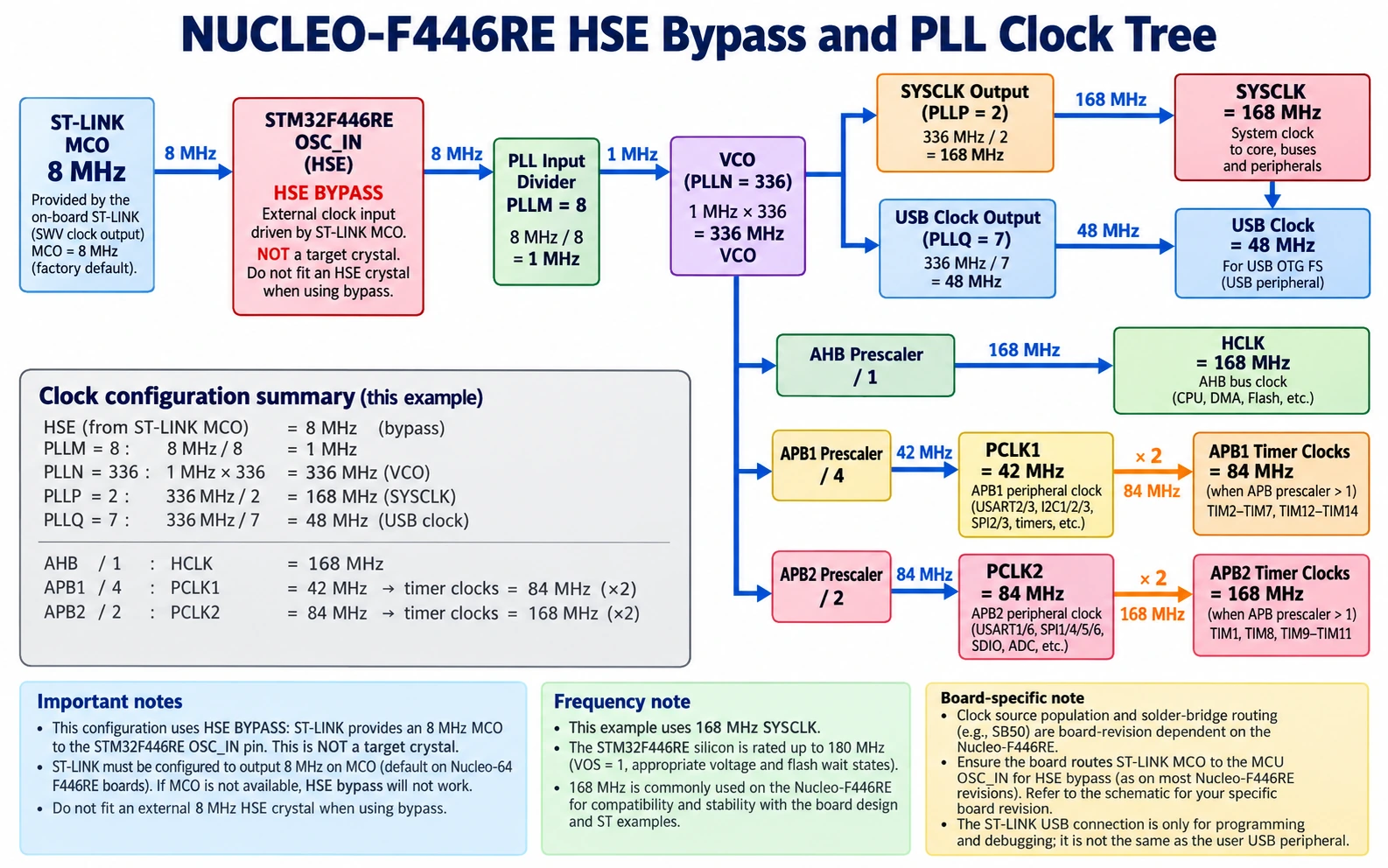
A detail often missed by copied tutorials is the external high-speed clock source. The standard NUCLEO-F446RE can receive a fixed 8 MHz clock from the ST-LINK MCO output. That is a driven clock signal connected to the target’s OSC_IN through board circuitry, not necessarily a crystal soldered across OSC_IN and OSC_OUT. In CubeMX this arrangement needs HSE Bypass rather than Crystal/Ceramic Resonator. Check your board’s solder-bridge configuration before assuming MCO is connected. This is documented in ST UM1724.
The MCU is rated for 180 MHz maximum under its specified electrical and clock conditions. For an approachable USB-friendly example here, 168 MHz SYSCLK is more convenient because an 8 MHz source can also yield 48 MHz for USB via the same PLL setup:
| Setting | Value | Result |
|---|---|---|
| HSE input | 8 MHz (ST-LINK MCO bypass, when connected) | 8 MHz external clock |
| PLLM | 8 | 8 ÷ 8 = 1 MHz PLL input |
| PLLN | 336 | 1 × 336 = 336 MHz VCO |
| PLLP | 2 | 336 ÷ 2 = 168 MHz SYSCLK |
| PLLQ | 7 | 336 ÷ 7 = 48 MHz USB clock |
| AHB prescaler | 1 | HCLK = 168 MHz |
| APB1 prescaler | 4 | PCLK1 = 42 MHz; ordinary APB1 timers clock at 84 MHz |
| APB2 prescaler | 2 | PCLK2 = 84 MHz; ordinary APB2 timers clock at 168 MHz |
This table is a worked clock configuration, not a promise that every setting or board revision requires it. CubeMX must validate voltage scaling, flash wait states and peripheral-clock limits. For first LED tests, the default HSI configuration is also a reasonable starting point. If HSE will not start, confirm the ST-LINK clock source is running, choose BYPASS rather than crystal mode, and check whether powering only the target from an external source leaves ST-LINK MCO unavailable. Do not tell a beginner to solder on a crystal until the MB1136 schematic has been checked.
USART2 virtual COM port: print diagnostics without an external UART dongle
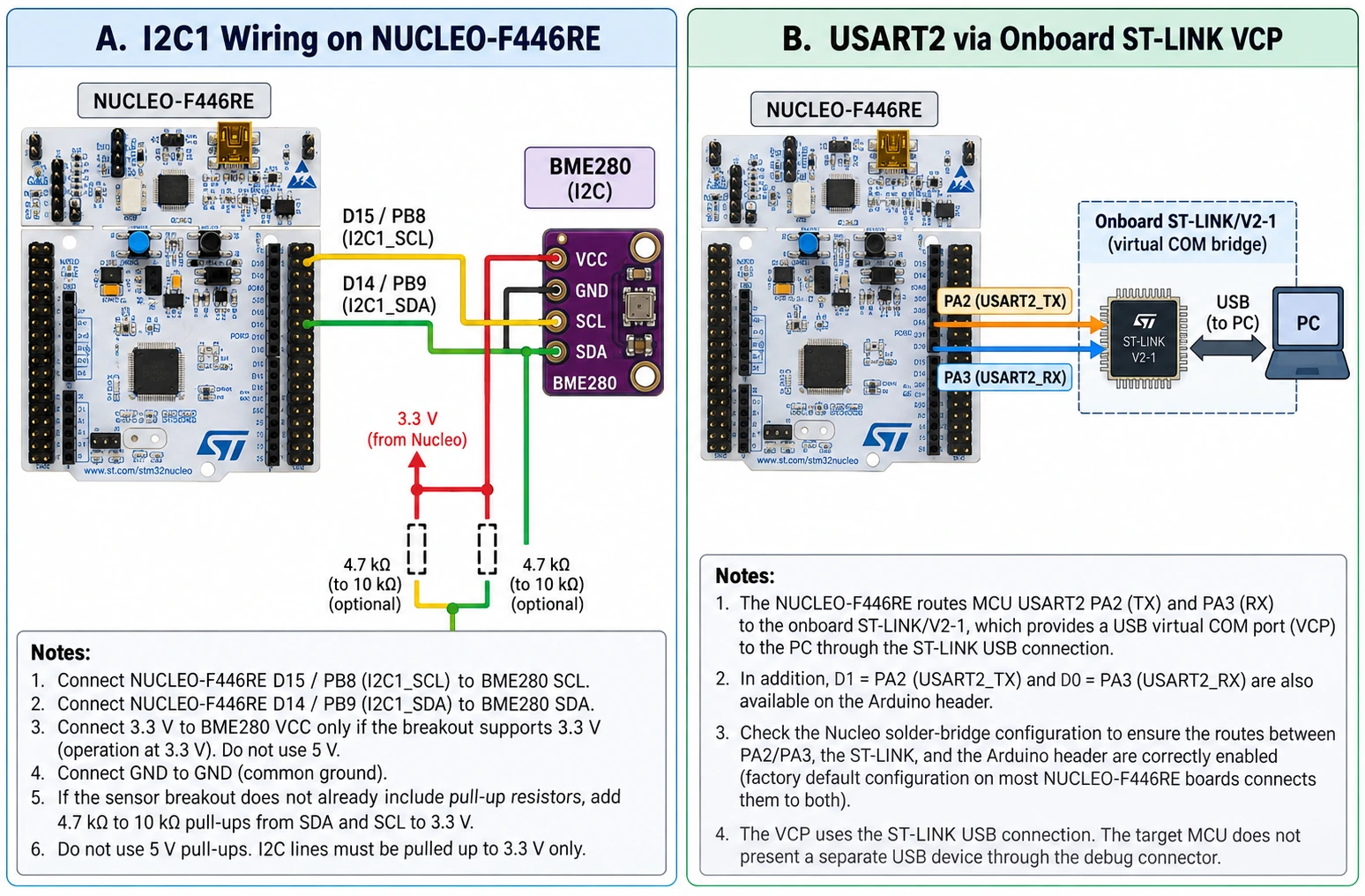
The onboard ST-LINK/V2-1 interface can bridge MCU USART2 to a USB virtual serial port on your PC. In CubeMX select USART2 → Asynchronous, map TX to PA2 and RX to PA3, select a convenient baud rate such as 115200, 8 data bits, no parity and one stop bit, then regenerate and build. A basic transmit example is:
/* USER CODE BEGIN Includes */
#include <string.h>
/* USER CODE END Includes */

/* Place after MX_USART2_UART_Init() in generated main(): */
const char message[] = "NUCLEO-F446RE UART ready\r\n";
HAL_UART_Transmit(&huart2,
                  (uint8_t *)message,
                  sizeof(message) - 1U,
                  100U);
This assumes CubeMX generated huart2 and its initialization function. Open the ST-LINK virtual COM port, not a random Bluetooth/USB serial port, with matching serial settings. If the PC sees ST-LINK debugging but no serial data, verify the VCP device enumerates, the MCU is running, the correct target USART and alternate function are selected, and SB13/SB14 provide the appropriate ST-LINK-to-target routing. No physical TX/RX wires are needed for the default onboard VCP path.
One potential surprise: D1 and D0 are the same PA2/PA3 signals. If you attach a shield whose UART drives these pins, you may introduce contention or route serial messages to two consumers. Consult the bridge mapping before trying to use the ST-LINK VCP and an external 5 V UART module simultaneously.
I²C sensor example using dedicated SDA/SCL pins
For a BME280 or another 3.3 V I²C sensor module, prefer the Arduino R3 dedicated I²C pins rather than A4/A5. Route D15/PB8 → SCL, D14/PB9 → SDA, GND → GND, and a correct 3.3 V supply to the sensor if its module is designed for 3.3 V. I²C lines require suitable pull-up resistors to 3.3 V, often already fitted on a breakout, and should not be pulled up to 5 V without a justified level-translation design.
| NUCLEO-F446RE | I²C sensor signal | Explanation |
|---|---|---|
| D15 / PB8 | SCL | I²C1 serial clock |
| D14 / PB9 | SDA | I²C1 serial data |
| 3V3 | VCC/VIN only if module supports 3.3 V input | Confirm breakout power design |
| GND | GND | Common signal reference |
Set I2C1 in CubeMX and let the generated code configure PB8 and PB9 with their correct alternate function. With I²C peripheral and hi2c1 initialized, a basic readiness probe for a BME280 at address 0x76 looks like this:
/* Requires CubeMX-generated I2C1 and initialized hi2c1. */
const uint16_t bme280_address = (uint16_t)(0x76U << 1);
HAL_StatusTypeDef status = HAL_I2C_IsDeviceReady(&hi2c1,
                                                 bme280_address,
                                                 3U,
                                                 100U);
if (status == HAL_OK)
{
    /* Sensor acknowledges; read chip ID and calibrations next. */
}
The alternative BME280 address is often 0x77, depending on the breakout’s SDO/ADDR strap. HAL expects the 7-bit slave address shifted left by one, which is a frequent source of false “sensor absent” errors. A successful ACK is not proof that a particular device model is attached; read and validate its chip-ID register in a complete driver. If your breakout is a bare BME280, pay attention to CSB/SDO strap pins rather than assuming a four-wire hobby module layout.
ADC example: read an analog sensor on A0 / PA0
ADC is a natural next step after LED and UART. In CubeMX choose ADC1, enable IN0 on PA0/A0, use a 12-bit right-aligned conversion, and configure an appropriate sample time for the signal source impedance. A minimal polling read after generated initialization is:
uint32_t raw = 0U;
if (HAL_ADC_Start(&hadc1) == HAL_OK)
{
    if (HAL_ADC_PollForConversion(&hadc1, 100U) == HAL_OK)
    {
        raw = HAL_ADC_GetValue(&hadc1);  /* 0..4095 in 12-bit mode */
    }
    HAL_ADC_Stop(&hadc1);
}
/* Approximation only: uses assumed analog reference voltage. */
float volts = (3.3f * (float)raw) / 4095.0f;
The conversion is an estimate, because the actual VDDA/VREF+ voltage, ADC calibration/error, noise and source impedance matter. Measure the reference for more accurate voltage results. Do not drive A0 above the legal analog input range, even if the board is plugged into a 5 V Arduino shield. Our STM32 GPIO 5 V tolerance guide explains why “3.3 V MCU” and “FT-rated digital pin” are not interchangeable with “5 V-safe ADC”.
PWM on Arduino D10 / PB6 using TIM4
Arduino D10 is a useful PWM example because it maps to PB6 / TIM4_CH1. Select TIM4 PWM Generation Channel 1 in CubeMX, use PB6 in the matching alternate function, and configure timer prescaler, period and compare value. For the 168 MHz SYSCLK / APB1 divided by four clock arrangement above, TIM4 receives an 84 MHz timer clock because the APB1 timer clock doubles PCLK1 when the APB prescaler is not one.
| Timer parameter | Example value | Meaning |
|---|---|---|
| TIM4 input clock | 84,000,000 Hz | APB1 timer clock |
| PSC | 83 | Counter ticks at 84 MHz ÷ (83+1) = 1 MHz |
| ARR | 999 | 1 MHz ÷ (999+1) = 1,000 Hz PWM |
| CCR1 | 250 | 250 / 1,000 = 25% duty cycle, active-high PWM1 |
| Output | PB6 / TIM4_CH1 | Arduino D10, MCU logic level around 3.3 V |
With CubeMX-generated htim4, enable PWM after initialization using HAL_TIM_PWM_Start(&htim4, TIM_CHANNEL_1). To change duty cycle without rebuilding, use __HAL_TIM_SET_COMPARE(&htim4, TIM_CHANNEL_1, value) with a value within the configured period. For an LED or logic analyser this is an easy waveform to verify, but do not power a motor, solenoid or relay coil directly from PB6. Drive a correctly designed transistor/MOSFET stage with appropriate flyback protection, current limits and common ground.
The timer frequencies change if you use HSI, a different PLL, or another APB divider. Do not copy PSC/ARR values blindly from a 180 MHz project and expect the same 1 kHz output. When a PWM waveform looks twice as fast as calculated, the usual culprit is forgetting the APB timer x2 rule.
Arduino IDE 2 versus CubeIDE: choose the right software
The NUCLEO-F446RE can also be used with the official STM32duino board package and Arduino IDE 2. That is convenient for rapid sketches and popular libraries, but it does not change the underlying 3.3 V electrical limits or the D0/D1/D13 pin sharing. For professional development and reproducible peripheral configuration, CubeMX/CubeIDE provides a stronger route to DMA, timer channels, clock control and debugging. For sketch setup see our STM32 Arduino IDE installation guide; select the Nucleo-F446RE target rather than the Blue Pill variant when applying its general setup lessons.
Avoid confusing the serial-monitor port with the debug USB interface. The onboard ST-LINK can expose a debug probe, mass-storage interface and VCP simultaneously depending on firmware and host drivers. Use ST-LINK/SWD to program and debug firmware; use VCP to read USART2 output. If you enable the MCU’s native USB peripheral through external wiring, that is a third, separate USB function.
Troubleshooting NUCLEO-F446RE problems
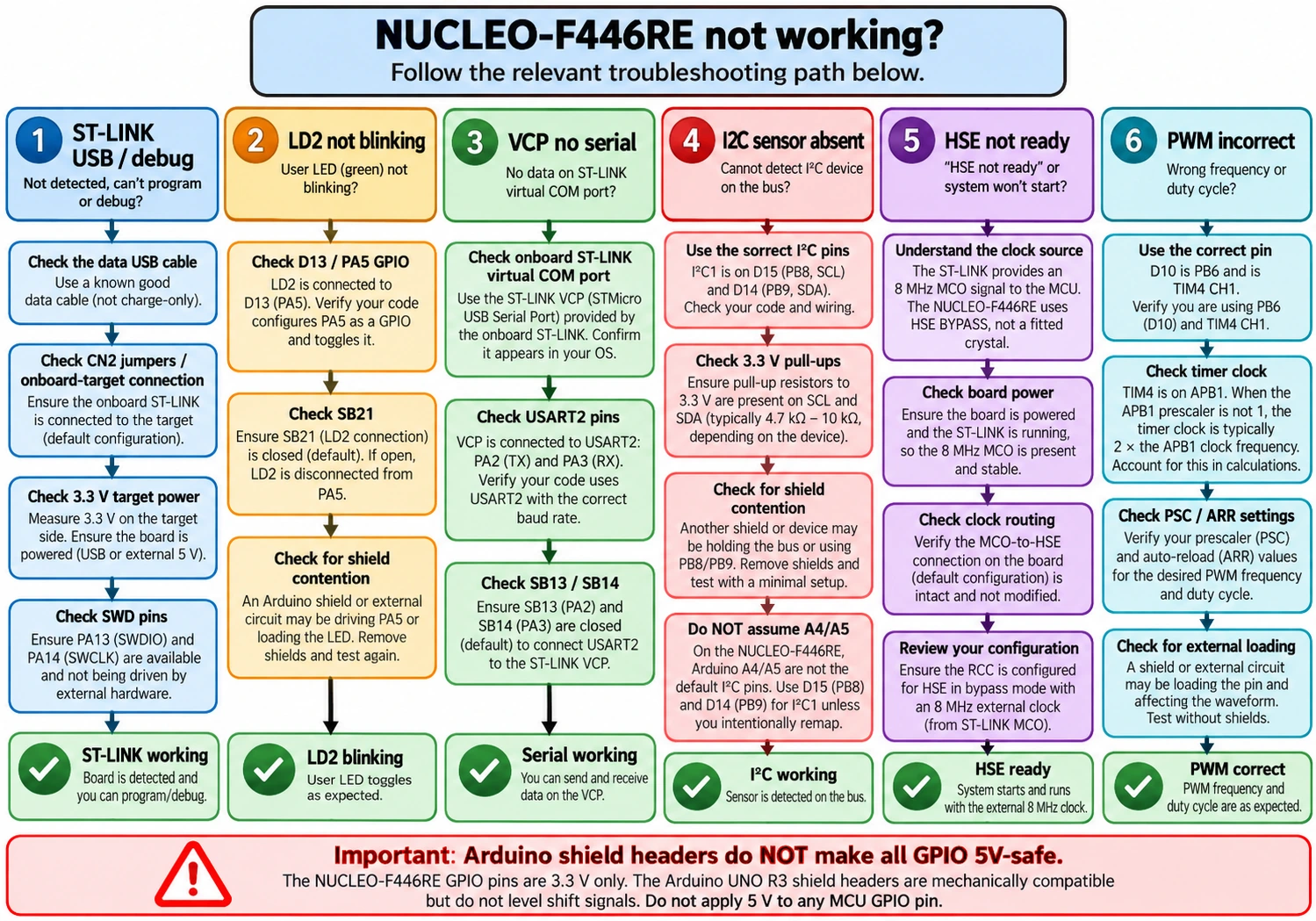
These issues account for most beginner failures. Work from power and hardware identity toward project settings; changing drivers, clock trees and solder bridges at the same time only creates new unknowns.
| Symptom | Likely cause | Practical check or remedy |
|---|---|---|
| ST-LINK not detected on computer | Charge-only USB cable or host/driver problem | Try a known data cable, another port and STM32CubeProgrammer |
| ST-LINK detected, target not found | Target supply, altered CN2 jumpers, or blocked SWD | Check documented onboard-target jumper settings, 3V3 and SWD configuration |
| LD2 never toggles | Wrong pin or SB21 disconnected | Use PA5/D13, GPIO output, inspect LD2 bridge and remove attached shield |
| USART2 virtual COM appears but nothing prints | Incorrect PA2/PA3 mapping or bridge routing | Verify USART2 115200 8N1, correct VCP and SB13/SB14 |
| A4/A5 I²C sensor fails | Analog default instead of SDA/SCL | Use D14/PB9 and D15/PB8 or intentionally change bridge network |
| HSE oscillator will not become ready | MCO bypass treated as a crystal or ST-LINK clock absent | Select HSE Bypass for MCO; confirm actual bridge/power arrangement |
| Arduino shield stops board working | 5 V GPIO conflict, current draw or pin contention | Remove shield, confirm IOREF 3.3 V and test each peripheral separately |
| PWM has wrong frequency | APB prescaler/timer clock misunderstanding | Recalculate timer clock, PSC and ARR for current clock tree |
| USB device cannot enumerate | Connecting to ST-LINK USB rather than target USB, 48 MHz clock or wiring issue | Identify the actual MCU USB data path and correct hardware design |
| Debug code vanishes after regenerating | Code outside USER CODE sections | Restore from version control; use protected user sections |
ST-LINK jumpers and recovery
For normal programming of the onboard STM32, the target-debug connection must be active. On MB1136 this is managed with CN2 jumpers; ST’s manual distinguishes the default onboard-target arrangement from programming an external target via CN4. If the board has been previously used as a standalone ST-LINK adapter, restore the standard CN2 configuration before assuming the target MCU is dead. Connect under reset may help when user firmware reconfigures debug pins or enters a problematic low-power state, but do not mass erase or change read-protection settings unless you are prepared to lose device contents.
For a more general recovery explanation, see our ST-LINK V2 pinout and SWD guide and STM32CubeProgrammer flashing guide.
Project recommendations: what to build next
A sensible progression with this board is: blink LD2; send a diagnostic string on USART2/VCP; read a potentiometer on PA0/A0 through a safe voltage range; add a BME280 via PB8/PB9 I²C; then drive an LED or MOSFET gate driver with TIM4 PWM on PB6. That progression exercises the board’s GPIO, debug, ADC, serial, I²C, timer and power domains without expensive add-on hardware. Record your exact CubeMX .ioc, HAL version, wiring and clock values with the project so another maker can reproduce it.
For more ambitious builds, the Nucleo’s Morpho headers expose the MCU peripheral richness beyond Arduino shields: advanced timers for motor control, CAN interfacing using a transceiver, external storage and richer data acquisition. Check pin mux and connector routing for each design, and avoid drawing an entire system directly from a chip pin list without accounting for shielding, power, startup and signal integrity.
Frequently asked questions
Does the NUCLEO-F446RE need a separate ST-LINK programmer?
No. A compatible ST-LINK/V2-1 debug probe is built into the board and normally connects to the target MCU via SWD. Its USB connection is used for programming, debugging and often USART2 virtual serial access. Use an external probe only for a particular workflow that requires it.
Is the NUCLEO-F446RE 5 V compatible with Arduino Uno shields?
Mechanically compatible, not universally electrically compatible. The board provides Arduino-style headers and a 3.3 V IOREF, but its MCU logic is 3.3 V. Every shield that drives a pin to 5 V must be checked against the exact MCU pad and operating mode; use level shifting when necessary.
Why does Arduino A4 not work for I²C by default?
A4 normally maps to PC1 analog input on many standard Nucleo F446RE configurations. The I²C1 SDA signal is available on D14/PB9. A solder-bridge modification can reroute A4, but the dedicated Arduino R3 SDA/SCL pins are preferable for new designs.
What is the onboard LED pin on the STM32F446RE Nucleo?
PA5, which is Arduino D13, drives green LD2 in the standard board configuration. This pin is also capable of SPI1_SCK; do not try to use it simultaneously as two independent GPIO outputs.
Is the NUCLEO-F446RE’s debug USB port also the STM32 USB port?
No. The visible ST-LINK USB port is connected to the programmer/debugger circuitry. STM32F446RE target USB requires the MCU’s corresponding USB pins, suitable connector and associated electronics; target-USB support in the chip does not mean a dedicated device connector is populated.
What is the maximum clock speed?
The STM32F446RE is rated up to 180 MHz when configured within its specified operating constraints. This tutorial deliberately uses 168 MHz for its worked PLL example to obtain a straightforward 48 MHz USB peripheral clock. Neither speed should be assumed valid without checking CubeMX and the silicon’s voltage/flash requirements.
Can I use CAN with the NUCLEO-F446RE?
The MCU includes CAN peripheral capabilities, but the Arduino and Morpho pins are MCU logic signals. You need the relevant alternate-function configuration, an appropriate external CAN transceiver, safe supply design and correct bus topology and termination before interfacing to CAN_H/CAN_L.
Final checklist
Before wiring an Arduino shield or publishing a schematic, identify the exact board revision; map Arduino labels to GPIO signals; check whether PA5, PA2/PA3 or PC13 are shared with onboard circuitry; confirm A4/A5 bridge configuration; check 3.3 V logic levels and supply budget; keep SWD enabled; and verify the selected HSE/HSI clock source rather than guessing. These small checks save hours of debugging and make a Nucleo project genuinely reproducible.
Official references: NUCLEO-F446RE development board, UM1724 STM32 Nucleo-64 hardware manual, STM32F446RE silicon specifications, and STM32CubeMX user documentation. The article uses documented mappings and calculated clock examples; it does not claim that a physical board was bench-tested while preparing the guide.