Quick answer: Yes, you can program an STM32F103C8T6AliExpress price Blue PillAliExpress price using Arduino IDE 2 and the official STM32 MCU based boards package. Install the STM32duino board core, select Generic STM32F1 series → BluePill F103C8, then upload with STM32CubeProgrammer (SWD) and an ST-LINK programmer. You can alternatively upload using a 3.3 V USB-to-UART adapter and the built-in USART1 ROM bootloader. A stock Blue PillAliExpress price does not have factory USB DFU, so plugging its Micro-USB socket into a PC is not automatically an upload method.
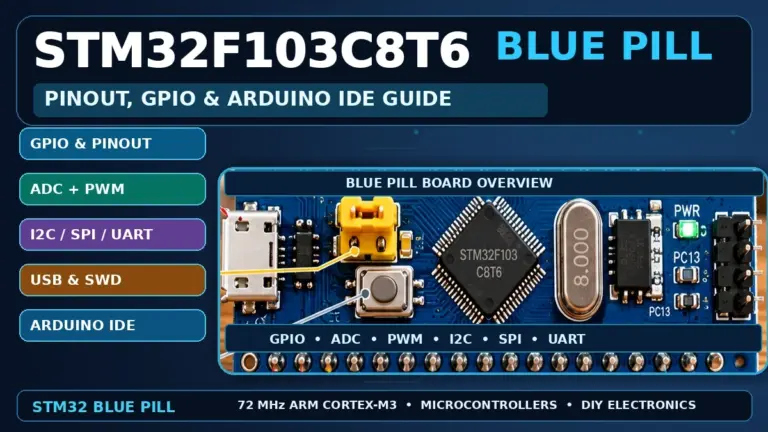
The Blue Pill is a low-cost development board with a 72 MHz Arm Cortex-M3 STM32F103C8, hardware timers, 12-bit ADCs, UART, SPI, I²C, USB-device hardware and a classical CAN controller. The Arduino core lets you write familiar setup() and loop() sketches while still using the STM32’s real peripherals and GPIO names. You do not need to learn STM32CubeIDE before making the onboard LED blink.
But there are several traps: tutorials from the Arduino IDE 1.8 era, an obsolete Boards Manager link, two unrelated STM32 Arduino cores, confusing ST-LINK clones, inverted LED polarity, unreliable Blue Pill USB hardware, and the assumption that a C8-labelled MCU always has 128 KB of flash. This guide explains the current installation route, both reliable upload methods, serial debugging and what to try when a first sketch fails.
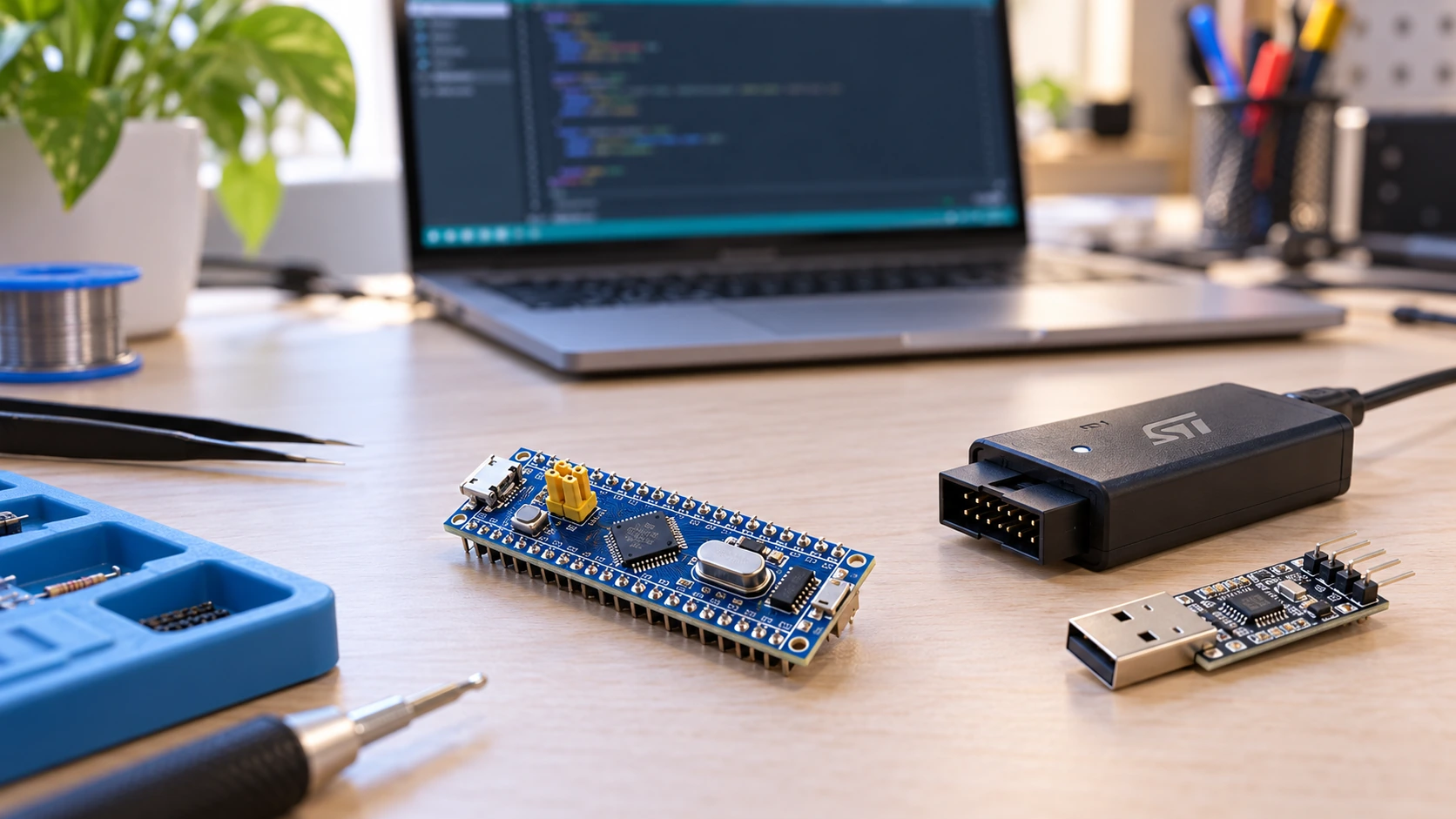
What you need before starting
| Item | Recommended choice | Why it matters |
|---|---|---|
| Development board | STM32F103C8T6 Blue Pill | This guide targets the common 64 KB-flash F103C8 variant |
| Software | Arduino IDE 2.x | Required by current official STM32duino core versions |
| Board package | STMicroelectronics STM32 MCU based boards | Official STM32 Arduino core, not the old Maple core |
| Flash utility | STM32CubeProgrammer | Used by the current core’s standard SWD/serial upload scripts |
| Programmer | Genuine compatible ST-LINK V2/V3-class probe | Most reliable first-time upload; clones have variable pinouts |
| Alternative upload device | 3.3 V USB-to-TTL UART adapter | Uses STM32 factory USART1 bootloader; no ST-LINK required |
| Cables and tools | Known data-capable USB cable, jumper wires, meter | Many supposed programming faults are power or wiring faults |
We recommend ST-LINK/SWD for the first upload. It lets you recover a board even if the last sketch has broken the clock settings or USB enumeration. UART is a valid second route, but you need to switch BOOT0 before uploading and return it afterward. The rest of this guide assumes an ordinary Blue Pill, not a Maple board with a pre-installed USB bootloader.
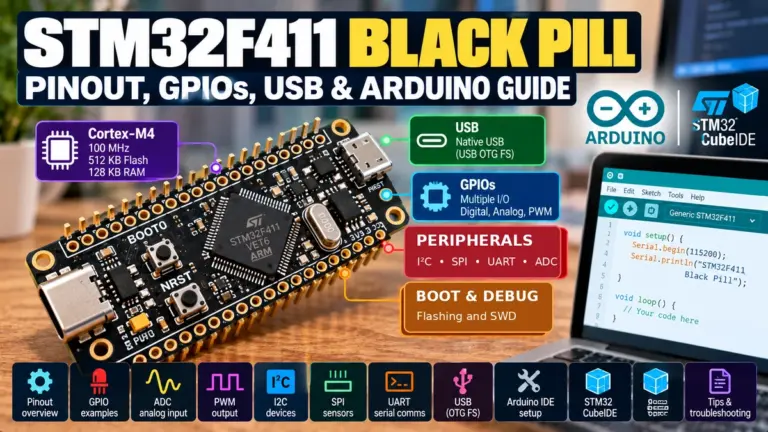
If you are completely new to STM32, read our STM32 beginner’s guide first. For broader buying advice, see Best STM32 development boards in 2026 and our Blue Pill vs Black Pill comparison. Our STM32F103C8T6 pinout reference covers every header signal in more depth than we need here.
Which STM32 Arduino core should you install?
The name STM32duino appears in discussions of two different historical software routes. The current official route is the Arduino_Core_STM32 project, maintained by STMicroelectronics and contributors. It integrates STM32 HAL libraries, Arduino APIs, and board definitions for many STM32 families, not just the F103. The old Roger Clark/Maple-era core, project files and USB bootloader instructions are different; mixing their menu settings and upload tools is a common cause of failure.
As of October 2026, the official project’s current stable release is 3.0.0. A notable breaking change in that release renamed the internally used HardwareSerial class to Uart. Existing sketches that only call predefined objects such as Serial1 are generally easier to carry forward than sketches that manually instantiate the old class. The core’s own release notes are the right place to check when upgrading older code.
Starting with core 2.8.0, Arduino IDE 2 is the supported IDE. Do not follow a 2019 guide which tells you to use Arduino IDE 1.8, install the old Maple core in a hardware folder and select a generic STLink uploader. Those instructions describe a different generation of tools. For the official current workflow, use the package-managed core described below.
Step 1 — Install Arduino IDE 2
Download Arduino IDE 2 from the official Arduino website for Windows, Linux or macOS. Run the installer and launch it once so the user configuration directory is created. On Windows, it can be useful to launch normally rather than as an administrator; the core and sketches should be stored in your own user profile.
Before installing the STM32 package, open a simple built-in Arduino example such as File → Examples → 01.Basics → Blink. At this stage a missing STM32 board is expected. This quick check establishes that the IDE itself starts and that its editor and Boards Manager are accessible.
You do not need STM32CubeIDE or STM32CubeMX to write Arduino sketches. These are separate tools for a more native STM32 development workflow. You do need STM32CubeProgrammer for the standard uploading methods described later.
Step 2 — Add the correct STM32 Boards Manager URL
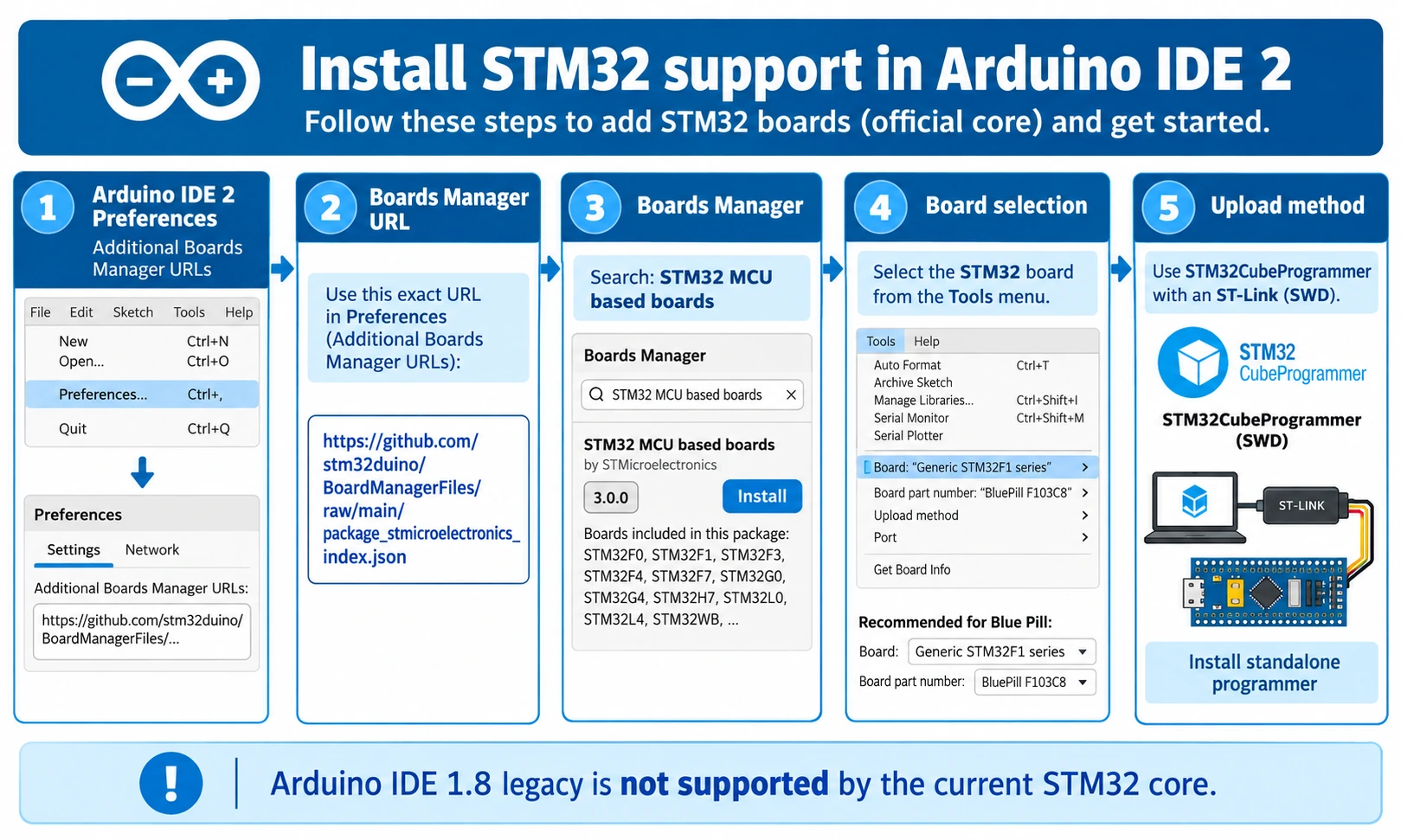
In Arduino IDE 2, open File → Preferences (on macOS, look under the application menu if the menu layout differs). Find Additional Boards Manager URLs and add this exact link:
https://github.com/stm32duino/BoardManagerFiles/raw/main/package_stmicroelectronics_index.json
If you already use ESP32 or another platform, preserve its URLs and add this as another entry. The URL identifies the package index: it does not itself install the compiler or board definitions. Arduino will retrieve the available versions from that index in the Boards Manager.
Do not use the older URL ending in /STM32/package_stm_index.json; the project deprecated it when the modern package index became the supported route. Also do not paste a repository browser page such as /tree/main where a JSON index URL is required.
Open Tools → Board → Boards Manager, or the Boards Manager icon in the IDE sidebar, and search for STM32 MCU based boards. Verify that you are selecting the official STM32 package rather than an unrelated third-party core. Install the current stable version; for this October 2026 article the reference release is 3.0.0. Package installation includes the compiler and support files, so it can take longer than installing a small Arduino library.
If you see a package index download error, check the URL for a misplaced character, confirm that your computer can reach GitHub, and retry. A proxy, workplace firewall or interrupted download can prevent the index from loading even though the Arduino application itself works. Do not fix an index failure by manually copying old core files into the Arduino installation.
Step 3 — Select the Blue Pill and its real MCU
After installation, open Tools → Board and select the board group Generic STM32F1 series. Under the board or part-number submenu, choose BluePill F103C8 or its equivalent F103C8 option. The precise menu layout can shift between core releases, but the important part is that the chip is an STM32F103C8, not an F401, F411 or a generic high-density F103 part.
| Arduino option | Suggested first setting | Reason |
|---|---|---|
| Board family | Generic STM32F1 series | F103 is an F1-series MCU |
| Board part number | BluePill F103C8 | Matches the conventional Blue Pill |
| Upload method | STM32CubeProgrammer (SWD) | Direct programming without custom bootloader |
| USB support | Disabled / default for first LED test | Removes unnecessary USB configuration variables |
| Debug support | Leave default initially | We are testing uploading first |
| Optimization | Default | Avoids changing multiple variables at once |
| Port | Usually irrelevant for ST-LINK/SWD | SWD is not a serial COM-port upload |
Check the top marking of your chip with a magnifier. The STM32F103C8 officially has 64 KB flash and 20 KB SRAM. The STM32F103CB is the official 128 KB variant. Some clone chips and unusual C8-marked parts report or expose more flash, but your first setup should not rely on unofficial extra memory. Selecting the wrong flash size can turn a small working test into an intermittent failure when your application grows.
If your board has an alternative microcontroller marked as an STM32 substitute, its programming ID, flash geometry or USB behaviour may differ. Do not assume every blue-coloured board is electrically identical. Our separate pinout guide covers the common hardware variations.
Step 4 — Install STM32CubeProgrammer
The official STM32 core integrates upload scripts that call STM32CubeProgrammer, but the utility itself must be installed separately. Download it from STMicroelectronics and complete the standard installer. ST sometimes requires an account for software downloads. On Windows, install the available ST-LINK USB drivers as needed.
Launch STM32CubeProgrammer once before trying Arduino uploads. With your probe connected to the computer, it should recognise an appropriate ST-LINK interface. At this point, probe recognition does not prove that your Blue Pill is connected correctly; it only proves that the PC can communicate with the probe. The target still needs correct power, shared ground, SWDIO and SWCLK.
The STM32 core’s upload scripts normally look for the installed executable in ST’s default location or on the operating system PATH. If Arduino reports STM32_Programmer_CLI.exe not found, or the equivalent Linux/macOS launcher error, confirm the installation, then ensure its bin directory is discoverable. Avoid editing Arduino’s internal platform.txt unless you have exhausted normal path and installation fixes.
To keep diagnosis straightforward, complete this software installation before wiring the target. First verify the package compiles a sketch; only then troubleshoot the programmer and electronics.
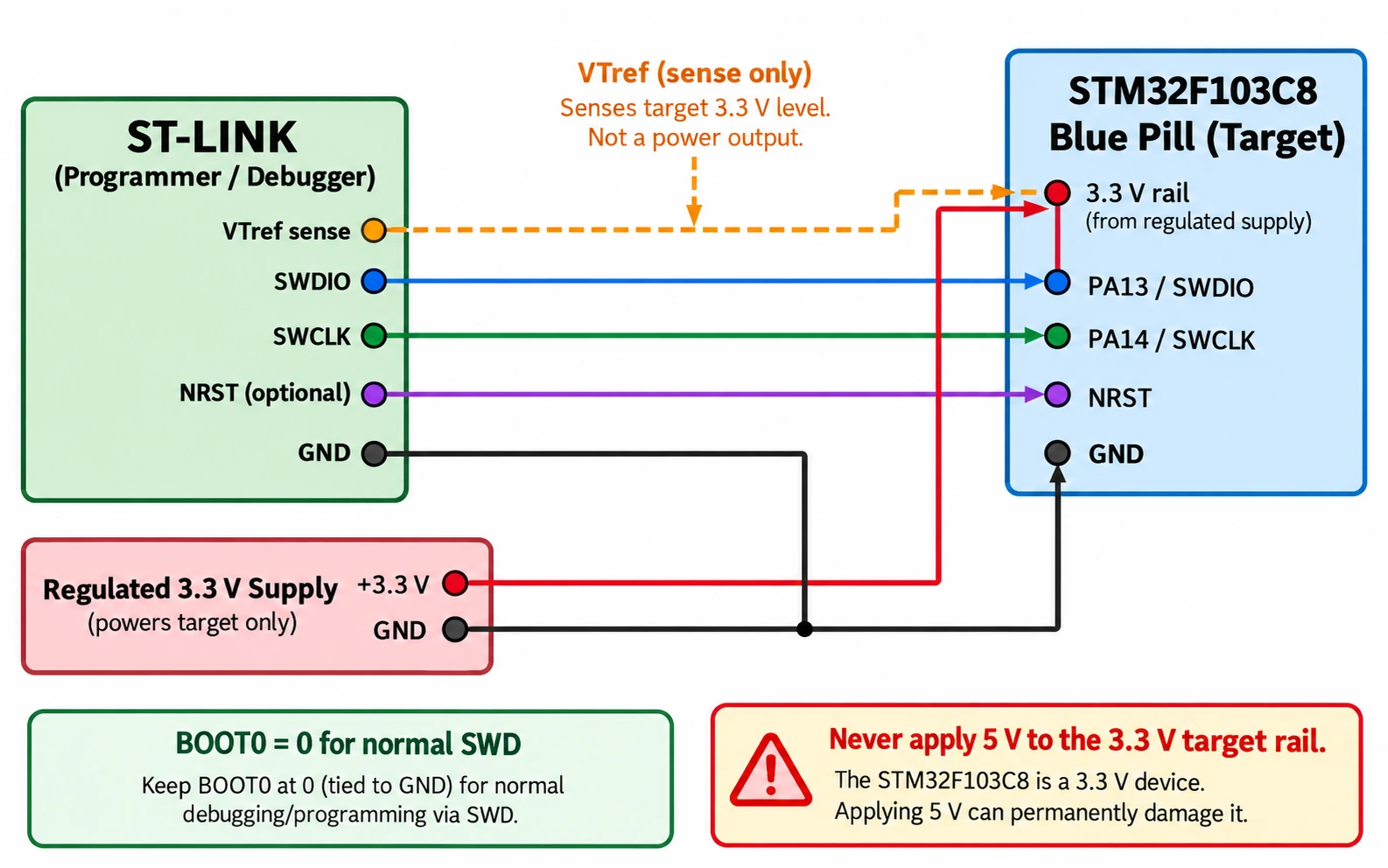
Step 5 — Wire ST-LINK to Blue Pill using SWD
This is the key hardware step. Read the names of the SWD signals on your specific programmer. There is no universal physical pin numbering for every inexpensive ST-LINK V2 clone, even when products look identical. A genuine probe and a USB-stick-style clone may expose signals on entirely different connectors.
| ST-LINK signal | Blue Pill / MCU signal | Function |
|---|---|---|
| SWDIO | PA13 / SWDIO | Bidirectional debug data |
| SWCLK | PA14 / SWCLK | Debug clock |
| GND | GND | Common electrical reference |
| VTref / target sense | Target 3.3 V rail, if required by probe | Detects target I/O voltage; not necessarily power |
| NRST (optional) | NRST | Helps connect under reset if firmware interferes |
The basic programming interface uses SWDIO, SWCLK and ground, plus a properly powered target. Where the programmer has a VTref pin, follow its documentation: on some probes this is a sense input, not a 3.3 V power output. Power the Blue Pill from a stable, suitable source. Use either the board’s intended USB/5 V route through its onboard regulator or a regulated 3.3 V supply to its 3.3 V rail; never apply 5 V to a 3.3 V pin. Do not casually connect two independent power supplies together.
Set BOOT0 LOW for normal flash boot. SWD does not require BOOT0 HIGH because it operates through the debug interface rather than entering the serial ROM loader. If you have a genuine ST-LINK, check the target voltage in STM32CubeProgrammer before uploading. Use short leads and avoid accidentally confusing SWCLK with an unrelated serial clock label.
SWD preflight checklist
- Disconnect target power before moving wires.
- Confirm the Blue Pill’s
3.3VandGNDrail with a meter after power is applied. - Confirm ST-LINK
GNDand targetGNDare common. - Confirm
SWDIO → PA13andSWCLK → PA14by names, not connector positions. - Keep other hardware off PA13 and PA14 while bringing up the board.
- Keep BOOT0 LOW for normal operation.
- Check STM32CubeProgrammer can connect over SWD at a modest clock rate before relying on the Arduino Upload button.
If the board connects at 100–400 kHz but not at a high SWD frequency, use the slower setting while troubleshooting. Debug communication over long, poor-quality jumpers can be unreliable even though the MCU itself is functional.
Step 6 — Your first sketch: blink the Blue Pill’s PC13 LED
The conventional Blue Pill onboard status LED is connected to PC13 and is active-low. Driving PC13 LOW turns it on; driving it HIGH turns it off. That is the opposite of how many basic Arduino boards behave. Use the GPIO’s STM32 port name rather than guessing an Arduino D number:
// STM32F103C8 Blue Pill: common onboard LED is active-low on PC13.
// Uses official STM32duino / Arduino_Core_STM32.

constexpr uint32_t STATUS_LED = PC13;

void setup() {
  pinMode(STATUS_LED, OUTPUT);
  digitalWrite(STATUS_LED, HIGH);  // LED initially off.
}

void loop() {
  digitalWrite(STATUS_LED, LOW);   // On.
  delay(500);
  digitalWrite(STATUS_LED, HIGH);  // Off.
  delay(500);
}
Click Verify first, before connecting anything to the target. A successful compilation means your IDE, target board definition and toolchain can build this sketch. It does not yet mean that the probe is connected or that the firmware has been flashed.
Then choose Tools → Upload Method → STM32CubeProgrammer (SWD) (if the option exists in your selected variant) and click Upload. The output console should show the upload utility connecting to the target and programming flash. Read the first useful error, not only the final “upload failed” line: it often identifies missing programmer software, a missing probe or a target communication failure.
After successful flashing, ensure BOOT0 remains LOW and press RESET if the MCU did not automatically start. You should see the PC13 LED alternate approximately twice per second between on and off, with one complete on/off cycle taking one second. If it stays solid, check the chip/board variant, LED circuitry and code before changing random menus.
LED_BUILTIN versus PC13: Both may work on the official Blue Pill variant, but PC13 is explicit and documents exactly which STM32 GPIO the sketch uses. In other projects we use LED_BUILTIN for portability; here we want a predictable hardware test.
Step 7 — Alternative: upload through the factory USART1 bootloader
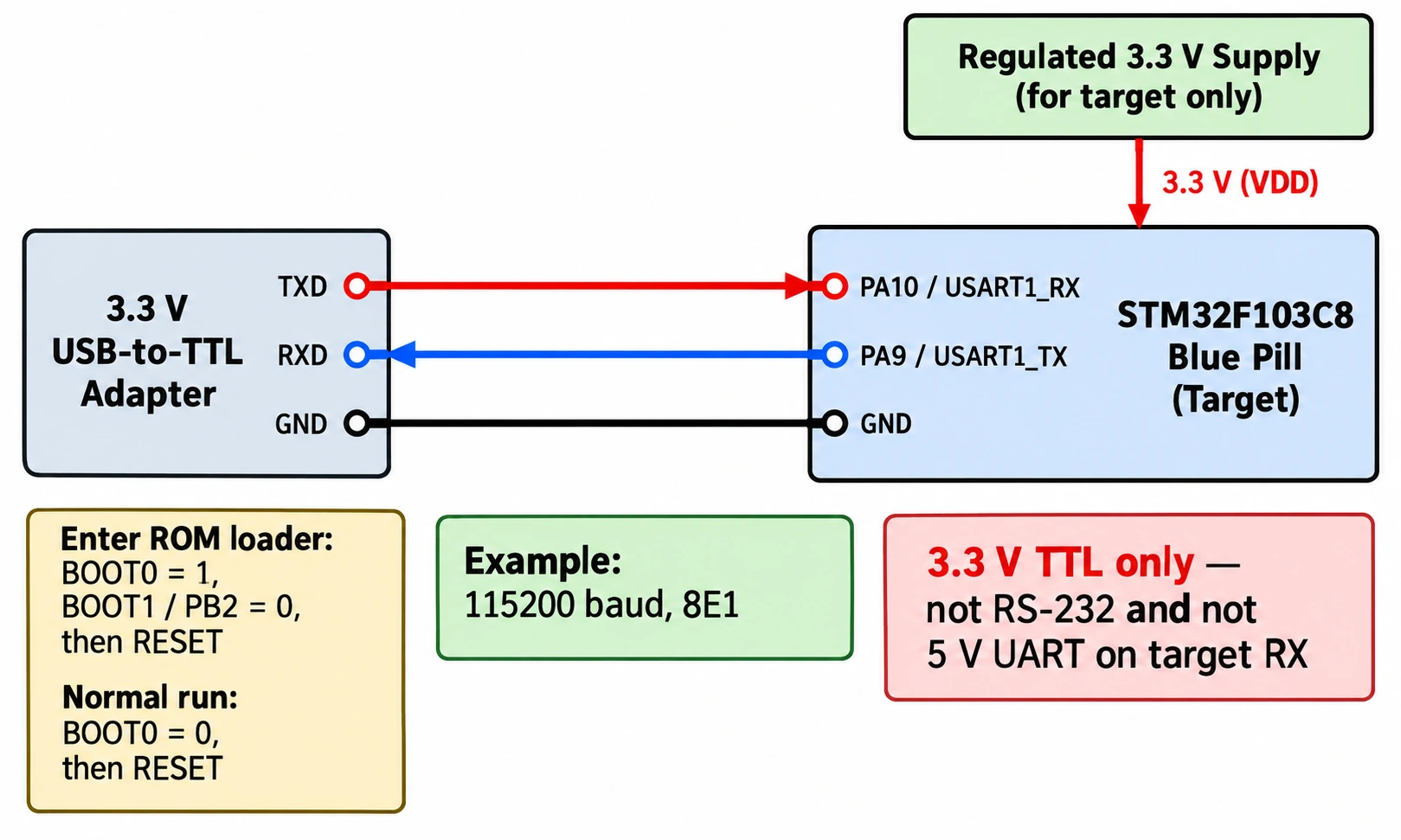
If you do not have an ST-LINK, the STM32F103C8 contains a factory system-memory UART bootloader accessible through USART1. A suitable 3.3 V logic-level USB-to-UART adapter connects the PC to the chip. This is different from RS-232: do not use a ±12 V RS-232 interface or send 5 V logic levels to the MCU’s RX pin.
The standard UART connections are intentionally crossed:
| USB-to-UART adapter | Blue Pill | Explanation |
|---|---|---|
| TXD | PA10 / USART1_RX | Adapter transmits, MCU receives |
| RXD | PA9 / USART1_TX | MCU transmits, adapter receives |
| GND | GND | Common ground |
| Power | Stable 3.3 V board supply | Supply separately or according to adapter’s documented rating |
Some adapters advertise both 3.3 V and 5 V, but the selector may change only their power pin while TXD continues to output 5 V. Check the actual logic voltage, not simply the silk-screened label. Do not power a Blue Pill through both a USB cable and adapter VCC without confirming the board’s power architecture.
For the usual STM32F103C8 boot configuration, set BOOT0 = 1 and BOOT1/PB2 = 0, then reset or cycle target power. These levels select system memory rather than user flash. Set Arduino’s Upload Method to the STM32CubeProgrammer serial/UART option and choose the operating system port belonging to the USB-to-UART adapter. If the upload tool asks for baud rate, a moderate value such as 115200 is a sensible starting point; the F103 ROM bootloader uses 8 data bits, even parity, 1 stop bit (8E1), which STM32CubeProgrammer handles for its bootloader connection.
Click Upload. If successful, restore BOOT0 = 0 and reset before expecting your sketch to run. Leaving BOOT0 HIGH is a classic cause of “upload succeeded but Blink does nothing.” The installed sketch is in flash; the boot pins simply choose whether to execute flash or start the factory bootloader after reset.
The factory serial bootloader is not the same as a USB serial console created by your own Arduino sketch. The adapter connects to PA9/PA10 and can be used for diagnostic messages when a sketch runs, but the bootloader protocol and normal application messages are different uses of that UART.
Does the Blue Pill Micro-USB port work for Arduino uploads?
Not on a stock STM32F103C8 in the same way as an Arduino Leonardo or many ESP32 development boards. The F103 has USB full-speed device hardware, connected to PA11 (D−) and PA12 (D+) on typical Blue Pills. But the factory system-memory bootloader for this device does not offer USB DFU. A computer cannot program a blank chip simply because a Micro-USB connector is present.
Some historical Blue Pills were modified with a Maple/STM32duino USB bootloader already installed in user flash. If you deliberately install such a bootloader, your board may accept firmware by USB using a matching toolchain and upload method. That is an extra software component, consumes flash space and has its own recovery and compatibility considerations. It is not a hidden feature that all Blue Pill boards ship with. A USB-DFU tutorial for a supported STM32F4 chip is not automatically applicable to an F103C8.
USB can still be useful after programming: a sketch configured with USB CDC may make the board appear as a virtual serial port. That depends on both the sketch/core settings and the board’s USB hardware, and is independent of whether the factory ROM supports DFU. Some old Blue Pill clones have the wrong D+ pull-up resistor value, which can prevent reliable detection even if the firmware configures USB correctly.
For a first project, leave USB CDC disabled and use SWD. Once Blink works, enable the USB device/CDC option supported by your chosen core variant and test with a known data-capable cable. If the PC does not show a new serial port, check the D+ pull-up hardware, the 48 MHz USB clock configuration produced by the core, the driver and the cable before declaring the board dead.
Serial debugging: USB CDC or a 3.3 V UART adapter?
With SWD flashing confirmed, you may want a Serial.print() console just like on an Arduino Uno. On STM32, the word Serial can refer to different backends depending on core configuration. That is why old examples often compile yet print nothing to the expected port.
The least ambiguous starting choice is Serial1 on USART1, using PA9 as TX and PA10 as RX. Connect the adapter RXD to PA9, adapter TXD to PA10 if two-way communication is required, and always share ground. Set the serial monitor to 115200 baud and choose the adapter’s COM/tty device.
// Hardware USART1 diagnostics without depending on USB CDC.
void setup() {
  Serial1.begin(115200);
  delay(200);
  Serial1.println("STM32 Blue Pill booted");
}

void loop() {
  Serial1.print("Millis: ");
  Serial1.println(millis());
  delay(1000);
}
If you use USART1 for uploading via the ROM bootloader, it is fine to reuse PA9/PA10 for runtime logs after returning BOOT0 to LOW and resetting. However, an external device actively driving USART1 while the ROM loader starts can interfere with the bootloader’s initial serial handshake. Disconnect or quiet attached peripherals when diagnosing serial upload failures.
When using USB CDC, check what the currently installed core calls the USB serial instance and whether its USB option supersedes the generic Serial object. Do not assume an existing Serial1 sketch suddenly begins printing over the Micro-USB connector. These are different physical interfaces.
Working with STM32 pins in Arduino sketches
The official core accepts real STM32 pin identifiers such as PA0, PB6, PA9 and PC13. This is clearer than memorising a board-specific Arduino digital-pin number. The same pin can offer GPIO, timer or peripheral functions, but firmware must configure the appropriate mode.
| Function | Common Blue Pill signal | Notes |
|---|---|---|
| Status LED | PC13 | Usually active-low; modest drive capability |
| USART1 TX / RX | PA9 / PA10 | Hardware serial and factory UART loader |
| I²C1 SCL / SDA | PB6 / PB7 | Requires pull-ups to the appropriate voltage |
| SPI1 SCK / MISO / MOSI | PA5 / PA6 / PA7 | Hardware SPI |
| Analog input | PA0 | 12-bit ADC hardware; 3.3 V input limit |
| SWD debugging | PA13 / PA14 | Avoid repurposing during development |
| USB D− / D+ | PA11 / PA12 | Use for USB device firmware, not automatic ROM DFU |
Example: read a potentiometer with the ADC
Power the potentiometer from the Blue Pill’s regulated 3.3 V and GND rails; connect its wiper to PA0. This ensures the wiper cannot exceed the ADC supply voltage during normal operation. Do not connect a 5 V potentiometer’s wiper directly to PA0.
void setup() {
  Serial1.begin(115200);
  analogReadResolution(12);    // Expected values: 0 to 4095.
}

void loop() {
  uint16_t reading = analogRead(PA0);
  Serial1.print("ADC PA0: ");
  Serial1.println(reading);
  delay(250);
}
This is a quick functional test, not precision metrology. The ADC result depends on VDDA/reference noise, input impedance and acquisition timing. Avoid using a long, high-impedance sensor lead or assuming the ADC reference is exactly 3.300 V.
Example: simple I²C scanner
Use a 3.3 V sensor such as a BME280 on the common default Blue Pill I²C pins: PB6/SCL and PB7/SDA. Check whether the breakout already includes pull-up resistors; 4.7 kΩ is a common starting value when external pull-ups are actually needed. Many BME280 breakout boards also expose an SPI mode, so check the breakout’s mode-selection wiring.
#include <Wire.h>

void setup() {
  Serial1.begin(115200);
  Wire.begin();  // Blue Pill default: PB6 = SCL, PB7 = SDA.
  delay(300);
}

void loop() {
  Serial1.println("Scanning I2C...");
  for (uint8_t address = 1; address < 127; ++address) {
    Wire.beginTransmission(address);
    if (Wire.endTransmission() == 0) {
      Serial1.print("Found 0x");
      if (address < 16) Serial1.print('0');
      Serial1.println(address, HEX);
    }
  }
  delay(3000);
}
For a typical BME280 module, expect an address such as 0x76 or 0x77 depending on its SDO wiring. No detected devices generally indicates pull-up, wiring, supply-voltage or module mode problems, not an Arduino IDE installation problem. You can follow up with our Blue Pill GPIO and pinout guide for peripheral mappings.
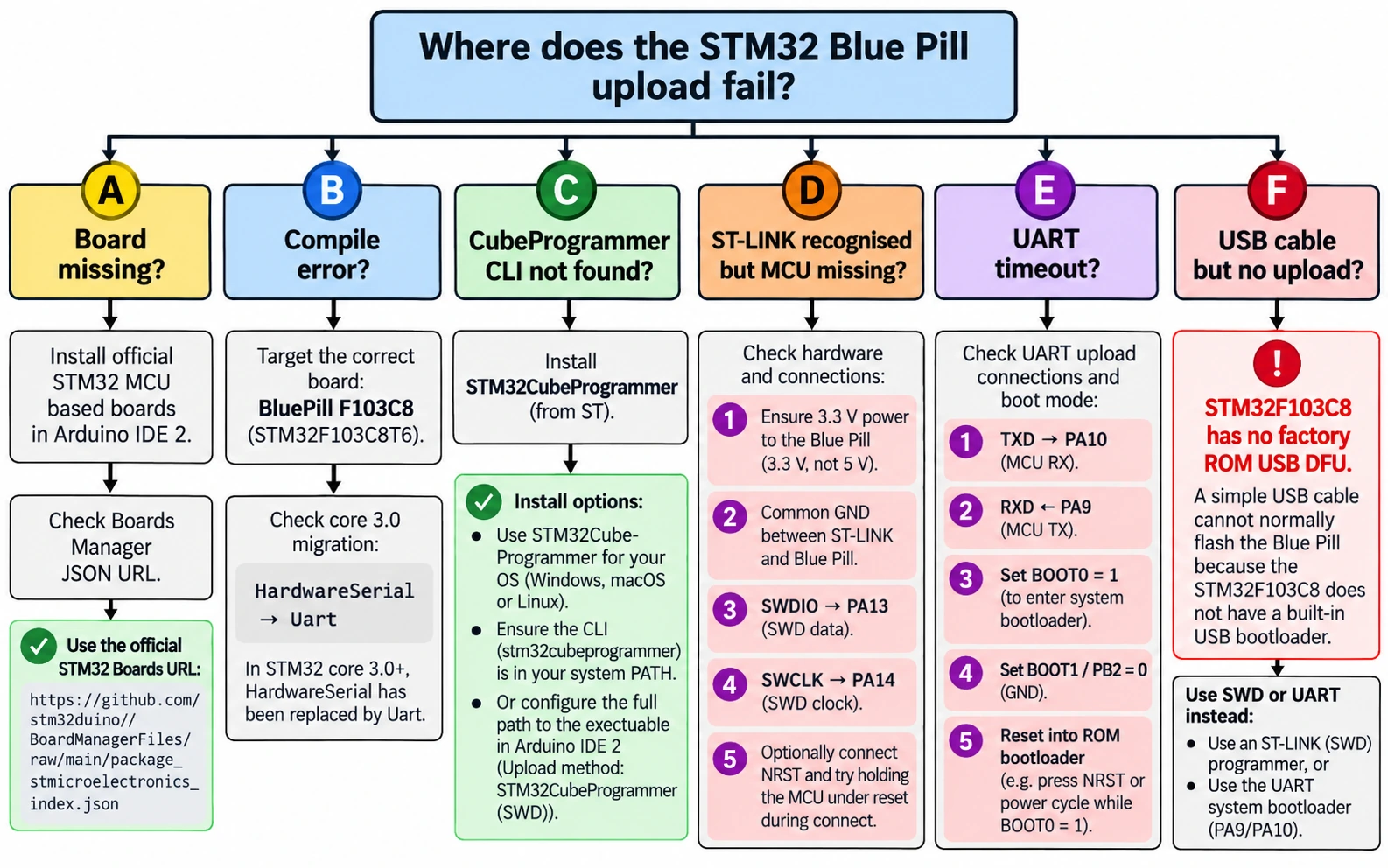
Common Arduino IDE upload problems and fixes
| Symptom | Likely cause | What to do first |
|---|---|---|
| STM32 boards do not appear | Package index not installed or wrong URL | Verify the official JSON URL and install STM32 MCU based boards |
STM32_Programmer_CLI.exe not found | CubeProgrammer missing or not discoverable | Install CubeProgrammer; check the executable path/PATH |
| ST-LINK not detected at all | Driver, cable, probe firmware or clone fault | Test probe alone in CubeProgrammer; try known-good data cable |
| ST-LINK detected, target not found | No target power, SWD wiring or missing common GND | Measure 3.3 V, confirm PA13/PA14 and GND; lower SWD clock |
| Cannot connect after sketch change | User code repurposes debug pins or resets rapidly | Use connect-under-reset with NRST connected, recover over SWD |
| UART timeout or no acknowledgment | BOOT0 wrong, TX/RX not crossed, port wrong | Set BOOT0 HIGH, PB2/BOOT1 LOW, reset, confirm PA9/PA10 |
| Upload succeeds, LED does not blink | BOOT0 still HIGH, LED inverted or wrong target | BOOT0 LOW/reset; active-low PC13; check selected part |
| USB port does not enumerate | No USB CDC sketch, wrong cable or D+ pull-up issue | First confirm SWD Blink; then inspect USB configuration and hardware |
Old HardwareSerial declaration fails | Core 3.0.0 API change | Read release notes; prefer predefined Serial1 or adapt to Uart |
| Sketch too large or inconsistent flash | C8/C B confusion, incorrect flash selection | Respect 64 KB for genuine F103C8; check actual MCU |
| Serial monitor remains empty | Wrong COM port, UART vs USB CDC confusion | Verify physical interface; try Serial1 over 3.3 V adapter |
| Board overheats or resets | Short, incorrect supply or 5 V on 3.3 V rail | Remove power immediately; check wiring with a meter |
Recovery with ST-LINK: connect under reset
If a previous sketch disabled SWD pins, reconfigured the MCU to an unsuitable clock or immediately enters a fault/reset loop, an SWD connection may fail. With the correct NRST wire connected, STM32CubeProgrammer supports connecting while reset is asserted. Reduce the SWD clock if necessary, perform a suitable erase and reflash a known-good Blink sketch. Do not turn off read-out protection or alter option bytes indiscriminately: security settings have device-specific consequences, and changing them is not needed for ordinary Arduino setup.
Troubleshooting USB and driver behaviour on Windows, Linux and macOS
On Windows, Device Manager should show the ST-LINK probe when plugged in, and a USB-UART adapter should create a COM port. These are different devices. A Blue Pill application running USB CDC may create yet another COM port, if configured and working. If the USB cable only carries power, it may light the board but never expose the expected data device.
On Linux, serial devices appear under names such as /dev/ttyUSB* or /dev/ttyACM*; access permissions and udev rules can prevent a process from opening them even when the hardware appears in dmesg. On macOS, serial devices often use /dev/cu.* naming. If Arduino claims a port is busy, close other serial-monitor windows and development tools first.
Never start debugging by installing random unsigned USB drivers advertised in an old forum thread. Identify which interface is failing—ST-LINK USB, USB-to-UART, or target USB CDC—and use the documentation for that specific device.
Arduino IDE vs STM32CubeIDE: when should you move?
Arduino IDE is entirely reasonable for sensors, displays, timers, GPIO experiments and quick embedded prototypes. It exposes high-level functions such as digitalWrite, analogRead, Wire, SPI and Serial1, and it gets you producing results quickly. You can build more than a blinking LED with it, and its generated binaries run directly on the MCU without any Arduino operating system.
For complex motor control, carefully configured DMA, complex clock trees, unusual peripheral remapping, RTOS integration or close-to-register debugging, the STM32CubeMX/STM32CubeIDE workflow becomes more compelling. Arduino’s abstractions can still use hardware peripherals, but they sometimes hide details that matter in performance-critical applications. Our STM32 beginner guide introduces the native development toolchain; move to STM32CubeIDE when your project requirements justify the extra control.
The choice is not ideological. Use Arduino for rapid experimentation, then port projects that need more direct hardware control to an ST-native toolchain when there is a concrete reason.
Frequently asked questions
Can I install STM32 Blue Pill support in Arduino IDE 2 in 2026?
Yes. Install the official STM32duino package using its Boards Manager JSON URL. The official current core 3.0.0 targets Arduino IDE 2; it is not the same as the older Roger Clark/Maple core.
Can I upload to a Blue Pill through USB without ST-LINK?
Through a 3.3 V USB-to-UART adapter, yes: enter the factory USART1 bootloader and upload over PA9/PA10. Through the stock Blue Pill Micro-USB connector alone, no factory USB DFU upload is available on the F103C8. A separately flashed USB bootloader is a different arrangement.
What are the correct Blue Pill ST-LINK pins?
Use PA13 = SWDIO, PA14 = SWCLK, and a shared GND. Provide an appropriate target supply and use VTref according to your specific probe’s manual. Optional NRST helps recovery. Do not guess connector pin numbers from an unrelated clone photo.
Does the Blue Pill onboard LED turn on with HIGH or LOW?
The conventional Blue Pill PC13 LED is active-low: LOW turns it on; HIGH turns it off. Some board variants can differ, so confirm your hardware if behaviour does not match.
Why does Arduino IDE say “No port selected” when I have ST-LINK?
An SWD upload goes through a debug probe, not a serial COM port. With STM32CubeProgrammer (SWD) selected, the key requirements are a detected ST-LINK, powered target and correct SWD wiring; a serial port may be unnecessary for the upload. Use Port selection when uploading over a USB-to-UART adapter instead.
Which flash-size option should I choose?
For an authentic STM32F103C8, start with 64 KB. Do not rely on unofficial 128 KB flash behaviour reported on some clone chips. If you have an STM32F103CB, select its matching 128 KB definition.
Can I use an STM32 Blue Pill for CAN bus projects from Arduino?
The MCU has a classical CAN controller, but the physical CAN bus needs a compatible external transceiver. CAN pin assignment and library support should be planned before connecting a vehicle network. See our STM32 CAN bus hardware guide.
Final recommended setup
For a straightforward first Blue Pill project in 2026, use Arduino IDE 2 + official STM32duino core 3.0.0 + correct F103C8 target + STM32CubeProgrammer + ST-LINK/SWD. Start with the active-low PC13 Blink sketch, confirm flashing and reset behaviour, then test USART1 logging, ADC or I²C in separate steps. Keep BOOT0 LOW for normal SWD uploads and resist the temptation to change five options at once if something fails.
Once Blink works, the Blue Pill becomes a genuinely useful development board rather than a mystery device requiring decades-old forum instructions. Use the Blue Pill pinout guide alongside this tutorial, and compare the F103 Blue Pill with the F411 Black Pill before buying several boards for a larger project.
Sources and further reading
- Official STM32 Arduino core — Getting Started: supported Arduino IDE generation, package-index URL and board installation.
- Official STM32 Arduino core — Upload Methods: CubeProgrammer prerequisites, SWD, UART and DFU distinctions.
- STM32 Arduino core releases: 3.0.0 release notes and API changes.
- ST STM32CubeProgrammer: ST’s supported flashing and memory utility.
- ST AN2606, STM32 system-memory boot mode: exact ROM bootloader capabilities and boot-mode requirements.
- STM32F103x8/xB product documentation: official device-specific electrical, memory and peripheral data.