If you followed an STM32 tutorial from a few years ago, you may remember opening STM32CubeIDE, selecting a board and double-clicking an .ioc file to configure pins inside the IDE. On a fresh installation of STM32CubeIDE 2.x, that workflow has changed. STM32CubeMX is now a separate application, so a new project commonly starts in CubeMX, which generates code and project settings for CubeIDE. The IDE then builds, downloads and debugs the firmware. Treating these as two separate tools is the most important part of setting up STM32 development in 2026.
This guide follows that process from a clean computer to a blinking LED. It uses a NUCLEO-F401RE board because it has an onboard ST-LINK programmerAliExpress price and a well-documented green user LED (LD2 on PA5, also connected to Arduino D13). No separate programmer or breadboardAliExpress price is required. We will also explain which installer you need, how to choose the right board and firmware package, why a project may lack an .ioc file, how to keep custom code safe during regeneration and where the newer STM32CubeMX2 fits.
Quick answer: Install STM32CubeIDE 2.x and classic STM32CubeMX separately from ST. In CubeMX, start from NUCLEO-F401RE, configure PA5 as GPIO_Output and SYS → Debug: Serial Wire, then under Project Manager choose Toolchain/IDE: STM32CubeIDE and generate the project. In CubeIDE select File → STM32 Project Create/Import → STM32CubeMX/STM32CubeIDE Project, import the generated directory, add the LED loop in main.c, build and debug with the board’s onboard ST-LINKAliExpress price. Menu names can vary slightly by maintenance release, but the separation between the tools is the key change.
What changed in STM32CubeIDE 2.x?
ST separated the microcontroller configuration and code-generation tool from the Eclipse-based build/debug IDE starting with STM32CubeIDE 2.0.0 in November 2025. At the time of this article, ST lists STM32CubeIDE 2.2.0 in its official downloads and STM32CubeMX 6.18.0 in its online documentation. Version labels and support packages will change, so always use the currently supported releases offered for your computer rather than searching for an installer with an exact filename.
Here is the difference that matters when you follow a tutorial:
| Task | STM32CubeIDE 1.x workflow | STM32CubeIDE 2.x workflow |
|---|---|---|
| Select MCU and pins | CubeMX interface embedded in IDE | Open standalone STM32CubeMX |
| Edit clock tree and peripherals | Usually within IDE .ioc editor | Edit .ioc in standalone CubeMX |
| Generate HAL/CMSIS startup code | IDE-integrated CubeMX | Click Generate Code in CubeMX |
| Edit C and C++ source | CubeIDE editor | CubeIDE editor |
| Compile and link firmware | CubeIDE | CubeIDE |
| Program/debug via ST-LINK | CubeIDE | CubeIDE |
| Regenerate after pin change | Save .ioc in IDE | Regenerate in CubeMX, then refresh CubeIDE |
Important distinction: CubeIDE 2.x can create an empty MCU project on its own. That does not recreate the old integrated CubeMX configuration workflow. If you want STM32Cube-generated peripheral initialization, start in the standalone CubeMX configurator rather than assuming a newly created empty project will contain an .ioc file.
The separation is not necessarily a disadvantage. CubeMX describes the hardware configuration, and CubeIDE handles your application and debugging. When you understand which tool owns which files, the project becomes much easier to maintain.
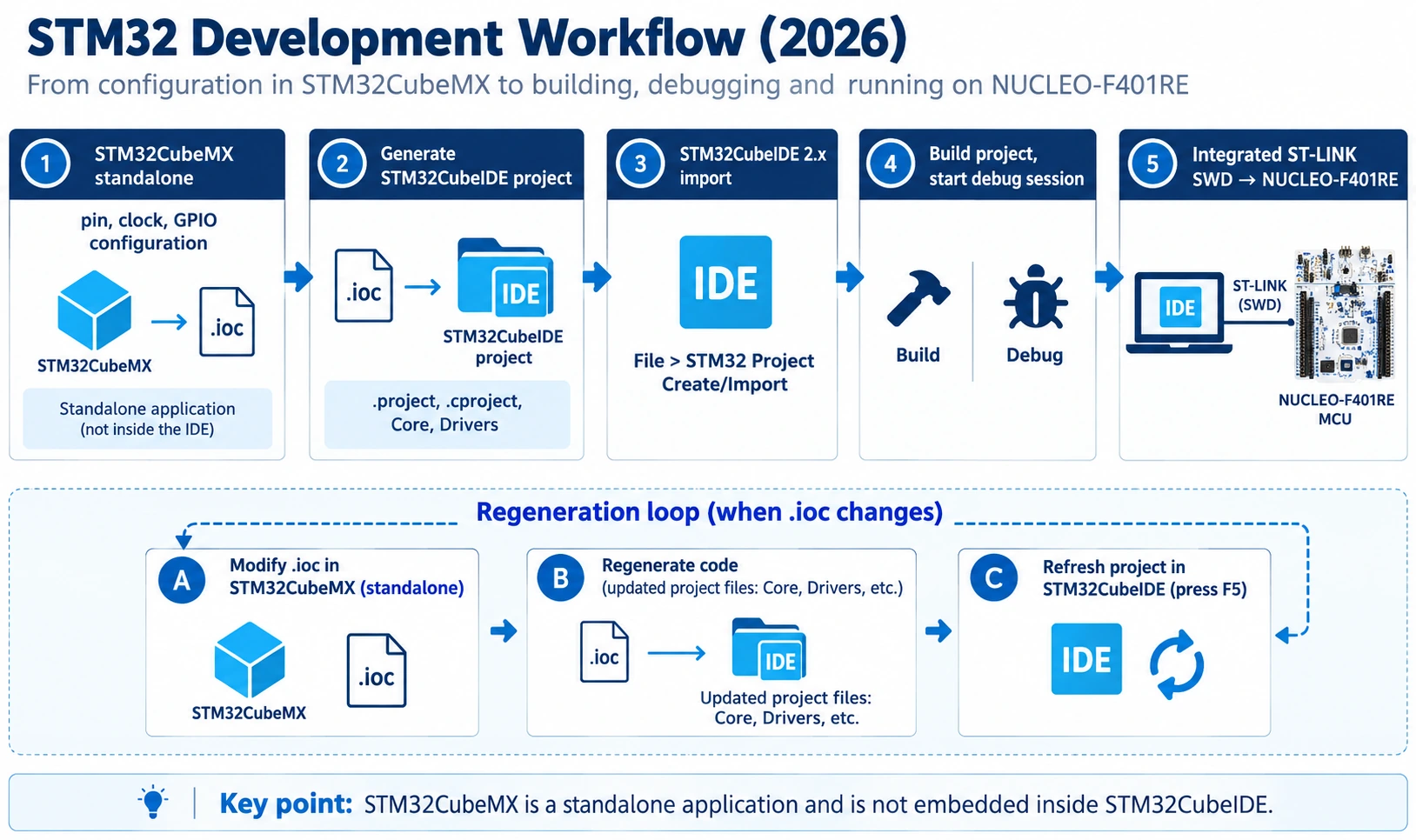
Which STM32 software do you actually need?
For a beginner using a Nucleo board and HAL, the minimum useful installation is two programs. A third is convenient for independent flashing and recovery, but it is not required to build and run this first project.
| Software | Main job | Needed for this tutorial? |
|---|---|---|
| STM32CubeIDE | Edit source, compile/link, debug over ST-LINK | Yes |
| STM32CubeMX (classic) | Select hardware, set clocks and GPIO, generate project | Yes |
| STM32CubeProgrammer | Read target information, program binaries, erase flash, inspect option bytes | Optional but recommended |
| STM32CubeF4 MCU package | HAL, CMSIS, drivers, startup code and examples for STM32F4 family | Yes; CubeMX can download it |
| STM32CubeMX2 | Newer configuration/code-generation workflow initially focused on new series | Not for this F401RE walkthrough |
Download from the manufacturer’s own pages: STM32CubeIDE, STM32CubeMX and STM32CubeProgrammer. STM32CubeMX2 is a different product from STM32CubeMX; do not confuse the two download entries.
Avoid unofficial installer mirrors. Debug tools sometimes install USB drivers or device-access rules, so source authenticity matters. If ST’s download site asks for account details or license acceptance, use the prompts on the official page; do not trust a third-party download that claims to bypass them.
Which computer and operating system?
STM32CubeIDE 2.2.0 has installer choices for Windows, Linux, Intel macOS and Apple Silicon macOS on the ST product page. Use the architecture that matches your machine. On Windows, allow the approved ST USB/debugger driver installation when offered. On Linux, review the installer instructions for USB device permissions and udev rules if the debugger is detected only when run as root. On macOS, use the proper Intel/Apple Silicon package and follow the OS permission prompts.
Exact supported distributions and macOS versions are release-dependent. Check the matching UM2563 installation guide and release notes, not a decades-old list of requirements. Keep several gigabytes free for the IDE, CubeMX, device repositories, build output and future family packages. A path without unusual characters or aggressive cloud synchronization is a good default for a first workspace.
What hardware should you use?
The example assumes an authentic or compatible NUCLEO-F401RE, a known-good USB data cable fitting the ST-LINK USB connector on your board and a laptop or desktop. The Nucleo includes an ST-LINK debug interface; you do not need to buy a separate ST-LINK V2 USB dongle. Some boards expose more than one USB connector or have revision-specific layouts: use the connector identified for the onboard ST-LINK, not an arbitrary MCU USB interface.
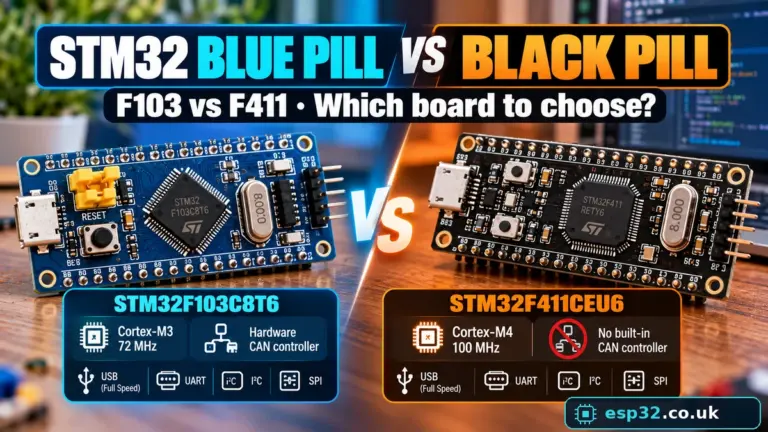
An STM32 Blue Pill or Black Pill is also suitable for learning, but its programmer wiring, target power and LED pins differ. For a first install, the Nucleo removes three common sources of failure: clone debuggers, loose SWD wires and uncertain supply connections. Our separate guides cover STM32 for beginners and choosing an STM32 development board.
Step 1 — Install STM32CubeIDE 2.x
- Open the official STM32CubeIDE product page, select the package for your OS and architecture, then download it.
- Read the release notes and close any running older instances before installing. If maintaining old projects, back them up first.
- Run the installer using the recommended options. On Windows, approve the relevant ST device-driver prompts. On Linux or macOS, follow the OS-specific installation directions rather than inventing filesystem permissions.
- Launch STM32CubeIDE and select or create a workspace directory such as
Documents/STM32Workspace. The workspace stores IDE configuration and references to projects; it does not have to be the same directory as the CubeMX-generated project. - Let CubeIDE complete first-run indexing. You may see a welcome page, an Information Center or optional update notices. Close these when ready.
At this point, do not start the tutorial by clicking “New STM32 Project” and expecting a pin configurator to appear. CubeIDE still provides MCU/board selection for empty-project workflows, but we deliberately want HAL code and settings generated by CubeMX.
If you already have CubeIDE 1.x installed, consider retaining a backup of working projects before trying them in 2.x. The source code and HAL concepts remain familiar, but project metadata, regeneration and debugger versions may need attention. A fresh install is not an instruction to rewrite a functioning product firmware project.
Step 2 — Install classic STM32CubeMX and the F4 package
Download STM32CubeMX, install it independently and launch it. Current classic CubeMX documentation is for the 6.18.0 line. It includes its Java runtime; you normally do not need to source an unrelated Java installation for a modern CubeMX release.
When the application opens, check its Help / Manage embedded software packages / updater area (wording varies by release) for the STM32CubeF4 firmware package. CubeMX may also offer to download the required package at project generation. A family-specific package contains HAL drivers, CMSIS device definitions, examples, startup files and middleware components selected by the project.
One useful distinction: installing the general CubeMX application does not mean you have downloaded every STM32 family firmware package. If the first project generator asks to fetch STM32CubeF4, allow the download or install that package through CubeMX’s repository manager. The repository is usually under your user’s STM32Cube directory unless you change its settings.
If your network blocks the firmware package download, resolve the official package access first. Manually copying an incomplete Drivers directory into a project tends to produce confusing compiler errors later.
Step 3 — Create a NUCLEO-F401RE project in STM32CubeMX
Launch CubeMX and choose New Project. In the board selector, search NUCLEO-F401RE and confirm you selected the board, not merely an unrelated STM32F401 package variant. Starting from a board may enable defaults for the clock, ST-LINK-related connections and LD2. Examine the result instead of assuming every setting is correct for the tutorial.
Give the project a meaningful working name such as NucleoF401RE_Blink_2026. The example in this guide assumes the STM32F401RE device fitted to the board, with the integrated ST-LINK debugger connected over SWD. No external LED is necessary.
Pinout: configure LD2 / PA5 as GPIO output
On the standard NUCLEO-F401RE, the user LED LD2 is connected to PA5 and corresponds to Arduino connector D13. This is not the same as the familiar PC13 LED on many Blue Pill boards. Mixing up those examples is a common reason the project builds correctly but nothing visibly happens.
In the Pinout & Configuration view:
- Locate PA5. Select GPIO_Output if it is not already assigned correctly.
- Under System Core → GPIO, configure PA5 as output push-pull, with no pull-up or pull-down and an appropriate low-speed output setting for an LED.
- Set the initial output level Low for an initially off LED, if that is how your code sequence is intended to start. The later loop will actively drive the pin both ways.
- Under System Core → SYS, retain Debug: Serial Wire so PA13 and PA14 remain available for SWD debugging.
- If board defaults have already configured peripherals, review them before removing anything. Avoid accidentally assigning PA5 to another alternate function.
These settings apply to the Nucleo, not generically to all STM32 boards. An MCU can route a peripheral to multiple alternate-function pins, and the chip does not “know” the physical LED position unless the board is correctly described by its selected configuration.
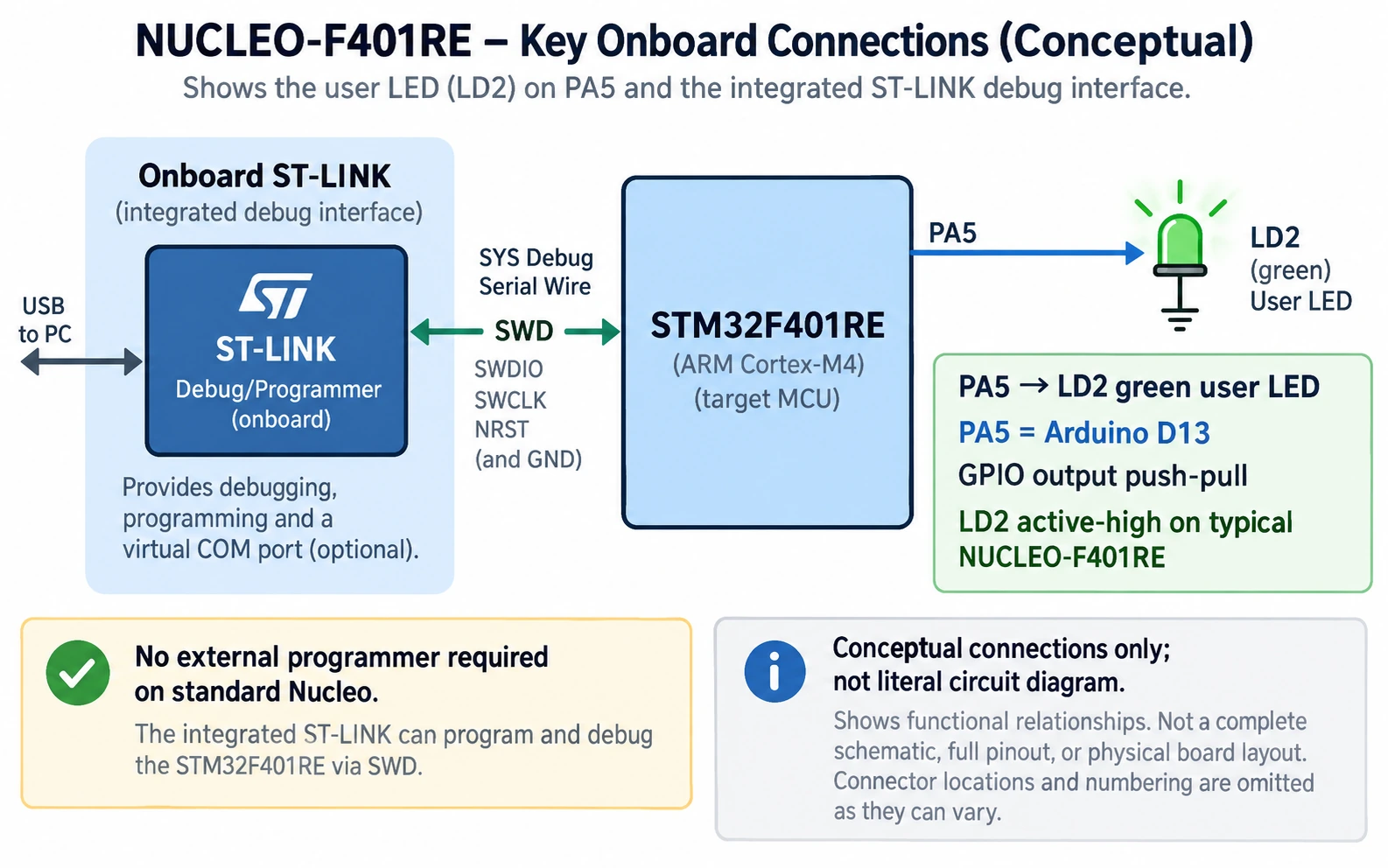
Clock configuration: keep the first test conservative
STM32 clock trees can look complicated because the device can derive clocks from internal oscillators, external crystals and PLL multipliers. For the first blink, there is no need to maximize performance. Use a valid clock configuration generated by CubeMX. A basic internal-HSI setup is sufficient; if the selected Nucleo board supplies or uses an ST-LINK-derived reference clock, check the actual oscillator and bypass settings instead of forcing an unverified external crystal configuration.
Watch for red fields or clock-tree errors in CubeMX. The initial blink merely needs a valid system clock and HAL time base. A 500 ms HAL delay should use the generated tick source: the absolute CPU frequency is not the subject of this exercise. Later tutorials can examine clock configuration, USB clock accuracy and timer frequencies separately.
Project Manager settings that matter
Open Project Manager and set:
| Setting | Suggested value | Why |
|---|---|---|
| Project Name | NucleoF401RE_Blink_2026 | Easy to recognize in the IDE |
| Project Location | A normal local project directory | Avoid permissions and sync-related locking |
| Toolchain / IDE | STM32CubeIDE | Generates the corresponding project metadata |
| Firmware package | Latest compatible STM32CubeF4 installed | Supplies HAL/CMSIS support |
| Code generation | Preserve user code in the designated user sections | Prevents losing changes after regeneration |
Select Generate Code. CubeMX should create the project directory with the .ioc configuration, source and include folders, HAL/device support, startup and linker files, and CubeIDE project metadata. A typical generated project may contain files such as:
NucleoF401RE_Blink_2026/
├── NucleoF401RE_Blink_2026.ioc
├── .project
├── .cproject
├── Core/
│   ├── Inc/
│   │   └── main.h
│   └── Src/
│       ├── main.c
│       ├── stm32f4xx_hal_msp.c
│       └── stm32f4xx_it.c
├── Drivers/
├── startup_stm32f401retx.s
└── STM32F401RETX_FLASH.ld
The exact files and directories depend on the CubeMX release, chosen project structure and firmware package. Do not copy this illustrative tree verbatim into a real project. The important checks are that the .ioc exists, main.c is generated and the project contains files CubeIDE can recognize.
Step 4 — Import the generated project into STM32CubeIDE 2.x
Switch to CubeIDE. The ST-provided 2.0 workflow tutorial documents the following import path:
- Select File → STM32 Project Create/Import.
- Under the import options, choose STM32CubeMX/STM32CubeIDE Project.
- Select the directory containing the project generated by CubeMX.
- Finish the wizard and wait for CubeIDE to index the source and build settings.
- Expand the imported project in Project Explorer. Check that
Core/Src/main.c, includes and the generated HAL package are visible.
An alternative is File → Import → General → Existing Projects into Workspace, provided CubeMX generated compatible Eclipse .project and .cproject files. Do not import a random parent folder and expect CubeIDE to infer which subdirectory is the buildable project.
If your import wizard creates an empty project with no HAL startup code, you likely followed CubeIDE’s empty-project creation path instead of importing the generated CubeMX project. Stop and check which folder you selected; there is no benefit in manually rebuilding everything CubeMX already created.
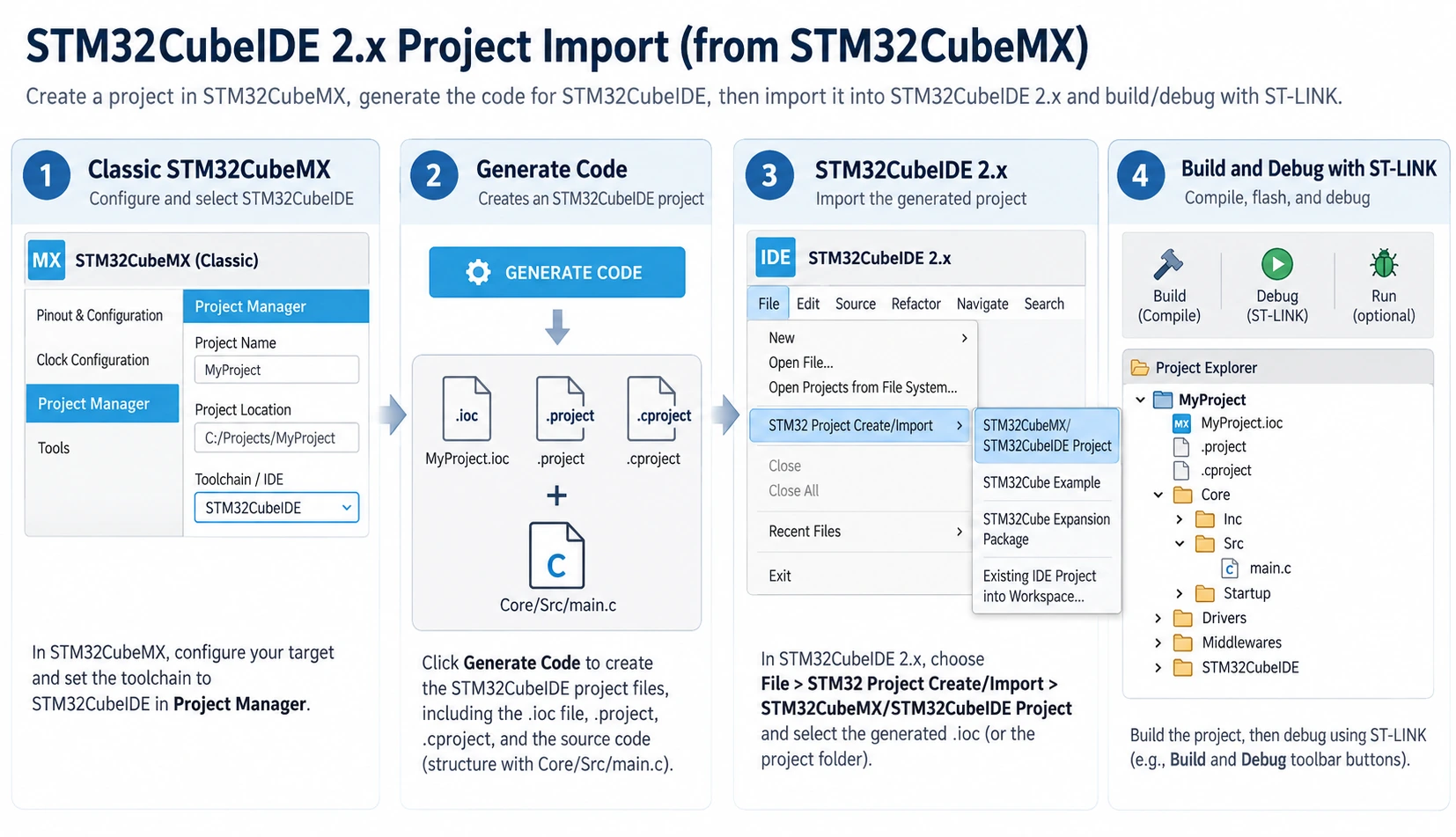
Understand the files before editing them
| File / area | Purpose | Should beginners edit it? |
|---|---|---|
.ioc | CubeMX pin, clock and peripheral configuration | Edit in CubeMX, not as random text |
Core/Src/main.c | Application entry and main loop | Yes, within USER CODE sections |
Core/Inc/main.h | Generated declarations and pin symbols | Usually only user sections as needed |
stm32f4xx_hal_msp.c | Peripheral low-level initialization | Let CubeMX generate unless you understand it |
| Startup assembly | Reset handler and vector table | Not for a first project |
| Linker script | Flash/RAM memory regions and placement | Not for a first project |
.project / .cproject | Eclipse/CubeIDE project and build settings | Prefer IDE tools; avoid manual edits |
This separation also explains why a project created in CubeMX is not “just a collection of C files.” Clock configuration, peripheral initialization, compiler flags and target-memory configuration must agree with the selected chip.
Step 5 — Write and build your first LED program
Open Core/Src/main.c. CubeMX typically generates a main() function that initializes HAL, configures the system clock, initializes GPIO, and enters an infinite while (1) loop. Keep those generated calls. We are adding application behavior, not replacing the generated startup sequence.
Find /* USER CODE BEGIN WHILE */ and the while (1) loop. Place the blink behavior inside /* USER CODE BEGIN 3 */, which is ordinarily inside the generated loop. A simple body is:
/* USER CODE BEGIN WHILE */
while (1)
{
  /* USER CODE END WHILE */

  /* USER CODE BEGIN 3 */
  HAL_GPIO_WritePin(GPIOA, GPIO_PIN_5, GPIO_PIN_SET);
  HAL_Delay(500);
  HAL_GPIO_WritePin(GPIOA, GPIO_PIN_5, GPIO_PIN_RESET);
  HAL_Delay(500);
}
/* USER CODE END 3 */
In this example, a full on/off cycle takes approximately one second: 500 ms high and 500 ms low. The snippet assumes that GPIOA has been enabled and PA5 configured as a push-pull output by CubeMX. On the standard NUCLEO-F401RE LD2 wiring, driving PA5 high turns LD2 on. If your particular board revision differs, check the official Nucleo user manual and schematic rather than reversing the software blindly.
Alternatively, you can toggle the pin once per half-second:
/* USER CODE BEGIN 3 */
HAL_GPIO_TogglePin(GPIOA, GPIO_PIN_5);
HAL_Delay(500);
Use one approach, not both. HAL_Delay() is fine for this first demonstration but blocks the loop. An actual embedded application may need timer interrupts, DMA or a non-blocking tick-based scheduler so other work can continue while LEDs and sensors are serviced.
Why the USER CODE markers matter
CubeMX rewrites generated initialization sections when you regenerate code. It preserves content in supported /* USER CODE BEGIN ... */ and /* USER CODE END ... */ regions. Placing a custom loop inside those marked sections is not just style: it protects your changes when you enable UART, change clock configuration or add I2C later.
For non-trivial applications, put most logic in your own .c/.h modules and call it from the user sections in main.c. Use version control even for prototypes. Never assume that regeneration is a substitute for a source-code backup.
Build the application
Save the file and choose Project → Build Project or the build icon. The CubeIDE console should show compilation, linking, size reporting and a successful completion if your toolchain is configured. The default configuration is often Debug; Release optimization can be configured later.
Check three practical outputs:
- No compiler errors and a clean link step.
- An output artifact such as an
.elffile in the chosen build-configuration folder. - Flash and RAM usage consistent with a small LED application, rather than an unexplained giant firmware image.
Do not worry if a harmless compiler warning appears, but read it before ignoring it. A warning about missing declarations, multiple definitions, incorrect target settings or an uninitialized FPU is not “normal” merely because the program is small.
Step 6 — Connect the Nucleo and debug with onboard ST-LINK
Plug a known-good USB data cable into the Nucleo’s ST-LINK programming/debug USB port and the host computer. Power and debugger LEDs may illuminate. If the board has a separate MCU-side USB connector, that is not automatically the one CubeIDE uses for SWD.
In CubeIDE, select the project and start Debug. The IDE may create an STM32 C/C++ Application debug configuration, ask to update ST-LINK firmware or request permission for the debugger. Read each prompt and confirm that the target MCU is STM32F401RE, not a similarly named board variant.
A successful SWD session should program the ELF onto the device, reset or halt at an entry point, and allow you to Resume, Pause, Step Over and inspect variables or registers. If the CPU is halted at main(), it has not necessarily reached the while (1) loop. Press Resume and look for LD2 blinking at approximately one complete cycle per second.
Do not present an illustration of a successful debugger screen as real bench evidence. This article explains the procedure but has not physically flashed your board. The expected behavior is testable on a real NUCLEO-F401RE and should be verified before claiming project output has been measured.
Debugging: try a breakpoint
Place a breakpoint inside the while (1) loop and press Resume. The CPU should stop when execution reaches that line. Inspect the call stack and watch the current program counter. Then remove or disable the breakpoint and resume again. This is the practical difference between programming and debugging: SWD lets you examine program execution, not just load firmware.
While halted, the LED may remain in its previous state because time does not advance through your loop. If LD2 stops blinking only while the debugger is paused, that is normal. If no target is detected at all, work through the troubleshooting table rather than changing the LED code.
Step 7 — Modify the .ioc safely after importing
Suppose the LED project works and you want to add an I2C sensor. In the new workflow, do not search for the old integrated pin editor inside CubeIDE 2.x. Instead:
- Save your source and commit or back it up.
- Open the existing project
.iocfile in standalone STM32CubeMX. - Configure the additional pins or peripheral, check pin conflicts, and save.
- Click Generate Code for the same project directory, with toolchain still set to STM32CubeIDE.
- Return to CubeIDE and refresh the project tree (F5 or File → Refresh, depending on interface and selection).
- Review generated changes before rebuilding. Resolve application-level naming changes or new initialization requirements.
That regeneration/refresh sequence is explicitly described in ST’s CubeIDE 2.x workflow tutorial. Enabling “preserve user code” does not protect arbitrary edits to generated files outside the intended user regions. For a serious design, inspect the Git diff after every regeneration and track the firmware-package version used for releases.
A common mistake: saving the .ioc in the IDE
After upgrading from 1.x, some developers try to double-click .ioc in CubeIDE and expect the classic integrated tabs. In 2.x, CubeMX is a separate application. Use the actual .ioc on disk, not a copied configuration file in another folder. If you accidentally generate into a second project location, CubeIDE may continue building your old source tree and your pin changes will appear to “do nothing.”
STM32CubeMX versus STM32CubeMX2 in 2026
STM32CubeMX2 is not simply the next numbered release of classic CubeMX. ST introduced CubeMX2 as a new flavor of the configuration environment in March 2026, starting with support for the STM32C5 series. Classic CubeMX and CubeMX2 coexist. CubeMX2 has features such as live code preview, pinout table views, clock-path highlighting and package/component management, but device coverage and regeneration behavior differ from classic CubeMX.
| Question | Classic STM32CubeMX | STM32CubeMX2 |
|---|---|---|
| Best fit for this F401RE tutorial? | Yes | No; not the documented default for F401RE |
| Configuration file concept | .ioc project with mature MCU-family coverage | New tool/workflow and its supported series |
| Integrated into STM32CubeIDE 2.x? | No | No |
| Code generation | HAL/CMSIS project files for chosen toolchain | Newer generation paths, including project and CMake options where supported |
| Key attraction | Established STM32 families and migration of existing projects | New device families, live code preview and configuration aids |
| Main caution | Do not accidentally overwrite user code outside safe regions | Check device support and regeneration limitations before relying on it |
The important advice is to choose the generator that supports your exact MCU and required middleware, not the application with the highest version-looking name. For STM32F401RE and a simple HAL project, classic CubeMX is the straightforward documented route. If you are developing on STM32C5 or another series supported by MX2, use ST’s specific CubeMX2 user guide and CMake/import documentation rather than assuming the files and menus are identical.
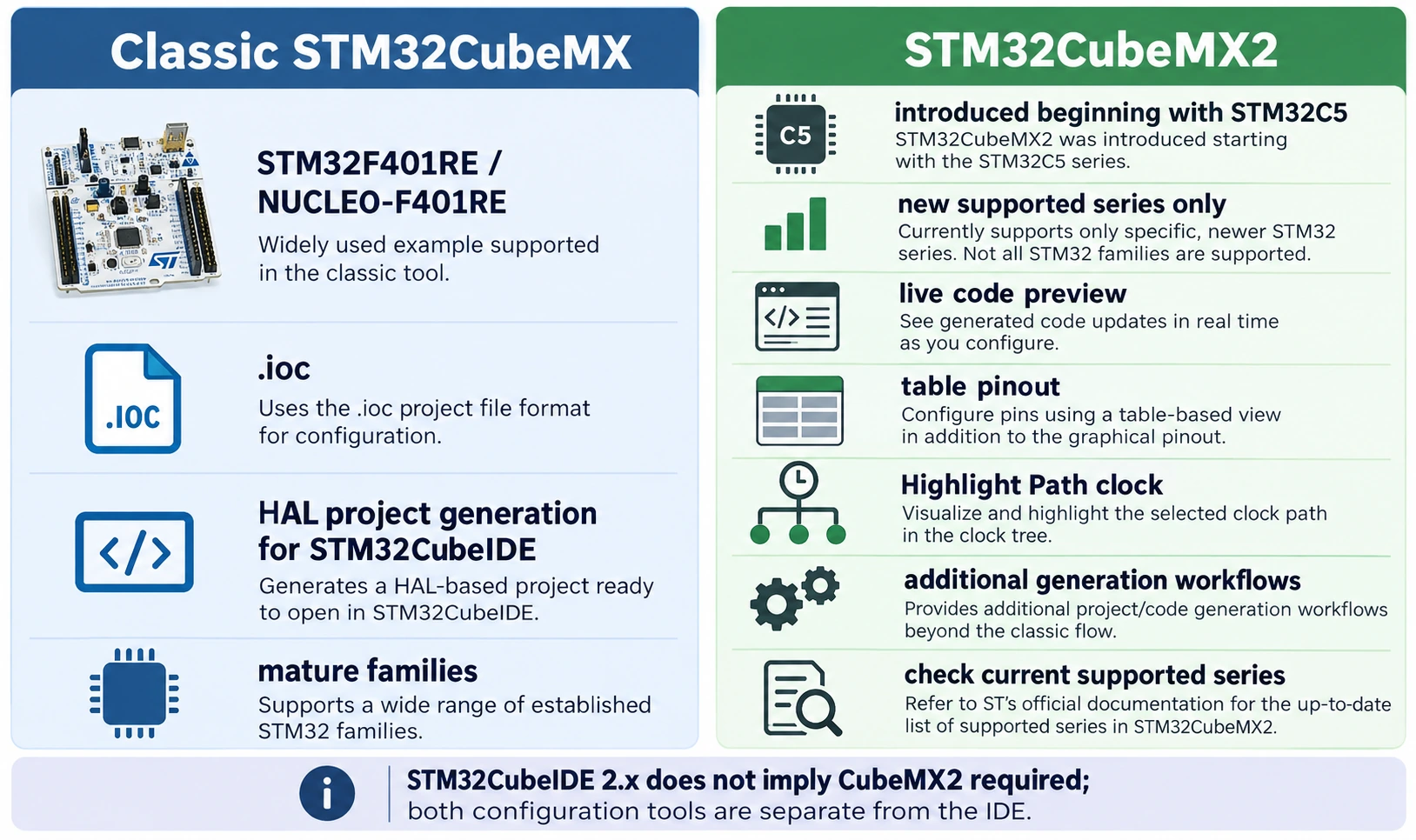
Troubleshooting: installation, import, build and debugger errors
These are the failures most likely to derail a first project. Start with what you can observe rather than reinstalling everything immediately.
| Symptom | Likely explanation | What to check first |
|---|---|---|
| CubeIDE has no integrated Pinout tab | Expected for CubeIDE 2.x | Open .ioc in standalone STM32CubeMX |
New CubeIDE project has no .ioc | You created an empty project | Start in CubeMX and generate a CubeIDE project |
| CubeIDE shows project but no Build command | Folder was imported as non-managed content | Confirm .project/.cproject; use STM32CubeMX/STM32CubeIDE Project import |
stm32f4xx_hal.h missing | STM32CubeF4 package or include paths are missing | Install correct firmware package, regenerate and reimport |
| Undefined reference to HAL function | Missing source, module enablement or mismatched generated files | Check HAL module config, generated files and compile/link options |
| ST-LINK not detected | Cable, USB permission, driver or ST-LINK firmware issue | Try a known-good data cable, inspect OS USB detection |
| ST-LINK detected but MCU not found | Debug-port selection, power or wrong target setup | Confirm board powered, SWD enabled, correct target and reset mode |
| Build succeeds but LD2 does not blink | Wrong GPIO, LED polarity, halted debugger or never-entered loop | Verify PA5, resume CPU, check generated MX_GPIO_Init() |
| LED timing is very wrong | Bad clock setup or HAL time base | Recheck Clock Configuration and SystemClock_Config() |
| Changes in CubeMX do not show in IDE | Generated wrong folder or stale project tree | Regenerate same directory, refresh F5, inspect changed files |
| Project worked before regeneration and now fails | Custom code overwritten or alternate function changed | Restore from version control and move logic into USER CODE sections |
| Works with old IDE but not new one | Project metadata / toolchain / firmware version changed | Back up, regenerate with the current toolchain and compare configuration |
ST-LINK connects to the PC, but not to the MCU
The debugger has two separate communication paths: the computer talks to ST-LINK over USB, and ST-LINK talks to the MCU over SWD. USB recognition alone proves only the first. Check the Nucleo target power path, onboard solder bridges or jumpers if previously modified, target selection and SWD pin use. For a Nucleo with its standard configuration, no external SWD jumpers should be needed for the built-in target.
Try reducing the debug clock and using a connect-under-reset option if application firmware has reconfigured the debug pins or entered a disruptive state. Avoid changing option bytes casually: protections and boot configuration affect the target in ways that are not equivalent to a normal reset. ST’s standalone STM32CubeProgrammer is useful for checking probe detection and target identification independently of CubeIDE.
Why not copy every screenshot from a 2023 tutorial?
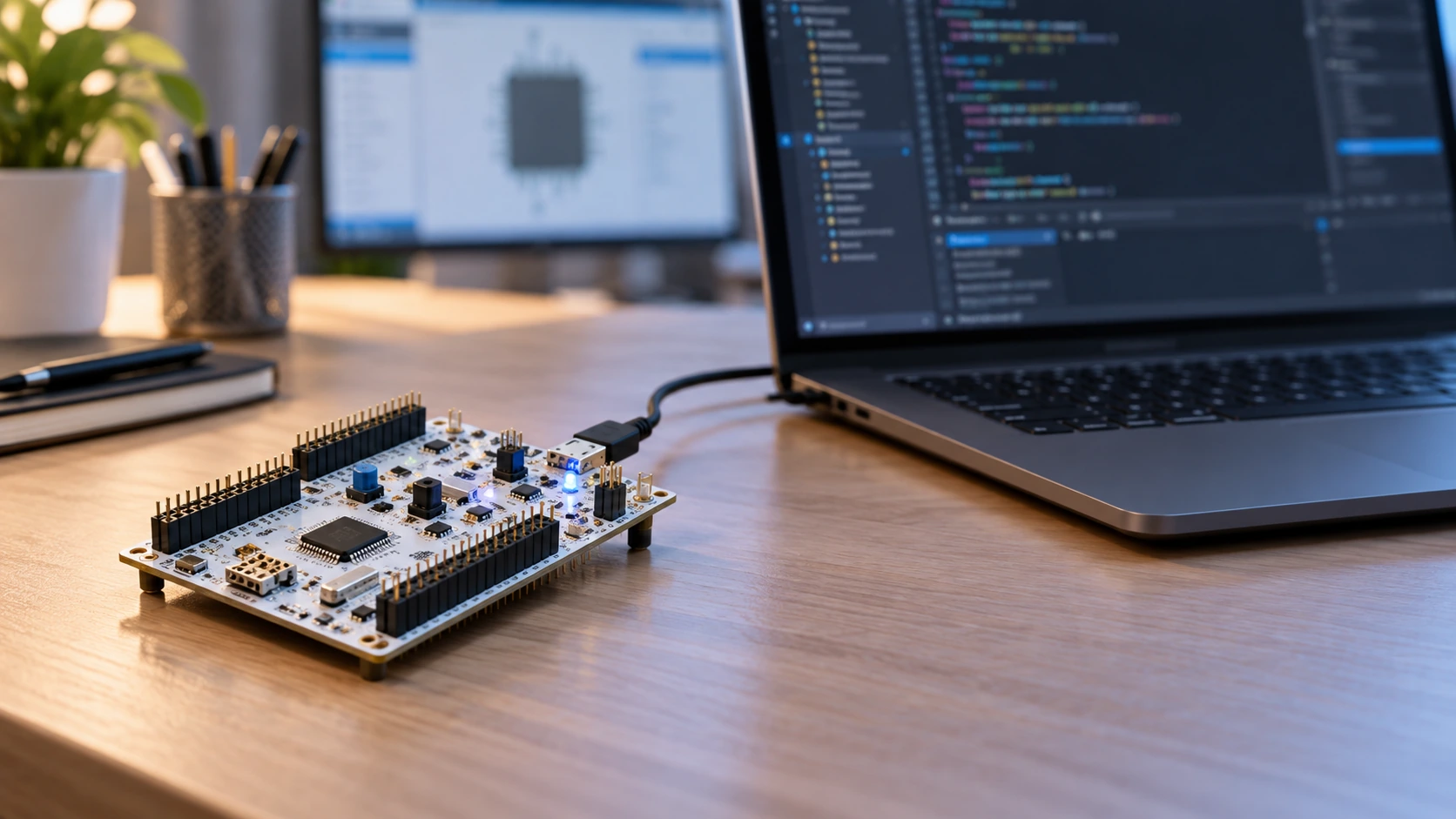
A screenshot showing a CubeMX pin editor inside CubeIDE 1.x is not evidence that the same menu exists in CubeIDE 2.2. Even within current tools, exact menu labels and icons can move between maintenance versions. Use screenshots that document the current workflow, and accompany them with textual steps that explain what the user is accomplishing. This is also why the graphics for this article include an explicit workflow diagram and separate installation/import scenes.
Optional: use STM32CubeProgrammer for independent flashing
STM32CubeIDE normally downloads the ELF through the debugger. For a production-style separate flashing step, install STM32CubeProgrammer and connect with ST-LINK / SWD. Verify the target identity before programming. You can then load the generated ELF or HEX file; when using a raw BIN file for internal flash, specify the appropriate start address for the target, commonly 0x08000000 on STM32F401. Do not apply that address blindly to other MCUs, external memories or boot schemes.
CubeProgrammer is also useful for inspecting flash, erasing a target and recovering from some debugger problems. It does not replace CubeMX for configuring peripheral source generation or CubeIDE for source-level build/debug integration. It is a separate utility with its own connection and protection features.
Good development habits from your first STM32 project
Once the LED blinks, the next improvement is not a larger loop; it is a repeatable workflow. Keep one project root, use version control, note your firmware-package version, and generate into the existing project rather than creating a new folder for every pin change. Check compiler errors rather than guessing their meaning, and learn the difference between the physical board, the MCU silicon and the CubeMX software configuration.
For reusable work, write code in your own modules with clear initialization functions. Keep the main loop small. Check supply voltages and I/O electrical limits from the chip datasheet before connecting modules. Most STM32 pins are 3.3 V logic, and 5 V tolerance is pin- and mode-dependent; never assume all pins tolerate 5 V. If a board needs an external transceiver, driver or voltage divider, supply that circuit instead of connecting a load directly to a microcontroller pin.
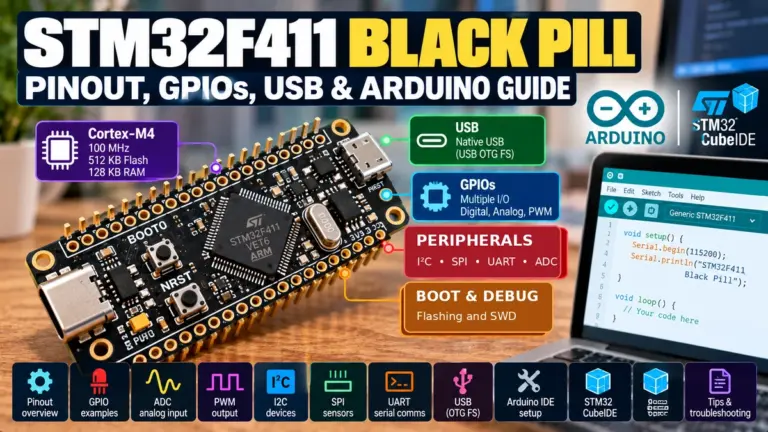
We will build on this setup in the later tutorials for UART, I2C, SPI, ADC, DMA and timer peripherals. If you have a compact board instead of a Nucleo, see the existing Blue Pill pinout and GPIO guide, Black Pill pinout guide and ST-LINK V2 SWD programming tutorial.
Frequently asked questions
Do I need STM32CubeMX if I already installed STM32CubeIDE 2.2?
For MCU pin, clock and HAL peripheral configuration in the workflow taught here, yes. CubeIDE 2.x does not embed the classic CubeMX configurator. The IDE can create empty projects, but that is a different route with more configuration responsibility.
Which tool should I open first?
Open STM32CubeMX to start a new HAL-based project or modify its .ioc. Generate for STM32CubeIDE, then use STM32CubeIDE to edit, compile and debug. For a previously generated project, you can start in CubeIDE when you are only changing application code.
Is CubeMX2 required for STM32CubeIDE 2.2?
No. The 2 in the IDE version does not require STM32CubeMX2. CubeMX2 has a separate rollout and device-support scope; classic CubeMX is appropriate for this NUCLEO-F401RE project.
Can I use Arduino IDE instead of CubeIDE?
Many STM32 boards are supported by the STM32 Arduino core, but Arduino IDE provides a different abstraction, board package and debugging experience. CubeMX plus CubeIDE is a better way to learn how STM32 HAL initialization, clocks and peripheral debugging fit together. See our STM32CubeIDE vs Arduino Core comparison.
Does the NUCLEO-F401RE need an external ST-LINK dongle?
No. The Nucleo has an onboard ST-LINK for its target MCU in the standard board configuration. A Blue Pill usually requires an external SWD debugger or a different supported programming route.
My code compiles, but the LED is not blinking. Why?
First confirm the CPU has resumed after flashing. Then check that you selected NUCLEO-F401RE, that PA5 is configured as GPIO output, and that your user-code loop toggles or sets/resets GPIOA, GPIO_PIN_5. Do not use a Blue Pill PC13 example unchanged on this board.
Can I keep using my CubeIDE 1.x projects?
Often yes, but copy/back up the project first. Keep its original .ioc, firmware-package versions and source. Import and build it in a controlled way; do not overwrite a working project during an unfamiliar upgrade or assume that a brand-new empty 2.x project will regenerate it automatically.
Official references and further reading
- ST: STM32CubeIDE product, current installers and release notes
- ST: STM32CubeMX downloads and documentation
- ST employee tutorial: STM32CubeIDE 2.x project generation and import workflow
- ST: STM32CubeMX 6.18.0 online user documentation
- ST: STM32CubeMX2 introduction and supported-series roadmap
- ST: NUCLEO-F401RE board user manual UM1724
Bottom line: Once you know which tool configures hardware and which one builds/debugs firmware, the new STM32 development flow is straightforward. Start with a known Nucleo board, keep the generator and IDE project paths aligned, preserve USER CODE regions and verify the result with a real debugger. That foundation is more valuable than memorizing any particular IDE button location.