Quick answer: You need SWDIO, SWCLK and GND to connect an STM32 to a compatible ST-LINK programmerAliExpress price, plus a correctly powered target and, where required, a target-voltage reference (VTref/VAPP). Connecting NRST is strongly recommended for recovery and Connect Under Reset. On the STM32F103C8AliExpress price Blue PillAliExpress price, SWDIO is PA13 and SWCLK is PA14. For a genuine ST-LINK/V2 with ST’s 20-pin CN3 connector, the key pins are 7 = SWDIO, 9 = SWCLK, 15 = NRST, 1 = VAPP/target-voltage reference, and one or more of the documented ground pins. Those 20-pin numbers do not apply to unbranded 4-, 6- or 10-pin USB dongles.
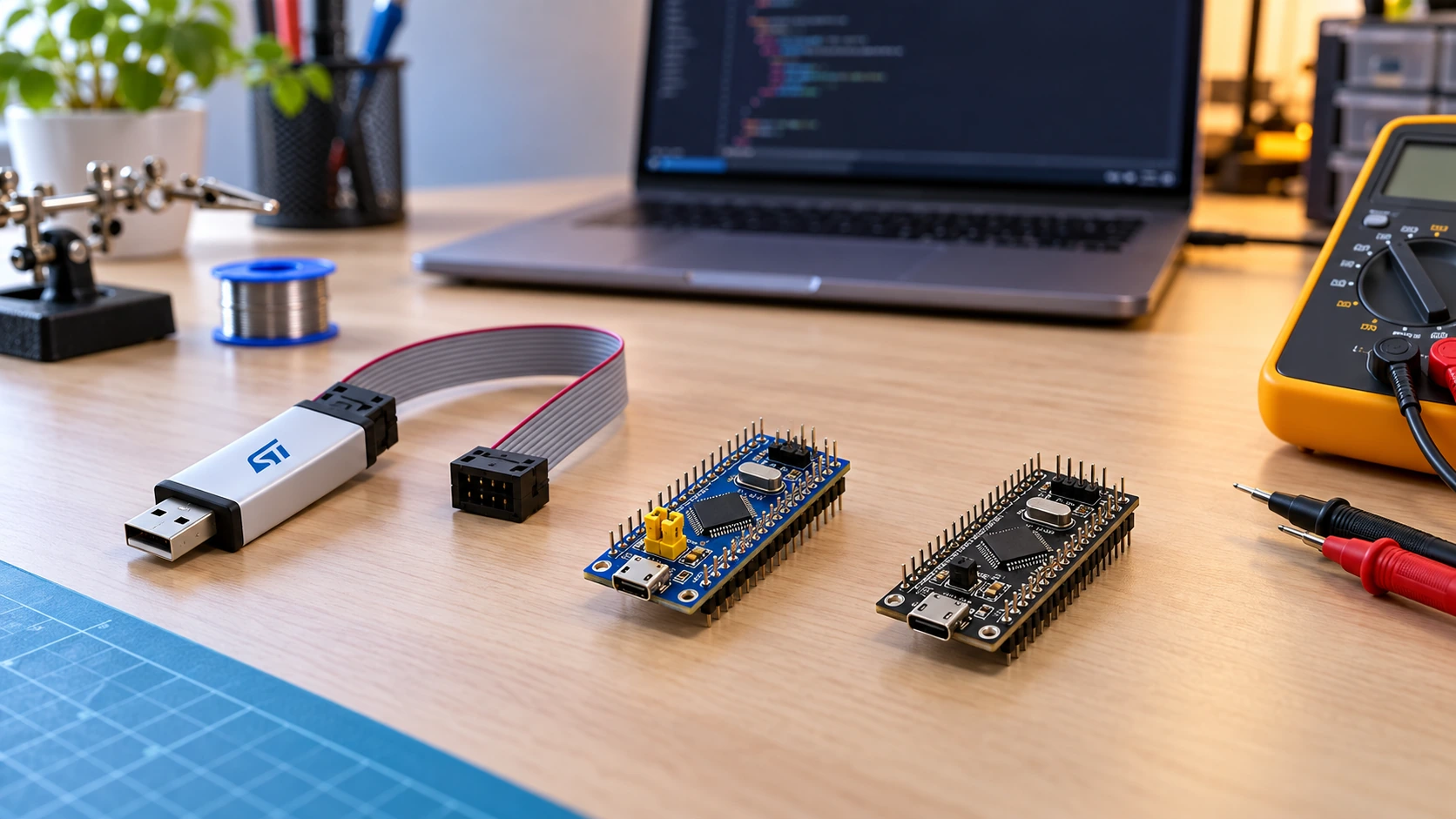
If your programmer is the familiar inexpensive metal-cased USB ST-LINK/V2 clone, do not blindly copy a random internet pinout. Identically styled dongles may have different internal boards, swapped header orientations, different 3.3 V outputs or missing reset connections. Identify the exact probe, inspect its markings and measure power rails before connecting anything. This guide distinguishes verified connector standards from unverified clone layouts and shows the safe signal-level wiring method.
SWD—Serial Wire Debug—is the normal way to program and debug STM32 chips without using an application USB bootloader. It works with an STM32 Blue Pill, Black Pill, custom PCB and many STM32 Nucleo targets, although the latter normally include their own ST-LINK. It is also the easiest way to recover a board from badly configured firmware when its debug pins and reset remain accessible.
ST-LINK V2 pinout: the essential connections
| Signal | Meaning | STM32 target connection | Mandatory? |
|---|---|---|---|
| SWDIO | Bidirectional debug data | MCU’s SWDIO pin, often PA13 on F1/F4 | Yes |
| SWCLK | Debug clock supplied by probe | MCU’s SWCLK pin, often PA14 on F1/F4 | Yes |
| GND | Shared reference | Target ground | Yes |
| VTref / VAPP | Senses the target’s I/O supply level | Target VDD / 3.3 V logic rail where probe requires it | Probe-dependent, normally connect for a genuine ST-LINK |
| NRST | Active-low target reset | MCU NRST | Optional for ordinary access; highly recommended |
| SWO / TRACESWO | One-way trace output | MCU trace pin if supported and enabled | Optional, not needed to flash |
The table describes electrical signal names, not the physical order of an unknown clone’s pins. Establish each signal on your specific probe before wiring. A 4-wire dongle marked SWDIO / SWCLK / GND / 3.3V may power a small target from its 3.3 V output; a genuine 20-pin probe instead exposes a target-voltage sense/reference signal. Treat these as different electrical functions.
Critical distinction: A probe’s target-voltage input is not automatically a target-power output. Do not connect two power sources together merely because both are marked
3.3V, and never feed 5 V into an STM32 board’s 3V3/VDD input. A board’s separately labelled 5V/VIN input, when present, is a different connector with an onboard regulator and must be assessed from that board’s schematic.
Which ST-LINK device and connector do you have?
There are several products commonly called “ST-LINK V2”, but their connectors are not interchangeable.
| Hardware | Typical debug connection | Practical implications |
|---|---|---|
| Genuine standalone ST-LINK/V2 | Standard 2×10, 2.54 mm JTAG/SWD ribbon connector | Official CN3 pin numbers are documented in UM1075 |
| Genuine ST-LINK/V2-ISOL | Similar 20-pin interface with isolation | Some pins and ground arrangements differ from the non-isolated V2; follow UM1075 Table 5 |
| Low-cost USB ST-LINK/V2 clone | Often 4, 6 or 10 pins, sometimes a dual-row header | No universal clone pin numbering; labels, silkscreen and actual voltage must be checked |
| Nucleo embedded ST-LINK/V2-1 / V2-B / V3E | Debugger already connected to onboard STM32 | Usually no external probe required for the Nucleo itself; external-target access varies by board |
| STLINK-V3SET / V3MINIE / V3PWR | Newer ST-LINK family; model-specific connectors | Use the documentation for that particular V3 model, not the V2 20-pin map |
| 10-pin Cortex Debug connector | 2×5, 1.27 mm Arm/CoreSight standard | Standardized pin assignment, but different from the old 20-pin connector |
ST’s technical note TN1235, Overview of ST-LINK derivatives explains why the names are so confusing. A V2-era interface integrated into a Nucleo board is not automatically the same product as the standalone probe, and a low-cost clone’s USB shell gives no reliable indication of its header mapping. For a beginner buying hardware today, an authentic recent STLINK-V3 model or a Nucleo with integrated debug is generally a more dependable choice than an unknown clone.
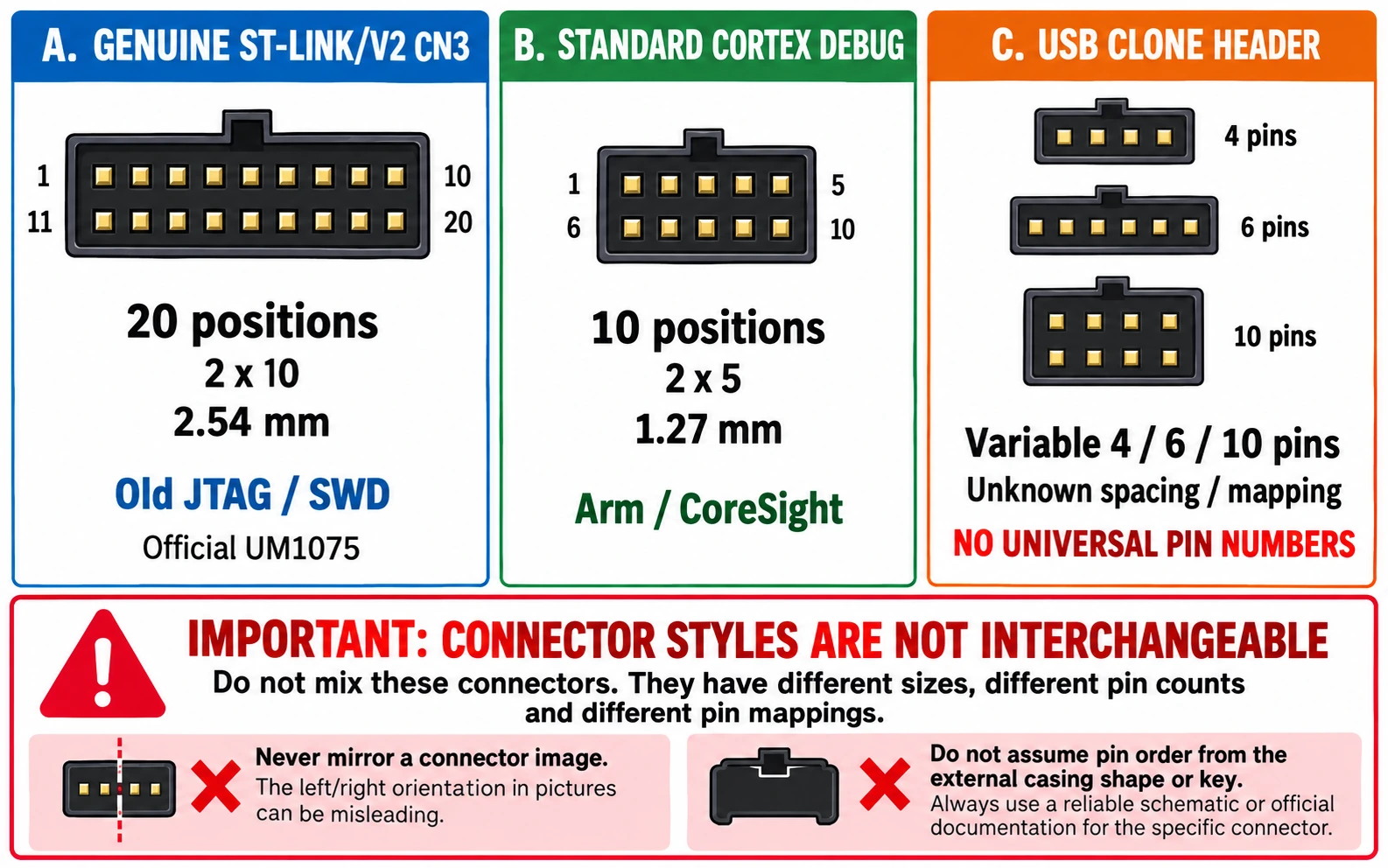
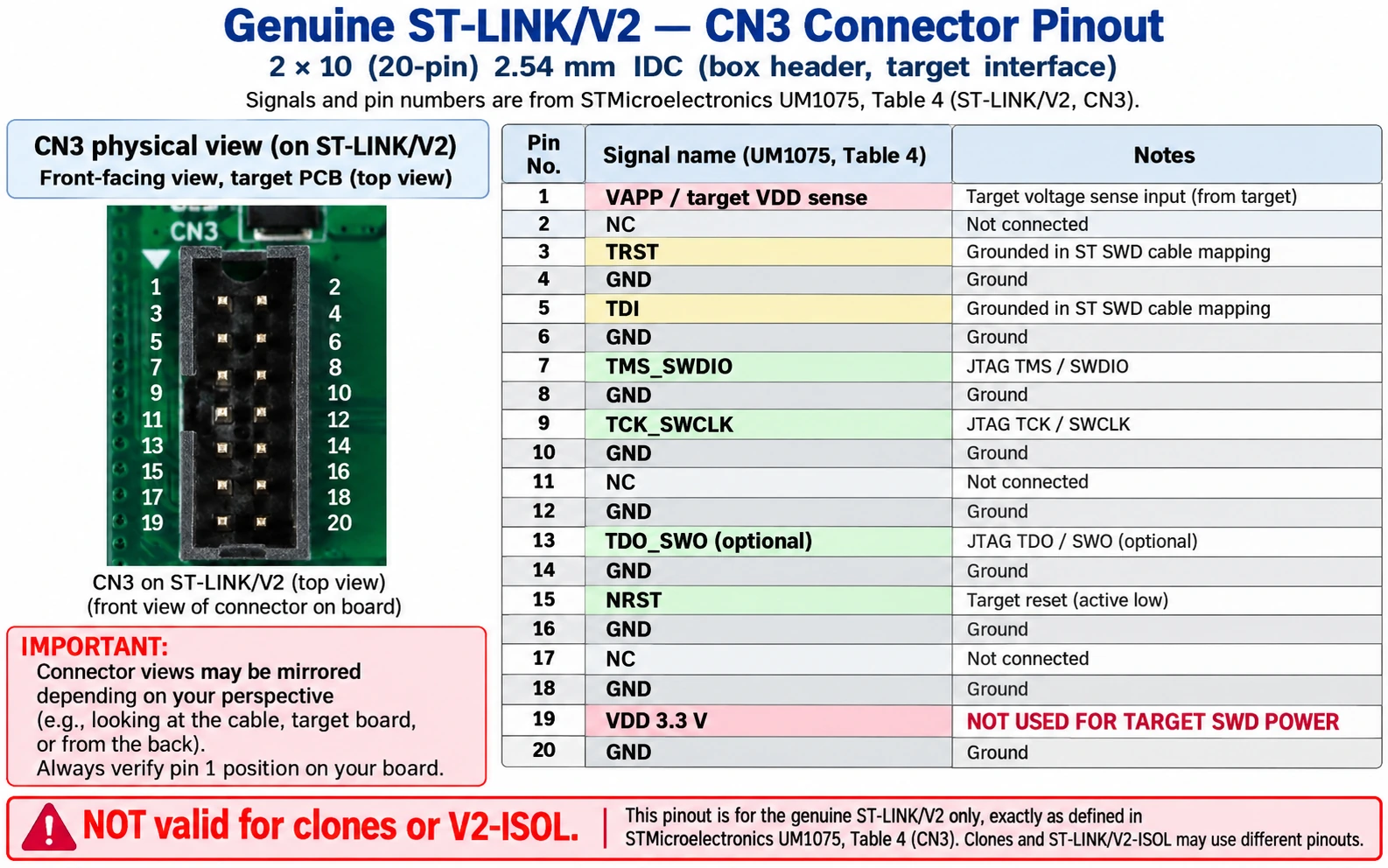
Genuine ST-LINK/V2 CN3 20-pin JTAG/SWD connector: verified pinout
The following entries are taken from STMicroelectronics UM1075 Revision 10 (April 2024), Table 4 and apply to the genuine, non-isolated standalone ST-LINK/V2 CN3. They are not a universal pinout for every 20-pin adapter or for the ST-LINK/V2-ISOL variant.
| CN3 pin | ST designation | Use when programming an STM32 over SWD |
|---|---|---|
| 1 | VAPP | Connect to the target’s VDD reference. This is not a 3.3 V power output. |
| 3 | TRST | In ST’s SWD cable map, connect to GND for noise reduction. |
| 4 | GND | Ground; at least one proper ground connection is required. |
| 5 | TDI | In ST’s SWD cable map, connect to GND for noise reduction. |
| 6, 8, 10, 12, 14, 16, 18, 20 | GND | Additional signal-return/ground pins; follow official ribbon wiring. |
| 7 | TMS_SWDIO | Connect to target SWDIO. |
| 9 | TCK_SWCLK | Connect to target SWCLK. |
| 13 | TDO_SWO | Optional target TRACESWO/SWO trace output. |
| 15 | NRST | Connect to target NRST, especially for recovery. |
| 19 | VDD (3.3 V) | ST documents a 3.3 V pin but does not designate it as a target SWD connection; do not use as a generic board-power instruction. |
| 2, 11, 17 | Not connected | Leave unconnected. |
With the official 2×10 ribbon, connector orientation matters: the red stripe normally marks conductor 1, but the keyed notch, triangle, PCB marking and manufacturer drawing determine the true orientation. Do not rotate an IDC plug to make its pins appear to match a photograph. In the official top view of the target connector, odd-numbered pins form one row and even-numbered pins the other.
Do not confuse pin 1 and pin 19. Pin 1 is VAPP, a target-supplied level reference; ST lists pin 19 as its own 3.3 V line and explicitly leaves the corresponding SWD target-connection entry blank. The safe general configuration is to power the target through its intended regulated input, connect VAPP to the appropriate target I/O supply, and use SWDIO/SWCLK/ground/NRST as specified. For isolated ST-LINK/V2-ISOL hardware, consult Table 5, including its different pin functions and isolated-ground arrangement.
Official reference: ST UM1075 — ST-LINK/V2 in-circuit debugger/programmer.
The smaller standard 10-pin Arm Cortex Debug connector is different
Some modern probes and custom STM32 PCBs use a standardized 10-pin, 1.27 mm pitch Cortex Debug connector. This is not a smaller version of the genuine ST-LINK/V2’s older 20-pin 2.54 mm JTAG header. The widely used Cortex Debug layout is:
| Cortex Debug pin | Function | Note |
|---|---|---|
| 1 | VTref/VCC reference | Connect to target logic voltage according to probe specification |
| 2 | SWDIO / TMS | Debug data |
| 3 | GND | Common ground |
| 4 | SWCLK / TCK | Debug clock |
| 5 | GND | Common ground |
| 6 | SWO / TDO | Optional trace |
| 7 | KEY | Polarization/key position, normally no physical pin |
| 8 | TDI / unused for SWD | Normally not required for two-wire SWD |
| 9 | GND / GNDDetect | Target ground/detection |
| 10 | nRESET | Optional reset |
This assignment follows Arm’s Cortex-M Debug Connectors reference. Only apply this map if the connector actually follows that standard. Cheap “10-pin ST-LINK V2” USB dongles sometimes use a proprietary 2.54 mm header. Counted pins alone cannot tell you the electrical layout, and connector view direction (looking into the plug versus looking onto the PCB header) can mirror a pictorial layout.
STM32F103C8 Blue Pill to ST-LINK: connection by signal name
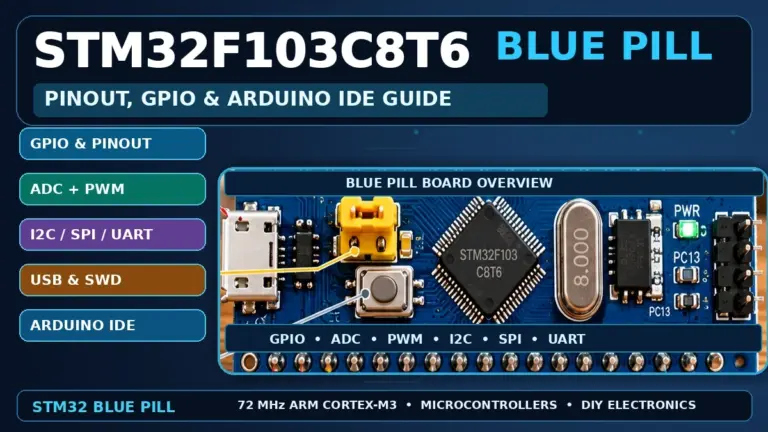
A typical STM32F103C8T6 Blue Pill is powered at 3.3 V internally and exposes the Arm debug functions on fixed MCU signals. The actual header layout depends on board artwork and revision; this wiring table therefore uses signal names, not a guessed location on a photo.
| From your identified ST-LINK signal | Connect to Blue Pill | Why |
|---|---|---|
| SWDIO | PA13 / SWDIO | Two-way debug commands and data |
| SWCLK | PA14 / SWCLK | Debug clock |
| GND | GND | Common electrical reference |
| VTref / VAPP input, when present | 3V3 target rail | Target I/O voltage sensing, not powering |
| NRST | NRST / RST | Hardware reset / Connect Under Reset |
| SWO, if needed | PB3 / TRACESWO where pin is accessible/configured | Optional trace only |
The PA13, PA14 and PB3 debug signal assignments are documented in ST’s STM32F1 reference manuals. Keep PA13 and PA14 reserved for SWD in CubeMX/firmware. You can sometimes reclaim them for GPIO in a finished product, but doing so complicates field debugging and recovery.
A safe five-step wiring sequence
- Disconnect all USB and external power before moving wires. Inspect the board for shorts, damaged pads and an unknown power jumper.
- Identify the ST-LINK signals from its own printed board revision/manual, not a generic clone infographic. If the probe has unlabeled pins, do not energize it until the mapping can be established safely.
- Provide the target’s intended regulated supply. For a typical Blue Pill used through its 3V3 rail, provide 3.3 V. If powering a specific board through its USB connector, check that board’s regulator and avoid conflicting supplies.
- Connect GND, SWDIO, SWCLK and target voltage reference as required, then connect NRST for recovery. Keep the leads short and avoid loose breadboard connections.
- Measure the target 3.3 V rail with a meter and then plug the probe into the PC. Confirm software recognition and target detection before flashing.
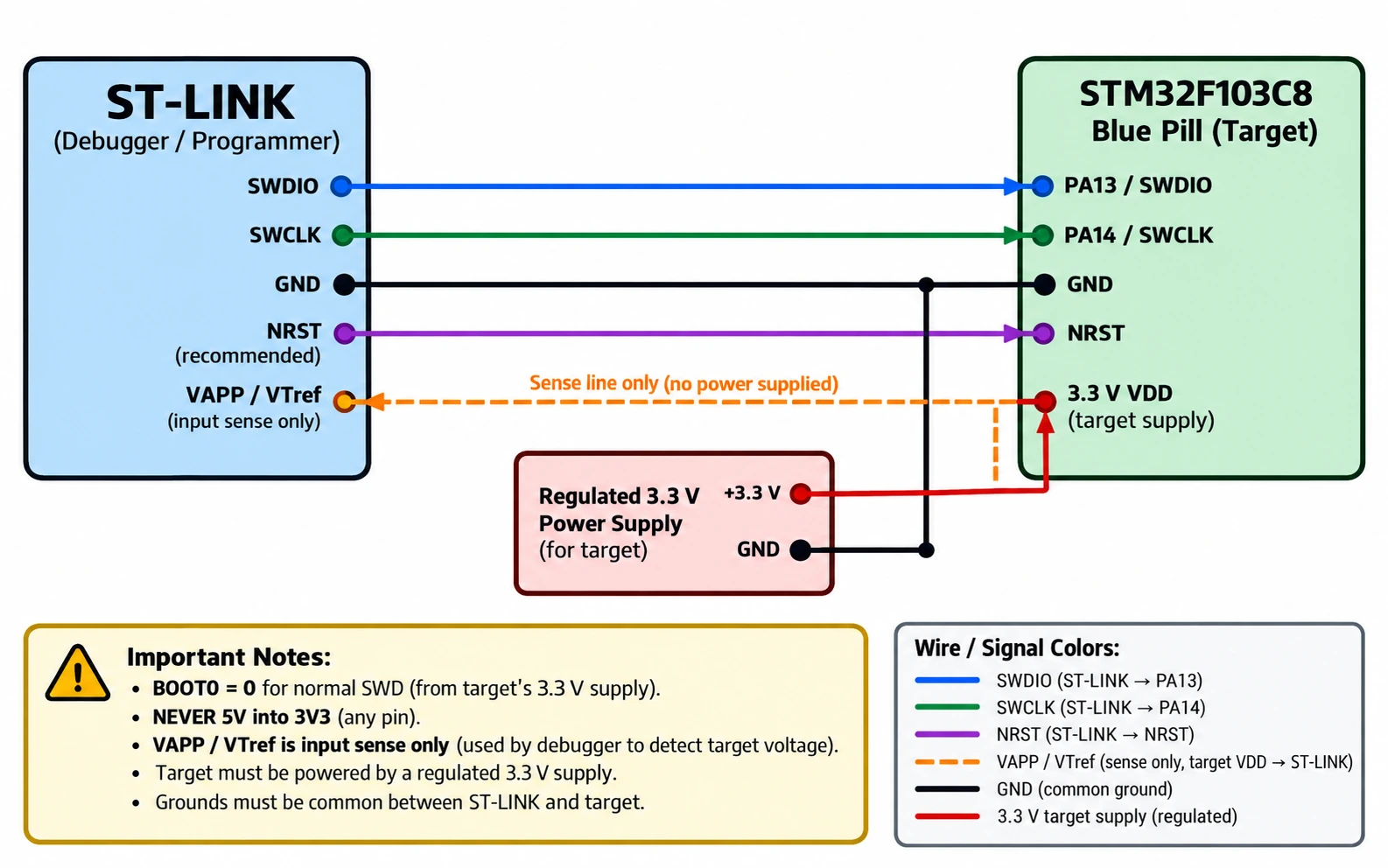
Keep BOOT0 = 0 for a normal flash-boot application. SWD programming does not require BOOT0 = 1, unlike a UART system-memory bootloader procedure. If damaged application firmware quickly disables SWD, reset-based attachment or the bootloader state can sometimes help restore access; changing BOOT0 is not part of routine SWD flashing.
You can cross-check the board headers with our STM32F103C8T6 Blue Pill pinout reference and the broader STM32 beginner guide.
Wiring a Black Pill (STM32F401 or STM32F411)
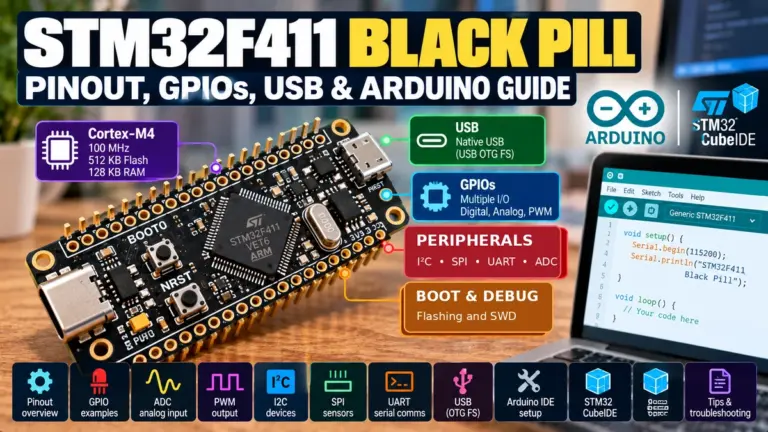
The common STM32F401/F411 Black Pill boards also expose their ARM SWD debugging signals on PA13 (SWDIO) and PA14 (SWCLK), plus GND, 3.3 V supply and reset. Their header arrangement differs from the Blue Pill and may vary between manufacturers. Before applying the Blue Pill-style physical wiring, consult the precise Black Pill revision and manufacturer pinout.
The target-voltage warning is unchanged: the MCU GPIO core is 3.3 V logic, but some board versions have separate USB, 5 V or VIN inputs served by regulators. A label marked 5V on a breakout is not interchangeable with its 3V3 rail. Connecting an ST-LINK to the MCU SWD pins does not turn the probe’s USB connection into the STM32’s own USB DFU connector.
Unlike the STM32F103, common STM32F401/F411 parts have different peripheral sets and boot ROM capabilities; these differences do not alter the two core SWD signals, but can alter the correct reset, protection and recovery procedure. Our Blue Pill versus Black Pill comparison covers the board selection trade-offs.
Target voltage, power outputs, and why VTref causes so many failures
There are three separate questions whenever you connect the ST-LINK to an STM32:
- Who powers the target MCU? A stable, suitable power source connected to its intended input or regulated rail.
- How does the probe learn the target’s voltage? A reference/VTref/VAPP signal when its hardware requires one.
- How are digital signals referenced? A shared GND for a non-isolated setup, with appropriate ground paths and logic compatibility.
ST specifies that the genuine V2 VAPP pin 1 connects to the target’s own VDD so the probe can match signal levels. This means the MCU must already receive correct power; VAPP is not an invitation to feed current from the debugger to the board. Some USB clones also have a physical 3.3 V power-output pin. Its available current, protection and relationship to the target reference are product-specific. Do not join that output to a separately powered 3.3 V rail unless you have verified the design and power path.
A meter is far more valuable than a speculative color-coded jumper diagram. With target power applied and probe ground referenced correctly, check for an expected stable supply, not a barely glowing power LED. Brownouts, voltage drops through poor USB cables, reversed power rails and two competing regulators can all prevent SWD from working.
For ST-LINK/V2-ISOL, grounding and power relationships differ because the debugger-to-target interface is isolated. Follow its isolation-specific documentation; do not assume it can be treated as the non-isolated V2 or linked indiscriminately to the PC’s USB ground.
First connection using STM32CubeProgrammer
Install the current STM32CubeProgrammer from ST and connect your ST-LINK to a PC with a known data-capable USB cable. ST’s application supports ST-LINK debugging interfaces and can report the connected probe and target separately.
- Open STM32CubeProgrammer and choose the ST-LINK connection interface.
- Set Port = SWD, not JTAG, for the three-wire debug configuration described here.
- Start conservatively at 100–400 kHz if you are troubleshooting a clone, long wires or unusual target clock state. With good wiring, increase speed later.
- Choose Mode = Normal for a typical first connection, then select Connect.
- Check that the ST-LINK probe itself is recognized. That alone does not prove the MCU is detected.
- After a successful target connection, inspect the reported device information and target voltage (where exposed). Avoid relying on a fabricated “device ID” from an online tutorial.
- Open your firmware file. For a typical STM32F103 application, a raw
.binat the beginning of main flash uses 0x08000000. An.elfor.hexnormally contains its own load-address information. - Program and verify. Disconnect or reset and confirm your expected application behavior.
For the STM32F103C8, respect the part’s documented flash size. A C8-labelled board must not automatically be treated as a 128 KB part because a particular clone once happened to contain additional accessible flash.
STM32CubeProgrammer command-line example
A reproducible initial probe connection can use ST’s CLI:
STM32_Programmer_CLI -c port=SWD freq=400 mode=NORMAL
For a raw binary intended for the start of internal flash:
STM32_Programmer_CLI -c port=SWD freq=400 mode=NORMAL \
  -d firmware.bin 0x08000000 -v
On Windows you may need the full path to STM32_Programmer_CLI.exe, and command continuation syntax differs between Windows shells and Bash. The 0x08000000 address is not universal; it is a common internal-flash base on the F103 and many STM32 families, but use the exact memory map, linker script and target part for your firmware.
These commands use the options documented by ST’s STM32CubeProgrammer 2.23 command-line manual. Do not erase or remove readout protection on an unfamiliar board without a backup: such operations may permanently delete its existing firmware.
Connect Under Reset: recovering an STM32 that no longer answers
A common failure occurs after firmware reconfigures PA13/PA14 as GPIO, enters an aggressive low-power mode or quickly crashes. The ST-LINK can appear in Windows or Linux, but CubeProgrammer reports “No STM32 target found”, “Cannot connect to target” or similar messages.
Connect Under Reset asks the probe to assert the MCU’s physical NRST pin and establish a debug connection as reset is released. This is different from an ordinary software-reset mode. It is useful when application code runs so quickly that it disables the debugger before a normal connection completes.
To try it, attach ST-LINK NRST to STM32 NRST in addition to SWDIO, SWCLK and GND, verify power and VTref, choose a low SWD clock and select Mode = Under Reset in CubeProgrammer. A representative CLI connection is:
STM32_Programmer_CLI -c port=SWD freq=100 mode=UR reset=HWrst
ST specifies that hardware reset requires the physical reset line; you cannot expect software to toggle a wire that is not connected. If the probe cannot pull the target NRST correctly, the under-reset strategy may fail even when basic SWD works. If firmware access is ultimately recovered, rewrite the debug GPIO configuration before restoring the application.
Do not confuse loss of debug access with active readout protection. RDP levels, option bytes and irreversible protection mechanisms vary by chip. Returning an RDP-protected device to an unlocked state can mass-erase its flash, and some protection states are irreversible. Never advise a user to “remove protection” merely to silence a connection error.
SWD, JTAG, SWO and UART: what each wire actually does
| Interface or signal | Purpose | Does it flash an STM32? | Key consideration |
|---|---|---|---|
| SWDIO + SWCLK | Two-signal Cortex debug port | Yes, via an ST-LINK debugger | Normal preferred STM32 debug/programming method |
| JTAG | Multi-wire debug/test port | Yes, on supported boards/chips | More debug pins and a different wiring mode |
| SWO | One-way instrumentation/trace output | No, not by itself | Optional trace; PB3 on STM32F103 |
| NRST | Physical MCU system reset | No, not by itself | Improves probe attachment and under-reset recovery |
| UART ROM bootloader | Factory system-memory upload protocol | Yes, when supported and correctly booted | Uses UART TX/RX and boot selection, not SWD |
| Native USB DFU | Factory USB bootloader on selected MCUs | Only if exact MCU supports it | STM32F103C8 lacks factory ROM USB DFU |
The label TMS on a genuine JTAG-capable V2 connector can be used as SWDIO, while TCK corresponds to SWCLK. That is why the official CN3 table uses combined names such as TMS_SWDIO and TCK_SWCLK. The word SWIM is different again: it is ST’s single-wire programming interface for STM8, not an alternative name for Cortex SWD.
For Blue Pill UART firmware loading, the common system-memory path uses USART1, PA9 TX and PA10 RX, with its particular boot settings. That procedure is separate from connecting ST-LINK to PA13/PA14. Plugging a USB cable into a stock Blue Pill’s Micro-USB connector does not magically implement a factory ROM DFU bootloader.
Troubleshooting ST-LINK V2 connections, from easiest to hardest
| Symptom | Likely causes | What to test first |
|---|---|---|
| ST-LINK not detected on PC | Bad USB cable, clone firmware, driver issue, damaged probe | Different known-good data cable/port; check USB enumeration |
| Probe detected, no target found | Missing target power, GND, wrong SWDIO/SWCLK, missing VAPP | Measure target VDD; verify signal labels and pin 1 VAPP on genuine probe |
| Target voltage = 0 V or absent | VAPP/VTref missing, board unpowered, wrong probe pin | Measure actual target rail; check documented VTref connection |
| Connection works only at low SWD speed | Long/noisy leads, weak power, bad ground | Shorten leads, add proper grounds, start 100–400 kHz |
| SWD initially worked but fails after a sketch | PA13/PA14 reused, clock/low-power changes | Connect Under Reset with NRST connected |
| Program operation fails or verifies incorrectly | Wrong part, wrong flash address, protection, bad supply | Check exact MCU, linker memory, file type, verify log |
| Reset does not recover target | NRST not actually connected, incorrect clone header, reset circuit problem | Trace NRST electrically to target; confirm HWrst support |
| Bootloader works but SWD does not | SWD pins/mode or debug probe fault | Test PA13/PA14, debugger and SWD mode separately |
| Trace/SWV does not work | SWO not wired, trace not configured | SWD programming needs no SWO; check PB3 and tool support |
| Clone connects intermittently | Unreliable firmware, voltage/pin labelling differences | Compare with genuine probe or Nucleo onboard debugger |
A disciplined fault-isolation sequence
- Power: Verify actual target VDD and GND with a meter under operating conditions. Confirm you have not connected 5 V to the MCU rail.
- Connector: Determine whether you have genuine V2 CN3, official 10-pin Cortex Debug, ST-LINK/V2-ISOL or an undocumented clone. Never mix their physical pin numbering.
- Signals: Check continuity of SWDIO and SWCLK from the programmer connector to PA13/PA14 on the target. Check GND separately.
- Voltage reference: Attach target VDD to VAPP on a genuine V2; don’t mistake an output 3.3 V pin for the sense input.
- Software: Try ST-LINK + SWD in CubeProgrammer at a low clock. Confirm both probe and target are found.
- Reset: Add NRST, try Under Reset, then check clock/pin initialization in firmware.
- Substitution: If possible, test the STM32 board with a genuine probe or a known-good Nucleo onboard debugger, and test the questionable ST-LINK against a known-good target.
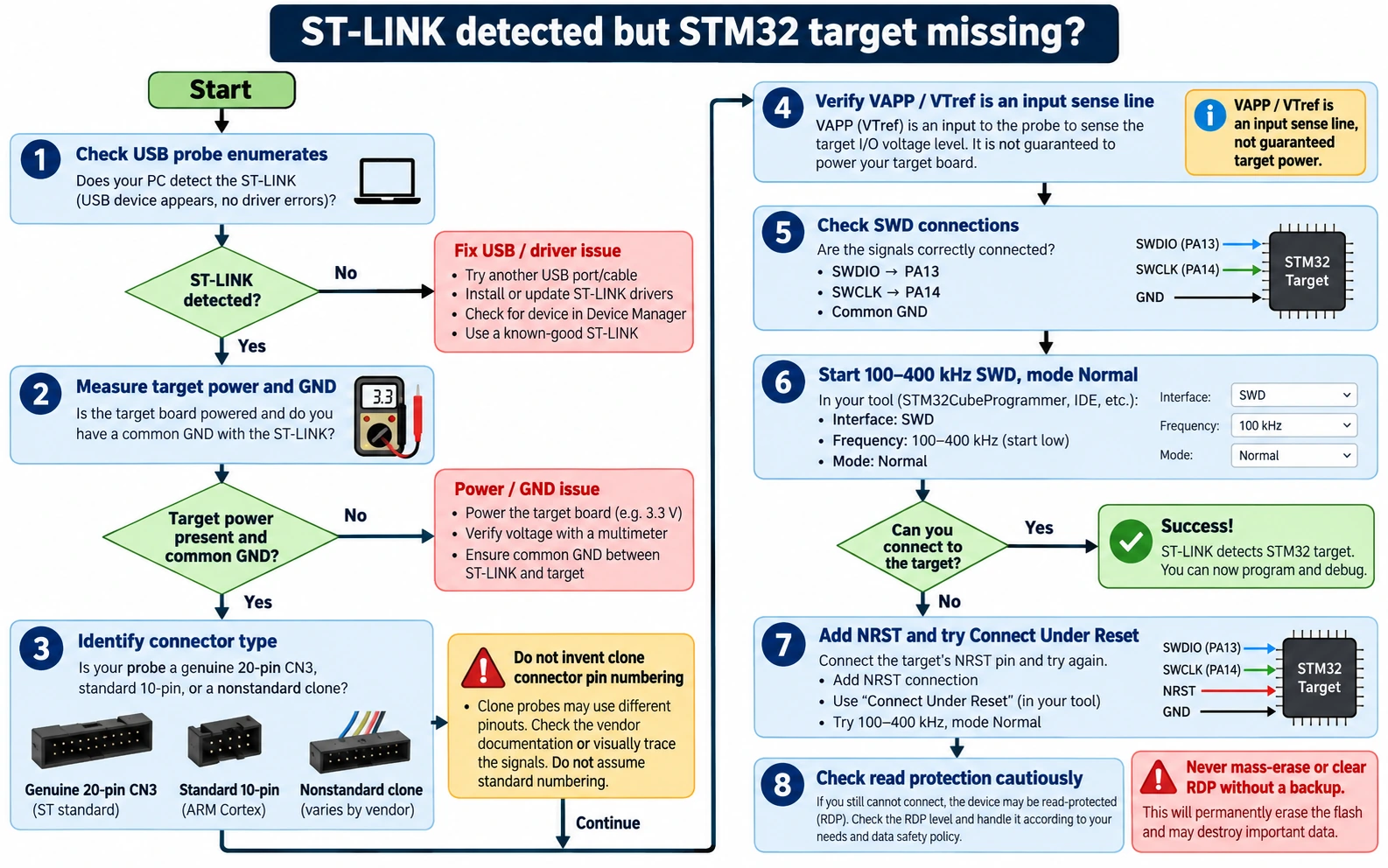
Do not conduct an electrical “continuity test” between live power rails using a meter’s continuity mode. Power off first; measure resistance/continuity only when safe, and use voltage mode on energized hardware.
Frequently asked questions
Can I program a Blue Pill with just SWDIO, SWCLK and GND?
Sometimes, if the target is already powered and the probe’s target-voltage requirements are satisfied. A genuine ST-LINK/V2 also expects its VAPP target-voltage reference, so the safest recommended wiring is SWDIO, SWCLK, GND, VAPP and NRST together with appropriate separate target power.
Is the ST-LINK V2 3.3 V pin an input or output?
It depends which specific pin and probe you mean. On genuine standalone ST-LINK/V2 CN3 pin 1 VAPP is the target-voltage reference, whereas pin 19 is documented as VDD 3.3 V but not as the SWD target power connection. A USB clone’s 3.3V header may be an output. Check the original manual or an actual schematic; do not generalize from the label alone.
What happens if I swap SWDIO and SWCLK?
A normal debug connection will fail because data and clock are on different lines. Rewire correctly with power disconnected; do not try to “fix” a swapped physical connection through a software setting.
Should BOOT0 be high or low for ST-LINK programming?
Usually low for normal application boot. SWD does not need the UART system-memory bootloader. Using BOOT0 high for a special recovery scenario is not part of the ordinary wiring procedure.
Does a genuine 20-pin ST-LINK/V2 map to the 10-pin Cortex connector one-to-one?
No. Both connector layouts have specific standards and different numbering. Use a properly specified adapter mapping signals and voltage reference; never connect pin 1 to pin 1 and pin 2 to pin 2 by assumption.
Is an ST-LINK V2 clone the same as an STLINK-V3?
No. A clone is usually an imitation of older hardware and software, while STLINK-V3 is a distinct family of genuine probes with additional features. If selecting a new debugger, consult ST’s TN1235 for the current line-up and the model’s own connector manual.
Can SWO be used in place of SWDIO?
No. SWDIO is the bidirectional data line required for SWD debug, while SWO is an optional instrumentation output. They are separate signals and often separate target pins.
Why does CubeProgrammer recognize my ST-LINK but not my STM32?
The computer can communicate with the USB probe even if the probe cannot communicate with the target. Most often the target is unpowered, ground or VTref is missing, SWDIO/SWCLK is reversed or a sketch has disabled the debug port. Check hardware first, then lower SWD speed and use Under Reset if NRST is wired.
Final checklist: the safest ST-LINK V2 hookup
For a Blue Pill or Black Pill, start by identifying the exact probe and applying the verified SWDIO, SWCLK, GND, target-voltage-reference and NRST connections. Power the STM32 correctly and independently of any ambiguous probe pin, check the rail with a meter, then test connection at low speed in STM32CubeProgrammer. Do not treat a clone photo as an official pinout, and don’t confuse the genuine 20-pin CN3 with the 10-pin Cortex Debug standard.
If you are new to the ecosystem, follow our STM32 for Beginners guide next, or compare the best STM32 development boards before buying additional hardware. For the exact connectors and voltage behavior, the original manufacturer manuals always take priority over a generic wiring photograph.
Authoritative technical references
- ST UM1075 Rev 10: ST-LINK/V2 in-circuit debugger/programmer, Table 4 (20-pin CN3) and Table 5 (ISOL).
- ST TN1235 Rev 7: Overview of ST-LINK derivatives.
- Arm/Keil Cortex-M Debug Connectors: 10-pin Cortex Debug interface.
- ST STM32CubeProgrammer 2.23 CLI reference: SWD frequency, normal and under-reset connection.
- ST STM32F1 reference manual: debug port PA13 SWDIO, PA14 SWCLK and PB3 SWO.