Quick Summary (TL;DR):
The HLK-LD2410AliExpress price is one of the best low-cost mmWave sensors for Home Assistant because it can detect both moving people and very small/stationary human motion, but its default settings are intentionally broad and can create false presence from fans, curtains, adjacent rooms, hallways, vibrating objects or reflections. The correct fix is not to randomly reduce every sensitivity value. Current ESPHome exposes nine distance gates (G0–G8), separate move and still energy values for each gate, separate move/still thresholds, maximum detection gates and a configurable presence timeout. In engineering mode, watch the energy levels in an empty room and again with a real person at the positions you care about. For each gate, detection occurs when measured energy rises above its configured threshold. Therefore a lower threshold means higher sensitivity; a higher threshold rejects more weak reflections. The best tuning strategy is selective: keep useful near/mid gates sensitive enough to hold a seated person, raise only the gates that show persistent false energy, and reduce the maximum move/still distance gates if you never need to detect beyond a certain part of the room. Current ESPHome defaults to 0.75 m gate resolution but also supports 0.2 m resolution, and the factory threshold profile becomes progressively more sensitive at farther gates. ESPHome’s own calibration method is simple: enable engineering mode, monitor gX_move_energy and gX_still_energy, change thresholds and repeat until stable. For most rooms, tune placement first, max distance second, per-gate thresholds third, timeout last. That produces a more reliable sensor than trying to cure a poor installation entirely in software.
Materials You’ll Need
| Item | Why you need it |
|---|---|
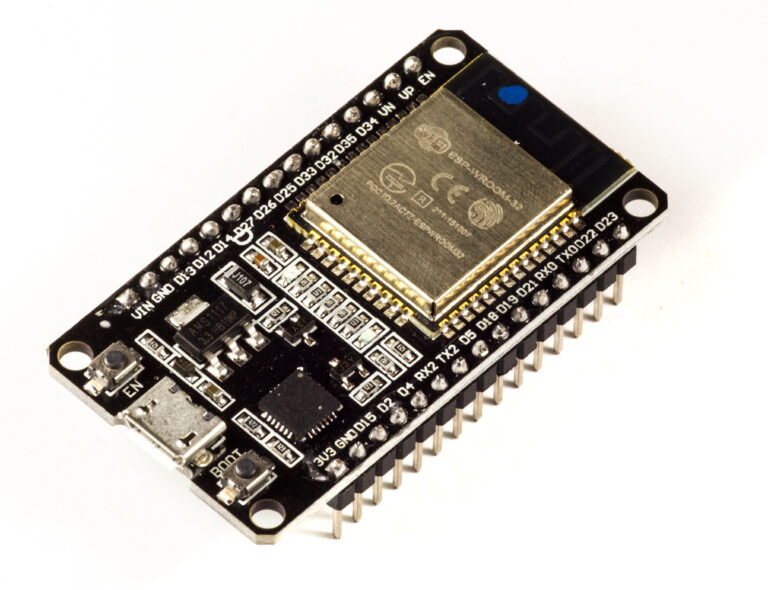
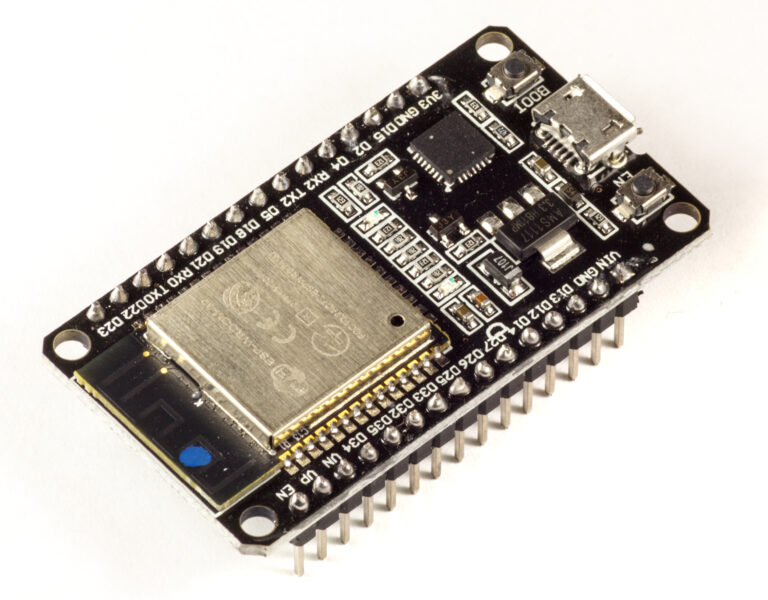
| ESP32AliExpress price development board | Runs ESPHome and exposes LD2410AliExpress price engineering data |
| HLK-LD2410AliExpress price / LD2410B / LD2410C | 24 GHz presence sensor with move/still gate tuning |
| Stable 5 V supply | Reliable radar + ESP32AliExpress price operation |
| UART wiring | Required for full ESPHome configuration and engineering mode |
| Home Assistant | Live graphs, entity history and automation testing |
| ESPHome 2026.x | Current LD2410 component and calibration entities |
| Phone/tablet | Useful while moving around the room and watching gate energy |
| Optional PIR sensor | Useful later for sensor fusion / instant motion response |
Why LD2410 False Presence Happens
The LD2410 does not detect “a human” directly. It transmits 24 GHz FMCW radar, receives reflections, and classifies energy from different distance gates as moving or still targets.
That means anything that produces radar energy above a configured threshold can contribute to presence.
- moving curtains
- ceiling or pedestal fans
- oscillating air purifiers
- people walking in an adjacent hallway
- movement behind thin walls or doors
- vibrating furniture/fixtures
- reflections from large metal surfaces
- poor placement looking through several rooms
The sensor is doing what it was configured to do: react to sufficient energy. Tuning teaches it which distances/energy levels matter in your room.
The Most Important Rule: Threshold Direction
Measured gate energy > threshold
→ that gate can trigger detection

LOWER threshold
→ easier to exceed
→ MORE sensitive

HIGHER threshold
→ harder to exceed
→ LESS sensitive
This catches many people out. If a fan keeps creating false presence at Gate 5 and you reduce G5 still threshold from 30 to 10, you have made the problem worse.
LD2410 Gates Explained
The sensor divides distance into gates. ESPHome exposes G0 through G8 and gives each gate independent move and still thresholds.
LD2410
│
├─ G0  nearest region
├─ G1
├─ G2
├─ G3
├─ G4
├─ G5
├─ G6
├─ G7
└─ G8  farthest configurable gate
By default, ESPHome reports/configures a 0.75 m distance resolution. Current firmware also supports a 0.2 m mode. Think of a gate as a distance bin, not a precise laser-measured boundary; radar reflections and body size naturally spread energy across neighbouring gates.
0.75 m vs 0.2 m Distance Resolution
| Setting | Advantage | Trade-off |
|---|---|---|
| 0.75 m | Simple, default, broad room tuning | Less spatial precision |
| 0.2 m | Finer near-range gate control | More detailed tuning; verify behaviour in your room/firmware |
For a normal living room or bedroom, 0.75 m is usually the easiest starting point. Use 0.2 m when you genuinely need finer distance separation, not because a smaller number sounds more accurate.
Factory Default Thresholds
Current ESPHome documents the following LD2410 defaults:
| Gate | Move threshold | Still threshold |
|---|---|---|
| G0 | 50 | 0 |
| G1 | 50 | 0 |
| G2 | 40 | 40 |
| G3 | 30 | 40 |
| G4 | 20 | 30 |
| G5 | 15 | 30 |
| G6 | 15 | 20 |
| G7 | 15 | 20 |
| G8 | 15 | 20 |
Notice how the move thresholds become lower at longer distance gates. That makes the factory configuration progressively easier to trigger at distance, which helps broad detection but can also pick up unwanted far-field movement.
Why G0/G1 Still Thresholds Are Zero by Default
A zero still threshold is a special factory profile choice for the nearest gates. Do not automatically copy that philosophy into every gate. The useful tuning question is always: what empty-room energy do I actually see, and what energy does a real person produce?
ESPHome UART Configuration
LD2410 communicates at a high default UART rate, so use a hardware UART where possible.
uart:
  id: ld2410_uart
  tx_pin: GPIO17
  rx_pin: GPIO16
  baud_rate: 256000
  parity: NONE
  stop_bits: 1

ld2410:
  id: ld2410_radar
  uart_id: ld2410_uart
Current ESPHome explicitly recommends hardware UART pins for the out-of-the-box 256000 baud rate.
Expose the Core Presence Entities
binary_sensor:
  - platform: ld2410
    ld2410_id: ld2410_radar

    has_target:
      name: "Room Presence"

    has_moving_target:
      name: "Room Moving Target"

    has_still_target:
      name: "Room Still Target"
These three entities tell you whether the false presence is coming from the move classifier, the still classifier, or both.
ESPHome’s Default Binary-Sensor Filter
Current ESPHome applies a 1 second settle filter to LD2410 binary sensors by default to avoid flooding Home Assistant with state changes.
If you define your own filters, that built-in default is replaced. Add the settle/delay behaviour you actually want rather than accidentally removing all smoothing.
Turn On Engineering Mode
switch:
  - platform: ld2410
    ld2410_id: ld2410_radar

    engineering_mode:
      name: "LD2410 Engineering Mode"

    bluetooth:
      name: "LD2410 Bluetooth"
Engineering mode exposes per-gate energy values. ESPHome warns that it uses more resources and should not remain enabled unnecessarily after calibration.
Expose Every Gate’s Energy
sensor:
  - platform: ld2410
    ld2410_id: ld2410_radar

    moving_distance:
      name: "LD2410 Moving Distance"

    still_distance:
      name: "LD2410 Still Distance"

    detection_distance:
      name: "LD2410 Detection Distance"

    moving_energy:
      name: "LD2410 Moving Energy"

    still_energy:
      name: "LD2410 Still Energy"

    g0:
      move_energy:
        name: "G0 Move Energy"
      still_energy:
        name: "G0 Still Energy"

    g1:
      move_energy:
        name: "G1 Move Energy"
      still_energy:
        name: "G1 Still Energy"

    g2:
      move_energy:
        name: "G2 Move Energy"
      still_energy:
        name: "G2 Still Energy"

    g3:
      move_energy:
        name: "G3 Move Energy"
      still_energy:
        name: "G3 Still Energy"

    g4:
      move_energy:
        name: "G4 Move Energy"
      still_energy:
        name: "G4 Still Energy"

    g5:
      move_energy:
        name: "G5 Move Energy"
      still_energy:
        name: "G5 Still Energy"

    g6:
      move_energy:
        name: "G6 Move Energy"
      still_energy:
        name: "G6 Still Energy"

    g7:
      move_energy:
        name: "G7 Move Energy"
      still_energy:
        name: "G7 Still Energy"

    g8:
      move_energy:
        name: "G8 Move Energy"
      still_energy:
        name: "G8 Still Energy"
Expose Every Threshold to Home Assistant
number:
  - platform: ld2410
    ld2410_id: ld2410_radar

    timeout:
      name: "LD2410 Presence Timeout"

    max_move_distance_gate:
      name: "LD2410 Max Move Gate"

    max_still_distance_gate:
      name: "LD2410 Max Still Gate"

    g0:
      move_threshold:
        name: "G0 Move Threshold"
      still_threshold:
        name: "G0 Still Threshold"

    g1:
      move_threshold:
        name: "G1 Move Threshold"
      still_threshold:
        name: "G1 Still Threshold"

    g2:
      move_threshold:
        name: "G2 Move Threshold"
      still_threshold:
        name: "G2 Still Threshold"

    g3:
      move_threshold:
        name: "G3 Move Threshold"
      still_threshold:
        name: "G3 Still Threshold"

    g4:
      move_threshold:
        name: "G4 Move Threshold"
      still_threshold:
        name: "G4 Still Threshold"

    g5:
      move_threshold:
        name: "G5 Move Threshold"
      still_threshold:
        name: "G5 Still Threshold"

    g6:
      move_threshold:
        name: "G6 Move Threshold"
      still_threshold:
        name: "G6 Still Threshold"

    g7:
      move_threshold:
        name: "G7 Move Threshold"
      still_threshold:
        name: "G7 Still Threshold"

    g8:
      move_threshold:
        name: "G8 Move Threshold"
      still_threshold:
        name: "G8 Still Threshold"
These Number entities let you tune the LD2410 live from Home Assistant instead of recompiling YAML after every small threshold change.
The Correct Calibration Process
ESPHome’s current documented calibration process is exactly the approach I recommend:
- Enable engineering mode.
- Monitor per-gate move and still energy.
- Change thresholds.
- Repeat until detection is stable.
- Disable engineering mode afterwards.
The missing practical detail is how to decide what numbers to choose. The rest of this guide focuses on that.
Start with an Empty-Room Baseline
Leave the room genuinely empty and let normal background activity continue: fans, HVAC, curtains, aquarium pumps, traffic in hallways, etc.
Watch each G0–G8 move/still energy for several minutes.
| Observation | Meaning |
|---|---|
| Most gates near zero/low | Good baseline |
| One far gate repeatedly high | Likely unwanted distant motion/reflection |
| Several still gates elevated constantly | Static reflection/environment or sensitivity too high |
| Energy spikes only when fan turns | Fan likely source |
| Energy spikes when people walk in hall | Radar sees through/opening toward hall |
Do not tune from one snapshot. You need the peak background energy that occurs during normal empty-room conditions.
Then Measure a Real Person
Next, sit or stand in every position that the sensor must reliably detect.
- walk into room
- stand near entry
- sit on sofa
- sit at desk
- lie in bed if bedroom
- remain as still as realistically possible
- turn sideways / face away
Record which gates show useful move/still energy and approximately how far above the empty-room baseline they rise.
Think in Terms of Signal Margin
Useful human energy = 55
Empty-room false peak = 22

Threshold around 30–40
→ rejects background
→ still leaves useful margin for person
Do not set a threshold one point above the empty-room peak if the real person only produces a few points more. That leaves almost no margin for temperature, orientation or furniture changes.
A Good Tuning Margin
There is no universal “correct” margin, but the principle is straightforward: choose a threshold comfortably above recurring background energy while remaining comfortably below the weakest real-human energy at that gate.
background peak < threshold < weakest useful human energyWhat If Background and Human Energy Overlap?
If an unwanted reflection produces the same energy as a real person in the same gate, threshold tuning cannot perfectly separate them.
Then change the physical problem: sensor angle, mounting position, max distance, moving object, doorway line-of-sight, or combine with another sensor.
Tune Maximum Distance Before Every Gate
The easiest way to eliminate false presence beyond the useful room is often to reduce the maximum detection gate rather than manually desensitising several far gates.
ESPHome exposes separate:
max_move_distance_gatemax_still_distance_gate
Both default to Gate 8 and accept values from Gate 2 through Gate 8.
Example: Small Bedroom
Imagine the useful bed/room ends around the equivalent of Gate 5, but a corridor lies farther away in the sensor’s line of sight.
G0–G5 → room you care about
G6–G8 → hallway / adjacent movement

Set max move gate ≈ G5
Set max still gate ≈ G5
→ ignore farther range entirely
That is usually cleaner than keeping G6–G8 enabled and raising all their thresholds to extreme values.
Move and Still Distance Can Be Different
You may want moving detection to extend farther than still detection, or the opposite, depending on the room.
Example: detect someone entering from 5 m away, but only care about stationary occupancy within the main 3 m seating area.
Move Threshold Tuning
Move energy responds to larger movement. False move detections commonly come from fans, curtains, doors, pets or people outside the intended room.
If only one gate shows unwanted moving energy, raise that gate’s move threshold. Do not globally reduce sensitivity everywhere.
Still Threshold Tuning
Still detection is where the LD2410 earns its reputation. It can detect very small human movement such as breathing or posture shifts—but the same sensitivity can hold false presence from weak environmental motion.
Raise still thresholds cautiously. If you raise them too far, the sensor will detect you while walking but drop presence after you sit quietly.
The Classic Failure: Lights Turn Off While Sitting
Walking into room
→ move target detected
→ light ON

Sit still
→ still energy below threshold
→ presence clears after timeout
→ light OFF while you're still there
That means your still detection is not sensitive enough at the gate where you sit, or the sensor placement is poor for that posture.
Fixing Seated/Stationary Dropouts
- Find the gate where the seated person appears.
- Watch its still energy while sitting quietly.
- Lower only that gate’s still threshold enough to create margin.
- Check neighbouring gates because body reflections may move between them.
- Do not compensate purely by increasing timeout to several minutes.
A 5-minute timeout can hide poor still sensitivity, but it also keeps false presence active for 5 minutes after a real false trigger.
Presence Timeout: What It Actually Does
Current ESPHome documents a default LD2410 timeout of 5 seconds. It controls how long the sensor’s presence state remains present after the target is no longer detected.
Last valid target disappears
→ timeout starts
→ presence stays ON
→ timeout expires
→ presence OFF
Timeout does not make radar detection more sensitive. It only changes how long the previous state is retained.
Good Timeout Values
| Use case | Starting point |
|---|---|
| Fast hallway light | 2–5 s radar timeout + automation delay if needed |
| Normal living room | 5–15 s |
| Bedroom / seated room | 5–30 s if still tuning is good |
| Using timeout to mask bad detection | Not recommended |
For comfortable lighting, I often prefer a short radar timeout and a longer Home Assistant off-delay. That separates sensor truth from user-experience timing.
Sensor Timeout vs Home Assistant Off-Delay
LD2410 timeout
→ physical detection retention

Home Assistant automation delay
→ comfort / scene behaviour
Example: keep LD2410 timeout at 5–10 s, but require the room to be clear for 2 minutes before turning lights off.
Home Assistant Off-Delay Example
alias: Living room lights off
triggers:
  - trigger: state
    entity_id: binary_sensor.room_presence
    to: "off"
    for: "00:02:00"

actions:
  - action: light.turn_off
    target:
      entity_id: light.living_room
False Presence from a Ceiling Fan
Fans are one of the most common mmWave problems because moving blades create strong periodic radar returns.
Use engineering mode to identify which distance gate spikes when the fan runs.
- raise move threshold for that gate
- raise still threshold too if the fan creates still-classified energy
- change radar angle so fan is outside the strongest beam
- reduce max distance if fan is beyond useful occupancy area
Do not simply turn sensitivity down across every gate; you may destroy seated-person detection near the sofa while solving a fan 5 m away.
False Presence from Curtains
Curtains moved by HVAC or an open window can look like a weak moving target. This is especially likely if the radar faces the window directly.
Best fixes, in order:
- rotate/move sensor so curtain is less dominant
- limit far detection gate if window is beyond required range
- raise only the affected gate threshold
- physically reduce curtain movement if practical
False Presence Through Walls
24 GHz mmWave can pass through some non-metallic materials. If the radar points toward a lightweight wall, it may see motion in the next room depending on construction and geometry.
Threshold tuning is not always the ideal fix because a person in the target room and a person behind the wall may produce overlapping gate energy.
Mount the sensor so the useful room ends before the wall in its main line of sight, or reduce max distance.
False Presence from a Hallway
An open doorway is easier for radar to see through than a wall. If the hallway sits directly in front of the module, every passer-by can become a target.
Bad placement:
LD2410 → room → open door → busy hallway

Better placement:
LD2410 → room area
             doorway off-axis
Placement is often more effective than threshold tuning here.
False Presence from an Air Conditioner
The AC itself may not be the problem. Moving louvers, curtains in the airflow, hanging objects or plants can generate radar motion.
Test the room empty with HVAC OFF and ON. If one gate only rises when HVAC operates, you have identified the environmental source.
False Presence from Pets
LD2410 is not a pet-identification sensor. A moving cat or dog can generate real radar energy.
If pet movement occurs at the same distance gate as humans, per-gate threshold tuning may not distinguish them reliably. Mounting height/angle and sensor fusion are better tools.
Mounting Height
The exact ideal height depends on the room and furniture, but the general goal is a stable line of sight across the human activity zone without pointing directly at known moving objects.
Mounting too high and steeply downward can make seated/still coverage less predictable; mounting too low may overemphasize pets/furniture movement.
Do Not Tune Before Final Mounting
Changing sensor position or angle changes which physical objects fall into each gate and how strongly they reflect radar.
Tune loose module on desk
→ mount 40 cm higher / rotated 20°
→ all your baseline energy changes
Install the sensor in its final enclosure/location first, then calibrate.
Metal and Enclosures
Do not cover the radar antenna face with metal. A plastic enclosure is normally appropriate, but even plastic geometry, mounting screws and nearby large metal objects can change reflections.
Keep the antenna side clear and test with the final enclosure closed.
Engineering Mode Should Be Temporary
Current ESPHome notes that engineering mode uses additional resources. It is a calibration tool, not something you need to leave permanently enabled once the room is tuned.
After tuning, keep the useful presence/distance entities and disable engineering mode to reduce unnecessary data/processing.
Why Home Assistant History Can Mislead During Tuning
Per-gate energy changes quickly. Recorder graphs can downsample or visually smooth short spikes. During calibration, watch live values and short-term graphs rather than relying only on long-history charts.
Build a Calibration Dashboard
A simple Home Assistant dashboard should show:
- Engineering Mode switch
- Presence / Moving / Still binary sensors
- Moving / Still / Detection distance
- Global move/still energy
- G0–G8 move energy
- G0–G8 still energy
- G0–G8 thresholds
- Max move/still gates
- Timeout
ESPHome’s documentation even includes a large calibration card template. The key idea is to put energy and thresholds side by side so you can see why a gate is triggering.
A Faster Practical Calibration Method
Step A — Empty room
Record recurring peak energy per gate

Step B — Real person
Record weakest useful energy per gate

Step C — Set threshold between them

Step D — Test real life for 1–2 days
Adjust only problem gates
Example Calibration Table
| Gate | Empty still peak | Quiet seated still energy | Possible threshold |
|---|---|---|---|
| G2 | 8 | 45 | 20–30 |
| G3 | 12 | 55 | 25–35 |
| G4 | 26 (fan) | 52 | 35–42 |
| G5 | 38 (curtain) | 42 | Poor margin — fix placement |
This illustrates why not every problem is solvable with a threshold. At G5 the false source and real person overlap too closely.
Do Not Copy Someone Else’s Thresholds
Two identical LD2410 modules in two different rooms can need completely different values because radar reflections depend on room geometry, furniture, walls, placement and moving objects.
Internet threshold table
≠
calibration for your room
Factory defaults are a starting point; another user’s “perfect settings” are only an example.
When to Use 0.2 m Resolution
Use finer resolution if you have a specific near-range problem that broad 0.75 m gates cannot isolate—such as a moving object close to a required seating position but in a separable distance band.
After changing resolution, recalibrate. Do not assume the old threshold/gate interpretation remains ideal.
Changing Baud Rate
ESPHome exposes LD2410 UART baud rate selection. The default is 256000. If you change it from Home Assistant, the ESPHome UART configuration must also be updated before communication will resume correctly.
There is normally no reason to change baud rate just to solve false presence; false presence is a radar/tuning issue, not UART speed.
Bluetooth: Leave It On or Off?
LD2410B/C variants include Bluetooth configuration capability. ESPHome can enable/disable the sensor’s Bluetooth adapter.
Once the sensor is fully managed over UART/ESPHome, disabling Bluetooth can reduce unnecessary RF/configuration exposure, though it is not a false-presence tuning mechanism.
Factory Reset
If tuning becomes confusing, ESPHome exposes a factory-reset button for the LD2410. Resetting and starting again can be better than trying to remember dozens of experimental threshold changes.
Query Parameters
ESPHome also exposes a query-parameters button that refreshes the sensor’s current configuration. This is useful after making changes or when you want to verify the actual radar settings loaded into Home Assistant.
Complete Tuning-Oriented ESPHome YAML
uart:
  id: ld2410_uart
  tx_pin: GPIO17
  rx_pin: GPIO16
  baud_rate: 256000
  parity: NONE
  stop_bits: 1

ld2410:
  id: ld2410_radar
  uart_id: ld2410_uart

binary_sensor:
  - platform: ld2410
    ld2410_id: ld2410_radar
    has_target:
      name: "Room Presence"
      device_class: occupancy
    has_moving_target:
      name: "Room Moving Target"
    has_still_target:
      name: "Room Still Target"

sensor:
  - platform: ld2410
    ld2410_id: ld2410_radar

    moving_distance:
      name: "Moving Distance"
    still_distance:
      name: "Still Distance"
    detection_distance:
      name: "Detection Distance"
    moving_energy:
      name: "Moving Energy"
    still_energy:
      name: "Still Energy"

    g0:
      move_energy:
        name: "G0 Move Energy"
      still_energy:
        name: "G0 Still Energy"
    g1:
      move_energy:
        name: "G1 Move Energy"
      still_energy:
        name: "G1 Still Energy"
    g2:
      move_energy:
        name: "G2 Move Energy"
      still_energy:
        name: "G2 Still Energy"
    g3:
      move_energy:
        name: "G3 Move Energy"
      still_energy:
        name: "G3 Still Energy"
    g4:
      move_energy:
        name: "G4 Move Energy"
      still_energy:
        name: "G4 Still Energy"
    g5:
      move_energy:
        name: "G5 Move Energy"
      still_energy:
        name: "G5 Still Energy"
    g6:
      move_energy:
        name: "G6 Move Energy"
      still_energy:
        name: "G6 Still Energy"
    g7:
      move_energy:
        name: "G7 Move Energy"
      still_energy:
        name: "G7 Still Energy"
    g8:
      move_energy:
        name: "G8 Move Energy"
      still_energy:
        name: "G8 Still Energy"

switch:
  - platform: ld2410
    ld2410_id: ld2410_radar
    engineering_mode:
      name: "Engineering Mode"
    bluetooth:
      name: "LD2410 Bluetooth"

number:
  - platform: ld2410
    ld2410_id: ld2410_radar

    timeout:
      name: "Presence Timeout"

    max_move_distance_gate:
      name: "Max Move Gate"

    max_still_distance_gate:
      name: "Max Still Gate"

    g0:
      move_threshold:
        name: "G0 Move Threshold"
      still_threshold:
        name: "G0 Still Threshold"
    g1:
      move_threshold:
        name: "G1 Move Threshold"
      still_threshold:
        name: "G1 Still Threshold"
    g2:
      move_threshold:
        name: "G2 Move Threshold"
      still_threshold:
        name: "G2 Still Threshold"
    g3:
      move_threshold:
        name: "G3 Move Threshold"
      still_threshold:
        name: "G3 Still Threshold"
    g4:
      move_threshold:
        name: "G4 Move Threshold"
      still_threshold:
        name: "G4 Still Threshold"
    g5:
      move_threshold:
        name: "G5 Move Threshold"
      still_threshold:
        name: "G5 Still Threshold"
    g6:
      move_threshold:
        name: "G6 Move Threshold"
      still_threshold:
        name: "G6 Still Threshold"
    g7:
      move_threshold:
        name: "G7 Move Threshold"
      still_threshold:
        name: "G7 Still Threshold"
    g8:
      move_threshold:
        name: "G8 Move Threshold"
      still_threshold:
        name: "G8 Still Threshold"

button:
  - platform: ld2410
    ld2410_id: ld2410_radar
    factory_reset:
      name: "LD2410 Factory Reset"
    restart:
      name: "LD2410 Restart"
    query_params:
      name: "LD2410 Query Parameters"

select:
  - platform: ld2410
    ld2410_id: ld2410_radar
    distance_resolution:
      name: "Distance Resolution"
    baud_rate:
      name: "LD2410 Baud Rate"
A Sensible Tuning Sequence for a Living Room
- Mount sensor permanently.
- Start with factory defaults.
- Enable engineering mode.
- Run empty-room test with TV/fan/HVAC normal.
- Reduce max gates if radar sees beyond useful room.
- Walk/sit in every important position.
- Raise thresholds only where false energy exists.
- Lower still threshold only where a quiet human is missed.
- Test overnight/daytime with normal environment.
- Disable engineering mode after calibration.
Bedroom Tuning
Bedrooms demand strong still sensitivity because sleeping produces very little movement.
Do not over-tighten still thresholds just to remove an occasional distant false target. First limit the far range or change sensor placement.
Test lying still in realistic sleeping positions—not merely sitting upright on the bed.
Bathroom Tuning
Bathrooms are usually small, so max distance reduction is often the easiest win. A sensor that only needs 2–3 m should not be left sensitive to Gate 8 if the wall beyond contains movement.
Fans can also matter, but a ceiling extractor may fall outside the radar’s strongest forward beam depending on mounting.
Office Tuning
Office presence is a classic still-target use case: keyboard/mouse use can be intermittent and a person reading may remain nearly motionless.
Prioritize strong still sensitivity at the desk gate and reject far hallway/window movement separately.
Kitchen Tuning
Kitchens contain many moving mechanical objects: extractor fan components, curtains/blinds, people in adjoining spaces, dishwasher door movement, etc.
Use conservative max range and avoid pointing the radar straight through an open-plan corridor if you only want kitchen occupancy.
LD2410 Is Not a Position Sensor
LD2410 gives distance/gate information but not X/Y coordinates like LD2450. If your problem is “detect sofa but ignore dining table at the same distance,” per-gate tuning cannot spatially separate them if they occupy the same range band.
That is where LD2450 zones or multiple sensors become more appropriate.
When LD2450 Is Better
| Need | LD2410 | LD2450 |
|---|---|---|
| Detect very still person | Excellent | Good but different strength |
| Tune by distance gate | Yes | No same sensitivity model |
| X/Y position | No | Yes |
| Desk vs sofa zones | No | Yes |
| Up to 3 tracked people | No | Yes |
| Simple occupied/not occupied | Excellent | Good |
When Sensor Fusion Is Better Than More Tuning
Sometimes no single sensor can perfectly distinguish the event you care about.
Example: you want instant light-on when someone enters, strong stationary hold while seated, and rejection of a fan.
PIR
→ fast real motion entry

LD2410
→ still occupancy hold

Home Assistant / ESPHome
→ combine logically
The next article in this strategy covers mmWave + PIR presence fusion in detail.
Simple PIR + LD2410 Logic
Occupied = PIR motion OR LD2410 presence

Turn ON quickly on PIR
Keep ON while LD2410 says present
Turn OFF only when both are clear
This can solve problems that threshold tuning alone cannot, especially when you want both responsiveness and stationary detection.
False Presence vs False Absence
| Problem | Typical tuning direction |
|---|---|
| False presence | Raise affected threshold / reduce range / improve placement |
| False absence while moving | Lower affected move threshold / improve placement |
| False absence while still | Lower affected still threshold / improve placement |
| Presence stays too long after leaving | Reduce timeout / automation delay |
Every sensitivity change trades false positives against false negatives. The goal is not “maximum sensitivity”; it is the best separation between real humans and environmental energy.
Do Not Tune Only at One Time of Day
Room conditions change. Sun heats curtains, HVAC starts, fans run, doors open, other rooms become occupied.
A calibration that is perfect at midnight may fail during daytime household activity. Test through representative daily conditions before declaring the job finished.
Home Assistant Recorder Strategy
Engineering mode creates many fast-changing entities. Once tuning is complete, you may not want years of G0–G8 energy history in Recorder.
Keep the useful final entities—Presence, Moving, Still, Detection Distance—and treat engineering energy channels as temporary diagnostics.
Why False Presence Can Appear After Months
- furniture moved
- new fan installed
- curtains changed
- sensor enclosure shifted
- plant added
- door now left open
- new appliance vibrates
- adjacent-room use changed
Radar tuning describes the room as it exists. If the physical environment changes significantly, recalibration may be appropriate.
Troubleshooting: Presence Always ON
- Check Moving vs Still binary sensor to identify classifier.
- Enable engineering mode.
- Find which gate has energy above threshold.
- Remove/stop obvious moving objects.
- Reduce max distance if false source is beyond useful area.
- Raise only affected threshold.
- Reposition sensor if background and human energy overlap.
Troubleshooting: Presence Flickers ON/OFF
- Check if real person’s energy sits just around the threshold.
- Add threshold margin.
- Use appropriate timeout.
- Keep ESPHome default settle behaviour or add your own filters.
- Check power/UART stability if raw data itself is erratic.
Troubleshooting: Still Target Never Appears
- Confirm person is inside max still distance gate.
- Check still energy in engineering mode.
- Lower still threshold for relevant gate.
- Test body orientation and sensor angle.
- Verify sensor isn’t mounted in a poor position for the seating/bed area.
Troubleshooting: Moving Target Works but Presence Drops When Sitting
This is almost always a still-detection problem, not a move-threshold problem. Tune the still gate where the seated person is located.
Troubleshooting: False Presence Only at Night
Look for environmental changes: heating, curtains, fans, pets, adjacent-room activity, automatic appliances. Radar does not care whether the room is dark; “night-only” usually means the physical environment changes at night.
Troubleshooting: Changing Threshold Has No Effect
- Confirm you changed the correct gate.
- Use Query Parameters to verify setting.
- Confirm false energy is actually in that gate/classifier.
- Check max gate settings.
- Restart/query if needed.
- Make sure engineering data corresponds to current configuration.
Troubleshooting: UART Stops After Changing Baud Rate
If you change the LD2410 baud rate using its Select entity, ESPHome continues using the old UART speed until firmware/config is updated. Change the YAML baud_rate to match and reinstall.
My Recommended Final Entity Set
After calibration, a clean production Home Assistant device may expose only:
- Room Presence
- Moving Target
- Still Target
- Detection Distance
- Presence Timeout
- Max Move Gate
- Max Still Gate
- Engineering Mode switch (normally OFF)
You can keep threshold entities hidden/diagnostic so they remain available without cluttering dashboards.
My Recommended Tuning Philosophy
1. Fix placement
2. Limit unnecessary distance
3. Measure empty-room gate energy
4. Measure weakest real-person energy
5. Tune only problem gates
6. Tune still presence carefully
7. Use timeout for retention, not sensitivity
8. Validate for real daily life
Final Recommendation
The LD2410 is not a sensor that should be run at “maximum sensitivity everywhere.” Its real strength is that every distance gate can be tuned separately for moving and still targets.
Start with the factory profile, but do not accept persistent false presence as normal. Use engineering mode to discover exactly which gate and classifier is causing the problem.
If the unwanted source is farther than the useful room, reduce the maximum gate. If it occupies one specific gate, raise that gate’s threshold. If a seated person disappears, lower the relevant still threshold until you have comfortable signal margin.
Most importantly, fix physical placement before performing extreme software tuning. A radar aimed through an open door at a busy hallway is a placement problem first.
Once calibrated properly, LD2410 can provide exactly what Home Assistant lighting needs: fast moving-person detection when somebody enters and reliable still-person presence while they remain in the room, without leaving lights permanently on because a curtain moved 5 metres away.
Related ESP32 Guides
- ESP32 LD2410 mmWave Presence Sensor with Home Assistant
- LD2410 vs LD2450 vs LD2420 vs RD-03D: Best mmWave Sensor
- ESP32 LD2450 Multi-Target Presence Sensor with Home Assistant
- LD2450 Zones in Home Assistant: Coordinates & Exclusion Zones
Datasheets & External Resources
All external manufacturer/framework references are collected here so the main article keeps readers inside esp32.co.uk.
- ESPHome LD2410 Component — current UART, engineering mode, gate energy, thresholds, defaults, distance resolution and calibration process.
- Hi-Link mmWave Sensor Resources — manufacturer product/manual resources for LD2410-series radar modules.