Quick Summary (TL;DR)
Home Assistant’s Energy dashboard needs correctly classified energy totals for the electrical boundaries you actually want to measure. For the electricity grid, use cumulative import and, where applicable, separate cumulative export in kWh. For solar, use the inverter or production meter’s cumulative generation in kWh — not a grid-export counter. For home storage, supply separate cumulative energy into and energy out of the battery. Battery state of charge (%) and instantaneous power (W) are valuable, but neither is a substitute for those energy-throughput counters.
Start with the native integration’s counters, not a template. In Settings → Dashboards → Energy, add a grid connection, solar generation and battery storage only where you have genuine measurements. Confirm each entity’s unit, device class, state class, direction and position in the electrical system. An inverter’s “load”, “production”, “feed-in” and “battery” labels may refer to different sides of a hybrid inverter. Never add the same physical energy flow twice. If you have only signed power, split positive and negative power into separate non-negative streams before integrating them into kWh; this is an approximation, not a billing-grade replacement for hardware counters.
Map the physical energy flows before selecting any sensors
The quickest way to create a convincing but incorrect dashboard is to treat every entity containing “energy” as an interchangeable number. A grid-facing meter measures a boundary between property and electricity network. A PV inverter reports electricity produced by its array or delivered at its AC output, depending on the model. A hybrid inverter may also expose battery charge, discharge and household load estimates. Their readings overlap; putting all of them into the same dashboard field doubles flows and produces impossible totals.
Draw a simple single-line diagram first: grid ⇄ main meter ⇄ home AC bus; solar inverter → home AC bus; home AC bus ⇄ battery inverter. In an AC-coupled setup, this model is straightforward. DC-coupled hybrid inverters may report production, battery charging and losses at different points. The meter installation must be designed and verified by a qualified electrician; this article is about data mapping, not opening live consumer units.
| Energy dashboard field | Physical quantity | Suitable example | Common wrong choice |
|---|---|---|---|
| Grid consumption | Cumulative energy imported from the utility network | Site meter’s total import kWh register | Whole-house load kWh, or signed net energy with exports included |
| Return to grid | Cumulative energy exported to the network | Site meter’s total export kWh register | Solar generation kWh |
| Solar production | Cumulative energy produced by the PV system at the defined production boundary | Inverter’s lifetime AC production energy | Grid-export energy or live PV watts |
| Energy going into battery | Cumulative charging throughput, at a documented boundary | Battery/inverter charge energy kWh counter | State of charge (%) or current stored energy |
| Energy coming out of battery | Cumulative discharge throughput | Battery/inverter discharge energy kWh counter | A signed charge/discharge power sensor left unsplit |
| Individual devices | Energy consumed by named loads or circuits | EV charger or heat-pump cumulative kWh | Adding the same whole-house meter as an individual appliance |
Home Assistant’s official energy setup guide groups these as separate sources, and its grid guide explicitly asks for separate grid consumption and returned-to-grid statistics when both directions exist. The values represent energy rather than solely instantaneous electrical power.
Check what an entity really measures
A sensor’s friendly name is a clue, not evidence. Open Home Assistant’s developer tools, inspect the entity attributes and compare the reading with the inverter or meter’s own documentation. A practical audit records five items per candidate: entity ID; current value and units; device and state class; whether the value is a running total, period counter or live reading; and which physical connection it covers. Also record whether the values increase when importing, exporting, charging or discharging. Do not assume that an entity with “export” in its name necessarily means export to the grid; some platforms use “export” from the perspective of the battery or solar inverter.
| Reading example | Typical units | Interpretation | Energy dashboard use |
|---|---|---|---|
| Grid active power | W / kW | Instantaneous flow, often signed | Live-power display; use a cumulative energy sensor for historical energy |
| Grid import total | Wh / kWh | Energy received from grid over time | Grid consumption |
| Grid export total | Wh / kWh | Energy returned to network over time | Return to grid |
| Solar generation total | kWh | PV production at inverter’s chosen boundary | Solar production |
| Battery charge/discharge total | kWh | Energy transferred in each direction over time | Battery charge / discharge |
| Battery charge level | % | Estimated present state of charge | Optional battery state-of-charge display, not energy throughput |
| Energy stored in battery | kWh | Estimated inventory currently available | Not a charging or discharging counter |
Home Assistant documents the required sensor attributes in its Energy FAQ. Energy counters generally use device_class: energy, a supported energy unit such as kWh, and an appropriate state_class such as total or total_increasing. Instantaneous power is a separate power device class with a measurement state class. The Energy interface can use suitable power entities in places where the interface offers a separate power field, but a W sensor does not become a kWh counter just by renaming it.
For long-term statistics, total_increasing means a non-negative accumulating total that may reset. A falling reading can be interpreted as a reset; if your noisy or incorrect template fluctuates downwards, the statistics can count energy that never flowed. total has different accumulation semantics and can represent values that legitimately go up or down. Select a state class that matches the source’s behaviour; do not change the metadata just to make an unsuitable sensor appear in a drop-down. See the official sensor entity and statistics documentation.
Configure electricity grid: import and export are two separate counters
Choose a meter or gateway at the grid connection, not a sub-meter on a heat pump or on the inverter’s output. In Home Assistant, open Settings → Dashboards → Energy, add the electricity grid connection and select its imported energy. If your site can export, choose the corresponding returned-energy statistic. A grid meter that only provides a signed net lifetime energy register may not have the two suitable directional counters that this arrangement expects.
For three-phase supply, check what the meter totals represent. Three individual phase readings can have simultaneous import and export. Some devices expose the signed net sum across the phases, while others expose separately accumulated positive and negative values by phase. Your supplier’s billing scheme may apply different netting intervals or registers. For a dashboard that you intend to reconcile against a bill, select the meter’s appropriate total grid import and total grid export registers and verify them against the physical utility-meter indications. Summing three phase-level import registers may produce a different result from netting across phases.
Do not reverse the meaning of signed power
Some meters report positive watts when the house imports and negative when it exports; others do exactly the reverse. A single observation at night with major house loads running is often useful, but verify against documented device sign conventions and a known load. A negative number by itself does not prove export. When both native import and native export counters are available, use those instead of manufacturing counters from signed power. A meter installed on the solar inverter’s circuit rather than at the grid boundary is not a grid meter, even if it reports both positive and negative power.
Configure solar: generation is not grid export
Solar production includes electricity consumed on site, electricity sent to the grid and, depending on architecture, electricity used to charge a battery. Grid export is only the portion leaving the property. If your inverter produces 5 kWh during an interval, the house immediately uses 3 kWh and the remaining 2 kWh goes to the grid, the dashboard needs 5 kWh of solar generation and 2 kWh of grid export. Entering 2 kWh under solar production hides the self-consumed 3 kWh and distorts the energy flow diagram.
Choose a cumulative inverter generation counter or a dedicated production meter on the correct branch. A pure grid-connection CT cannot measure gross PV generation by itself. For a system with multiple inverters, check whether the provided total already combines devices before you sum them. For a hybrid inverter, inspect how “PV generation”, “PV yield”, “inverter output” and “load supply” are defined, particularly when storage is charging on the DC bus. Never simply add PV power and battery discharge to calculate “generation”: discharge is stored energy, not newly generated solar.
With a battery, energy-loss allocation is not always obvious. An inverter can measure PV power on the DC side but grid flows on the AC side. These are not identical accounting boundaries because conversion and storage introduce losses. Prefer consistent manufacturer-defined energy statistics at documented measurement points, accept small residual differences and disclose the measurement boundary in any custom dashboard. Home Assistant’s solar integration guide discusses both inverter integrations and separately metered PV output.
Configure batteries: charge, discharge and state of charge are different things
The Battery storage section asks for cumulative energy going into and coming out of the battery. Many native integrations provide lifetime charge and discharge energy totals. Others show “today charge” and “today discharge” counters, which can work when their reset behaviour is correctly exposed. Select sensors whose direction and measurement point match the labels, and ensure they can accumulate valid long-term statistics.
State of charge is a percentage describing an estimate of energy remaining. It may be displayed alongside the Energy view when a supported battery percentage sensor is available, but it cannot be entered as charge energy in kWh. The capacity implied by 70% SOC may also vary with temperature, ageing, reserve settings and the vendor’s definition of usable capacity. A snapshot of stored kWh is also a stock, not energy throughput; its daily increase does not equal charging energy when simultaneous conversion losses and consumption exist.
| Battery value | What it answers | Suitable for | Not suitable for |
|---|---|---|---|
| SOC 72% | How full is the system now? | State-of-charge graph, optional dashboard indicator | Battery energy in/out field |
| Charging power +1,500 W | How quickly is it charging now? | Power flow, automation condition | Direct use as accumulated charge kWh |
| Total charge 1,245 kWh | How much energy has gone in over time? | Energy going into battery, if counter semantics verified | How much capacity remains now |
| Total discharge 1,081 kWh | How much energy has come out over time? | Energy coming out of battery | Solar production |
| Usable battery capacity 9.5 kWh | What is the nominal usable storage size? | System sizing context | A changing energy-flow sensor |
Power direction is also vendor-specific. A battery-facing register called “battery import” may mean charging from the inverter, while “battery export” means discharging to it. Confirm the direction by observing an intentional normal charge/discharge period through the manufacturer’s application. The official home battery documentation describes the need for energy flowing both ways. The official Enphase Envoy integration guide illustrates separate battery charge and discharge entities and discusses cases where only power values are present.
Worked example: reconcile a home with solar and storage
Assume a correctly metered AC-coupled system, and use energy measured at consistent AC boundaries over the same 24 hours. Suppose the grid provides 6 kWh, the site exports 4 kWh, solar generates 12 kWh, the battery discharges 2 kWh into the AC system and receives 3 kWh from it. The theoretical balance of household AC loads is:
Household loads = grid import − grid export + solar generation + battery discharge − battery charge.
That gives 6 − 4 + 12 + 2 − 3 = 13 kWh of household load over the period, assuming all flows share the stated boundaries. This is a conservation-of-energy check, not a universal recipe for generating dashboard entities.
| Measured flow over 24 h | Energy | Where it belongs |
|---|---|---|
| Grid imported | 6 kWh | Grid consumption |
| Grid exported | 4 kWh | Return to grid |
| Solar produced | 12 kWh | Solar production |
| Battery discharged | 2 kWh | Energy coming out of battery |
| Battery charged | 3 kWh | Energy going into battery |
| Calculated house load | 13 kWh | Reasonableness check, not a sixth energy source |
Do not add the 13 kWh result to the main site’s imported energy: it is calculated from existing flows. In a DC-coupled hybrid system, where “solar generation” is measured on the DC side and battery throughput on a different side of conversion stages, the same algebra can leave a residual for conversion losses. Treat a modest difference as a reason to inspect boundaries and timestamps, not automatically as a sensor malfunction. Conversely, a substantial mismatch can signal a reversed CT, missing loads, a stale integration or double-counting.
A separate instantaneous example
At midday, suppose PV output is 4.0 kW, the house is using 1.4 kW, the battery is charging at 1.5 kW and grid export is 1.1 kW. On an idealised common AC boundary: 4.0 = 1.4 + 1.5 + 1.1. This is power balance at that instant; it does not say how many kWh have accumulated today. The same flow drawn continuously for one hour would correspond to 4 kWh of generation, but real systems and sunlight fluctuate during the hour.
What if you have only a signed power sensor?
Prefer a meter or integration with separate directional energy totals. If that is genuinely unavailable, Home Assistant’s Integral (Riemann sum) integration can estimate accumulated energy from W or kW. Split signed power into two non-negative streams first. Otherwise imports and exports can cancel, and a signed net integral is not a substitute for two cumulative direction-specific sensors.
The example below assumes sensor.site_grid_power is positive for imports and negative for exports, and that this power entity is already provided by a trustworthy integration. Replace the ID and reverse the signs only after verifying the actual hardware convention. Use the Home Assistant template tools to test syntax before deploying. The example deliberately marks the template unavailable when the source is not numeric, rather than silently turning missing data into real zero-watt measurements.
# Example only: signed grid power in W, positive = import
# Add to configuration.yaml under the template: key, or adapt to your setup.
template:
  - sensor:
      - name: "Grid Import Power (derived)"
        unique_id: grid_import_power_derived
        unit_of_measurement: "W"
        device_class: power
        state_class: measurement
        availability: "{{ is_number(states('sensor.site_grid_power')) }}"
        state: >
          {% set p = states('sensor.site_grid_power') | float(0) %}
          {{ [p, 0] | max }}
      - name: "Grid Export Power (derived)"
        unique_id: grid_export_power_derived
        unit_of_measurement: "W"
        device_class: power
        state_class: measurement
        availability: "{{ is_number(states('sensor.site_grid_power')) }}"
        state: >
          {% set p = states('sensor.site_grid_power') | float(0) %}
          {{ [-p, 0] | max }}

# Add under the top-level sensor: key, merging with existing entries.
sensor:
  - platform: integration
    source: sensor.grid_import_power_derived
    name: "Grid Import Energy (derived)"
    unit_prefix: k
    unit_time: h
    method: left
    max_sub_interval:
      minutes: 5
  - platform: integration
    source: sensor.grid_export_power_derived
    name: "Grid Export Energy (derived)"
    unit_prefix: k
    unit_time: h
    method: left
    max_sub_interval:
      minutes: 5
Limitations: energy estimation depends on sampling interval, when power actually changes, connectivity and the integration method. A left-hand approximation can better suit loads that hold a reading between updates; it is not universally superior to trapezoidal integration for every signal. Sudden changes between sparse samples and outages introduce error. Leave native import/export totals untouched and use derived sensors only when their device class, long-term statistics, sign and cumulative behaviour have been validated. Never use these calculations to replace the supplier’s certified billing meter.
The same approach can separate a single signed battery power stream only after you verify which sign means charging. Do not copy the grid template verbatim and presume the battery uses the same sign. Battery charge and discharge energy ideally come from the battery’s own accumulated counters and a consistent measurement boundary.
Understand long-term statistics and resets
The Energy dashboard relies on recorder and long-term statistics. A current power sensor may change every second, but charts of cumulative energy depend on historical statistics building up correctly. When a sensor is missing from the selector, check the entity class, unit, recorder inclusion and statistics errors before attempting a workaround. In a current Home Assistant installation the relevant checks are available through developer tools for states and statistics; menu names can move between releases.
A running total may start at 23,450 kWh rather than zero. That is not a problem: long-term statistics establish a baseline when tracking begins. A battery percentage fluctuating between 70% and 72% is not an appropriate total-increasing energy counter. Nor is a solar “today yield” entity necessarily the best choice if a continuous lifetime generation total exists. Daily counters reset; they need accurate, non-noisy reset semantics or an integration explicitly designed for them.
| Symptom | Likely cause | Targeted check |
|---|---|---|
| Energy entity not offered in selector | Incorrect device/state class, unsupported unit or recorder/statistics problem | Inspect attributes and developer tools’ Statistics page |
| Huge import spike after restart | Reset or glitch interpreted as new energy | Plot underlying lifetime counter and inspect statistics correction options |
| Export appears as import | Direction reversed, incorrect sign convention or wrong register | Compare meter with known nighttime import and sunny export periods |
| Solar seems too low | Grid export accidentally used for production | Compare inverter total generated energy with dashboard solar source |
| Battery appears to charge and discharge at once | Inverter telemetry semantics, polling mismatch or power split error | Check charger and inverter manuals, raw sensor timestamps and units |
| Household usage exceeds reasonable loads | Overlapping measurement boundaries or double counting | Draw the electrical boundaries; remove duplicate device entries from analysis |
| Daily totals disagree with utility bill | Time-zone/tariff interval, three-phase netting, CT calibration, losses or polling gaps | Reconcile same dates and billing register; do not assume dashboard replaces billed energy |
If you need day, month or tariff-period accounting in addition to the main dashboard, Home Assistant’s Utility Meter helper can derive period counters from a suitable cumulative energy source. It also supports tariffs. It is not a substitute for repairing an incorrect underlying sensor, and blindly enabling net consumption can make gross import/export analysis less transparent.
Different systems need different entity sets
| System | Minimum practical inputs | What you cannot infer reliably | Preferred data source |
|---|---|---|---|
| Grid only | Grid import total | Device-level energy without sub-metering | Smart utility meter or site meter |
| Grid plus export-capable solar | Grid import, grid export, PV generation totals | Gross generation from grid meter alone | Site bidirectional meter plus inverter |
| Solar plus AC-coupled battery | Grid import/export, PV generation, battery charge/discharge | Battery throughput from SOC alone | Site meter, PV inverter and storage gateway |
| Hybrid DC-coupled inverter | Above directional totals with vendor-defined boundaries | AC house load from mixed DC/AC data without considering losses | Inverter’s documented plant statistics and independent grid meter |
| Three-phase home with PV | Correct total import/export and generation energy, verified netting scheme | Bill equivalence from indiscriminate per-phase positive sums | Meter with appropriate aggregate registers |
| Home with EV charger or heat pump | Site totals and additional sub-metered device kWh if desired | Whole-site import by summing a few device meters | Site meter plus individual load meters |
Not every home needs a new meter. A working inverter integration and smart meter may already provide all required counters. Buy additional hardware when an essential measurement boundary is missing, an integration is unstable, or you need a locally accessible independent reading. For a solar installation, purchasing a second CT set will not solve an incorrect choice between generation and grid export unless it is fitted at the correct branch and the associated meter actually provides the needed energy counters.
Choose the hardware only after defining the missing measurement
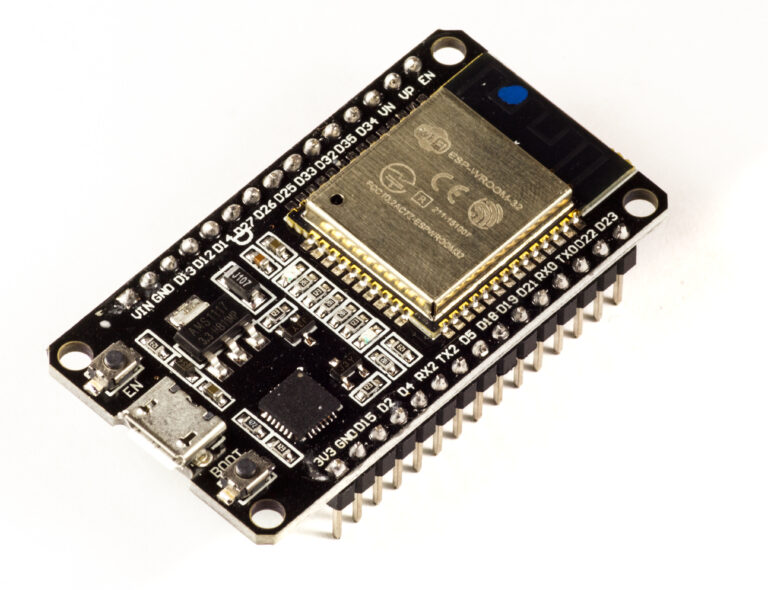
If grid import/export is missing, consider a compatible bidirectional whole-site meter with correct phase count and separate energy totals. If inverter production is missing, check supported local inverter gateways or the manufacturer’s official Home Assistant integration before installing a separate PV production meter. If battery charge and discharge counters are unavailable, inspect the battery inverter’s supported API and register definitions first. An ESP32AliExpress price/ESPHome reader can make sense for a separate meter, but it does not magically infer energy flows that were never measured.
Allow for the entire acquisition chain: the correct DIN-rail meter or approved CT arrangement, certified electrical installation, communications adapter, RS485/Modbus gateway where needed, wired or wireless network reliability, and backup/persistence for the Home Assistant host. An independent meter can help with cross-checking; it cannot guarantee tariff- or tax-grade data unless certified for that use. Avoid undocumented Modbus writes or inverter control actions just to collect statistics.
For background on the measurement methods, see the existing esp32AliExpress price.co.uk/ guides to pulse meters, CT clamps, PZEM and Modbus, SDM120/SDM630 Modbus integration, and building an ESP32 CT energy monitor. Those posts cover meter interfaces and hardware in more detail; this guide addresses which readings belong in which Energy dashboard field.
Before you trust your energy figures: a validation checklist
- Confirm the site boundary. Identify the physical grid connection and make sure your import/export readings come from there, not a PV branch or charger.
- Confirm each unit. Select kWh/Wh energy totals for historical energy fields. Reserve W/kW for live power, and % for state of charge.
- Verify directions. Observe meter readings during a known import period and, when the system can export, a normal export period.
- Choose cumulative counters. Prefer actual integration-provided lifetime or correctly characterised energy counters over calculated estimates.
- Check solar generation. Compare dashboard production with the inverter’s generated-energy register, not its feed-in counter.
- Check battery charge and discharge independently. Match each label with the manufacturer’s energy-flow definitions and the correct physical side of any conversion stages.
- Check for overlap. Do not configure an entire property’s load as both a grid consumption source and an extra individual device.
- Allow statistics to settle. Compare the same interval and time zone, inspect long-term statistics errors and avoid changing entities daily while assessing accuracy.
- Reconcile once per day. Compare energy totals against reliable native meter or inverter counters and investigate material discrepancies.
- Document limitations. Note equipment models, firmware, meter position, sign convention and whether values are measured or estimated.
Frequently asked questions
Can I use solar export as my solar production sensor?
No, not for a normal behind-the-meter solar installation. Export is what reaches the network after local usage and possibly storage charging. Use an actual generation sensor from the PV system or an appropriately installed production meter.
Why does my battery report 80% but no battery energy in the dashboard?
The percentage represents charge remaining, not cumulative kWh throughput. The Energy configuration needs separate accumulated charge and discharge energy counters. Some integrations expose them; others require carefully derived estimates from signed battery power.
Should I add all three phase counters together?
Only after confirming exactly what those registers represent. A site may import on one phase while exporting on another. A per-phase gross import sum is not necessarily equivalent to a meter’s internally netted total, and supplier billing can have different rules. Prefer documented site-level directional totals where available.
Is an integrated W-to-kWh sensor accurate enough?
It can be useful for trends and automations when power reporting is frequent and reliable, but its precision depends on sampling and configuration. Actual cumulative hardware energy counters generally offer a better foundation for accounting, especially across restarts and communication outages.
Why did historical energy suddenly jump?
Investigate a counter reset, sudden unit conversion, a negative excursion on a supposed total-increasing sensor or recorder/statistics handling. Do not “fix” an unexplained spike by adding arbitrary offsets without understanding the underlying entity. The site’s separate Energy Dashboard troubleshooting guide goes deeper into statistics failures and ESPHome-related symptoms.
Official documentation and further reading
- Home Assistant — home energy management overview: supported grid, solar, battery and device flows.
- Home Assistant — electricity grid: imported and exported energy statistics, and grid configuration.
- Home Assistant — solar production: PV integration and metering possibilities.
- Home Assistant — home batteries: bidirectional battery energy-flow inputs.
- Home Assistant — Energy FAQ: accepted units, device/state classes and missing sensor diagnosis.
- Home Assistant — sensor developer reference:
energy,power,energy_storageand long-term statistics semantics. - Home Assistant — Integral helper: converting sampled power to energy, with limitations.
- Home Assistant — Utility Meter: daily/monthly periods and tariff counters.
- Home Assistant — Enphase Envoy: battery energy integration examples.
Editorial note: This is a documentation-based setup and interpretation guide prepared in October 2026, not an electrical installation tutorial or a hands-on equipment test. Integration naming and firmware can change. Qualified personnel should install or alter equipment within an electrical distribution board; official meter and inverter documentation takes precedence over guessed entity naming.