Raspberry Pi announced its updated desktop image for PCs and Intel Macs on 6 October 2026. The release adds 64-bit Debian 13 (Trixie) and Raspberry Pi Connect. Apple Silicon Macs remain unsupported.
Quick summary
| Detail | Verified information |
|---|---|
| Target architecture | amd64 / x86-64 PCs and Intel-based Macs |
| Operating-system base | Debian 13 (Trixie) |
| Announcement date | 6 October 2026 |
| Download listing | Image dated 5 October 2026; kernel 6.12; 2,616 MB |
| Remote access | Raspberry Pi Connect client included |
A current desktop for existing computers
The earlier PC image used 32-bit Debian Bullseye. In the announcement’s comments, engineer Simon Long confirms that the new image requires a replacement installation. Existing software, data and partitions therefore need their own migration plan.
The interface includes the recent Control Centre and dock work. Raspberry Pi’s 15 September desktop announcement explains that the new interface features are optional. The dock can supplement or replace the familiar taskbar. That distinction is useful for a shared workshop computer: users can keep a familiar layout while trying the newer controls.
For makers, an existing laptop could become a separate Linux workstation for documentation, serial tools and project administration. That is a practical use case, rather than a performance promise. CPU speed, memory, graphics, wireless networking and USB behaviour still depend on the particular computer.
Connect extends the remote-access workflow
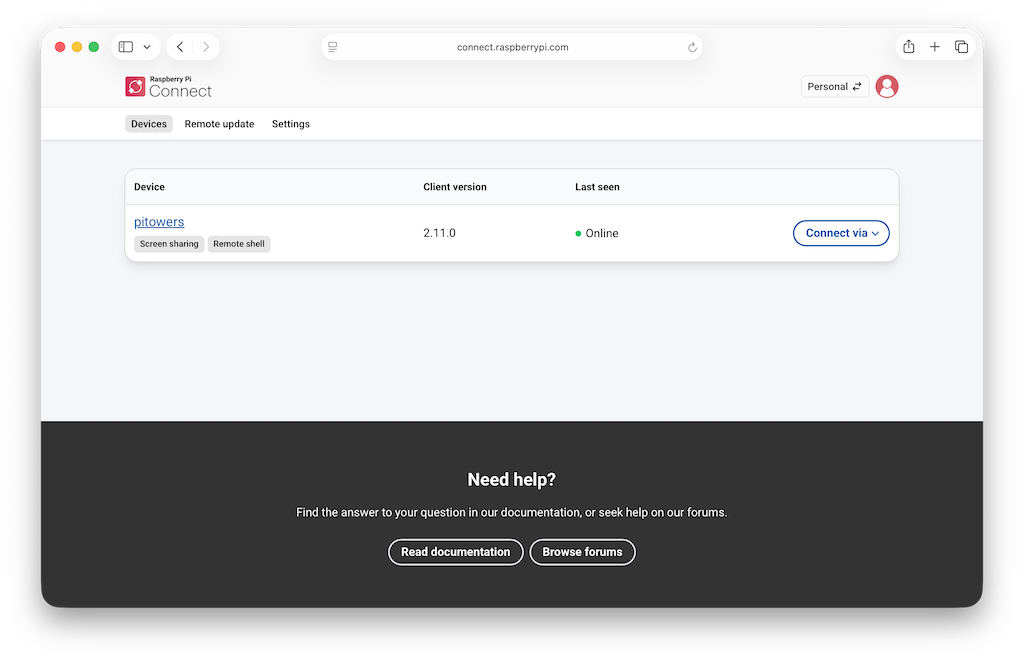
The included Connect client supports screen sharing and a remote terminal. PC users choose a device name during setup.
The Connect service page lists a free personal tier. Its documentation explains that sessions use an encrypted WebRTC connection, normally directly between the device and browser; encrypted traffic can use a relay when a direct connection is unavailable. Screen sharing requires Wayland. A remote shell provides a different access method when a graphical session is unnecessary.
Our view: keeping a spare workstation reachable alongside the boards it manages could reduce the friction of checking a build, opening a terminal or helping another user. Account access and device naming deserve attention before leaving that computer available remotely.
Try the USB image before installing
Choose the Raspberry Pi Desktop section of the official downloads page. It is listed separately from the Raspberry Pi board images. The PC download is dated 5 October, one day before the announcement, and the page supplies a SHA256 hash for checking the downloaded file.
The live USB image can save changes using persistence; resetting persistence erases those changes. Calamares can install the desktop on an internal drive.
A USB trial is a useful compatibility check. Test display resolution, keyboard, Wi-Fi, Ethernet and the USB devices your projects need before replacing an existing operating system. Back up the computer’s data and verify the installer’s target drive before committing to an installation.
How it fits a home-server setup
For a workshop desktop, the attraction is reuse of existing hardware and a familiar interface. For a dedicated automation host, choose the installation method around the service you intend to run. Our Home Assistant OS, Docker and Proxmox comparison explains those choices. The Raspberry Pi 5 versus mini PC guide covers hardware cost, storage, power and cooling separately.
The October release makes the desktop image current again. Whether it suits an always-on machine still needs a check of that machine’s hardware, workload and measured power use.