Quick answer: The most reliable first method of flashing an STM32 is usually ST-LINKAliExpress price over SWD: connect a supported probe to the target, choose ST-LINKAliExpress price in STM32CubeProgrammer, confirm the device and target voltage, open your compiled firmware, and select Download with verification enabled. If you do not have a debug probe, some STM32 chips can instead use the built-in system-memory bootloader over UART or USB DFU. The crucial word is some: neither a USB connector on a board nor the STM32 name alone guarantees USB DFU support.
STM32CubeProgrammer (sometimes shortened to CubeProgrammer or STM32CubeProg) is STMicroelectronics’ official utility for reading, erasing, programming, verifying and inspecting STM32 devices. Unlike STM32CubeMX, which configures MCU peripherals, and STM32CubeIDE, which compiles and debugs code, CubeProgrammer deals directly with the target’s memory and programming interfaces. That distinction matters when a board refuses to boot, you need to flash a precompiled .hex file, or you want to identify what the hardware actually is.
This guide covers STM32CubeProgrammer 2.23.x, the version family available at the time of writing in October 2026. It walks through three practical routes—ST-LINKAliExpress price/SWD, USB-to-UART, and native USB DFU—and explains which route makes sense for Blue Pill, Black Pill and Nucleo boards. It also provides command-line examples, careful voltage guidance and troubleshooting based on the failure, not guesswork. The software examples are documented workflows, not claims of physical bench-testing on every board revision.
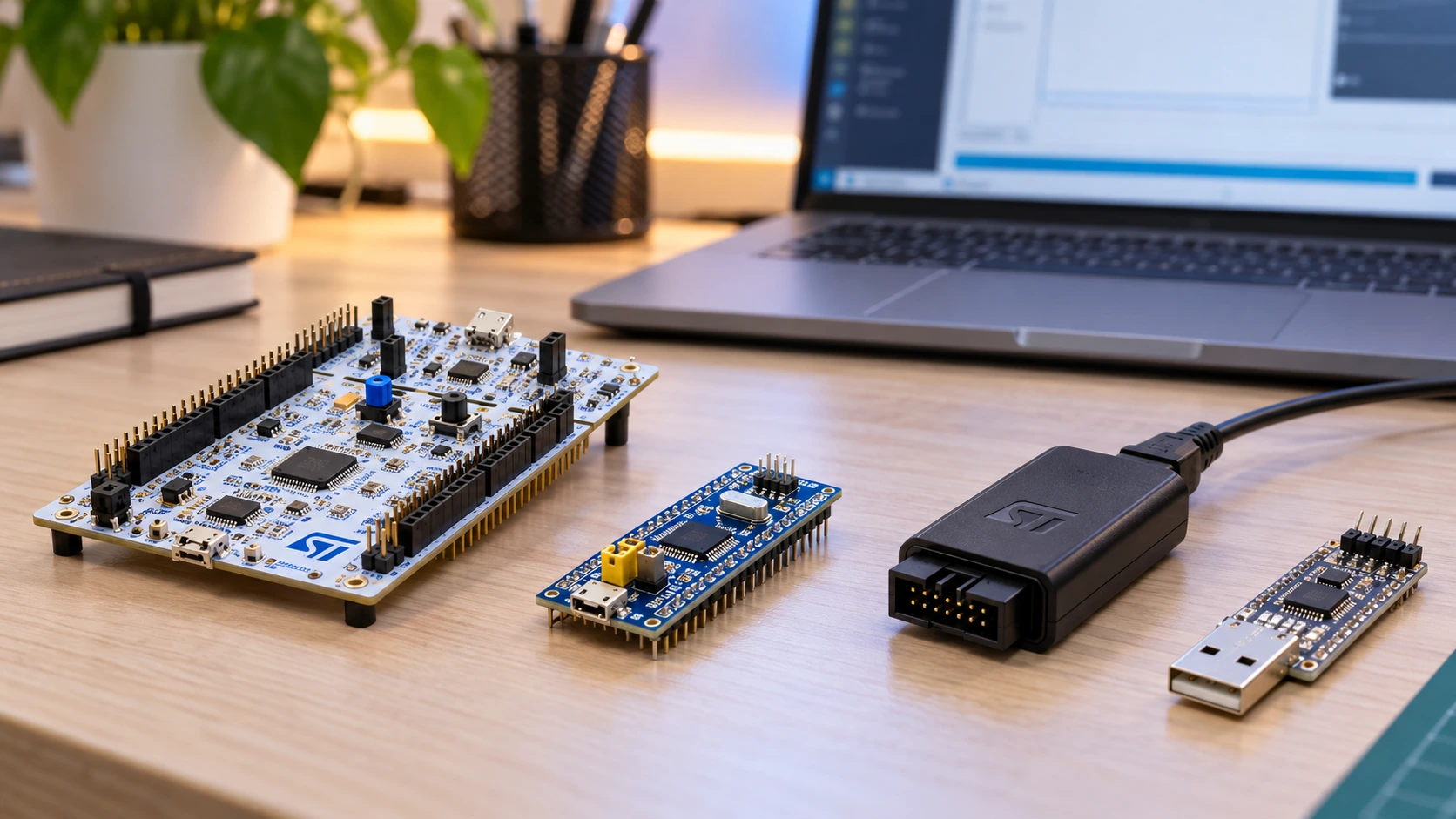
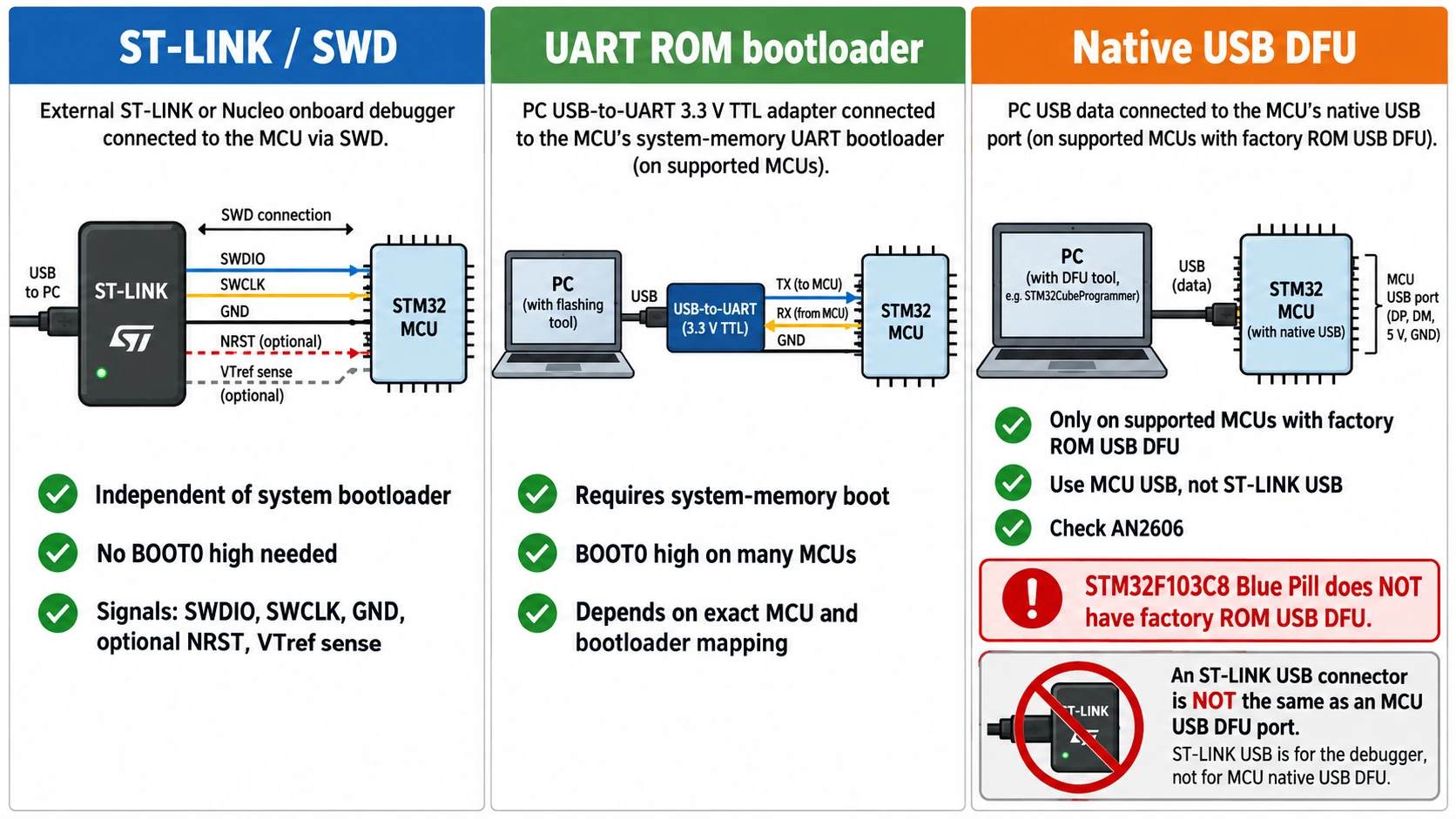
At a glance: which STM32 flashing method should you use?
| Method | What you need | Must enter ROM bootloader? | Best used for | Important limitation |
|---|---|---|---|---|
| ST-LINK over SWD | ST-LINK debugger (onboard or external), SWDIO, SWCLK and GND | No | Initial development, debugging, recovery | Requires access to SWD and a compatible probe |
| UART system bootloader | 3.3 V TTL USB-to-UART adapter, accessible ROM-bootloader USART | Yes | Programming without ST-LINK, F103 Blue Pill | Boot pins, USART and protocol settings vary by chip |
| USB DFU system bootloader | Native MCU USB data connection, USB DFU-enabled ROM bootloader | Yes | Supported F4 and other STM32 devices with USB DFU | Not supported by the STM32F103C8’s ROM bootloader |
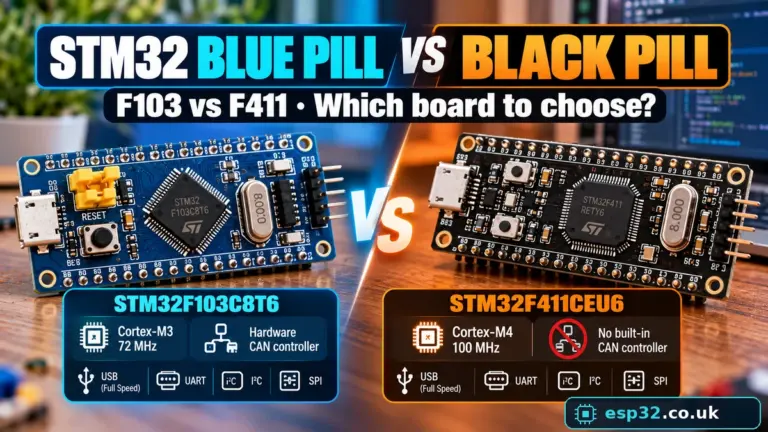
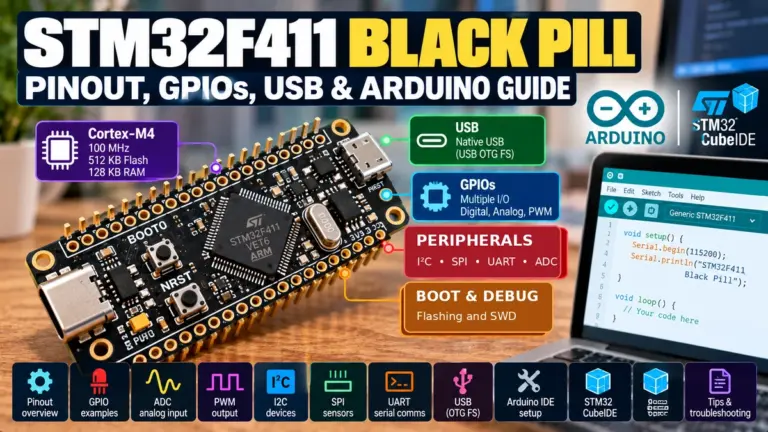
For a NUCLEO-F401RE, use its integrated ST-LINK USB connection first. For a typical STM32F103C8 Blue Pill, use an external ST-LINK or the USART1 bootloader; do not expect its on-board micro-USB connector to appear as the factory USB DFU bootloader. For an STM32F401/F411 Black Pill, SWD is still an excellent first choice, but supported chip/board combinations can also enter ROM USB DFU through the MCU’s USB interface. The exact ROM bootloader peripheral support must be confirmed for the specific part number in ST application note AN2606.
Before flashing: what you actually need
Choose the firmware file: ELF, HEX or BIN
The binary format changes how CubeProgrammer knows where the data belongs:
| File | Contains load-address information? | Typical source | What you must check |
|---|---|---|---|
.elf | Yes, through sections/program headers | Compiled build with symbols | Target/device and linker memory map |
.hex | Yes, Intel HEX records contain addresses | Exported firmware | Target and whether addresses match flash layout |
.bin | No: raw bytes only | Exported binary image | Enter the correct flash start address |
For a normal STM32F103C8 application located at the start of internal flash, the commonly used address for a raw binary is 0x08000000. This is not a universal address for every STM32 project: an application behind a custom bootloader, a relocated vector table, a multi-bank layout or an external-memory image can have a different intended address. Do not blindly flash a random .bin to 0x08000000 just because a tutorial uses it.
A successful program-and-verify operation only establishes that the programmed data matches the supplied file. It does not prove that the firmware has the correct startup code, clock tree, GPIO mapping, board revision or memory layout. If an image verifies but the application does not run, move from the connection checks to the application checks instead of repeatedly erasing flash.
Install the current STM32CubeProgrammer
- Open ST’s official STM32CubeProgrammer download page. Download the package for your host operating system and confirm the current version rather than using an unrelated driver or download mirror.
- Install the application and any necessary ST-LINK or DFU drivers. On Windows, an old DfuSe driver can conflict with CubeProgrammer’s DFU driver. ST explains the replacement process in its current installation documentation.
- On Linux, ensure that USB access rules are installed for the relevant probe or USB DFU interface; ST provides
udevrules with the installer. If using a Raspberry Pi as the host, the 2.23 release offers a separate 64-bit Arm/Linux CLI option—do not confuse that with STM32 firmware built for the target. - Launch the GUI without a board connected and locate the target/interface selection panel, Memory & File edition, Erasing & Programming, Option Bytes and Log sections. Names and panel placement may vary slightly between minor releases.
- Before connecting hardware, identify the exact STM32 part, its supply voltage, the physical board’s power inputs and the firmware you intend to preserve or replace.
ST provides the up-to-date UM2237 user manual and STM32CubeProgrammer 2.23 online documentation. These are better references than historical screenshots when a menu has moved.
The five checks before clicking Download
Target power: Measure or verify that the MCU’s VDD rail has a valid, stable supply. On most 3.3 V STM32 boards, never attach 5 V directly to a header marked 3.3 V. A board’s 5 V input may feed an onboard regulator, but that does not make every pin 5 V tolerant.
Common ground: Your probe or UART adapter must share ground with the target. An apparently connected USB programmer with no common target ground cannot reliably transfer SWD or UART signals.
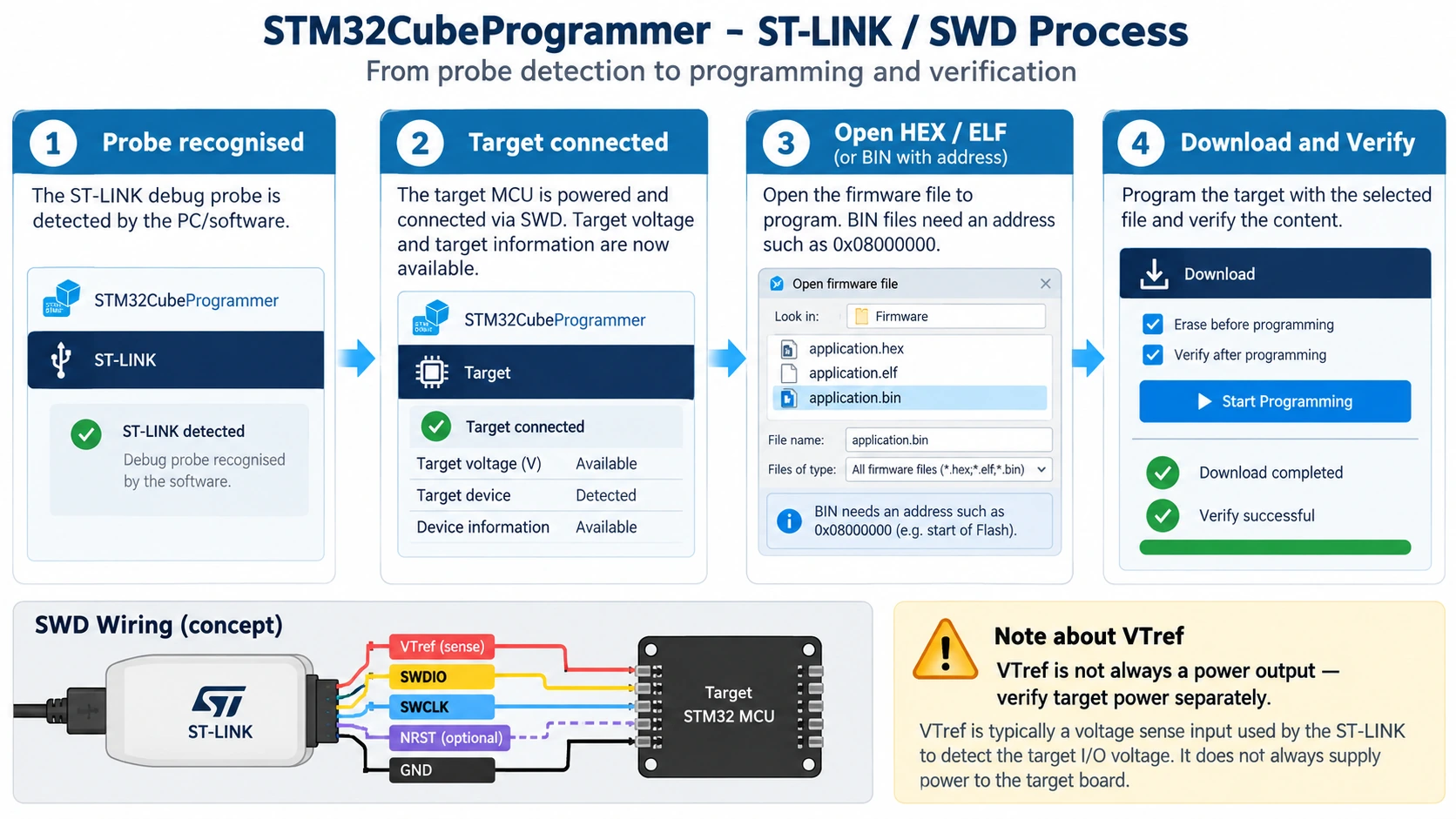
Probe reference versus power: The pin marked VTref or target voltage on an ST-LINK may be a voltage-sense input, not a source of power. Check the documentation for your exact genuine probe or clone; if uncertain, power the target independently from an appropriate regulated supply and connect its reference correctly.
Existing firmware/data: Flash erase and protection changes can destroy calibration values, stored keys, an existing application or user information in flash. Make a legitimate backup before erasing if the device is readable and you have permission to do so.
Boot and reset access: SWD generally does not require setting BOOT0 high. ROM bootloader programming does. On older STM32 families the relevant BOOT0/BOOT1 straps are physical pins; on newer families boot choices may use option bytes. Check AN2606 and the target reference manual instead of assuming every STM32 has the same boot jumper.
Method 1: Flash an STM32 using ST-LINK and SWD
This is the preferred method when building firmware yourself, particularly because the same interface can be used for source-level debugging in STM32CubeIDE. It works without relying on a correctly configured USB device firmware or a functional UART program already running on the MCU.
Step 1 — Make the SWD connections
If your board has integrated ST-LINK, such as a standard NUCLEO-F401RE, the SWD connection between debugger and MCU is already implemented on the PCB. Connect the appropriate ST-LINK USB port to your computer; do not confuse that USB connector with an optional MCU USB data connector.
For an external ST-LINK connected to a Blue Pill or Black Pill, match signal labels, not the guessed physical order of pins on an inexpensive clone:
| ST-LINK signal | STM32 target signal | Purpose |
|---|---|---|
| SWDIO | PA13 / SWDIO on a typical F103 | Bidirectional SWD data |
| SWCLK | PA14 / SWCLK on a typical F103 | Debug clock |
| GND | GND | Common electrical reference |
| VTref / Target V | Target I/O supply/reference (typically 3.3 V) | Probe voltage sensing; not necessarily target supply |
| NRST (optional but recommended) | NRST | Hardware reset; useful for connect-under-reset recovery |
On a Blue Pill, PA13/PA14 are MCU debug signals; verify your particular board’s exposed SWD contacts and adapter headers using a trustworthy schematic. A four-pin clone ST-LINK, a 10-pin Cortex debug header and a 20-pin ST-LINK header can have entirely different physical arrangements. Never transpose pin numbers from one connector format to another.
The target also needs power. Depending on your board and probe, that may come from the board’s own USB connector, a suitable supply into its regulated power input, or a documented programmer supply output. Avoid powering the board simultaneously from multiple uncontrolled sources. With the board off, inspect wiring and polarity first; then power it and confirm there is no unexpected heating.
Step 2 — Connect in STM32CubeProgrammer
- Plug the ST-LINK probe into the PC, and ensure the target is powered.
- Select ST-LINK in CubeProgrammer. If multiple probes are connected, use the probe’s serial number to choose the correct one.
- Select SWD. For a difficult connection, choose a conservative initial debug frequency, such as 100–400 kHz. The actual frequencies available depend on the ST-LINK version, and the program may round to a supported speed.
- Start with Normal connection mode and click Connect.
- Confirm that the software displays a target MCU/device identifier, a plausible detected target voltage and memory information. Merely recognising the ST-LINK probe does not establish that the target MCU has connected.
- If you see No STM32 target found, stop and check power, ground, SWDIO, SWCLK and probe compatibility. Do not immediately try a full erase or change option bytes.
Step 3 — Open the firmware and program it
Select Erasing & Programming, Memory & File edition or the corresponding file-download control in your installed version. Browse to your compiled firmware:
- For ELF or HEX, check that the file matches the exact MCU and linker flash layout; the file carries load addresses.
- For a raw BIN built for ordinary internal-flash startup on an STM32F103C8, set the start address to
0x08000000. For other board types or firmware layouts, confirm the correct address from the linker script.
Enable verification, select Download, and watch the progress and log for actual erase/program/verify results. Do not remove power during the operation. Afterward, disconnect the debugger or use the tool’s appropriate Reset/Run control and verify the observable behaviour of your application—LED blinking, UART output or a known peripheral response.
If firmware has been written and verified but the application still does not start, check the boot-mode selection. On a typical F103 Blue Pill, set BOOT0 low to select main flash after bootloader work and reset the MCU. With normal SWD flashing, BOOT0 need not be high in the first place.
Step 4 — Inspect memory without erasing it
CubeProgrammer can read internal flash, registers and option bytes for supported, accessible devices. A useful sanity check is reading a short region at the start of the application, for example near 0x08000000, and comparing it with the expected vector table and firmware. An erased flash region often reads as 0xFF bytes. The reset vector must point to a valid executable address for the selected memory map; the first word usually points to a RAM stack location. Neither fact alone proves that the entire firmware is healthy.
Do not use Full chip erase as your first troubleshooting action. A full erase deletes contents of the affected flash region. Similarly, a change from RDP Level 1 to Level 0 often triggers a mass erase, and RDP Level 2 is irreversible on supported families. Option bytes are not harmless settings; only change them with the specific device’s reference manual and a backup plan.
Method 2: Flash through the factory UART bootloader
UART programming is useful when no ST-LINK is available but the MCU has an accessible system-memory USART bootloader. The popular STM32F103C8 Blue Pill is a practical example. It is also a good recovery route when application firmware has broken USB or consumed the pins used for a serial console.
Step 1 — Get a proper 3.3 V USB-to-UART adapter
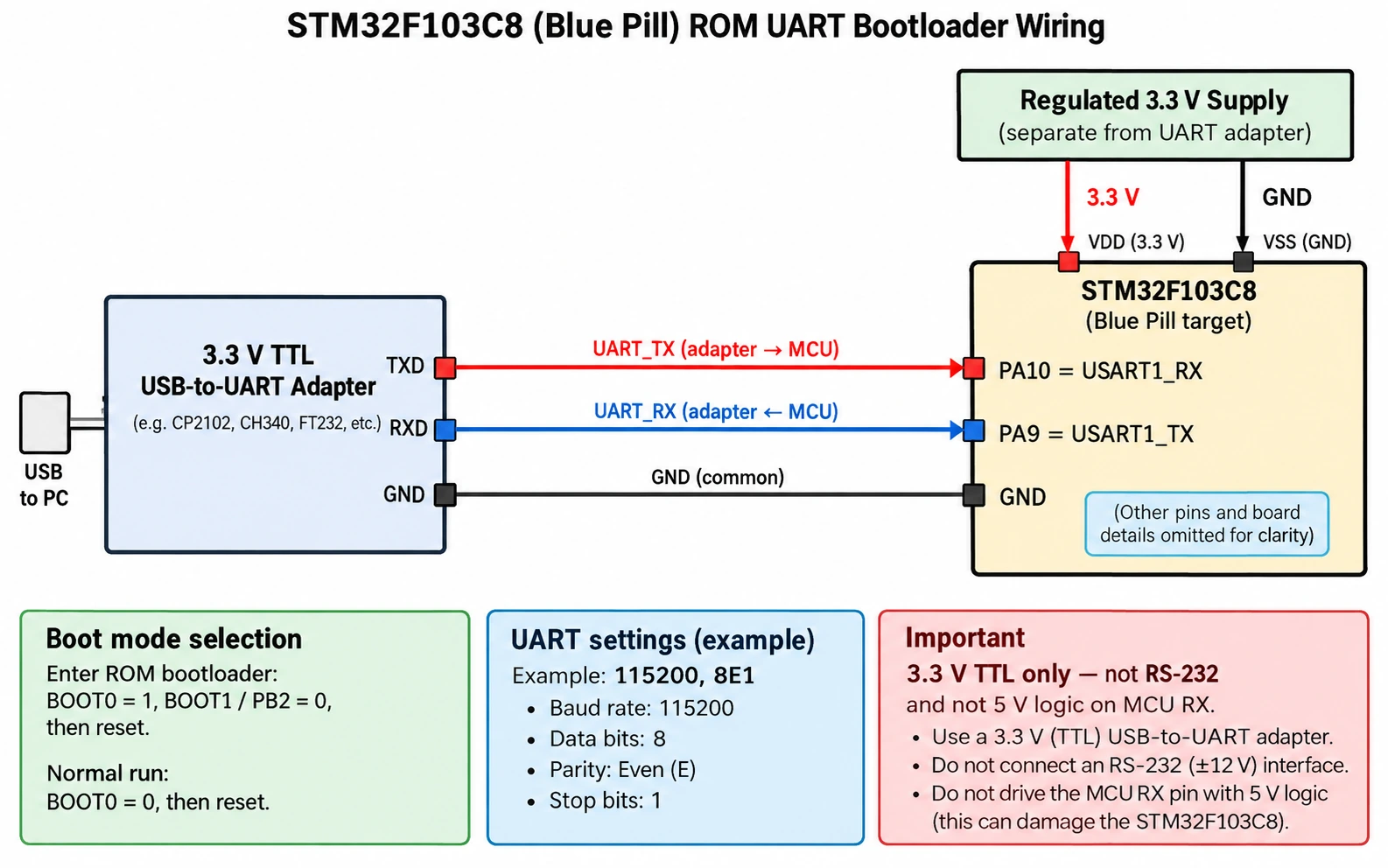
Use a 3.3 V TTL-level USB-to-UART module, not a genuine ±12 V RS-232 port and not an unspecified 5 V TX-level adapter. The UART uses two serial wires plus a common ground. You do not need a serial console application to send special bytes by hand; CubeProgrammer implements the STM32 ROM protocol.
For a typical STM32F103C8 USART1 bootloader, the signal mapping is:
| USB-to-UART adapter | Blue Pill STM32F103C8 | Why |
|---|---|---|
| TXD (3.3 V logic) | PA10 / USART1_RX | PC transmits toward the MCU receiver |
| RXD (3.3 V logic) | PA9 / USART1_TX | MCU transmits toward the PC receiver |
| GND | GND | Shared signal reference |
| VCC / 3.3 V | Only if explicitly intended and safe | Otherwise power target separately |
Notice that TX goes to RX and RX goes to TX. Connecting TX to TX is a common reason for a nonresponsive bootloader. Use the exact USART defined for your specific STM32 bootloader: a pin that supports USART in an application is not necessarily supported by the factory ROM loader on that chip.
Step 2 — Enter the STM32F103 system-memory bootloader
For an ordinary STM32F103C8 Blue Pill with conventional boot configuration:
- Remove power or prepare to pulse RESET.
- Set BOOT0 high (1).
- Keep BOOT1 / PB2 low (0) where the board exposes or straps it, so the boot selection corresponds to system memory rather than SRAM.
- Apply power or reset the target so the ROM bootloader starts.
- Verify that the USB-to-UART wiring and shared ground are correct, then open CubeProgrammer.
When you finish flashing, return BOOT0 low (0) and reset to boot the new application from main flash. Leaving BOOT0 high can make perfectly good firmware appear to fail, because the MCU starts its ROM loader again instead of the application.
Step 3 — Connect in CubeProgrammer using UART
Choose UART, select the adapter’s actual COM port or serial device and set an initial baud rate such as 115200 (reduce it if the connection is unstable). ST’s documented STM32 ROM-bootloader serial configuration is 8 data bits, even parity, 1 stop bit and no flow control (8E1). The tool commonly configures those settings itself; verify them rather than assuming a generic 8N1 serial-terminal setting.
Click Connect. The software sends the bootloader synchronisation sequence and reads supported information from the device. If the connection fails, try pressing RESET with BOOT0/BOOT1 already set, lowering baud rate, checking that no serial terminal has the COM port open, and swapping TX/RX only if the cable labels or board documentation warrant it.
Once connected, select the firmware and use the same erase/download/verify workflow as SWD. Flash-start addresses still matter for .bin files. Finally, disconnect, set BOOT0 low and reset. The UART adapter can normally be removed after the firmware is installed.
Method 3: Flash through native USB DFU
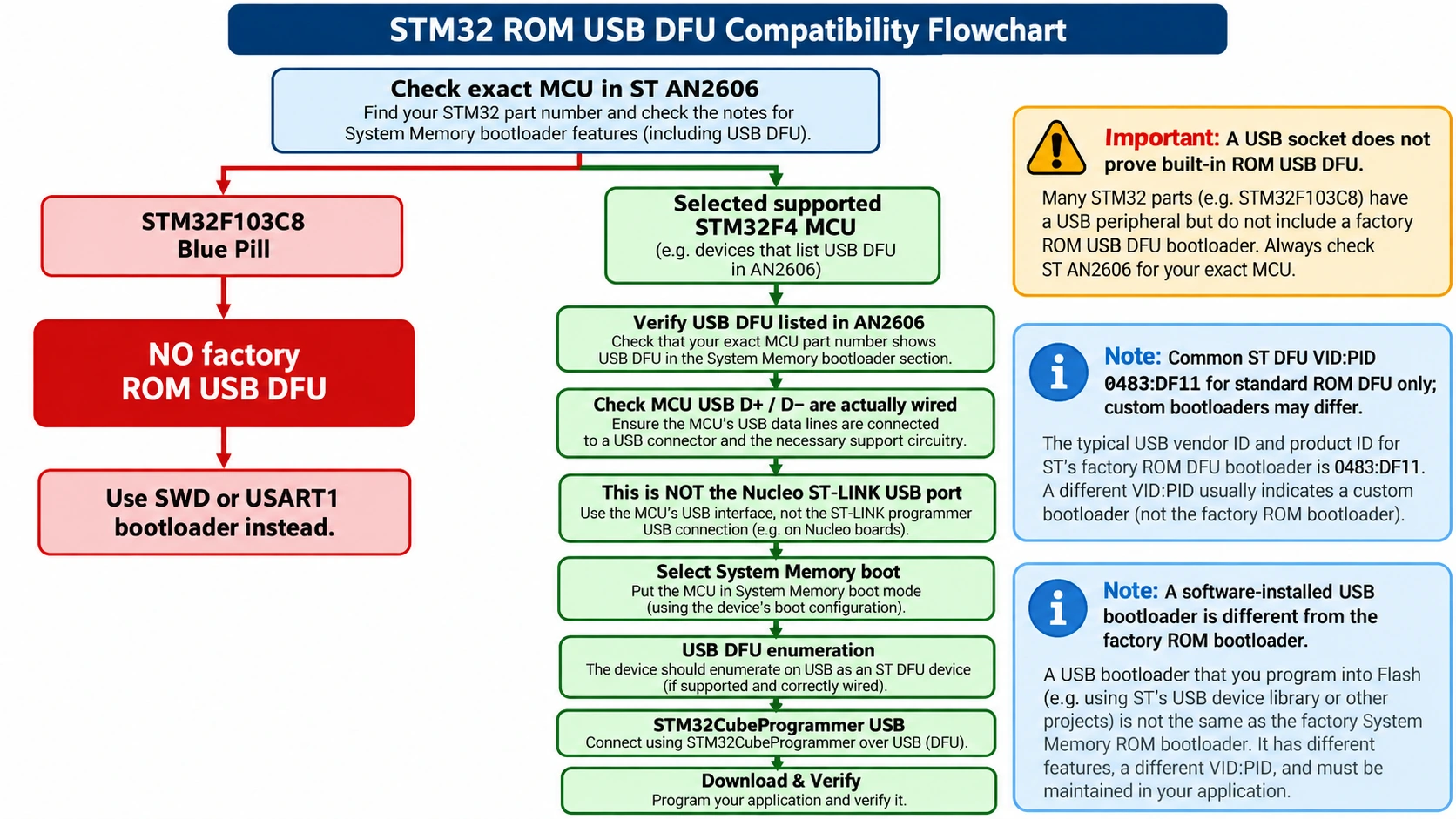
USB DFU (Device Firmware Upgrade) is attractive because it can avoid an external ST-LINK or USB-to-UART adapter. But it is not a generic USB uploading feature: the target chip’s ROM bootloader must actually implement USB DFU, the MCU’s USB D+/D− pins must be connected appropriately on the board, and the correct bootloader-entry conditions must be met.
Does the STM32F103C8 Blue Pill support native ROM USB DFU?
No. The classic STM32F103C8’s factory system-memory bootloader uses USART rather than USB DFU. A Blue Pill’s micro-USB port can be used by application firmware or a separately installed USB bootloader, but that does not turn the factory boot ROM into USB DFU. If you install a third-party USB bootloader, its flash layout, upload procedure and memory offset depend on that bootloader—not on the generic factory-DFU instructions here.
Some STM32F401/F411 variants support a factory USB DFU interface; always confirm the exact part and bootloader version in AN2606. Also check the board design: a USB connector wired only to the integrated ST-LINK probe is not the MCU’s USB DFU port. The NUCLEO-F401RE integrated debugger USB connection is intended for the ST-LINK path described earlier.
Enter DFU mode and confirm enumeration
On a compatible device, follow its reference manual and AN2606 to select boot from system memory using its boot pins and/or option bytes, then reset the MCU with a proper MCU USB connection to the host. The specific boot sequence, USB wiring and clock conditions vary by family; some ROM bootloaders impose USB clock or interface constraints that a generic tutorial cannot safely waive.
In CubeProgrammer, select USB and refresh the detected interfaces. A compatible factory DFU device commonly identifies with ST’s VID 0x0483 / PID 0xDF11. That pair is a useful clue, not a guarantee: a custom DFU bootloader may expose different identifiers, and other USB classes will not appear as factory DFU devices. On Windows, install the driver supplied or documented for the current version of CubeProgrammer; do not assume old DfuSe driver instructions still apply.
Once a valid DFU connection is established, read the target/device details before selecting your firmware and using Download and Verify. If a chip never appears under USB, check that it actually supports USB DFU, that you plugged into the target’s USB port rather than a debugger port, that the cable has data conductors, and that the boot mode was sampled correctly at reset. Do not try different random DFU files just to see whether something responds.
STM32CubeProgrammer CLI: repeatable flashing commands
STM32CubeProgrammer includes STM32_Programmer_CLI, useful for scripts, production benches, CI environments and remote machines. These examples show the command format in v2.23.x; substitute your actual device name, port and firmware filename. Run them from the CLI executable’s directory or add that directory to your shell PATH.
List available programming interfaces
STM32_Programmer_CLI -l
This requests a list of detected ST-LINK, UART and DFU interfaces. Discovery alone does not confirm that the MCU is connected or powered.
Flash an ELF file through SWD
STM32_Programmer_CLI -c port=SWD freq=400 -d firmware.elf -v
The -c option connects, port=SWD selects the debug interface, freq=400 requests a low debug clock in kHz, -d programs the firmware and -v verifies it. ST-LINK probes offer discrete supported frequencies; CubeProgrammer may select the closest supported rate. Use a filename with an actual .elf extension and a linker map built for the target.
For an ordinary binary beginning at the start of internal flash on an STM32F103C8:
STM32_Programmer_CLI -c port=SWD freq=400 -d firmware.bin 0x08000000 -v
Never copy the 0x08000000 address from this example to a firmware project that deliberately starts somewhere else.
Flash a Blue Pill using the UART bootloader
With the F103 placed into system-memory boot mode and an adapter on COM7, an example is:
STM32_Programmer_CLI -c port=COM7 br=115200 P=EVEN -d firmware.bin 0x08000000 -v
On Linux, replace COM7 with your real device, for example /dev/ttyUSB0, and make sure your account has serial-port access. For an unresponsive adapter, confirm power, BOOT0/BOOT1, cross-connected UART pins and 8E1 framing before lowering the baud rate.
Flash with USB DFU on a compatible MCU
STM32_Programmer_CLI -c port=usb1 -d firmware.hex -v
The usb1 interface identifier applies only when the expected DFU device is actually present. A .hex contains load-address information; a .bin instead needs an explicit address, as in the other examples. If USB DFU is not implemented by the ROM of your MCU, this command cannot create that support.
Read flash or display option bytes without changing them
For an accessible SWD target, read a small number of words near a standard internal-flash start address:
STM32_Programmer_CLI -c port=SWD -r32 0x08000000 0x40
To display option-byte information without deliberately writing settings:
STM32_Programmer_CLI -c port=SWD -ob displ
Do not paste online “unlock”, read-unprotect, TrustZone regression or mass-erase commands into a valuable target. Depending on family and security state, these operations may delete firmware/data or irreversibly restrict access. Save the output and consult the device reference manual before any write to option bytes.
What to do when CubeProgrammer cannot connect
The fastest diagnosis starts by splitting the problem into probe detection, target access, flashing and application execution. The same error message is not always caused by the same fault, but these checks isolate the likely stage.
| Symptom | Likely causes | What to check first |
|---|---|---|
| ST-LINK not detected | USB cable, driver, firmware, faulty clone/probe | Verify probe enumerates on PC, try known-good data cable and USB port |
| ST-LINK recognised; target not found | No target power, missing common GND, swapped SWDIO/SWCLK, wrong header | Measure VDD, verify signal-name wiring and try lower SWD speed |
| Works only when reset held / application takes over | Firmware changed debug pins, clock/power issues | Wire NRST and try connect under reset where supported |
| UART port visible but no bootloader reply | MCU booting application, TX/RX wiring, 8N1 instead of 8E1, wrong USART | Select correct BOOT pins then reset; use 3.3 V crossed TX/RX and 8E1 |
| USB DFU device missing | Chip ROM lacks DFU, wrong USB connector, charge-only cable, incorrect boot mode/driver | Check AN2606 for exact part before driver hunting |
| Flash verify fails | Supply drop, incorrect memory type/address, protected sectors, unreliable link | Confirm flash map, power stability and read-back error address |
| Verified but no application runs | BOOT0 left high, wrong board build, bad vector table/clock, incorrect bootloader offset | BOOT0 low, reset, verify linker settings and first flash words |
| Read-out protection error | RDP or security configuration | Inspect allowed protection status; do not change it casually |
Recovering a target whose firmware disabled SWD
If an application reconfigures PA13/PA14, enters a low-power state or starts a watchdog immediately, a normal connection can fail even when the chip is healthy. Connect NRST between your documented debugger interface and the MCU, select Under Reset (or the equivalent mode supported for your target/probe), slow the SWD clock, and attempt a connection while reset is controlled. This aims to take control before the faulty application takes over. It does not bypass legitimate device security protections.
After regaining access, inspect the flash layout and option bytes before deciding whether an erase is required. If data matters, read it first when authorized and technically possible. A chip with RDP Level 1 can have a different recovery/data-retention trade-off than an unprotected hobby board.
USB driver versus board firmware: keep the layers separate
A Windows driver for ST-LINK permits the host to communicate with the debugger; a USB DFU driver is used when a DFU-capable STM32 bootloader is connected as a USB device. A USB-to-UART adapter uses its own USB serial driver, such as a CH340 or CP210x driver depending on the hardware. Installing every conceivable driver does not fix incorrect boot pins, wrong power or a chip with no ROM DFU feature.
Likewise, when using a Nucleo, the integrated ST-LINK may create a virtual COM port in addition to programming and debugging functions. The presence of that virtual COM port does not mean you have entered the MCU’s system-memory UART bootloader. One USB cable can expose different functions depending on what the onboard circuitry connects.
Which method is best for Blue Pill, Black Pill and Nucleo?
STM32F103C8 Blue Pill: For development, choose ST-LINK/SWD. It is easier to debug and works regardless of whether there is USB firmware on the MCU. UART/USART1 is a good backup where you have access to the boot jumpers and PA9/PA10. There is no factory USB DFU ROM path on this common chip. For a detailed physical SWD walkthrough, see our Blue Pill with ST-LINK V2 guide, and for board pins see the STM32F103C8T6 pinout reference.
STM32F401/F411 Black Pill: SWD remains the most predictable route and is particularly useful when you need debugging. Selected F4 ROM bootloaders have USB DFU, but the exact MCU package and actual board USB routing matter. Follow the board schematic and AN2606, not merely a generic “Black Pill DFU” video. Our Black Pill pinout and USB guide provides additional board context. You can also compare their trade-offs in our Blue Pill vs Black Pill guide.
NUCLEO-F401RE and other Nucleo boards: Start with their onboard ST-LINK programmer. It eliminates external SWD wiring and is the ideal way to confirm the device before downloading firmware. If you are just starting STM32, our STM32 beginner guide and CubeIDE 2.x + CubeMX setup guide explain how to create the firmware you will program here.
Frequently asked questions
Is STM32CubeProgrammer the same as STM32CubeIDE?
No. CubeIDE is a software development environment for coding, building and debugging. STM32CubeProgrammer is a standalone device-programming and memory-management utility. You can flash a prebuilt image using CubeProgrammer without installing CubeIDE or CubeMX, although you still need a correct firmware file for the target.
Can I flash an STM32 without an ST-LINK?
Yes, if the specific MCU provides an accessible system-memory bootloader over UART, USB DFU or another supported interface. The boot mode, peripheral pins and protocol depend on the MCU. A USB-to-UART adapter is often sufficient for an STM32F103C8, while some F4 devices offer ROM USB DFU.
What is the difference between “probe recognised” and “target connected”?
A recognised ST-LINK means your computer communicates with the debugger. A connected target means the debugger can access the MCU through SWD/JTAG and obtain meaningful device information. A broken SWD lead or unpowered STM32 can leave the first condition true and the second false.
Do I need to set BOOT0 to 1 to flash with ST-LINK?
Generally no. SWD does not require ROM bootloader entry. Set BOOT0 appropriately for normal application startup once firmware is installed. BOOT0 selection is essential for system-memory bootloader approaches such as UART or DFU on families that use external boot pins.
Why does STM32CubeProgrammer ask for address 0x08000000?
A raw .bin does not contain an embedded load address, so CubeProgrammer requires you to supply one. 0x08000000 is the conventional internal-flash start on many STM32 parts, including standard F103 Blue Pill projects. But it may be wrong for a relocated application, multi-bank layout or external flash.
Will “Full chip erase” repair a target that is not connecting?
Not necessarily—and it may permanently destroy useful data. Solve probe, wiring, power and boot-mode issues first. Erase only when you can identify the appropriate operation and its impact on protected or user-programmable memory. Never use RDP Level 2 or security-regression controls casually.
Why does my Blue Pill not appear as a USB DFU device?
The standard STM32F103C8 factory ROM loader does not support USB DFU, even though the development board has a USB connector. Use SWD or USART1 ROM flashing. A separately installed USB application bootloader is a different arrangement and has its own documented upload procedure.
Final checklist before programming an STM32
- Confirm the exact chip and firmware build target.
- Choose ST-LINK/SWD unless you specifically need a supported ROM bootloader route.
- Verify supply voltage, a common ground and correct signal mapping before connecting.
- For UART or USB DFU, confirm the precise bootloader interface in AN2606 and enter system-memory boot mode.
- Use ELF/HEX addresses as built; specify a correct start address for raw BIN files.
- Enable verification, inspect the tool log and reset into main flash after bootloader programming.
- Do not change read protection, option bytes or erase memory until you understand data-loss consequences.
The central lesson is that programming the chip is a separate problem from running the application. STM32CubeProgrammer is very good at proving you can reach a target and transfer valid bytes. Reliable firmware deployment then depends on matching the board, boot configuration and linker layout. Start with a conservative, repeatable SWD process; treat UART and DFU as hardware-specific alternatives, not interchangeable USB upload modes.
Official documentation and further reading
- STMicroelectronics — STM32CubeProgrammer product/download page (v2.23.x release and supported platforms).
- STMicroelectronics — UM2237 STM32CubeProgrammer software description (interfaces, GUI, CLI and option-byte behaviour).
- STMicroelectronics — STM32CubeProgrammer 2.23 command-line reference (documented flags and connection parameters).
- STMicroelectronics — UART connection instructions (8E1 serial and bootloader requirements).
- STMicroelectronics — AN2606 system-memory boot mode (per-device bootloader interfaces, boot conditions and pins).