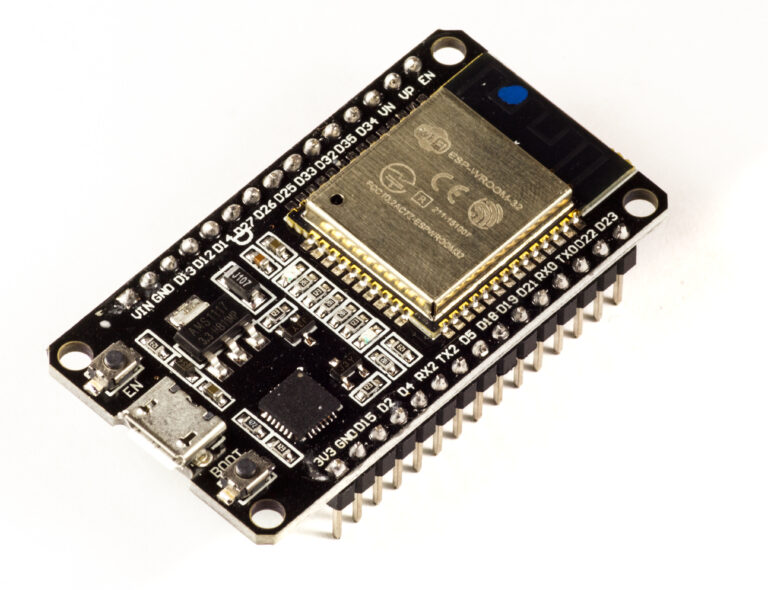
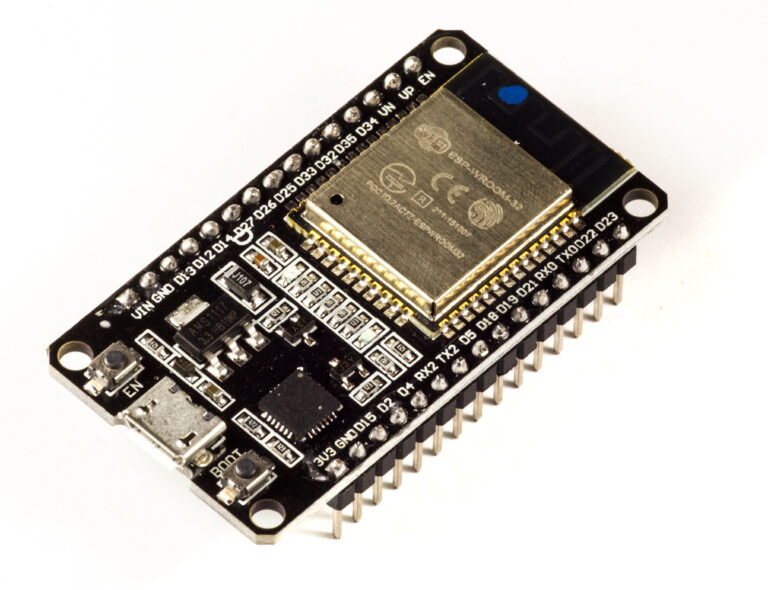
An ESP32AliExpress price AC climate controller is one of the best upgrades you can make to an ordinary infrared-controlled air conditioner. Instead of using the original remote control every time, you can let Home Assistant turn the AC on, change the temperature, switch between cooling and heating, and automate it based on room temperature, time of day, presence, window sensors or electricity prices.
The basic idea is simple:
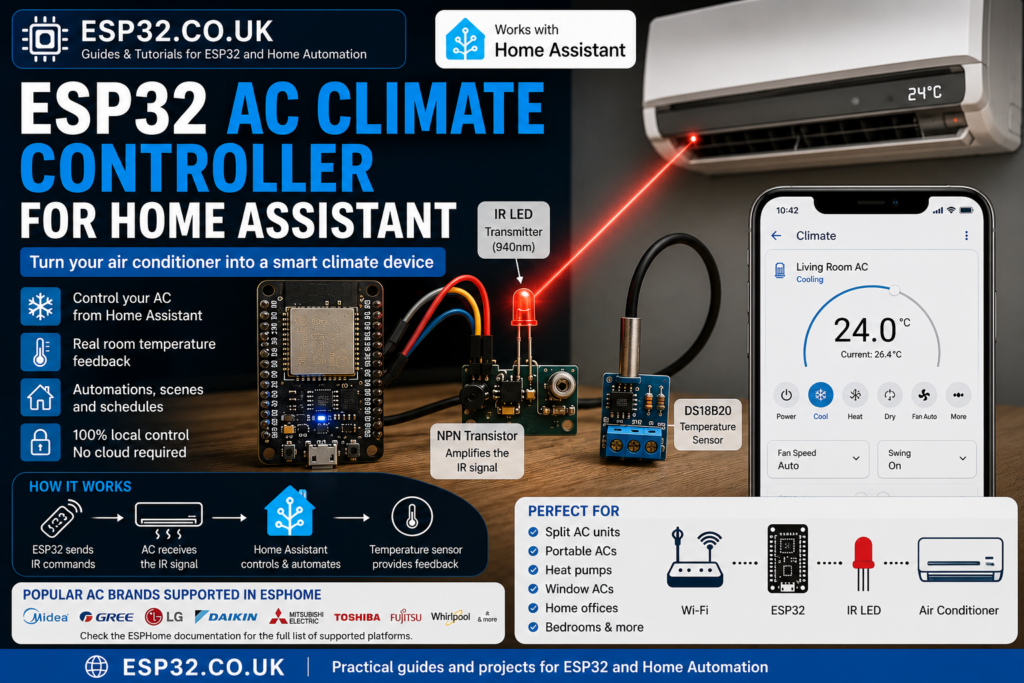
- The ESP32AliExpress price sends infrared commands to the air conditioner
- ESPHome exposes the AC as a Home Assistant climate entity
- A temperature sensorAliExpress price reports the actual room temperature
- Home Assistant automations decide when and how the AC should run
ESPHome has an IR Remote Climate component for compatible air conditioners. It works by sending infrared control signals in the same way as the original handheld remote. It requires a configured remote_transmitter component.
What this project does
This guide shows how to build an ESP32AliExpress price-based AC controller that can:
- Control an infrared air conditioner from Home Assistant
- Show the AC as a thermostat-style climate entity
- Report the actual room temperature
- Send cooling, heating, fan and temperature commands
- Optionally track the original remote if your AC protocol supports an IR receiver
- Work locally without cloud services or manufacturer apps
This is useful for:
- Split air conditioners
- Portable AC units
- Heat pumps
- Older ACs with only an IR remote
- Guest rooms, bedrooms, offices and living rooms
- Home Assistant energy-saving automations
Important limitation before you start
An ESP32AliExpress price IR AC controller is not electrically connected to the air conditioner. It does not talk to the AC over Wi-Fi, UART or a manufacturer API. It simply sends infrared commands like the original remote.
That means the ESP32 usually assumes the AC state based on the last command it sent. ESPHome’s documentation explicitly notes that IR climate control is unidirectional, so the component cannot always know the real state of the AC unless receiver support is available for that protocol.
So if someone uses the original remote, Home Assistant may not know unless:
- You also install an IR receiver
- Your selected ESPHome climate platform supports receiver tracking
- The AC protocol exposes enough state information
For most normal automations, this is still very usable.
Parts needed
| Part | Notes |
|---|---|
| ESP32 development board | ESP32 DevKit, ESP32-S3 or similar |
| 940nm IR LED | Used to transmit commands to the AC |
| NPN transistor or logic-level MOSFET | Strongly recommended for better IR range |
| Resistors | Usually 100–220Ω for IR LED, 1kΩ for transistor base |
| DS18B20 temperature sensor | Simple room temperature feedback |
| 4.7kΩ resistor | Pull-up resistor for DS18B20 data line |
| Optional IR receiver module | Useful for learning or tracking remote codes |
| USB power supply | Keeps the controller permanently powered |
| Home Assistant with ESPHome | ESPHome add-on or ESPHome Device Builder |
You can also use a better indoor sensor such as SHT31, SHT45 or BME280 instead of a DS18B20. For a basic build, the DS18B20 is cheap, easy and well supported by ESPHome. The ESPHome dallas_temp component supports DS18B20 and similar 1-Wire temperature sensors.
Recommended wiring
IR transmitter wiring
For very short range, some people connect an IR LED directly to an ESP32 GPIO through a resistor. That is not ideal.
For reliable AC control, use a transistor driver.
| ESP32 / component | Connection |
|---|---|
| GPIO17 | 1kΩ resistor to transistor base |
| Transistor emitter | GND |
| Transistor collector | IR LED cathode |
| IR LED anode | 5V through 100–220Ω resistor |
| ESP32 GND | Common GND with 5V supply |
Place the IR LED so it points directly at the AC indoor unit’s IR receiver window.
DS18B20 wiring
Do not place the temperature sensor directly next to the AC airflow. Put it somewhere that represents the actual room temperature.
Optional IR receiver wiring
| IR receiver pin | ESP32 |
|---|---|
| VCC | 3.3V |
| GND | GND |
| OUT / DATA | GPIO23 |
The optional receiver is useful if you want the ESP32 to see commands from the original AC remote. ESPHome’s remote_receiver component can receive and decode common infrared and RF remote control signals.
Choose the right ESPHome AC platform
ESPHome supports several IR climate platforms, including Ballu, Coolix, Daikin, Delonghi, Fujitsu General, Gree, Hitachi, LG, Midea, Mitsubishi, Toshiba, Whirlpool, Whynter and others. Not all platforms support receiver tracking, so check your specific AC type before assuming the original remote will update Home Assistant.
Common examples:
| AC brand / protocol | ESPHome platform |
|---|---|
| LG | climate_ir_lg |
| Midea / some Coolix units | midea_ir |
| Gree | gree |
| Daikin | daikin, daikin_arc, daikin_brc |
| Mitsubishi | mitsubishi |
| Toshiba | toshiba |
| Whirlpool | whirlpool |
| Many rebranded AC units | zhlt01, coolix, midea_ir or heatpumpir |
If your AC is not supported, you can still use learned raw IR codes, but you may not get a proper thermostat-style climate entity. In that case, you can create buttons or scripts for common states such as “Cool 24°C”, “Heat 22°C” and “Off”.
Basic ESPHome YAML
This example uses:
- ESP32
- IR transmitter on GPIO17
- DS18B20 temperature sensor on GPIO4
- Midea IR climate platform as an example
Replace the climate platform with the one that matches your AC.
esphome:
  name: esp32-ac-controller
  friendly_name: ESP32 AC Controller

esp32:
  board: esp32dev

logger:

api:
  encryption:
    key: "PASTE_YOUR_API_KEY_HERE"

ota:
  - platform: esphome
    password: "PASTE_YOUR_OTA_PASSWORD_HERE"

wifi:
  ssid: !secret wifi_ssid
  password: !secret wifi_password

  ap:
    ssid: "ESP32 AC Controller Fallback"
    password: "fallback-password"

captive_portal:

remote_transmitter:
  id: ir_transmitter
  pin: GPIO17
  carrier_duty_percent: 50%

one_wire:
  - platform: gpio
    pin: GPIO4
    id: one_wire_bus

sensor:
  - platform: dallas_temp
    name: "Living Room Temperature"
    id: room_temperature
    one_wire_id: one_wire_bus
    update_interval: 30s

climate:
  - platform: midea_ir
    name: "Living Room AC"
    sensor: room_temperature
    supports_cool: true
    supports_heat: true
After flashing, Home Assistant should discover a new climate entity called Living Room AC.
The room temperature shown in Home Assistant comes from the DS18B20 sensor. This does not replace the AC’s internal thermostat completely, but it gives Home Assistant a better view of the real room temperature.
Example for LG air conditioners
For LG units, try:
remote_transmitter:
  id: ir_transmitter
  pin: GPIO17
  carrier_duty_percent: 50%

climate:
  - platform: climate_ir_lg
    name: "Bedroom AC"
    sensor: room_temperature
    supports_cool: true
    supports_heat: true
ESPHome’s LG IR climate platform also has optional timing settings for some variants, so if your LG unit does not respond correctly, check the ESPHome LG climate options.
Example for Gree air conditioners
For Gree units:
remote_transmitter:
  id: ir_transmitter
  pin: GPIO17
  carrier_duty_percent: 50%

climate:
  - platform: gree
    name: "Office AC"
    id: office_ac
    sensor: room_temperature
    model: yan
    supports_cool: true
    supports_heat: true
Gree has different model/protocol options in ESPHome, including generic, yan, yaa, yac, yac1fb9, yx1ff and yag. Try the model that matches your remote behaviour.
Example for Mitsubishi air conditioners
For Mitsubishi units:
remote_transmitter:
  id: ir_transmitter
  pin: GPIO17
  carrier_duty_percent: 50%

climate:
  - platform: mitsubishi
    name: "Bedroom Heat Pump"
    sensor: room_temperature
    supports_cool: true
    supports_heat: true
    supports_dry: true
    supports_fan_only: true
    set_fan_mode: "quiet_4levels"
ESPHome’s Mitsubishi platform has options for fan modes, dry mode, fan-only mode and default vane direction. Some cooling-only Mitsubishi units may need supports_heat: false if the off command does not work correctly.
Adding an IR receiver
If your selected climate platform supports receiver tracking, you can add an IR receiver. This allows the ESP32 to detect when someone uses the original remote and update the climate state in Home Assistant.
Example:
remote_receiver:
  id: ir_receiver
  pin:
    number: GPIO23
    inverted: true
    mode:
      input: true
      pullup: true
  dump: all
  tolerance: 25%
  filter: 50us
  idle: 10ms

climate:
  - platform: midea_ir
    name: "Living Room AC"
    sensor: room_temperature
    receiver_id: ir_receiver
    supports_cool: true
    supports_heat: true
This is especially useful in family homes where some people still use the original remote.
Why AC remotes are different from TV remotes
A TV remote usually sends simple commands:
- Power
- Volume up
- Volume down
- Mute
- Input
An AC remote is different. It often sends the full AC state every time:
- Power on/off
- Mode
- Temperature
- Fan speed
- Swing position
- Turbo mode
- Sleep mode
- Dry mode
- Timer state
That is why learning one “temperature up” code is often not enough. The remote may actually send something like:
Cool mode, 23°C, auto fan, swing off, power on
This is also why ESPHome’s native IR climate platforms are better than raw button replay when your AC is supported.
Home Assistant automation examples
Once the AC appears as a climate entity, you can automate it like any other thermostat.
Turn on cooling when the room gets hot
alias: Turn on AC when living room is hot
trigger:
  - platform: numeric_state
    entity_id: sensor.living_room_temperature
    above: 27
condition:
  - condition: state
    entity_id: binary_sensor.living_room_presence
    state: "on"
action:
  - service: climate.set_hvac_mode
    target:
      entity_id: climate.living_room_ac
    data:
      hvac_mode: cool

  - service: climate.set_temperature
    target:
      entity_id: climate.living_room_ac
    data:
      temperature: 24
mode: single
Turn off AC when a window is open
alias: Turn off AC when window is open
trigger:
  - platform: state
    entity_id: binary_sensor.living_room_window
    to: "on"
    for:
      minutes: 2
action:
  - service: climate.turn_off
    target:
      entity_id: climate.living_room_ac
mode: single
Night cooling mode
alias: Bedroom AC night mode
trigger:
  - platform: time
    at: "23:30:00"
condition:
  - condition: state
    entity_id: binary_sensor.bedroom_presence
    state: "on"
action:
  - service: climate.set_hvac_mode
    target:
      entity_id: climate.bedroom_ac
    data:
      hvac_mode: cool

  - service: climate.set_temperature
    target:
      entity_id: climate.bedroom_ac
    data:
      temperature: 25
mode: single
Raw IR fallback method
If your AC is not supported by ESPHome’s IR climate platforms, you can still capture and replay raw IR commands.
The workflow is:
- Use an ESP32 IR receiver to capture the original remote
- Save useful states such as Cool 24°C, Heat 22°C and Off
- Use
remote_transmitter.transmit_rawor protocol-specific transmit actions - Expose each command as a Home Assistant button
ESPHome’s remote_transmitter supports protocol-specific actions such as LG, NEC, Midea, Samsung, Sony, Toshiba AC and raw IR transmission.
Example raw command button:
button:
  - platform: template
    name: "AC Cool 24"
    on_press:
      - remote_transmitter.transmit_raw:
          carrier_frequency: 38kHz
          code: [9000, -4500, 560, -560, 560, -1690, 560, -560]
The raw code above is only an example. You must replace it with the code captured from your own remote.
For ACs, create several fixed-state buttons:
| Button | Captured state |
|---|---|
| AC Off | Power off |
| AC Cool 24 | Cool mode, 24°C, auto fan |
| AC Cool 25 | Cool mode, 25°C, auto fan |
| AC Heat 22 | Heat mode, 22°C, auto fan |
| AC Dry Mode | Dry mode |
| AC Fan Only | Fan mode |
This is not as elegant as a real climate entity, but it can still work very well for simple automations.
Placement tips
IR control depends heavily on placement.
For best reliability:
- Point the IR LED directly at the AC receiver window
- Keep the controller in line of sight
- Use a transistor driver for stronger IR output
- Avoid hiding the ESP32 inside a cabinet
- Test from the final mounting position before sticking it to the wall
- Use two IR LEDs at slightly different angles if the AC receiver is difficult to hit
A weak IR LED is the most common reason this project feels unreliable.
Troubleshooting
The AC does not respond
Check:
- IR LED polarity
- Transistor wiring
- Common GND between ESP32 and LED power supply
- Correct GPIO in
remote_transmitter - IR LED pointing direction
- Whether the AC protocol/platform is correct
- Whether the AC uses a different variant of the same brand protocol
Use a phone camera to check if the IR LED is flashing. Many phone cameras can see infrared light as a faint purple/white flash.
Home Assistant shows the wrong AC state
This is normal if someone used the original remote and you do not have receiver tracking. IR is usually one-way. Home Assistant knows what it last requested, not necessarily what the AC actually did. ESPHome documents this assumed-state limitation for IR climate control.
Solutions:
- Add an IR receiver if supported
- Stop using the original remote
- Use automations that periodically force the desired state
- Use a smart plug power sensor to detect whether the AC is actually running
Temperature is inaccurate
Do not mount the sensor:
- Directly under the AC airflow
- Inside the ESP32 enclosure
- Next to a window
- Near sunlight
- Near the ceiling
A DS18B20 inside a small plastic box with the ESP32 can read too warm because of board heat. Use a short cable and place the sensor outside the enclosure.
Heating mode does not work
Some ACs are cooling-only. Some ESPHome platforms also need options adjusted depending on model. For example, ESPHome notes that some Mitsubishi cooling-only units may need supports_heat: false to resolve off-command issues.
The AC beeps but does not change state
This usually means the IR command is close but not fully correct. Possible causes:
- Wrong protocol variant
- Wrong model option
- Weak IR transmission
- Raw code captured badly
- AC expects a longer state packet
- Carrier frequency or timing mismatch
Try moving the IR LED closer first. If that helps, the problem is probably transmission strength, not YAML.
Best automations for an ESP32 AC controller
Good automations include:
- Turn off AC when windows or balcony doors are open
- Pre-cool a room before bedtime
- Run AC only when presence is detected
- Disable cooling when electricity price is high
- Turn off AC when everyone leaves home
- Keep bedroom temperature between 24–26°C overnight
- Use dry mode when humidity is high
- Turn off AC if outdoor temperature is lower than indoor temperature
The big advantage is not just remote control from your phone. The real value is letting Home Assistant make better decisions than a basic IR remote.
Is this better than Sensibo, Tado or BroadLink?
It depends.
An ESP32 AC controller is better if you want:
- Local control
- No cloud account
- Cheap hardware
- Full ESPHome integration
- Custom sensors and automations
- A project you can repair or modify
A commercial IR controller may be better if you want:
- No soldering
- A polished app
- Easier brand detection
- Better enclosure
- Less setup work
For an ESP32/Home Assistant setup, the DIY version is often more flexible and much cheaper.
Conclusion
An ESP32 AC climate controller turns a normal infrared air conditioner into a Home Assistant-controlled climate device. With ESPHome, an IR LED and a room temperature sensor, you can control cooling, heating and fan settings locally without relying on the AC manufacturer’s cloud service.
The best setup is:
- ESP32 with IR transmitter
- DS18B20, SHT31, SHT45 or BME280 room sensor
- Optional IR receiver for original remote tracking
- Native ESPHome IR climate platform where supported
- Raw IR fallback only when the AC is not supported
For most homes, this is a very practical upgrade. It keeps the original air conditioner, keeps control local, and makes the AC part of your wider Home Assistant automation system.