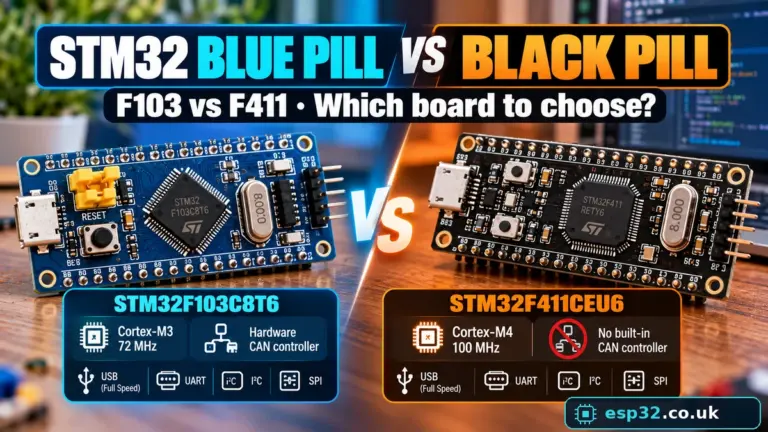
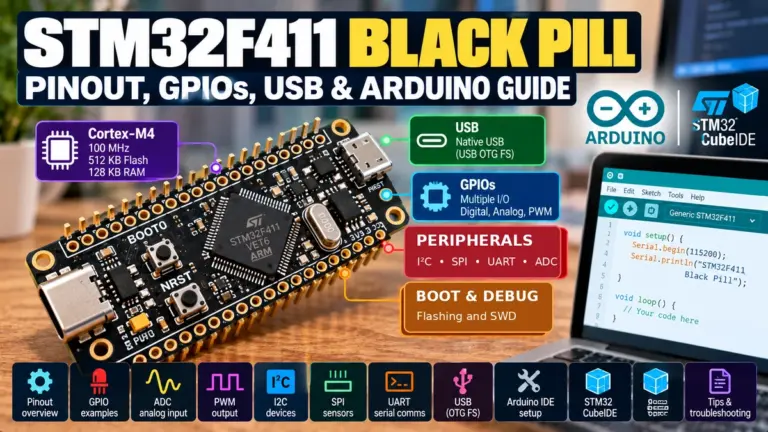
An STM32 Blue PillAliExpress price may cost less than a USB cable, but programming one for the first time is not always straightforward. The popular STM32F103C8T6AliExpress price board has a USB connector, two boot jumpers and several versions of its pinout, while the equally popular “ST-LINKAliExpress price V2” USB dongle is often a third-party clone. A beginner can connect everything that looks plausible and still get “No STM32 target found.”
This guide takes a more dependable route. We will identify the hardware, wire the SWD debug interface, verify that the microcontroller can be reached with STM32CubeProgrammer, create a small LED application with STM32CubeMX and STM32CubeIDE 2.x, and flash it with ST-LINK. We also cover recovery under reset, common clone problems and the differences between SWD programming, UART bootloading and the Blue Pill’s micro-USB socket.
Quick answer: On a standard STM32F103C8T6, connect the programmer’s SWDIO → PA13, SWCLK → PA14, and GND → GND. Connect VTref to the target’s 3.3 V rail if your probe requires a voltage reference; do not assume VTref supplies power. Power the Blue Pill from a known-safe source, optionally connect NRST, choose ST-LINK / SWD in STM32CubeProgrammer and connect at a conservative clock speed. BOOT0 can remain LOW for SWD programming. The rest of this tutorial explains the important details hidden in that short answer.
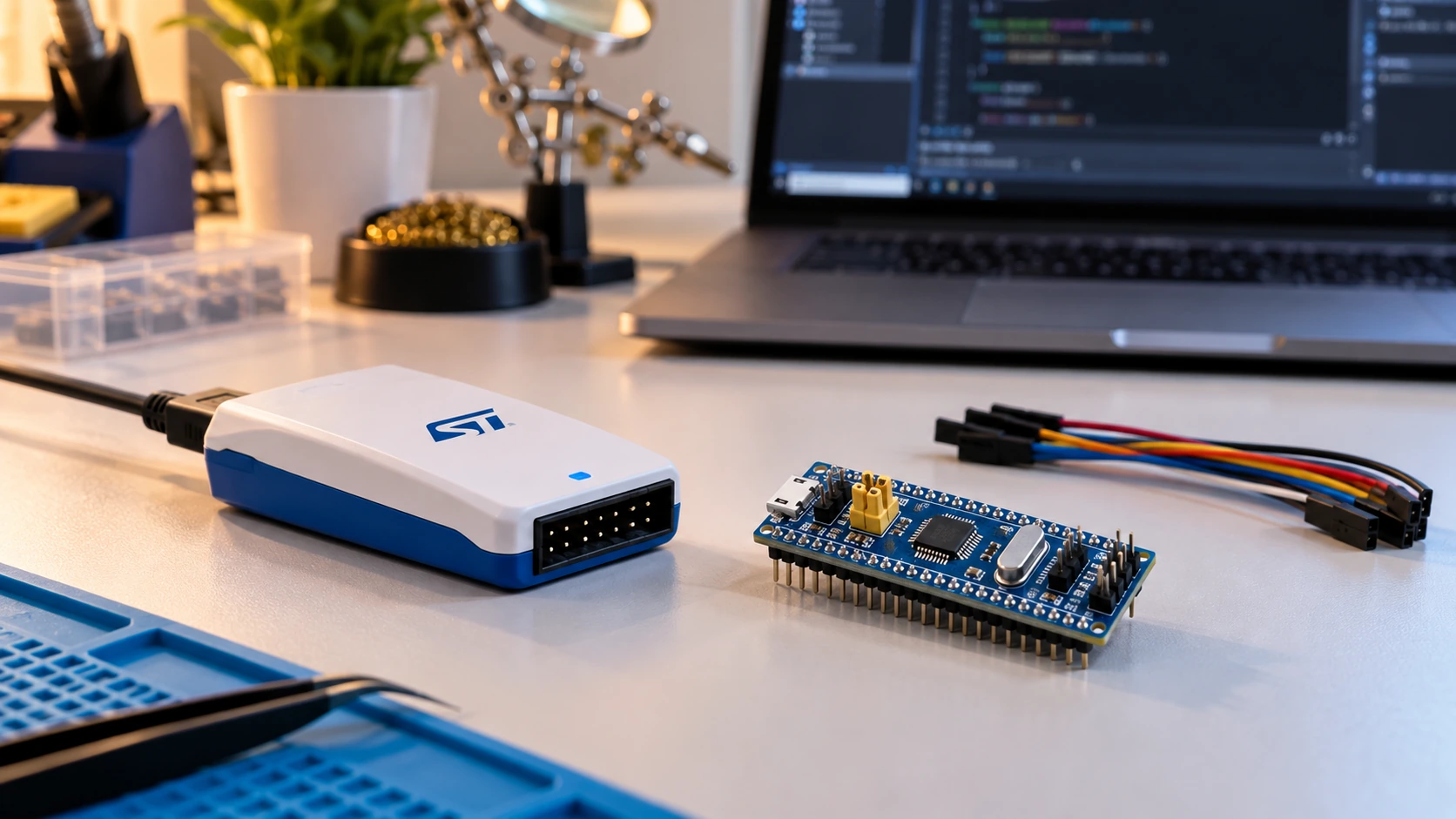
What you need — and what you do not
| Item | Recommendation | Why it matters |
|---|---|---|
| STM32 Blue Pill board | Check the MCU marking: ideally STM32F103C8T6 | Some inexpensive boards use substitutes or have assembly variations |
| ST-LINK debugger | Genuine ST-LINK/V2 or a supported modern STLINK-V3; a V2-style clone may work | SWD is the programming and debugging interface |
| USB cable | Known-good data cable that fits the probe | A charge-only cable can prevent detection |
| Four or five short jumpers | SWDIO, SWCLK, GND, VTref; optionally NRST | Connections must use signals, not guessed connector positions |
| Power source | Stable regulated 3.3 V at the 3.3V pin, or suitable 5 V at a board’s verified 5V/VIN input | Wrong voltage can damage the MCU |
| PC software | STM32CubeProgrammer, STM32CubeMX, STM32CubeIDE | Connect/test, configure code, build/debug |
| Multimeter | Strongly recommended | Lets you verify polarity, voltage and continuity |
The Blue Pill itself usually has an STM32F103C8-class Cortex-M3 MCU with a nominal 64 KB of flash, 20 KB of SRAM, and a maximum CPU clock of 72 MHz when configured appropriately. Its board-level regulator, indicator LED and USB pull-up circuitry depend on which vendor made the PCB. It is not an official ST Nucleo design, and listings using the words Blue Pill do not guarantee a specific electrical schematic.
There is no need to buy a USB-to-serial adapter for the SWD method below, and no need to install a USB bootloader first. Those belong to different programming methods. Read our STM32 Blue Pill pinout guide if you want a broader map of the board’s pins.
ST-LINK V2, V2-style clones and the difference between connector pins and SWD signals
A genuine ST-LINK/V2 is an STMicroelectronics debug/programming probe. It uses an STM32-side JTAG/SWD interface. Many small USB-stick-shaped adapters sold as “ST-LINK V2” are not the genuine product: they often expose a four- or ten-pin header of their own, with pin positions and protection features that differ from ST’s official 20-pin adapter. Some work in STM32CubeProgrammer; some have outdated or incompatible firmware; some are incorrectly labelled. Do not use a photograph of one vendor’s dongle as the universal wiring reference for every other one.
Read the printed signal labels on your exact probe and cross-check them against its seller’s schematic or the official manual. An SWD signal called SWDIO may appear as DIO; SWCLK may appear as CLK; the reference connection can be labelled VTref, VCC or 3.3V depending on the hardware. These labels do not establish whether the contact is a power output or an input that senses the target’s voltage. Confirm that independently.
A modern genuine STLINK-V3MINIE or comparable ST probe may provide a more dependable experience than an anonymous USB clone. But the wiring table is about the signal names, so it remains useful whichever supported probe you have. ST’s ST-LINK/V2 documentation and UM1075 describe the genuine connector, while the Blue Pill PCB must be checked against its own labelling.
The correct Blue Pill SWD wiring
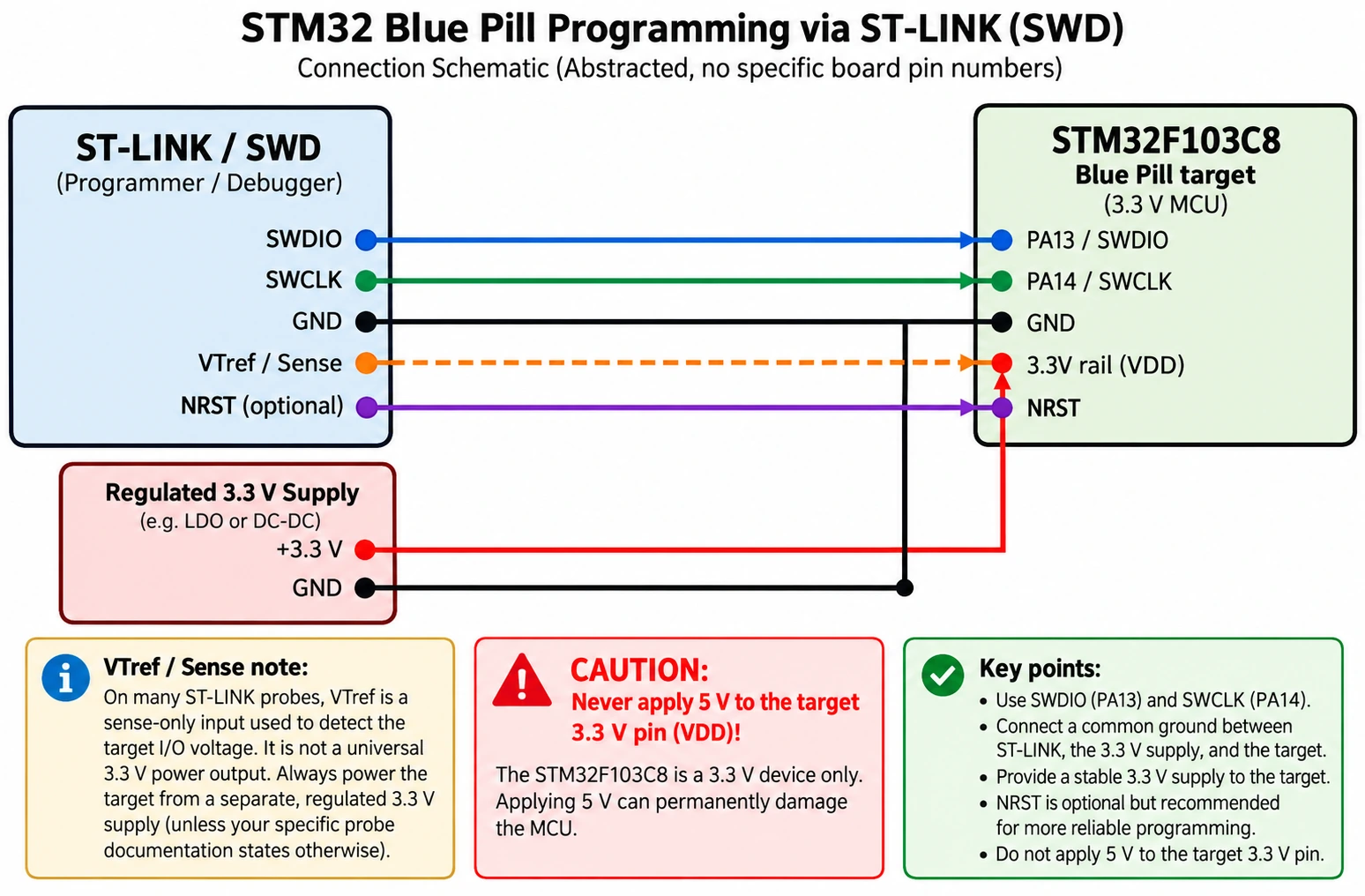
The physical SWD lines on the STM32F103C8T6 are PA13 (SWDIO) and PA14 (SWCLK). Many Blue Pill layouts provide a small four-pin SWD header, although the location and order vary. If your PCB uses a separate four-pin header, inspect the silkscreen before attaching jumpers; do not infer pin order from whether the USB socket points upward or downward in a photograph.
| ST-LINK-side signal | Blue Pill / MCU signal | Required? | Purpose |
|---|---|---|---|
SWDIO / DIO | PA13 / SWDIO | Yes | Bidirectional debug data |
SWCLK / CLK | PA14 / SWCLK | Yes | Debug clock from probe |
GND | GND | Yes | Common electrical reference |
VTref / target voltage sense | Target 3.3 V rail, as required by probe | Probe-dependent but generally recommended | Detects target logic voltage; may not power the target |
NRST / RESET | NRST | Optional for normal SWD; recommended for recovery | Holds target in reset to help regain debug access |
Do not mistake the F103’s PA13/PA14 GPIO numbers for pin numbers on the USB dongle. We deliberately avoid specifying “pin 1, pin 2” for generic dongles because clone header orders differ. The illustration for this article will use net labels and a simple schematic, not a potentially misleading photorealistic connector with guessed holes.
Power the target safely
The STM32F103 operates on a 3.3 V-class supply; ST specifies a device supply range of approximately 2.0–3.6 V. The board may have a regulator that accepts 5 V through a labelled board input or USB connector, but the MCU 3.3 V rail is not a 5 V input. A regulated 3.3 V supply connected to the board’s 3.3 V pin is appropriate only when you are certain of the pin and supply polarity.
If you power a Blue Pill from its own USB connector or verified 5 V board input, connect GND and any necessary VTref between probe and board. Do not connect a second, unknown 3.3 V output from a USB clone to a target that is already powered without checking the probe design and possible backfeeding. One stable target supply is preferable to two fighting power sources. Some official probes merely measure VTref; they cannot be relied upon as a supply.
Before connecting the probe, measure between 3.3V and GND on the board. A reading close to 3.3 V is a useful first check, although it does not prove that the clock, MCU or wiring are healthy. If the rail is 0 V, above the device rating, or fluctuates, fix the power arrangement first. Make these checks with the probe disconnected if you are unsure of either device’s pinout.
Should BOOT0 be HIGH or LOW?
For ordinary SWD programming, keep BOOT0 LOW (the usual flash-boot position). SWD is a debug interface, not the same thing as invoking the STM32’s ROM bootloader. You do not have to enter system-memory boot mode to read the chip or write flash with ST-LINK. For normal application startup, the familiar Blue Pill arrangement is BOOT0 = 0; after programming, reset the MCU to execute firmware from main flash.
Moving BOOT0 HIGH is mainly useful when intentionally invoking the factory system-memory bootloader, whose serial interfaces vary with the exact MCU. On the F103 medium-density boot configuration, the other boot-selection signal involves PB2/BOOT1; do not shuffle both jumpers randomly in the hope that SWD will work. See ST’s AN2606 for the precise ROM bootloader interfaces and boot patterns.
Cable discipline
Keep wires short, ensure the jumper contacts are secure, and avoid using breadboard rails as ambiguous intermediates when performing initial debugging. A long dangling SWCLK jumper or poor ground contact may work at one speed but fail at another. A practical first test is to select a low SWD clock around 100–400 kHz. When the connection is stable, you can try higher speeds; using the maximum setting is not a mark of a better configuration.
Step 1 — Install the official programming and development software
Install these applications from ST’s own download pages:
- STM32CubeProgrammer — confirms the probe and MCU are visible, reads memory and writes firmware.
- STM32CubeMX — selects the STM32F103C8 target and generates peripheral setup and initialisation code.
- STM32CubeIDE — edits, builds and debugs the resulting firmware project.
Important 2026 change: in STM32CubeIDE 2.x, STM32CubeMX is no longer integrated. You configure and generate the project in the standalone CubeMX application, then import it into CubeIDE. Some older tutorials show an .ioc editor embedded inside the IDE; do not waste time hunting for it in CubeIDE 2.x. ST explains the updated process in its official 2.0 workflow tutorial.
Install the ST-LINK drivers or device permissions recommended by ST for your operating system. On Windows, ensure the debugger appears as an appropriate ST-LINK device. On Linux, the issue may be a missing udev rule or USB access permission rather than incorrect SWD wiring. Start with official support packages before experimenting with unrelated tools or clone firmware modifications.
Step 2 — Connect with STM32CubeProgrammer before creating code
This is the most valuable diagnostic step in the whole article: prove the hardware link works while the flash contents are irrelevant. If CubeProgrammer can identify the chip, you know the probe, wires, target power and debug port are communicating. Only then is it worth troubleshooting compiled code or clock configuration.
- Connect the SWD wires with the system unpowered. Double-check the labels and power source.
- Power the Blue Pill appropriately, then plug the ST-LINK probe into your PC.
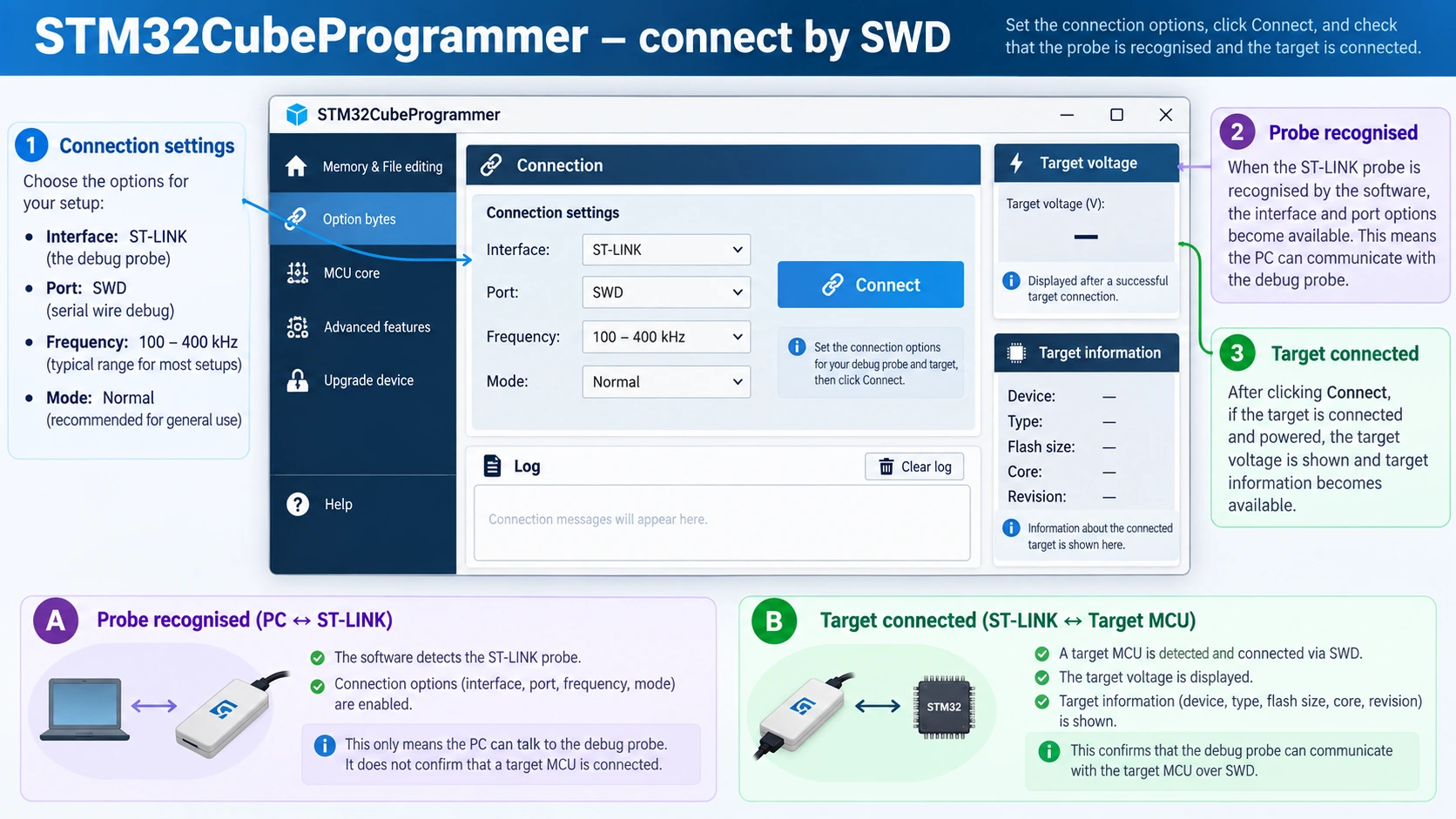
- Open STM32CubeProgrammer and select ST-LINK as the interface. Choose the intended probe if more than one appears.
- Select SWD (not JTAG) and start at a conservative debug clock, such as 100–400 kHz if that option is available.
- Use Normal connection mode initially. Click Connect.
- Look for the target device information and a successful connection log, rather than relying only on a blue or red LED on the USB stick.
CubeProgrammer typically displays a target voltage, target/device information and the relevant STM32 identification details after connecting. The exact labels vary with software version, but a successful connect and readable memory are stronger evidence than simply seeing the ST-LINK probe in your operating system’s USB list.
Optional read-only sanity check
After connecting, inspect flash memory at 0x08000000 in the memory viewer. That is the normal start address of user flash on this MCU. The first word commonly represents an initial stack pointer pointing into valid SRAM, followed by a reset-handler address in executable memory, when a valid application is present. But blank flash can contain all 0xFF; that is not proof that the interface failed. We are checking that the tool can read memory without errors, not requiring a particular firmware image.
Do not begin by mass-erasing a board of unknown provenance. If it contains software you want to preserve, first establish what access level is available and whether you have a legitimate backup. Removing readout protection can erase firmware. Do not randomly edit the option bytes to solve a basic cable problem.
If ST-LINK appears but the target does not
This split is important. A USB-visible ST-LINK only proves that the PC sees the programmer. It says nothing about whether the target has power or whether SWDIO and SWCLK reach the MCU. Measure the board’s 3.3 V rail, inspect common ground, check DIO/CLK orientation, and try a lower SWD frequency. If you have the optional NRST wire installed, try Connect under reset after exhausting the easy checks; it can help when existing firmware repurposes debug pins or a clock configuration traps the application.
Step 3 — Create the STM32F103C8 project in STM32CubeMX
Now that communication works, open STM32CubeMX and create a project using the MCU/MPU selector. Search for STM32F103C8T6 or the corresponding device entry (often presented as STM32F103C8Tx). Pick the exact chip fitted to your board, not an arbitrary Nucleo board or an F411 example with different memory and pins.
Set the basic peripherals:
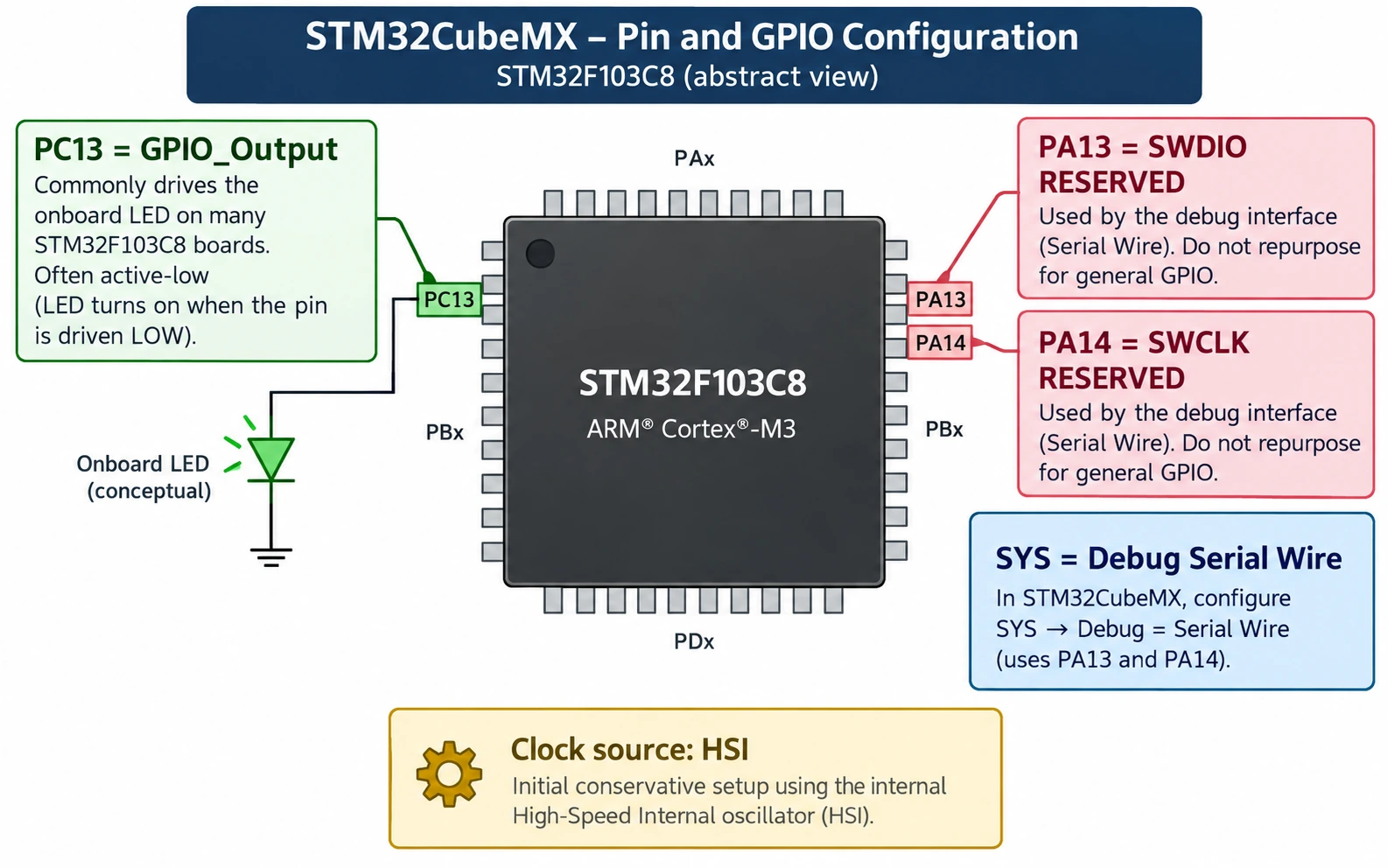
- Under SYS, ensure the debugging configuration supports Serial Wire / SWD. Do not accidentally disable the PA13/PA14 debug connection in a first project.
- Configure PC13 as GPIO_Output for the common Blue Pill user LED. Label it
USER_LEDif you want generated code to be easier to read. Many variants use PC13, but check your own PCB schematic: the connection and LED polarity can differ. - Configure PC13 as push-pull output at an appropriately low output speed and without an unnecessary internal pull-up/down. The commonly fitted LED is active LOW, so driving PC13 LOW turns it on and HIGH turns it off.
- Leave the clock tree at a conservative supported configuration for the first test. The F103 boots from an internal HSI oscillator; there is no need to configure a 72 MHz PLL merely to blink an LED. If you later choose an HSE-based PLL, use the correct fitted oscillator and frequency.
- In Project Manager, name the project
BluePill_STLink_Blink, choose a local project folder and select STM32CubeIDE as the toolchain. Generate code.
A further board caveat: the F103’s PC13–PC15 pins have particular drive constraints, so PC13 is appropriate for a tiny indicator LED but not for driving a relay, buzzer or high-current load directly. Treat the Blue Pill LED as a diagnostic indicator, not as evidence that GPIOs can power arbitrary modules.
Step 4 — Import and build in STM32CubeIDE 2.x
Open STM32CubeIDE. Following ST’s 2.x workflow, choose File → STM32 Project Create/Import, then select the STM32CubeMX/STM32CubeIDE project import path and point to the project generated by CubeMX. Menu text can shift between releases, but the principle is unchanged: CubeMX generated the initial sources; CubeIDE builds and debugs them.
Open Core/Src/main.c. Check that the generated MX_GPIO_Init() configures GPIOC pin 13. Insert the following into the generated while (1) section, inside a USER CODE region so future regeneration does not overwrite your changes:
/* USER CODE BEGIN WHILE */
while (1)
{
    /* USER CODE END WHILE */

    /* USER CODE BEGIN 3 */
    HAL_GPIO_TogglePin(GPIOC, GPIO_PIN_13);
    HAL_Delay(500);
}
/* USER CODE END 3 */
This loop toggles every 500 milliseconds, giving a full on/off cycle of about one second. The initial LED state depends on the generated GPIO output-level configuration. Because the usual PC13 LED is active LOW, do not be surprised if it starts on rather than off. The important observation is periodic change.
The small snippet above assumes CubeMX has already generated HAL_Init(), SystemClock_Config(), MX_GPIO_Init(), the GPIO clock enable and pin-mode setup. It is not a complete standalone main.c. Pasting it into an empty file without those generated functions will not compile or run properly. If you renamed the pin USER_LED, CubeMX may also produce USER_LED_Pin and USER_LED_GPIO_Port defines, which you can use in place of literal GPIO_PIN_13 and GPIOC.
Build the project in CubeIDE and inspect the Problems or Console panel for compiler errors. Don’t flash if the build failed. The exact output folder depends on your project’s build configuration, but it normally contains a generated .elf file. CubeIDE can use that executable for a debug/program session, and CubeProgrammer can program supported ELF or HEX files directly. If you export a .bin file, you must also use the correct target starting address.
A slightly more explicit LED-state example
For readers who want to confirm the polarity instead of only toggling, the following two lines can be used in a generated main loop on a typical active-low PC13 LED board:
HAL_GPIO_WritePin(GPIOC, GPIO_PIN_13, GPIO_PIN_RESET); // LED on (common Blue Pill)
HAL_Delay(500);
HAL_GPIO_WritePin(GPIOC, GPIO_PIN_13, GPIO_PIN_SET);   // LED off
HAL_Delay(500);
If nothing changes, do not immediately conclude that ST-LINK programming failed. Verify that GPIOC is clocked, PC13 was configured as an output, the generated MX_GPIO_Init() is called, and your particular board actually connects the user LED to PC13. Some clones use a different LED arrangement or have a damaged indicator.
Step 5 — Flash firmware through ST-LINK
You have two convenient routes. Route A: use CubeIDE’s Debug or Run configuration with an ST-LINK GDB server to program and launch your freshly built ELF. This provides breakpoints and register inspection. Route B: open STM32CubeProgrammer and flash the compiled firmware directly, which is particularly helpful for separating a debugger/project configuration problem from actual target communication.
Route A: program and debug from CubeIDE
Ensure the target connection is available and close any other application currently holding the probe. Select or create an STM32 C/C++ Application debug configuration for the project and use the ST-LINK debug probe. Choose SWD and a moderate connection speed. Start debugging; CubeIDE ordinarily programs the executable before breaking at the configured entry point. Resume execution and observe the LED.
If CubeProgrammer is still connected to the same ST-LINK, disconnect it before attempting an IDE session. Many connection errors are simply caused by two applications trying to own the same USB probe. If the board connects in CubeProgrammer but CubeIDE reports a target/debug-server issue, check the CubeIDE probe configuration, selected ELF, target flash loader and debug-interface selection before touching the wiring.
Route B: program with STM32CubeProgrammer
- Build the project successfully in CubeIDE.
- Disconnect the debug session in CubeIDE and connect to the target in CubeProgrammer via ST-LINK / SWD.
- Open Erasing & Programming and browse to the generated
.elfor.hexfile. These include address information. - If you instead select a raw
.bin, specify0x08000000as the start address for normal F103 internal flash. A raw BIN lacks its load address. - Enable verify after programming if available, and start the write. Review the log for a successful download and verification.
- Run the application or reset the board with BOOT0 LOW. The LED should blink periodically.
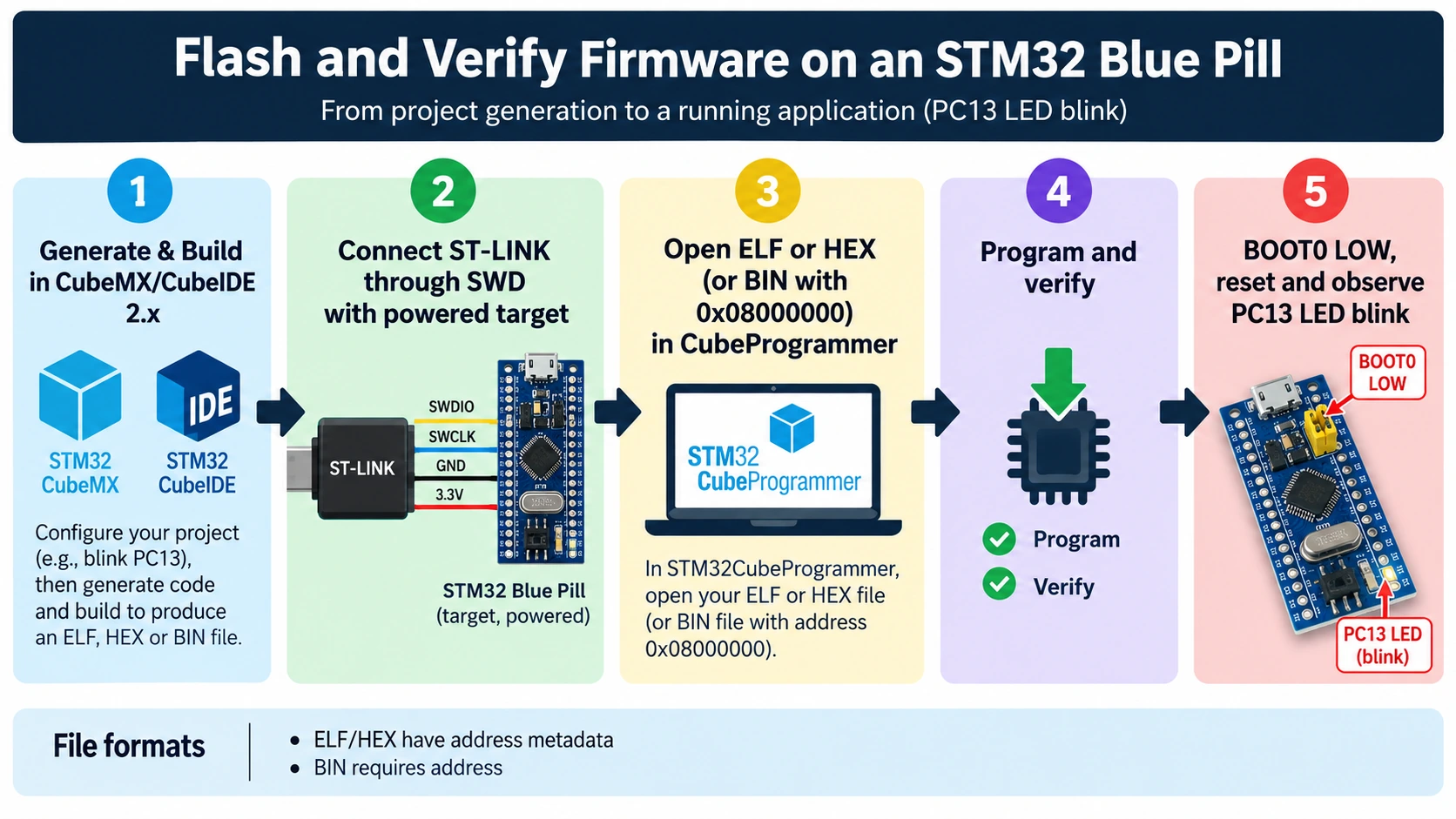
Do not confuse successfully reading a board with successfully downloading a file. A real programming success should include a completed write/verify result (if verification is enabled), and ideally a simple visible behaviour such as the LED blink. Conversely, a dark LED is not proof that the write failed if the firmware targets the wrong pin.
Optional: repeatable command-line flashing
STM32CubeProgrammer has a CLI suitable for scripting a repeatable process. This example programs a raw binary into normal F103 flash over SWD. Adjust the executable path for your operating system and the filename for your output:
STM32_Programmer_CLI -c port=SWD freq=100 -d BluePill_STLink_Blink.bin 0x08000000 -v
The -d command downloads the binary at the specified address, while -v verifies the data. If your CubeProgrammer version uses slightly different option spelling, run its built-in help and consult ST’s official CubeProgrammer CLI reference. Start by connecting without writing if the firmware or target identity is uncertain:
STM32_Programmer_CLI -c port=SWD freq=100
For automated production, include device identification, robust error handling and an explicit decision on whether the device may be erased. Never run an unattended mass erase on a board whose firmware you need to preserve.
Troubleshooting: ST-LINK detected, but no STM32 target found
The following table prioritises causes by what you can test without risking the board.
| Symptom | Likely cause | First useful action |
|---|---|---|
| Probe not detected by PC | USB cable, driver/permission, faulty probe | Try a known data cable; confirm USB driver/udev setup |
| ST-LINK detected, “No target found” | Missing power, no common GND, crossed DIO/CLK | Measure target 3.3 V; continuity-check signal labels |
| Target voltage shows 0 V | Target not powered or VTref absent | Verify correct power source and probe VTref function |
| Connects at low clock, fails at high clock | Long/poor wiring, unstable supply, noisy clock signal | Shorten leads and reduce SWD frequency |
| Probe connects, flash fails to write | Wrong device, protection, bad flash/clone behaviour | Verify device identity, logs and protection state; do not blindly erase |
| Works until application starts | Code reconfigures SWD pins, hangs or changes clocks | Connect under reset with actual NRST wire; reflash valid code |
| Debugger connects but LED never blinks | Wrong LED pin/polarity, GPIO setup, firmware not running | Check PC13, MX_GPIO_Init(), BOOT0, resume/run state |
| USB connector on Blue Pill does nothing | Missing application USB firmware/bootloader, faulty USB circuitry | Remember ST-LINK programming is independent of onboard USB |
STM32CubeIDE 2.x will not edit .ioc | CubeMX is separate in 2.x | Open .ioc in standalone STM32CubeMX |
“Cannot connect under reset” despite adding NRST
Connect under reset requires the probe to control the MCU’s reset signal. If you did not attach NRST, selecting the option in software does not magically create a reset wire. Confirm that the selected probe supports the chosen reset mode, the reset net really reaches NRST, and the wire is not confused with BOOT0. ST’s CubeProgrammer manual explicitly documents the under-reset mode and when it can help.
How to tell whether a Blue Pill clone is involved
A board can look like a Blue Pill without containing the precise advertised STM32F103 part. If the chip responds with an unexpected device identifier, has strange erase failures, or behaves inconsistently despite stable wiring, check the component markings and compare them with official device documentation. But do not accuse the board of being counterfeit based solely on one failed USB connection: wrong pinout, probe firmware and board power are much more common initial problems.
Some Blue Pill boards have non-standard USB pull-up resistors or bootloader assumptions. Those issues can matter for USB CDC or USB bootloaders, but they do not normally prevent SWD programming. Avoid repeatedly re-flashing the ST-LINK’s own firmware with unofficial packages; this can make a partially working clone unusable and is not necessary for basic diagnosis.
Why BOOT0 changes do not fix missing SWD wires
BOOT0 determines where the STM32 attempts to execute code after reset. SWD is a separate debug pathway that still requires SWDIO, SWCLK, ground and a functioning power/debug interface. Setting BOOT0 high might change which code runs, which occasionally helps diagnose firmware interference, but it is not a replacement for the hardware link. Always restore BOOT0 LOW for normal testing of the application you just flashed.
ST-LINK versus UART, USB and Arduino IDE uploads
There are several valid ways to place code into an STM32, but they use different hardware and firmware paths:
- ST-LINK / SWD: the primary method in this guide. It supports programming and interactive debugging, does not depend on a previously installed user USB bootloader, and normally works with BOOT0 LOW.
- Factory system-memory bootloader over UART: uses ROM code with its own boot conditions and supported pins (consult AN2606 and the USART bootloader protocol note). Typically requires a suitable USB-UART adapter and boot configuration.
- User-installed USB bootloader: requires that compatible bootloader firmware has first been flashed and that the board’s USB circuitry works. The presence of a micro-USB connector alone is not evidence of this functionality.
- Arduino IDE using STM32duino: a software environment; it may upload through a supported ST-LINK setup, serial bootloader or installed USB bootloader depending on the board/core and menu configuration. Arduino IDE does not itself define the physical programming method.
Do not assume every STM32 with a USB peripheral supports the same ROM USB DFU procedure. For the STM32F103C8 Blue Pill, an ordinary SWD connection is generally the least ambiguous route, especially when its flash contents are unknown. For a broader programming-environment comparison, see our STM32CubeIDE vs Arduino Core guide.
Electrical safety: 3.3 V logic, external modules and mistakes to avoid
The STM32F103 I/O is predominantly 3.3 V logic. Some specific GPIO pins may be 5 V tolerant under datasheet-defined operating conditions, but that does not mean the 3.3 V supply pin or every I/O is 5 V tolerant. ADC-capable pins have their own constraints; also beware external circuits injecting current into an unpowered MCU. Verify the part’s pin-specific datasheet tables before connecting a 5 V sensor or TTL adapter.
Never attach a motor, relay coil or bare inductive load directly to an MCU GPIO. Use a suitable driver, switching transistor or power stage with protection as required. Likewise, never connect a 12 V vehicle circuit directly to the Blue Pill just because another STM32 article mentions CAN; CAN requires an appropriate physical transceiver and proper protection. Our STM32 CAN Bus guide covers that separately.
For a first programming experiment, the built-in PC13 LED is enough. It eliminates breadboard wiring and demonstrates the essential workflow: configure MCU, generate code, compile, flash, reset and verify. Once that is solid, UART logging and a debugger breakpoint are much more useful next steps than a complicated sensor stack.
Frequently asked questions
Can I program a Blue Pill using ST-LINK V2 without Arduino IDE?
Yes. Install STM32CubeProgrammer to connect and flash, and use CubeMX/CubeIDE if you want to write the firmware natively in C. The ST-LINK interface is independent of the Arduino IDE.
Which pins should be connected to ST-LINK V2?
Use SWDIO → PA13, SWCLK → PA14, GND → GND, an appropriate VTref/target 3.3 V reference if needed by the probe, and optional NRST → NRST for under-reset recovery. Do not trust physical dongle pin numbers from a picture of a different clone.
Does ST-LINK V2 provide 3.3 V power to the Blue Pill?
Not necessarily. Some clone probes expose a supply output, while the target-voltage reference on others is sense-only. Determine the actual function of your probe’s contact before wiring; a suitable independently regulated supply and common ground is safer than guessing.
Do I need to set BOOT0 to 1 before flashing with ST-LINK?
No. BOOT0 normally stays 0/LOW for SWD programming and for starting the application from user flash. Setting BOOT0 high is associated with alternative boot modes and is not required for SWD.
Why does CubeProgrammer see ST-LINK but not STM32?
The USB link to the probe is working, but the target connection is not. Check power, ground, SWDIO, SWCLK, VTref, reset behaviour, clock speed and the actual debugger firmware/compatibility before changing boot jumpers or erasing flash.
Why does my Blue Pill not appear as a USB device?
The Blue Pill’s USB socket and SWD programming are separate. The MCU must run suitable USB firmware or a compatible USB bootloader, and the board circuitry must be correct. A fresh or erased Blue Pill is not guaranteed to enumerate as a USB serial or DFU device.
Can I still use ST-LINK if my Blue Pill has the wrong bootloader?
Often yes, as long as the MCU’s SWD interface remains accessible, the device is not protected in a way that blocks your desired operation, and the probe is working. ST-LINK does not depend on a user-installed bootloader.
Conclusion: make SWD your known-good baseline
The quickest way to stop guessing about STM32 programming is to verify the hardware connection in CubeProgrammer first. Use proper target power and common ground, connect the named SWD signals to PA13 and PA14, keep BOOT0 LOW, and avoid assuming that an inexpensive V2-shaped dongle matches an official connector pinout. Once a readable target and successful flash are established, the rest is ordinary embedded development.
For the next step, read our STM32 for Beginners guide and Best STM32 Development Boards comparison. They explain the broader toolchain and when a Nucleo board with integrated debugging is worth buying instead of adding more accessories to a Blue Pill.
Official documentation and technical references
- STMicroelectronics STM32F103C8 product details and documentation — device limits, Flash, SRAM, supply and peripherals.
- ST-LINK/V2 product page and UM1075 manual — genuine programmer interface; do not transpose connector numbering to clones.
- STM32CubeProgrammer official documentation — SWD connection modes, target information and logging.
- STM32CubeProgrammer CLI reference —
-c,-d,-vand connection options. - ST’s STM32CubeIDE 2.0 workflow tutorial — CubeMX project generation and CubeIDE import workflow.
- STM32F103 family documentation — RM0008, medium-density datasheet DS5319 and AN2606 bootloader reference.
Editorial verification note: this guide is based on ST documentation and common Blue Pill hardware designs. Generic USB dongles and Blue Pill clones vary, and the sample firmware has not been physically bench-tested on every variant. Validate the wiring against your own hardware before applying power.