STM32 can look intimidating when you arrive from Arduino or ESP32AliExpress price. There are more chip names, several programming tools, unfamiliar clock settings, and a debugger that seems to require its own explanation. Fortunately, the fundamentals are straightforward once you know which parts belong together. You do not need to understand every STM32 peripheral to flash your first program, inspect a variable, or build a useful sensor project.
This STM32 for beginners guide starts with the practical decisions: which development board to buy, what software to install in 2026, how the programming connection works, and how to blink the user LED on an STM32 Nucleo board. It then covers the most common Blue Pill differences and explains where to go next. The main example uses NUCLEO-F401RE, because its integrated ST-LINKAliExpress price removes a major beginner stumbling block. You can follow most of the concepts with other Nucleo boards, but always substitute your own board’s pins and microcontroller family.
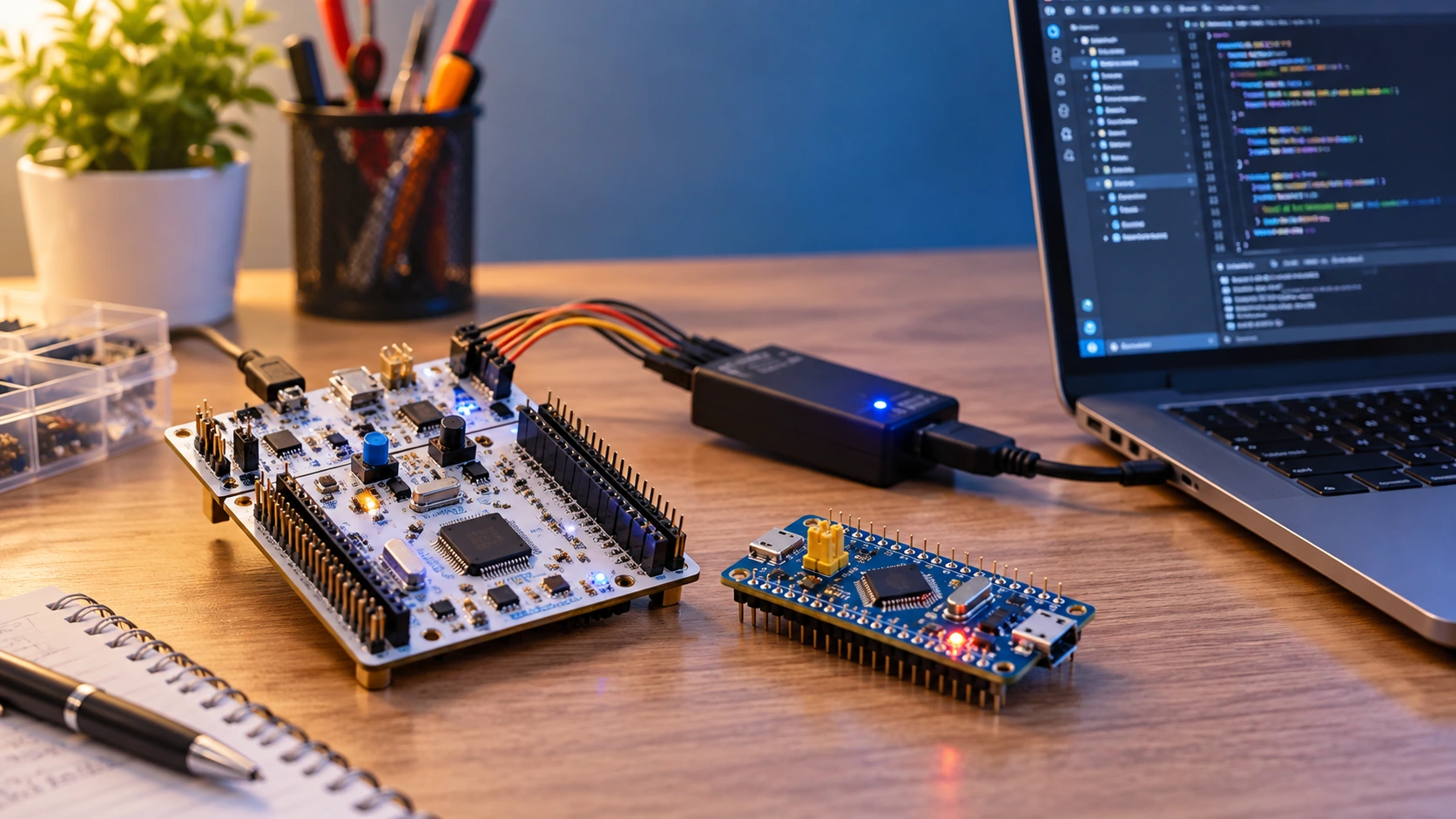
Quick answer: Start with a Nucleo board if you want the simplest hardware debugging experience. Install STM32CubeMX for pin and peripheral configuration and STM32CubeIDE for editing, building, and debugging. On CubeIDE 2.x these are separate applications. Configure the board’s user LED as an output, generate the C project, then use the onboard ST-LINKAliExpress price to program and debug it. The whole exercise teaches the workflow you will use for UART, I²C, timers and ADC later.
What is STM32?
STM32 is a family of 32-bit microcontrollers from STMicroelectronics. A microcontroller combines a CPU, flash memory, RAM and hardware peripherals in one chip. Its firmware can measure a sensor, time an event, control a motor or talk to another device without a full desktop operating system. STM32 microcontrollers appear on inexpensive hobby boards as well as in industrial equipment, medical devices, appliances and embedded controllers.
The important distinction is STM32 is the microcontroller family, not the development board. A Blue Pill board commonly carries an STM32F103C8-series device. A NUCLEO-F401RE board carries an STM32F401RE. Both are STM32, but they have different CPU cores, resources and pin assignments. Even two boards with the same chip can connect their LEDs, buttons and oscillators differently.
Unlike a Raspberry Pi running Linux, typical STM32 firmware boots straight into embedded code. The MCU’s peripherals can perform tasks while the CPU works on something else: timers generate PWM, DMA transfers data, and communication controllers handle UART, SPI or I²C signalling. This matters when timing and repeatability are more important than a graphical user interface.
Why choose STM32 instead of Arduino or ESP32?
Arduino describes an approachable hardware and software ecosystem rather than one particular chip. You can program many STM32 boards with the Arduino IDE using the STM32duino core, so Arduino and STM32 are not mutually exclusive. Native STM32 tools offer deeper control over pin multiplexing, clock trees, peripheral drivers and debugging.
ESP32 is frequently the easier starting point for projects that depend on built-in Wi-Fi or Bluetooth. Many conventional STM32 F- and G-series devices have no integrated wireless radio. STM32 instead appeals when you need a specific combination of ADCs, timers, industrial buses, USB features, low-power modes or a controllable embedded toolchain. Neither platform is universally faster or better; compare the exact chips, not just the brand names.
Our comparison, ESP32 vs STM32: which MCU should you choose?, covers the broader design trade-offs.
Which STM32 family is right for your project?
STM32 has several product families. Their names reflect different performance, cost, security, connectivity and power priorities—not a universal ranking from “worst” to “best.” These are helpful landmarks when reading a development board listing:
- STM32C0 and G0: modern entry-level and mainstream microcontrollers for straightforward control, simple peripherals and cost-sensitive designs. Their development boards may be a better fit than an older F103 for a new design.
- STM32F1: an older Cortex-M3 family popularised by the Blue Pill. Good for learning from a large archive of tutorials, but not automatically the best choice for a new commercial product.
- STM32F4: Cortex-M4-based devices with hardware features and processing capacity well suited to more demanding embedded projects. The NUCLEO-F401RE tutorial below is in this family.
- STM32G4: intended for control-heavy and mixed-signal applications, including digital power and motor-control designs; look at peripheral details, not just CPU speed.
- STM32H7: higher-performance parts for applications such as advanced graphics, audio, high-throughput control and other resource-intensive workloads. More powerful hardware often brings more system design complexity.
- STM32U-series: useful to explore when sleep current, battery operation, security or energy efficiency matter; check the precise U-series device’s capabilities.
- STM32WB/WBA and WL: wireless-oriented families; compare radio technology and device support rather than assuming they offer the same wireless functions as ESP32.
Names such as STM32F401RE describe the particular MCU, while NUCLEO-F401RE describes a board built around it. Within an STM32 family, package options and memory variants can change available pins and peripherals. A code example using an STM32F401 may be conceptually similar on an STM32F411, but that is not a license to copy the pin map or assume every peripheral exists. For design work, obtain the datasheet and reference manual for the exact part number and the schematic for the board.
The beginner’s hardware choices: Nucleo, Blue Pill or Black Pill
| Board | Why you might choose it | What to watch for |
|---|---|---|
| NUCLEO-F401RE | Integrated ST-LINK, accessible headers, good examples, reliable debug setup | Larger and usually dearer than tiny modules |
| STM32F103C8 Blue Pill | Compact, inexpensive, widely documented, useful for UART, timers and CAN experiments | Board clones vary; separate SWD programmer normally required |
| STM32F401/F411 Black Pill | Compact Cortex-M4 boards with stronger processing capability than F103 | Which chip is fitted, pin labels and USB arrangements vary by version |
| STM32 Discovery boards | Often include onboard peripherals such as sensors, audio or displays | Board-specific software and pin mapping can be less transferable |
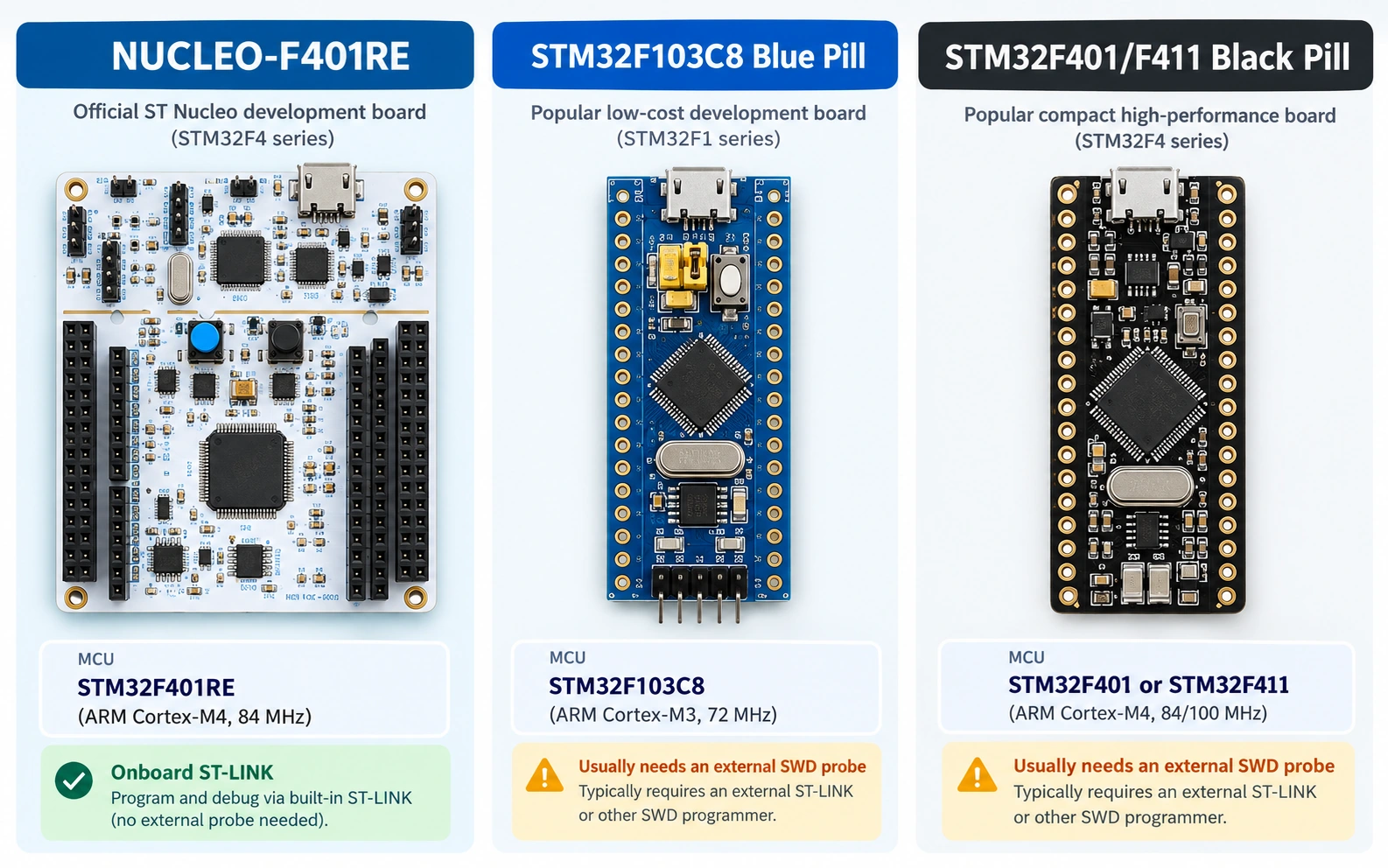
Our recommended beginner purchase is NUCLEO-F401RE plus a known-good USB data cable. It has an ST-LINK debugger/programmer on the board, which means you can build, flash, single-step and inspect registers without buying another probe. A breadboard and LEDs can wait: this Nucleo has a user LED already connected.
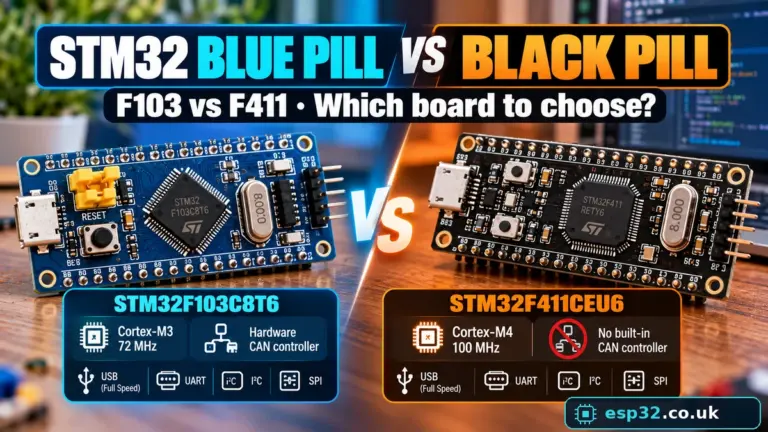
The F103 Blue Pill remains attractive when small size and price matter. Before buying one, read our STM32F103C8T6 Blue Pill pinout and GPIO guide and the Blue Pill vs Black Pill comparison. Avoid treating every anonymous clone as electrically identical to an official reference design.
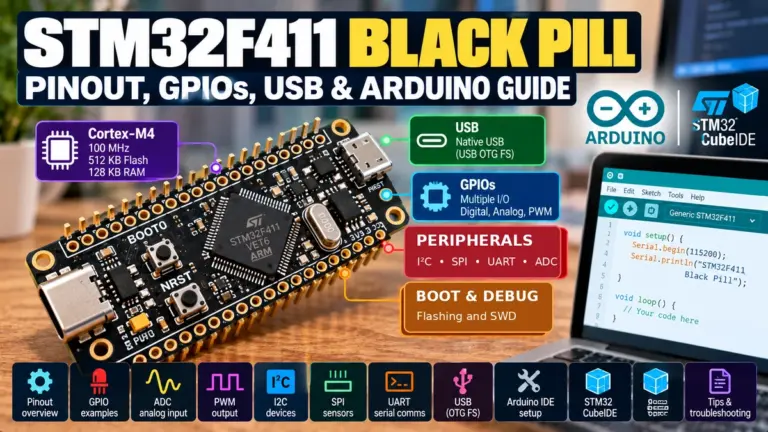
If you are considering a Black Pill, see the STM32F411 Black Pill pinout guide. For an actual purchase, verify whether the seller supplies an F401 or F411, since the names are frequently used loosely. The printed MCU marking is more useful than a generic product listing.
Minimum equipment list
- One NUCLEO-F401RE development board, or another supported Nucleo with onboard ST-LINK.
- A compatible data-capable USB cable for the exact board revision; the standard Nucleo-F401RE board uses the ST-LINK-side Mini-B connector.
- A computer running a supported Windows, Linux or macOS version.
- STM32CubeMX and STM32CubeIDE; STM32CubeProgrammer is recommended for debugging flash connection issues.
- Optional later: breadboard, multimeter, USB-UART adapter and basic 3.3 V sensors.
If you use a generic Blue Pill instead, add an appropriate ST-LINK or other supported debug probe and confirm the board’s power arrangement before connecting anything. A multimeter is particularly useful when a board fails to start.
Three names you must understand: STM32CubeMX, CubeIDE and CubeProgrammer
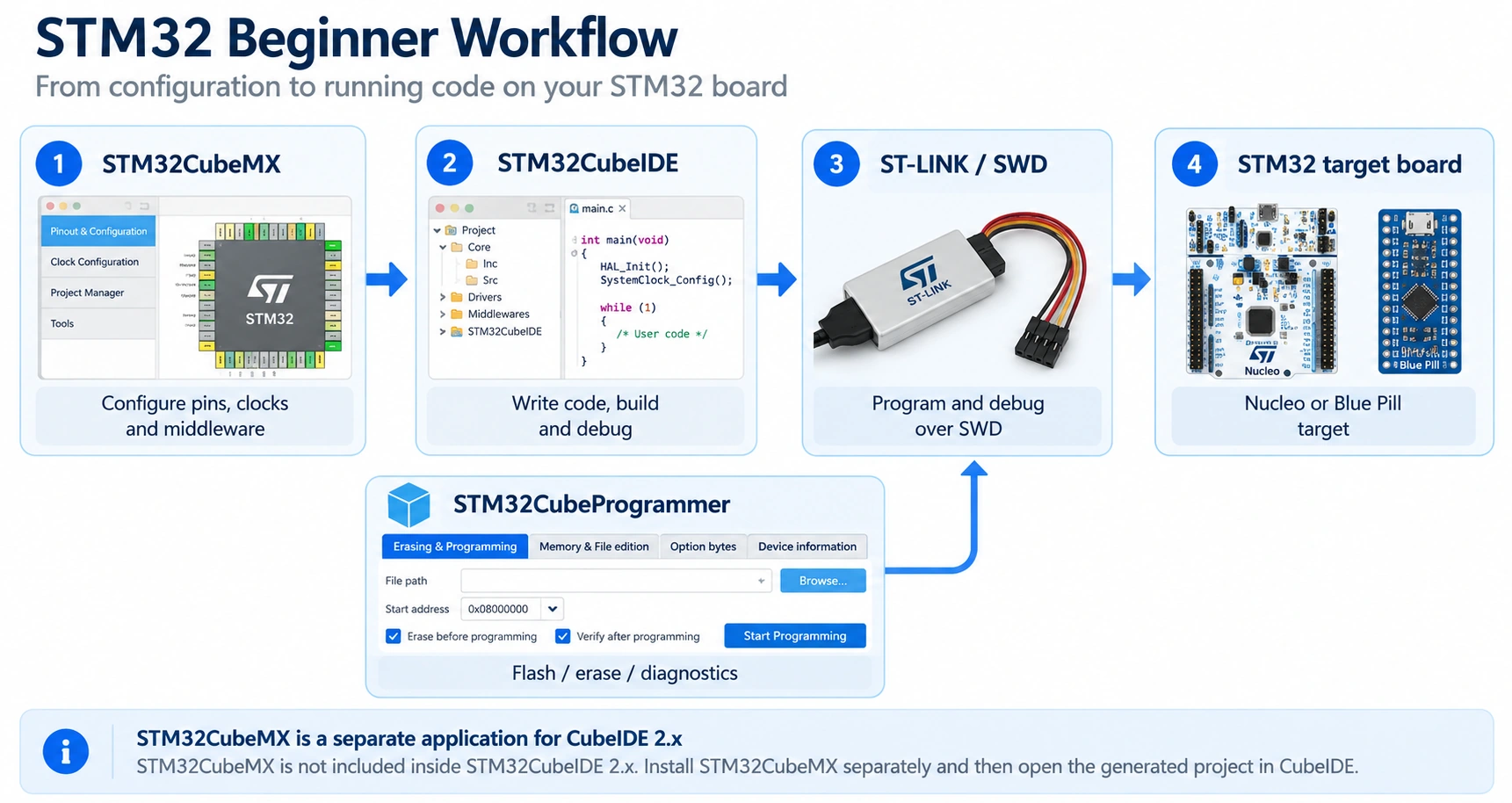
Historically, many beginner tutorials used STM32CubeIDE with an embedded pin configurator. From STM32CubeIDE 2.0 onward, STM32CubeMX is no longer integrated and is installed separately. That is not an error in your installation. It is how the new desktop workflow is designed. Older videos can still teach the concept but may show menus that no longer exist.
- STM32CubeMX selects the exact MCU or board and configures GPIO, clock sources, timers and communication peripherals. It generates startup code, peripheral initialisation and a project for the chosen toolchain.
- STM32CubeIDE edits source code, compiles firmware, starts the ST-LINK debug session and lets you inspect execution. The current Eclipse-based IDE and ST’s VS Code-based offering are distinct choices; this guide uses the Eclipse-based IDE.
- STM32CubeProgrammer connects through compatible programming interfaces, reads chip information and flash memory, erases devices and writes firmware files. It is especially useful when you want to separate a flashing problem from an IDE problem.
Download them from the official pages: STM32CubeMX, STM32CubeIDE and STM32CubeProgrammer. ST may ask you to create an account for downloads. Avoid third-party repackaged installers.
HAL, LL, CMSIS and Arduino: which code style should you learn?
The STM32 HAL (Hardware Abstraction Layer) provides readable functions such as HAL_GPIO_TogglePin() and HAL_UART_Transmit(). It is the easiest native starting point and is what this example uses. The LL (Low-Layer) libraries give more direct peripheral control, often at the cost of additional register awareness. CMSIS defines the Cortex-M core interface and device-level structures; it is not a replacement for an entire HAL library. Bare-metal register programming is useful for understanding hardware, but you can learn that after completing a working HAL project.
Arduino sketches offer another entry point if you already know setup(), loop() and digitalWrite(). The trade-off is that you may encounter board-specific variants and upload settings sooner than expected. Read STM32CubeIDE vs Arduino Core for a practical comparison.
Your first STM32 project: blink the NUCLEO-F401RE’s LED
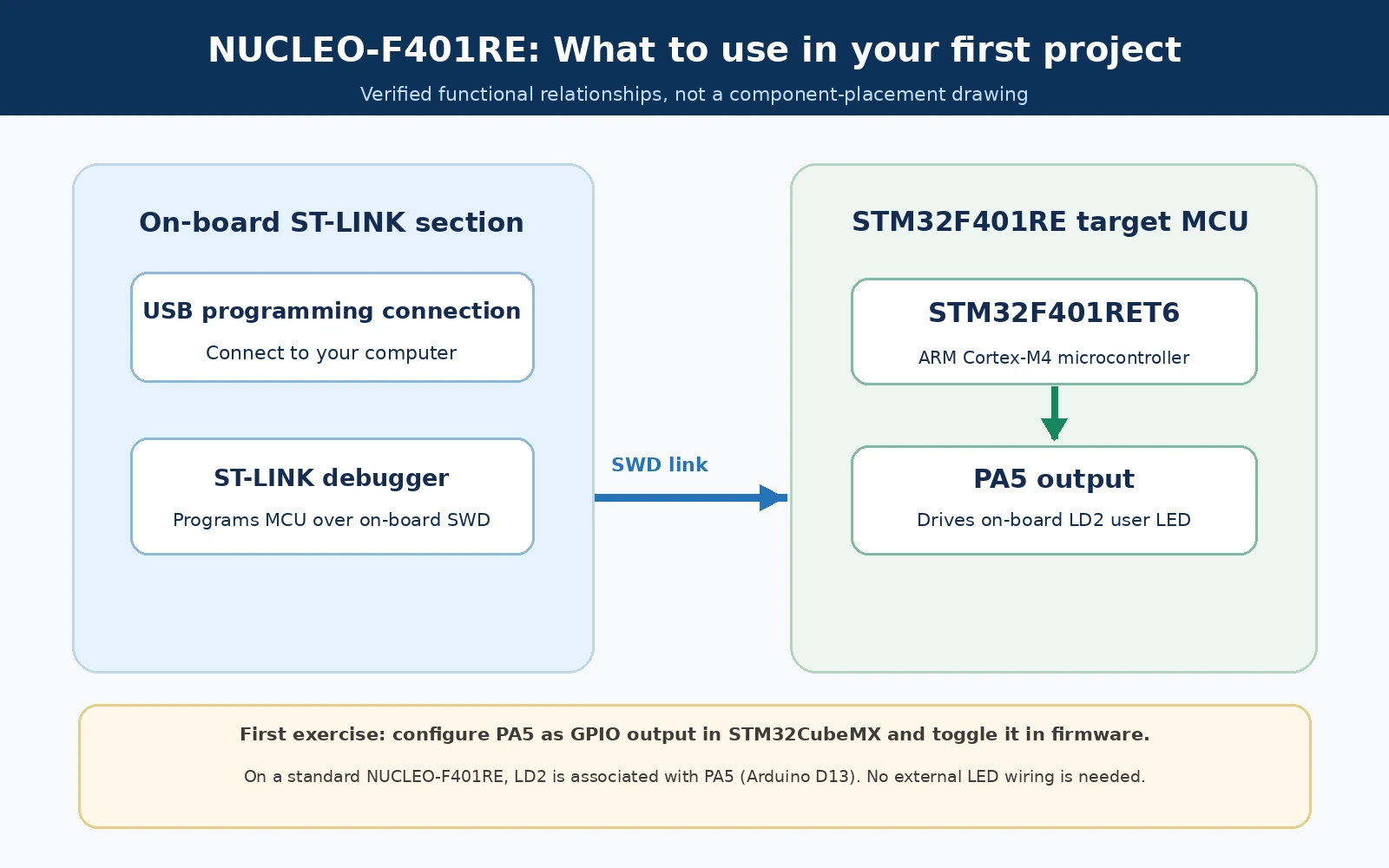
The goal is deliberately modest: toggle LD2, the green user LED on a standard NUCLEO-F401RE, roughly once every half-second. According to ST’s Nucleo-64 documentation, LD2 is connected to PA5 on this board. PA5 is also exposed as Arduino header D13. This is a board-specific fact; do not apply it unchanged to another Nucleo model or to a Blue Pill.
Step 1: Connect and identify the board
Plug the data USB cable into the ST-LINK USB connector on the Nucleo and into your computer. The ST-LINK section handles debugging and commonly supplies USB power to the target board. On a standard NUCLEO-F401RE, the integrated debugger is an ST-LINK/V2-1; no external ST-LINK dongle is necessary. Leave the factory programming jumpers in their normal positions unless you have a specific reason to reconfigure them.
The board may arrive with a demonstration firmware that blinks LEDs already. That proves the board is powered, but it does not prove your new development toolchain is configured correctly. We will replace the firmware with your own project.
If the computer does not recognise the debugger, first try a known data cable and a direct USB port. On Windows you may need the official ST-LINK driver; on Linux check USB device permissions and udev rules. Do not start rewiring headers to fix a basic USB detection problem.
Step 2: Create the MCU project in STM32CubeMX
- Launch STM32CubeMX and choose a new project using the Board Selector, searching for NUCLEO-F401RE. Select the exact result and begin with its board settings where offered.
- Open the Pinout & Configuration view. Identify PA5. It may already be assigned as the user LED output by the board definition; if not, configure PA5 as GPIO_Output.
- In the GPIO settings, select Output Push-Pull, No pull-up/pull-down, and a low GPIO speed. The LED needs no fast edge rate. Give the signal a label such as
LED2if you wish. - Under System Core → SYS, keep Debug = Serial Wire, preserving SWD debugging. Do not casually repurpose PA13 and PA14 while you still need ST-LINK access.
- In Clock Configuration, use a valid default/HSI clock configuration for this first project. You do not need the MCU’s maximum clock speed to blink an LED. ST’s board configuration can vary according to the example and board revision, so avoid blindly assuming an external high-speed crystal exists.
- Open Project Manager, supply a name such as
nucleo_f401re_blink, and select the installed STM32CubeIDE toolchain. Generate the project and install the relevant firmware package when prompted.
Why generate code at all? The generator creates the startup, memory layout, HAL initialisation and GPIO setup appropriate to your selected MCU. That eliminates a large set of unrelated mistakes on your first day. It also creates a .ioc configuration file you should keep under version control with the source code.
Step 3: Open and inspect the generated code
Open the generated project in STM32CubeIDE. You should see files similar to Core/Src/main.c, Core/Src/stm32f4xx_it.c, Core/Src/stm32f4xx_hal_msp.c and the corresponding headers. Folder layouts may vary with generator settings, but the purpose is consistent.
In main.c, the key functions normally look like this:
HAL_Init();                 /* HAL and SysTick setup */
SystemClock_Config();      /* Clock configuration */
MX_GPIO_Init();            /* PA5 output initialization */

while (1)
{
    /* Application code goes here. */
}
The lines above are a simplified structural excerpt, not a complete replacement main.c. Keep the original generated includes, clock function, error handler and peripheral functions. You should also leave automatically generated code alone unless you understand why it is being changed.
Step 4: Add the LED code in a preserved user section
Find the while (1) loop in main.c. STM32CubeMX creates USER CODE BEGIN / USER CODE END markers that preserve your modifications if you later regenerate configuration. Put the following two statements inside the loop’s USER CODE BEGIN 3 region, leaving the surrounding generated structure intact:
/* USER CODE BEGIN 3 */
HAL_GPIO_TogglePin(GPIOA, GPIO_PIN_5);
HAL_Delay(500);
/* USER CODE END 3 */
HAL_GPIO_TogglePin() flips the output level of PA5. HAL_Delay(500) requests a delay of 500 milliseconds, assuming the normal HAL tick is running correctly. One change every 500 ms means a full on/off cycle takes roughly one second (about 1 Hz). This is a simple blocking loop: the CPU does little useful work during each delay. That is acceptable for a first LED project, but later you will use timers, interrupts or a scheduler when multiple tasks must operate together.
If the LED does nothing, inspect the generated MX_GPIO_Init() function and confirm that the GPIOA peripheral clock is enabled and PA5 is set to output mode. CubeMX should generate this when you configure the pin correctly. Do not paste a second competing GPIO initialization routine on top of the generated one.
Step 5: Build, flash and run
Choose Build in STM32CubeIDE. A successful build should produce a firmware binary or ELF in the project output directory. Use the Debug command with an ST-LINK debug configuration targeting your board. On first launch, the IDE may generate the configuration and program the target flash automatically. Resume execution if the debugger stops at main().
You should see the Nucleo user LED alternate about every half-second. If it blinks faster or slower than expected, verify SystemClock_Config(), HAL_Init() and your HAL tick configuration rather than simply changing the delay value until it looks right.
Use one breakpoint on the HAL_GPIO_TogglePin() line, then press Step Over and inspect the pause/resume behaviour. You have now done more than upload a program: you have proved that your debugger, project configuration, HAL, compiler and physical GPIO work together.
Step 6: Try one small change
Change the delay from 500 to 100 ms, rebuild and reprogram. You should get a much faster blink. Then try a short-long-short pattern using successive toggles and delays. Finally, revert to a clean version and make a small Git commit so you can return to a working base later.
A useful next exercise is to read the Nucleo user button and toggle the LED when pressed. The button’s GPIO assignment must be checked against the specific board user manual; do not infer it from the LED example.
What changes if you use an STM32 Blue Pill instead?
On a typical STM32F103C8 Blue Pill, the user LED is attached to PC13 and is often active-low: driving PC13 low turns it on, and driving it high turns it off. This differs from the NUCLEO-F401RE’s PA5 LED. Some clones have different components or problematic USB pull-up arrangements, so treat a purchased Blue Pill as a board to inspect, not a guaranteed schematic.
For the Blue Pill, select the STM32F103C8 device (or an exact board definition, if available), configure PC13 as a GPIO output and keep serial-wire debugging enabled. Where the LED is active-low, the timing logic still works with a toggle, but the initial on/off state is reversed. The corresponding HAL code is:
/* For a typical Blue Pill F103C8 only: */
HAL_GPIO_TogglePin(GPIOC, GPIO_PIN_13);
HAL_Delay(500);
Generic Blue Pill boards usually do not contain an integrated ST-LINK programmer. Connect an external supported ST-LINK probe using SWD. Match by signal name, not by a random online clone’s numbered header diagram:
| Programmer signal | STM32 Blue Pill connection | Purpose |
|---|---|---|
| SWDIO | PA13 / SWDIO | Bidirectional debug data |
| SWCLK | PA14 / SWCLK | Debug clock |
| GND | GND | Essential common reference |
| VTref / VDD_TARGET | Regulated target 3.3 V reference, as required by the probe | Target voltage sensing; not necessarily a power output |
| NRST (optional) | NRST | Useful for connect-under-reset recovery |
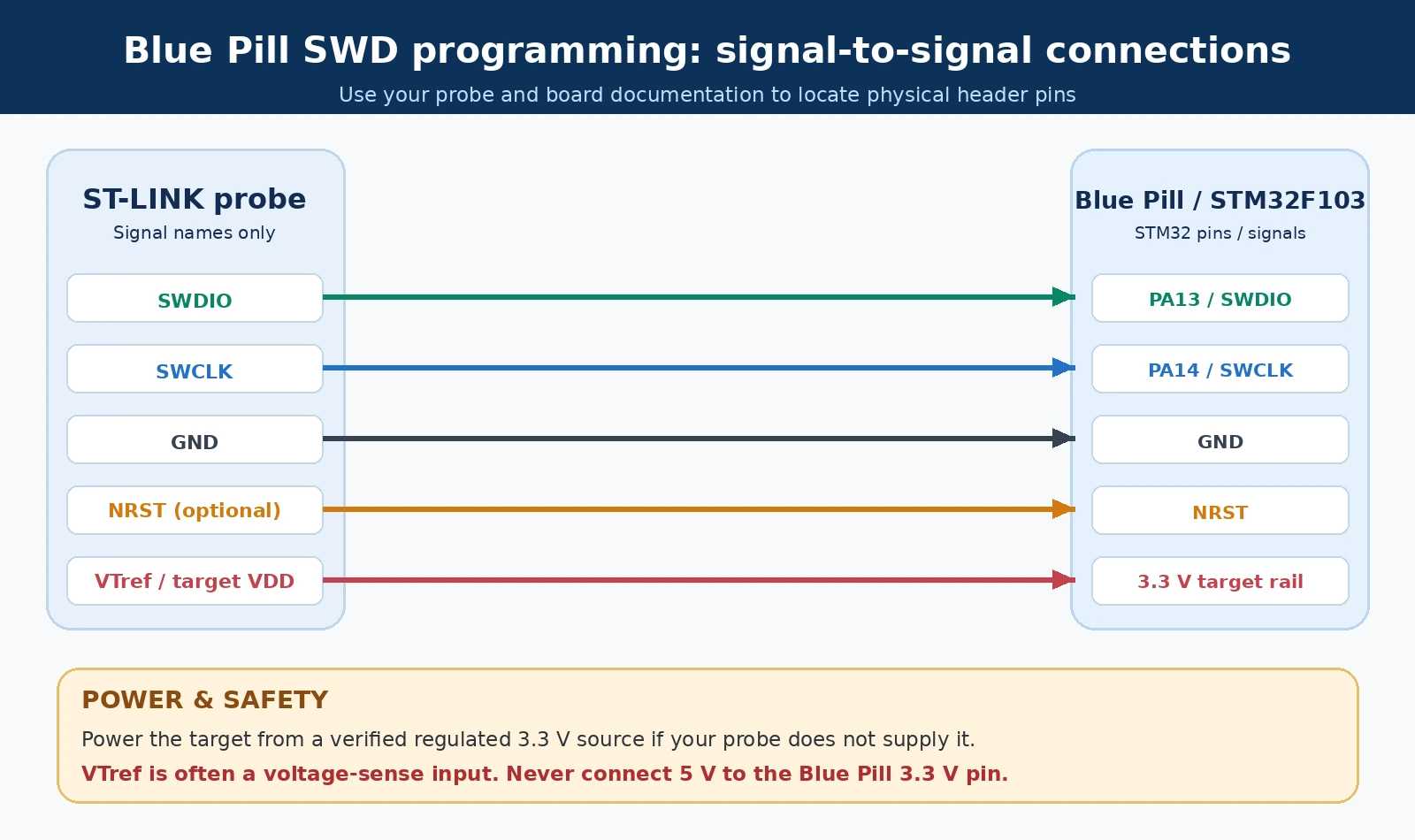
Power warning: A connection labelled 3.3V, VTref or VDD_TARGET can have a different role depending on the ST-LINK model or clone. Some probes provide target power; others merely sense the target voltage. Do not rely on a universal power pinout. Read the documentation for your actual probe, use a valid regulated 3.3 V supply for the target when required, and share a ground. Never apply a 5 V supply directly to a 3.3 V-only MCU supply pin. A genuine ST-LINK and an anonymous USB dongle may not have identical header numbering.
The Blue Pill’s USB connector is also not automatically a substitute for ST-LINK programming. USB upload requires an appropriate supported bootloader/firmware and board wiring. A generic F103 board cannot be assumed to ship with a usable USB bootloader. Start with SWD, get one known-good blink running, and experiment with USB later.
Understanding the MCU’s pins, clocks and power without getting lost
STM32 GPIO pins can often perform several roles. A pin may be a simple digital input/output, an ADC input, a timer channel, a UART signal or another alternate function. One physical pin cannot perform incompatible roles simultaneously. STM32CubeMX helps surface these conflicts while you configure the project. The chip’s reference manual describes the peripheral itself; its datasheet provides pin availability, packages, voltages and electrical limits.
Four common traps beginners should avoid
1. Confusing the 5 V input with 5 V GPIO. Development boards may accept 5 V from USB and regulate it to the MCU’s supply. That does not mean all GPIO are 5 V compatible. Some particular STM32 pins are marked 5 V tolerant in digital operation, subject to restrictions; other pins, especially analogue inputs, are not. Always inspect the electrical characteristics and pin classification for the exact chip, not a general STM32 pinout picture.
2. Connecting UART without a shared ground. Two 3.3 V devices talking over UART usually need TX-to-RX, RX-to-TX and a common ground. Both must also agree on baud rate and format. Connecting a 5 V-only UART output directly to a 3.3 V-only input can damage the MCU.
3. Making incorrect crystal assumptions. MCU clocks may use internal oscillators, external clock signals, crystals or PLL multiplication. Some Nucleo board revisions omit a crystal you might expect from a generic example. Starting with a valid default clock and testing with the debugger is safer than copying a maximum-speed clock-tree screenshot.
4. Mixing physical headers and MCU GPIO names. An Arduino-header label such as D13 is a board connector designation. PA5 is a microcontroller GPIO name. The mapping depends on the particular board. Verify the connection before following another board’s wiring diagram.
ST-LINK and SWD: what the debugger actually does
ST-LINK is the programming/debugging probe. SWD (Serial Wire Debug) is a two-signal ARM debug interface using SWDIO and SWCLK, usually with a common ground, target-voltage reference and optionally reset. Over SWD, a compatible probe can flash the MCU and control CPU execution: stop at a breakpoint, inspect memory and registers, step through instructions, and see where a crash happened.
A typical debugger workflow is more useful than guessing from LED behaviour alone:
- Build the firmware successfully with no unexpected warnings.
- Connect to the actual target MCU in debug mode.
- Set a breakpoint at the beginning of
main(). - Resume and confirm the code reaches the loop.
- Inspect the value and peripheral state being changed.
- Remove the breakpoint and allow normal operation.
This is one reason I recommend a board with onboard debugging for the first project. An external probe is excellent too, but it adds power, pin mapping and cable quality to the initial troubleshooting list.
Troubleshooting your first STM32 project
| Symptom | Most likely checks | First action |
|---|---|---|
| Computer does not detect ST-LINK | USB cable, port, driver, probe power | Use a known data cable and verify enumeration |
| Debugger says No target found | Target not powered, bad SWD ground, wrong SWD signals, debug pins reused | Check power and SWD wiring/target voltage |
| Build fails | Wrong toolchain, missing firmware package, code outside user region, syntax error | Read the first compiler error, not the last |
| Flash succeeds but LED stays off | Wrong board, wrong GPIO, LED polarity, pin not initialized | Check NUCLEO PA5 or actual board schematic |
| LED blink rate looks wrong | Clock tree or HAL timebase configuration | Verify SystemClock_Config() and HAL tick |
| Programming worked once, then failed | Firmware reconfigured SWD pins or entered problematic low-power state | Try connect-under-reset with supported probe |
| Blue Pill USB does not upload | No USB bootloader, wrong core/upload method, board clone USB hardware | Use SWD first and verify board implementation |
A disciplined recovery sequence
First disconnect additional sensors, motor drivers and external power sources. Return to the simplest Nucleo-plus-USB setup. Use STM32CubeProgrammer to check whether the correct target chip can be detected through ST-LINK. If the device is seen there but not in the IDE, suspect the IDE debug configuration rather than physical hardware. If neither tool detects it, investigate target power, drivers and SWD wiring before altering firmware settings.
On Blue Pill boards, connect-under-reset can help if misconfigured firmware is interfering with debugging. Use NRST only with a verified probe pinout. Options bytes and readout protection can affect device access; do not randomly change security or boot option bits as a first recovery attempt. On devices with permanent or high-impact settings, an incorrect option-byte change may be difficult or impossible to reverse.
For ST-LINK and USB problems specific to the F103 board, see our Blue Pill pinout guide. Our separate STM32 flashing tutorial will go deeper into SWD, UART and supported device boot modes.
What should you learn after blinking an LED?
A good STM32 learning sequence is based on hardware features you can measure, not random library examples. These five steps build on each other:
- GPIO input and output. Read a button with the correct pull-up/down arrangement; add debounce in software and understand interrupts.
- UART debugging. Send a message to a USB-UART adapter or the Nucleo’s appropriate virtual COM interface. Check the board’s UART connection mapping first.
- I²C and SPI. Talk to a sensor or display. Verify voltage levels, address configuration, pull-ups and the correct peripheral pins.
- Timers, PWM and ADC. Generate an accurate waveform, measure an analogue voltage and compare CPU polling with DMA-assisted acquisition.
- Interrupts and debugging. Replace blocking loops with timed events; inspect registers and fault information when execution goes wrong.
FreeRTOS, USB device classes, CAN bus, low-power modes and bootloaders become far easier once you understand GPIO, clocks and the debugger. If vehicle networking is your interest, our STM32 CAN bus guide introduces transceivers and physical wiring. Note that CAN-controller availability differs among STM32 parts; do not assume a Black Pill or Nucleo has the controller merely because another STM32 does.
A useful habit from day one: keep a tiny hardware notebook
Record the board revision, MCU marking, power supply, pin assignments, relevant solder-bridge positions, clock source, software versions and last known-good firmware revision. Five lines of notes can prevent hours of trouble later. When a tutorial uses a different board, translate all of these details deliberately rather than only changing a pin number in the code.
STM32 beginner FAQ
Is STM32 harder to program than ESP32?
The initial setup has more concepts, particularly the chip variant, generated pin configuration and debug connection. After one working project, the workflow becomes predictable. If Wi-Fi connectivity is the main goal, ESP32 may still be quicker. If you want MCU-level debugging and specific peripheral behaviour, STM32 is a strong choice.
Can I program STM32 using Arduino IDE?
Yes. The official STM32duino Arduino core supports many STM32 Nucleo, Blue Pill and other boards. Choose the matching board and supported upload method; not every USB connector can program every board out of the box.
Does a Nucleo board need a separate ST-LINK programmer?
Not the NUCLEO-F401RE used here. It includes an integrated ST-LINK/V2-1 debug/programming section. Other boards differ; inspect the exact product page and user manual.
Do I need to understand C before starting?
Knowing variables, functions, loops, headers and basic pointers makes progress faster, but you can learn the required embedded C alongside simple peripheral examples. You do not need advanced C++ or an RTOS to blink an LED.
Is STM32CubeProgrammer the same as STM32CubeIDE?
No. CubeIDE builds and debugs firmware. CubeProgrammer handles programming, inspection and device configuration through supported interfaces. They work well together, but each solves a different problem.
Which STM32 Blue Pill is the real one?
Blue Pill is a community board nickname, not a guarantee of original ST silicon or a single official PCB revision. Verify the chip marking, seller, board layout and electrical behaviour. If predictable onboarding matters more than the lowest cost, start with an official Nucleo.
Final recommendation
For a first STM32 project, buy or use a NUCLEO-F401RE, install the current ST tools from ST’s website, select your board accurately, configure PA5 as an LED output, and run the HAL toggle example through the onboard ST-LINK. This teaches the essential steps—board selection, pin configuration, code generation, compilation, flashing and debugging—without adding uncertain clone wiring. Once you can stop and step through the blink loop, a sensor or UART tutorial is a small next step rather than a completely new process.
Reference documentation: ST Nucleo-64 user manual UM1724 · STM32CubeIDE product page · ST’s explanation of the separated CubeMX workflow · STM32CubeMX · STM32CubeProgrammer · STM32duino core.