If you’re reading esp32.co.uk, you probably already have Home Assistant stuffed with ESPHome sensors, smart relays, and automations that look like a small PhD thesis.
But none of that matters if turning a light on takes 10–15 seconds of app-fumbling.
The “fast UX win” is simple: pull your most common actions out of the Home Assistant UI and put them directly onto iOS (Control Center, Lock Screen, widgets, buttons). Home Assistant stays the brain — your iPhone becomes the remote that’s actually fast.
Rule of thumb: pick 5–8 actions max. If you add 30 buttons, you’ve reinvented a slow dashboard.
1) iOS 18 Control Center + Lock Screen (no app-hunting)
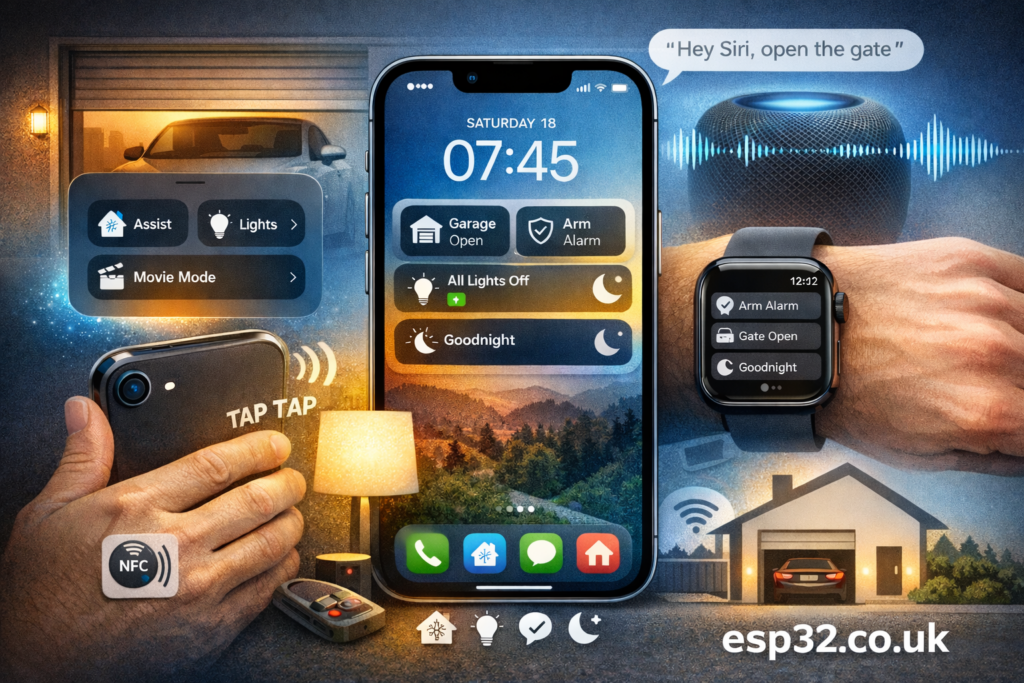
With iOS 18 support in the iOS Companion App, you can add native Control Center controls for Home Assistant, including:
- Assist
- Toggle light
- Run script
- Activate scene
- Open page
This is the fastest “muscle memory” path: swipe, tap, done. And if you’ve got an iPhone 15 Pro / 16 series, these controls can also be mapped to the Action Button, cutting steps even further.
Home Assistant also supports starting Assist from multiple iPhone entry points (including Control Center and Lock Screen).
What to put here (best ROI):
- Gate / garage
- Alarm arm/disarm
- “All lights off”
- “Goodnight”
- Assist
2) Home Screen widgets that actually do things
Widgets are where Home Assistant starts feeling “native”.
Best options:
- Custom Widgets (beta): the most flexible option — you can choose entities, icon + colors, background, and what happens “on tap” (including requiring confirmation for dangerous stuff).
- Details / Gauge widgets (advanced): show key sensor data (e.g., temp/humidity/air quality) using templating (admin required for templating).
- Actions widget: a clean list of your curated “do this now” commands, also used by Apple Watch.
Fast UX move: create two widget zones:
- Day: gate, garage, alarm, climate boost
- Night: goodnight, lights off, arm night
3) Hardware shortcuts: Action Button + Back Tap (stupid-fast)
Touchscreens are fine. Physical triggers are better.
Home Assistant explicitly supports launching Assist via:
- Back Tap
- Action Button
- Control Center
- Lock Screen
So you can do things like:
- Double back-tap → Assist → “Turn on lounge lights”
- Action Button → Assist (or a specific script/scene)
This is the closest thing to “push-to-talk” for your house.
4) Siri Shortcuts (when you want iOS-native voice + automation glue)
Shortcuts are still useful for:
- Running HA actions from Siri (“Hey Siri, Movie Mode”)
- Chaining iOS stuff + HA stuff (e.g., set phone volume + run HA scene)
The Companion App supports Siri Shortcuts and lets you call HA services (plus other actions) directly from the Shortcuts app.
Pro tip: keep Siri phrases short and unambiguous. If Siri mishears it, your smart home becomes a slot machine.
5) NFC tags: zero taps, “ESP32-maker approved”
Buy a pack of NFC stickers (NTAG213/215/216), and place them where actions make sense:
- Bedside table → “Goodnight”
- Near front door → “Away”
- By garage door → “Open/Close garage”
- On fusebox / network rack → “Maintenance mode”
Home Assistant iOS supports NFC tags via a Home Assistant URL format; on iOS you typically get a notification which, when tapped, launches the app and fires the tag_scanned event.
Both Android and iOS apps can read and write tags, and some tags may be read-only / limited-write.
This is one of the few smart home interactions that feels genuinely “instant” and natural.
6) Speed up the app for the times you do open it
Even with OS-level controls, you’ll open the HA app sometimes. Don’t let it be slow.
Two high-impact tweaks:
- Set an Internal URL in the Companion App so you’re not routing oddly when you’re at home. (This is literally in the Companion settings path.)
- Create a mobile-first landing dashboard: buttons first, no heavy graphs/cameras on the first view.
A practical “starter pack” (copy this)
If you want maximum speed with minimum tinkering, start with these 5 actions everywhere (Control Center + widgets):
- Gate / garage
- Arm Night
- Disarm (with confirmation)
- All lights off
- Goodnight scene
Then add one “power feature”:
- Back Tap → Assist or
- NFC bedside tag → Goodnight
That’s it. Anything beyond that earns its place.