
This guide shows how to connect a PMS5003AliExpress price (PM2.5/PM10) particulate sensor to an ESP32AliExpress price using UART, configure it in ESPHome, and display air-quality values in Home Assistant (optional MQTT). Includes wiring, safe GPIO choices, recommended update intervals, warm-up/duty cycling tips, and fixes for the most common “no data / zero readings / flaky UART” issues.
Particulate sensors like the Plantower PMS5003AliExpress price are one of the best “bang for buck” air-quality upgrades you can add to Home Assistant. They measure:
- PM1.0
- PM2.5
- PM10
…and let you build automations like “turn on air purifier when PM2.5 rises”.
This guide is ESP32 + PMS5003 using ESPHome (with optional MQTT).
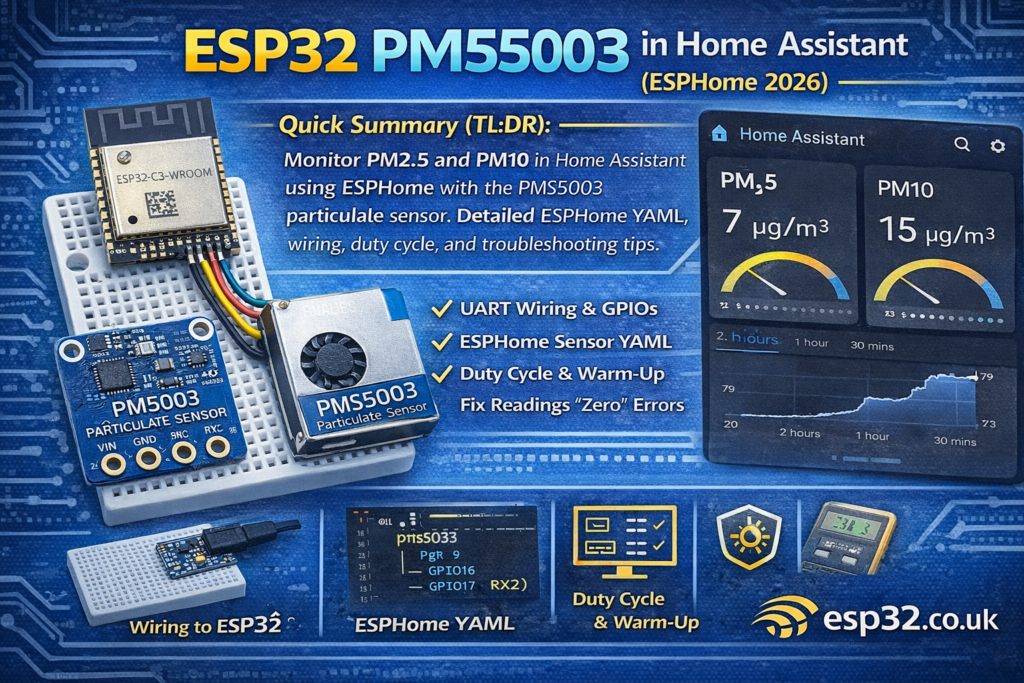
1) PMS5003 basics (what you’re measuring)
Most PMS5003 sensors output two “sets” of particulate readings:
- Factory / CF=1 values (often used for industrial calibration reference)
- Atmospheric / “standard” values (what you want for indoor air)
In ESPHome/Home Assistant you typically care about:
- PM2.5 (main indoor air metric)
- PM10 (bigger dust/pollen particles)
2) What you need
- ESP32 dev board (DevKitC, etc.)
- PMS5003 sensor (with cable or header)
- Jumper wires
- Optional: a 5V supply if your PMS5003 board wants 5V (many do)
3) Wiring (ESP32 ↔ PMS5003 UART)
3.1 PMS5003 pins you’ll use
Common pins on PMS5003 breakout/cable:
- VCC (often 5V recommended; depends on your breakout)
- GND
- TX (sensor transmits data out)
- RX (sensor receives commands; often not needed for basic reading)
- Sometimes: SET / EN / RESET pins (for sleep control)
3.2 Recommended ESP32 UART pins (use UART2)
Use UART2 so you don’t interfere with flashing/logs (UART0 is used by USB programming).
Recommended:
3.3 Wiring table (basic read-only setup)
| PMS5003 | ESP32 |
|---|---|
| VCC | 5V (or 3V3 if your board supports it) |
| GND | GND |
| TX | GPIO16 (ESP32 RX2) |
| RX | GPIO17 (ESP32 TX2) (optional) |
Important: TX/RX are cross-connected:
3.4 Logic level warning (read this)
Some PMS5003 boards output 3.3V UART, some output 5V UART.
The ESP32 RX pin is not 5V tolerant.
If your PMS TX is 5V, use a simple level shifter:
- A resistor divider (e.g., 10k/20k) on PMS TX → ESP32 RX
- Or a proper logic level shifter
If you don’t know: start with a divider. It’s cheap insurance.
4) ESPHome YAML (ESP32 + PMS5003)
4.1 Base node config
esphome:
  name: esp32-pms5003
  friendly_name: ESP32 PMS5003esp32:
  board: esp32dev
  framework:
    type: arduinologger:api:ota:wifi:
  ssid: !secret wifi_ssid
  password: !secret wifi_password
  ap:
    ssid: "PMS5003 Fallback"
    password: !secret ap_passwordcaptive_portal:
4.2 UART config
uart:
  id: uart_pms
  rx_pin: GPIO16
  tx_pin: GPIO17
  baud_rate: 9600
PMS5003 uses 9600 baud by default.
4.3 PMS5003 sensor config
sensor:
  - platform: pmsx003
    type: PMSX003
    uart_id: uart_pms
    pm_1_0:
      name: "PM1.0"
    pm_2_5:
      name: "PM2.5"
    pm_10_0:
      name: "PM10"
    update_interval: 30s
Notes:
pmsx003is the ESPHome platform used for Plantower-style sensors.update_interval: 30sis a good start for indoor monitoring.
5) Add it to Home Assistant
Once flashed:
- Go to Settings → Devices & Services → ESPHome
- Add the node
- You’ll get entities for PM1.0, PM2.5, PM10
Recommended dashboard cards:
- Entities card (PM2.5 + PM10)
- History graph (PM2.5 trends)
- Gauge for PM2.5 (optional)
6) Optional MQTT (if you want MQTT instead of API)
mqtt:
  broker: 192.168.1.10
  username: !secret mqtt_user
  password: !secret mqtt_pass
Most people use ESPHome API, but MQTT is fine if your stack is broker-first.
7) Duty cycling, fan wear, and “battery mode”
PMS5003 has a laser + fan. Running it 24/7:
- consumes more power
- slowly loads the sensor with dust
- wears the fan over time
Practical approach for home monitoring
- Run continuous if mains powered and you want real-time graphs
- Or “sample mode”:
- wake the sensor for 30–60 seconds
- read stable values
- sleep it for a few minutes
To do true sleep control you’ll need your sensor’s SET/EN pin or command mode (varies by board). Many people simply keep it always on for simplicity.
8) Troubleshooting (common PMS5003 problems)
8.1 All readings are zero
Common causes:
- TX/RX wired wrong (remember: TX→RX)
- Wrong UART pins selected
- Wrong baud rate (should be 9600)
- Sensor not powered correctly (many want 5V)
Fix:
- Re-check wiring and power
- Verify UART pins are correct
- Try only TX→RX first (RX optional)
8.2 “No data / sensor not updating”
Common causes:
- UART conflict with Serial logging (using GPIO1/3 by mistake)
- Long wires/noisy environment
- 5V UART level into ESP32 RX (ESP32 may survive briefly then act weird)
Fix:
- Use UART2 pins (GPIO16/17)
- Add level shifting if needed
- Shorten wires, keep GND solid
8.3 Spiky readings
Normal causes:
- fan turbulence, airflow bursts
- sensor warm-up
- dust events (cooking, vacuuming)
Fix:
- Add a filter:
filters:
  - sliding_window_moving_average:
      window_size: 6
      send_every: 3
Apply to PM2.5 and PM10.
8.4 Readings don’t match “official” AQI monitors
That’s normal. PMS sensors:
- are good for trends and relative changes
- are not a certified regulatory monitor
Use it for:
- “PM2.5 jumped when cooking”
- “Air purifier reduces PM2.5 back to baseline”
…not for legal compliance.
9) Useful automations in Home Assistant
9.1 Turn on air purifier when PM2.5 rises
Example logic:
- If PM2.5 > 15 µg/m³ for 5 minutes → turn purifier ON
- If PM2.5 < 8 µg/m³ for 10 minutes → turn purifier OFF
Add hysteresis and delays to avoid flapping.
9.2 Alert when air quality is bad
- PM2.5 above a threshold → phone notification
- Combine with “windows open” sensor for smarter logic