Everything you need, zero assumptions, no missing steps
This guide gets you from new board → first working program in the simplest and shortest way possible.
1. What You Need
Use these items:
- ESP32 development board (ESP32-DevKitC, NodeMCU-32S, or similar)
- USB cable (USB-A to Micro-USB or USB-C depending on your board)
- Computer (Windows, macOS, or Linux)
- Internet connection
No breadboard or extra parts needed for this guide.
2. Install Arduino IDE
The Arduino IDE is the simplest way to program an ESP32.
Windows
- Go to the official page: arduino.cc → Software → Downloads
- Download Windows Installer.
- Run it → press Next until finished.
macOS
- Download the macOS zip from Arduino.cc
- Open it → drag Arduino.app to Applications.
Linux
- Download the Linux AppImage
- Right-click → Properties → enable Allow executing file as program.
- Double-click to run.
You’re done. No configuration needed yet.
3. Add ESP32 Support to Arduino IDE
The IDE doesn’t include ESP32 boards by default. Add them once.
- Open Arduino IDE
- Go to File → Preferences
- Find the field “Additional Boards Manager URLs”
- Paste this URL:
https://espressif.github.io/arduino-esp32/package_esp32_index.json
- Press OK
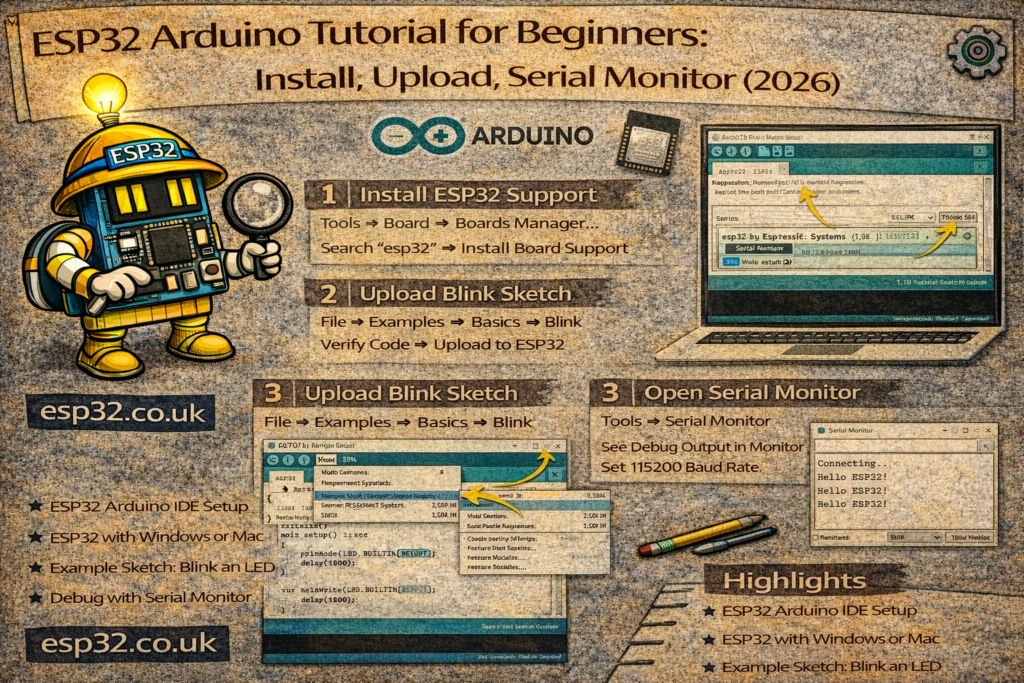
- Now go to Tools → Board → Boards Manager
- Search for ESP32
- Install “esp32 by Espressif Systems”
This gives you all official ESP32 boards.
4. Select the Correct ESP32 Board
Do this before uploading code.
- Go to Tools → Board → ESP32 Arduino
- Select:
- “ESP32 Dev Module” (works for 90% of generic boards)
or - Choose your exact model if you know it.
- “ESP32 Dev Module” (works for 90% of generic boards)
If in doubt → choose ESP32 Dev Module.
It works with all DevKitC / NodeMCU-32S boards.
5. Connect Your ESP32
- Plug USB cable into your ESP32
- Plug the other end into your computer
- Go to Tools → Port
- Select the port that appears (e.g., COM3 on Windows, /dev/cu.SLAB_USBtoUART on macOS)
If no port appears, install the driver:
For boards with CH340 USB chip
Windows/macOS driver: search “CH340 driver” (WCH official)
For boards with CP2102 USB chip
Install CP210x USB to UART Bridge VCP driver from Silicon Labs.
Once installed → reopen Arduino → choose the new port.
6. Upload Your First Program (“Blink”)
This confirms the board works.
- Go to File → Examples → 01.Basics → Blink
- Replace the default LED pin with 2 (most ESP32 boards use GPIO 2):
void setup() {
  pinMode(2, OUTPUT);
}

void loop() {
  digitalWrite(2, HIGH);
  delay(1000);
  digitalWrite(2, LOW);
  delay(1000);
}
- Press the Upload arrow (top left)
- If you see “Connecting…”, press and hold BOOT, then release when upload starts.
After upload → LED should blink.
If yes → your setup works 100%.
7. Common Problems (Fast Fixes)
Problem: “Failed to connect to ESP32: Timed out”
Try these:
- Hold BOOT button during upload
- Change USB cable (many are power-only)
- Use a different USB port
- Select the correct COM port
- Try a slower upload speed:
Tools → Upload Speed → 115200
Problem: No COM port appears
- Install CH340 or CP2102 driver
- Try another cable
- Try another PC port
- Reopen Arduino IDE
Problem: Blinking LED does not blink
- Try GPIO 2, 4, or 5
- Very cheap boards sometimes lack built-in LEDs
8. What to Do Next (Short Path)
A. Connect to WiFi (simple test)
#include <WiFi.h>

const char* ssid = "YOUR_WIFI";
const char* pass = "YOUR_PASSWORD";

void setup() {
  Serial.begin(115200);
  WiFi.begin(ssid, pass);

  while (WiFi.status() != WL_CONNECTED) {
    delay(500);
    Serial.print(".");
  }

  Serial.println("\nConnected");
  Serial.print("IP: ");
  Serial.println(WiFi.localIP());
}

void loop() {}
Upload → open Serial Monitor @ 115200 → you should see your IP.