If you’re reading esp32.co.uk, you probably already have Home Assistant packed with ESPHome sensors, smart relays, and automations that look like a small engineering project.
But let’s be totally candid: a smart home is useless if it takes 15 seconds of app-fumbling just to turn on a light.
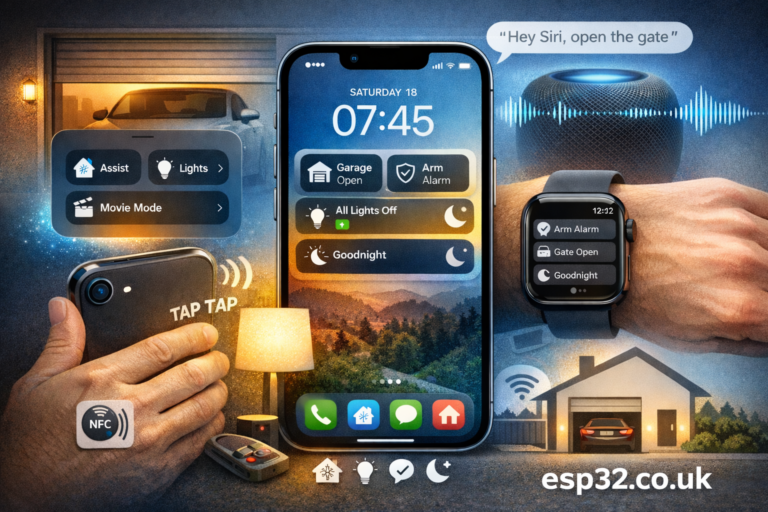
“Fast UX wins” are all about frictionless control: the right actions, available instantly, from the hardware you already touch all day — iPhone + Apple Watch. The Home Assistant iOS Companion App is powerful, but the real upgrade is when you pull the important controls out of the app and place them directly into iOS and watchOS.
Here’s the practical playbook.
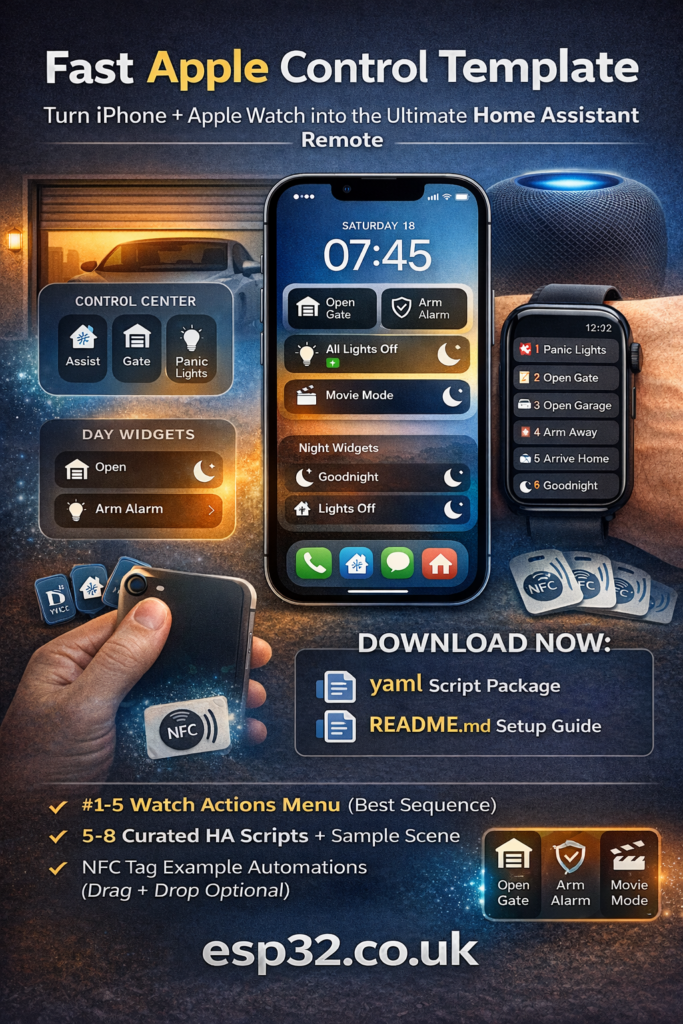
1) iOS 18 Control Center & Lock Screen (no app-hunting)
With iOS 18, Apple finally opened the Control Center properly to third-party controls — and Home Assistant took advantage of it.
- Control Center controls: Add native Home Assistant actions like Toggle light, Run script, Activate scene, or launch Assist. Swipe down, tap, done.
- Lock Screen access: Keep quick actions and glanceable info one step away. Perfect for “check the temperature” or “hit Goodnight” without digging through dashboards.
UX rule: Control Center is for repeatable daily actions, not “nice to have” status panels.
2) Apple Watch = the stealth remote (ruthless minimalism wins)
Your phone might be on the desk or charging, but your watch is always there — and that’s why it’s the best stealth remote. The only catch: on a 2-inch screen, clutter kills UX.
Complications: the daily 2–3
Don’t try to show your whole house. Put only the two or three things you genuinely use every day on your watch face:
- Gate / garage
- Alarm state (arm night / disarm / quick status)
- Temperature (or one key sensor like greenhouse / server rack / nursery)
That’s it. If you add five, you’ll stop using them.
Build a priority “Actions” page
Scrolling through a giant entity list on a watch is pain. Instead, create a dedicated Watch-friendly Actions list made only of scripts/scenes and order them by urgency:
Top (urgent):
- Panic Lights (all lights on)
- Alarm Arm / Disarm (with confirmation)
- Gate / Garage
Daily routines:
- Goodnight
- Away
- Arrive Home
This turns the watch into a command menu, not a tiny dashboard.
Require confirmation for risky actions
Garage doors and disarm buttons should not fire from an accidental wrist bump. Enable confirmation for sensitive actions to keep it fast and safe.
3) Hardware shortcuts: Action Button & Back Tap (physical beats touchscreen)
When you want speed, physical triggers win.
- Action Button (iPhone 15 Pro / newer): Map it to a Home Assistant Shortcut. Best use case: launch Assist instantly so you can speak commands immediately (bypassing Siri for the actual control layer).
- Back Tap (any iPhone that supports it): Configure double or triple tap to run a Shortcut that triggers a scene/script — perfect for lights, Goodnight, or “mute the house”.
Fast UX move: assign exactly one “always useful” function here (Assist or Panic Lights).
4) Interactive Home Screen widgets (instant, glanceable, tappable)
Why open an app if your home screen can do it?
- Custom action widgets: Use interactive widgets that trigger actions without making you navigate.
- Real-time sensor gauges: Put key ESPHome data where you’ll actually see it (temperature, humidity, AQI, energy, tank level), right next to your calendar and mail.
Pro move: build two widget zones:
- Day widget: gate, alarm, climate boost
- Night widget: goodnight, lights off, arm night
5) NFC tags: the maker’s best friend (context beats clicks)
This is where DIY thinking meets iOS beautifully. Stick NFC tags where routines happen naturally.
Examples:
- Bedside table: phone down → Goodnight routine
- By the door: tap → Away routine
- Garage wall: tap → open/close garage + lights
- Desk: tap → work lighting + “do not disturb” mode
It’s “contextual automation” — you don’t even need to think.
6) Optimize the app for the times you do open it
Even with OS-level shortcuts, you’ll still open Home Assistant sometimes. If it loads slowly, it kills the whole feel.
- Local-first connectivity: Ensure the app uses your local connection properly when you’re on Wi-Fi (avoid unnecessary detours through proxies/cloud paths).
- Button-first mobile dashboard: No heavy graphs/cameras on your landing view. Make the default page fast buttons only.
Quick reference: choose the right control method
| Control method | Speed | Best used for |
|---|---|---|
| Action Button | Instant | Assist push-to-talk, Panic triggers |
| Apple Watch complication | Fast (wrist raise) | Gate/garage, alarm status, 1 key sensor |
| iOS Control Center | Fast (swipe & tap) | Daily scripts/scenes, common toggles |
| NFC tags | Contextual | Bedtime/away/desk routines |
| Home Screen widgets | Fast + glanceable | Sensor gauges + most-used actions |
The one rule that makes this work
Pick 5–8 total actions across your whole Apple setup. Anything beyond that becomes a cluttered remote — and you’re back to slow UX.
Here are the templates:
# Home Assistant "Fast UX" template for iPhone + Apple Watch
# ---------------------------------------------------------
# Goal: 5–8 instant actions with predictable naming/order for iOS Control Center,
# Lock Screen/Home Screen widgets, Apple Watch Actions list, and NFC tags.
#
# HOW TO USE (quick):
# 1) Replace entity_ids below with YOUR entities (gate/garage/alarm/lights/climate/locks).
# 2) Save as: config/packages/apple_fast_ux.yaml
# 3) Ensure packages are enabled in configuration.yaml (example at bottom of this file).
# 4) Restart Home Assistant.
# 5) Add these scripts as iOS / Watch Actions (names are prefixed for ordering).

input_boolean:
  fastux_guest_mode:
    name: Fast UX Guest Mode (optional)
    icon: mdi:account

# Optional: create an "All Lights" group if you don't already have one.
# Uncomment and list your lights.
# light:
#   - platform: group
#     name: All Lights
#     unique_id: fastux_all_lights
#     entities:
#       - light.living_room
#       - light.kitchen
#       - light.hallway

template:
  - sensor:
      - name: "FastUX Alarm State"
        unique_id: fastux_alarm_state
        state: >
          {% set s = states('alarm_control_panel.home_alarm') %}
          {{ {
            'disarmed':'Disarmed',
            'armed_home':'Armed Home',
            'armed_away':'Armed Away',
            'armed_night':'Armed Night',
            'arming':'Arming',
            'pending':'Pending',
            'triggered':'Triggered'
          }.get(s, s) }}
        icon: >
          {% if is_state('alarm_control_panel.home_alarm','disarmed') %}
            mdi:shield-off
          {% elif is_state('alarm_control_panel.home_alarm','triggered') %}
            mdi:alarm-light
          {% else %}
            mdi:shield-home
          {% endif %}

script:
  # --- URGENT / TOP PRIORITY ---
  fastux_00_panic_lights:
    alias: "00 🚨 Panic Lights"
    mode: single
    description: "All lights ON (inside/outside). Put this at the top of Watch Actions."
    sequence:
      - service: light.turn_on
        target:
          entity_id:
            - light.all_lights           # <- replace or create via optional group above
            - light.outdoor_floods       # <- replace (optional)
      - service: notify.notify
        data:
          message: "🚨 Panic Lights triggered (Fast UX)."

  # --- ENTRY CONTROLS ---
  fastux_10_gate_toggle:
    alias: "10 🚪 Gate Toggle"
    mode: single
    sequence:
      - service: cover.toggle
        target:
          entity_id: cover.gate          # <- replace

  fastux_11_garage_toggle:
    alias: "11 🅿️ Garage Toggle"
    mode: single
    sequence:
      - service: cover.toggle
        target:
          entity_id: cover.garage_door   # <- replace

  # --- MODES / ROUTINES ---
  fastux_20_away:
    alias: "20 🏃 Away"
    mode: single
    sequence:
      - service: light.turn_off
        target:
          entity_id: light.all_lights
      - service: lock.lock
        target:
          entity_id:
            - lock.front_door            # <- replace (optional)
      - service: climate.set_preset_mode
        target:
          entity_id: climate.house       # <- replace (optional)
        data:
          preset_mode: eco
      - service: alarm_control_panel.alarm_arm_away
        target:
          entity_id: alarm_control_panel.home_alarm  # <- replace

  fastux_21_arrive_home:
    alias: "21 🏠 Arrive Home"
    mode: single
    description: "Safe by default (does NOT disarm alarm). Add disarm here only if you really want it."
    sequence:
      - service: climate.set_preset_mode
        target:
          entity_id: climate.house       # <- replace (optional)
        data:
          preset_mode: comfort
      - service: light.turn_on
        target:
          entity_id:
            - light.hallway              # <- replace (optional)
        data:
          brightness_pct: 60

  fastux_30_goodnight:
    alias: "30 🌙 Goodnight"
    mode: single
    sequence:
      - service: light.turn_off
        target:
          entity_id: light.all_lights
      - service: lock.lock
        target:
          entity_id:
            - lock.front_door            # <- replace (optional)
      - service: alarm_control_panel.alarm_arm_night
        target:
          entity_id: alarm_control_panel.home_alarm  # <- replace
      - service: climate.set_temperature
        target:
          entity_id: climate.house       # <- replace (optional)
        data:
          temperature: 19

  fastux_31_all_lights_off:
    alias: "31 💡 All Lights Off"
    mode: single
    sequence:
      - service: light.turn_off
        target:
          entity_id: light.all_lights

scene:
  # Scenes are great for pure lighting states (fast + predictable).
  # Replace entities with your lights and preferred settings.
  - name: "FastUX - Movie Mode"
    id: fastux_movie_mode
    entities:
      light.living_room:                # <- replace
        state: on
        brightness: 40
      light.living_room_lamp:           # <- replace
        state: on
        brightness: 20

automation:
  # NFC TAGS (optional)
  # Create tags in Home Assistant (Settings > Tags) and paste the tag_id here.
  - id: fastux_nfc_goodnight
    alias: "FastUX NFC - Goodnight"
    mode: single
    trigger:
      - platform: tag
        tag_id: REPLACE_WITH_YOUR_TAG_ID_GOODNIGHT
    action:
      - service: script.fastux_30_goodnight

  - id: fastux_nfc_away
    alias: "FastUX NFC - Away"
    mode: single
    trigger:
      - platform: tag
        tag_id: REPLACE_WITH_YOUR_TAG_ID_AWAY
    action:
      - service: script.fastux_20_away

  - id: fastux_nfc_movie
    alias: "FastUX NFC - Movie Mode"
    mode: single
    trigger:
      - platform: tag
        tag_id: REPLACE_WITH_YOUR_TAG_ID_MOVIE
    action:
      - service: scene.turn_on
        target:
          entity_id: scene.fastux_movie_mode

# --- Packages enablement example (put THIS in configuration.yaml if not already enabled) ---
# homeassistant:
#   packages: !include_dir_named packages
# Fast UX Template (iPhone + Apple Watch) — esp32.co.uk

This is a minimal, opinionated Home Assistant template that turns your Apple devices into a **fast command layer**:
- iOS Control Center + Lock Screen/Home Screen widgets
- Apple Watch complications + a prioritized Watch Actions list
- Optional NFC tags (bedside / door / garage)

## 1) Install (recommended: packages)
1. Create folder: `config/packages/` (if it doesn't exist)
2. Save `apple_fast_ux.yaml` into: `config/packages/apple_fast_ux.yaml`
3. In `configuration.yaml`, enable packages (if not already):
   ```yaml
   homeassistant:
     packages: !include_dir_named packages
   ```
4. Restart Home Assistant.

## 2) Replace entity IDs (must-do)
Open `apple_fast_ux.yaml` and replace these placeholders with YOUR entities:
- `cover.gate`
- `cover.garage_door`
- `alarm_control_panel.home_alarm`
- `light.all_lights` (either real, or use the included optional light group)
- `climate.house`
- `lock.front_door`
- plus any lights used in the Movie Mode scene

## 3) Recommended Apple Watch setup
### A) Complications (only 2–3)
Pick the daily items:
- `10 🚪 Gate Toggle`
- `11 🅿️ Garage Toggle`
- `FastUX Alarm State` (sensor) OR a key temperature sensor (greenhouse/nursery/etc.)

### B) Watch Actions list (priority order)
Add these scripts as Watch Actions in this order:
1. `00 🚨 Panic Lights`
2. `10 🚪 Gate Toggle`
3. `11 🅿️ Garage Toggle`
4. `20 🏃 Away`
5. `21 🏠 Arrive Home`
6. `30 🌙 Goodnight`
7. `31 💡 All Lights Off`

**Why the numbers/emojis?**
They keep the list ordered and instantly recognizable on a tiny screen.

### C) Safety
Enable **Require Confirmation** (in the iOS app settings) for risky actions like:
- Garage toggle
- Alarm disarm (if you ever add it)
- Gate toggle (if it’s easy to misfire)

## 4) iPhone layout (fast and clean)
### Control Center (top-level)
Add Home Assistant controls for:
- Assist
- `00 🚨 Panic Lights`
- `10 🚪 Gate Toggle`
- `11 🅿️ Garage Toggle`
- `30 🌙 Goodnight`

### Home Screen widgets
Create a “Day” widget and a “Night” widget:
- Day: Gate, Garage, Away, Arrive Home
- Night: Goodnight, All Lights Off, (optional) Movie Mode scene

## 5) NFC tags (optional but addictive)
1. Create Tags in HA: **Settings → Tags**
2. Copy each `tag_id` and paste into the automations:
   - Goodnight tag (bedside)
   - Away tag (near door)
   - Movie tag (sofa/TV area)
3. Scan the tag with iPhone; confirm it triggers the action.

## Notes
- This template intentionally avoids “alarm disarm” by default (safer). If you want a disarm action, add a separate script and protect it with confirmation.
- Keep total actions to **5–8**. If you add 30, you’ll end up scrolling and you lose the whole point.

Enjoy fast UX wins.
What you get:
- A prioritized Watch Actions menu (numbered + emoji so it stays ordered)
- A set of scripts + a sample scene (Panic, Gate, Garage, Away, Arrive Home, Goodnight, All Lights Off, Movie Mode)
- Optional NFC tag automations (Goodnight / Away / Movie)
- A clean iPhone layout recommendation (Control Center + Day/Night widgets)