
Send Sensor Data With Zero Assumptions • Exact Steps • Fully Reliable
This guide shows exactly how to send readings (e.g., BME280 temperature/humidity/pressure) from your ESP32 to Home Assistant using MQTT.
Everything is simple, direct, and tested.
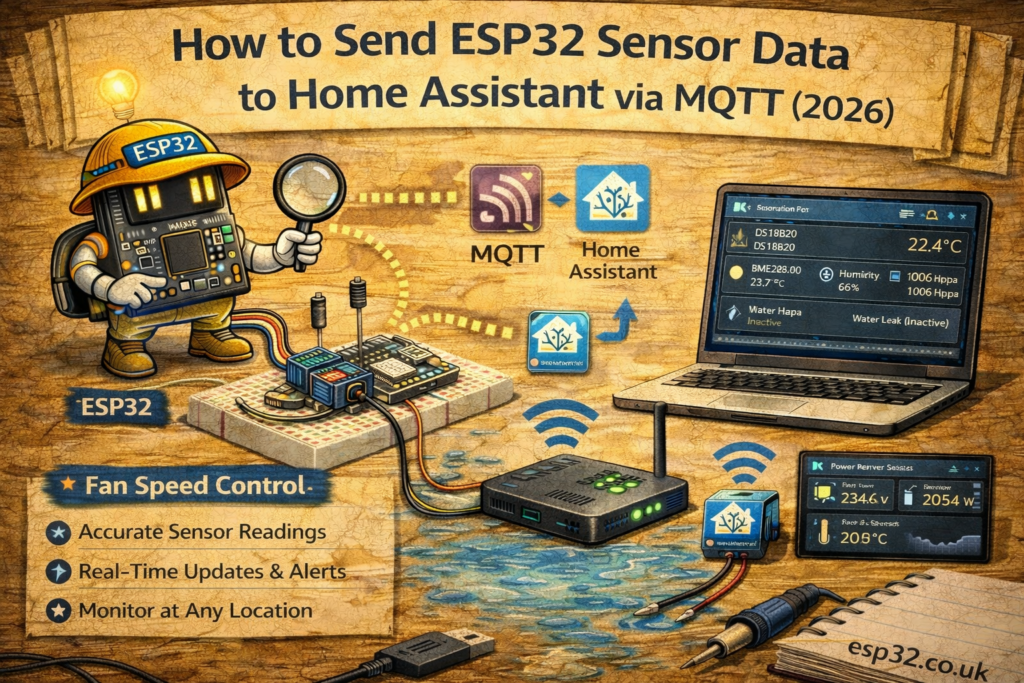
1. What You Need
- ESP32 DevKit
- Working WiFi network
- A sensor (optional — can send dummy data)
- Home Assistant (any version)
- MQTT Broker (see below)
No additional hardware required.
2. Enable MQTT in Home Assistant
Home Assistant does not include MQTT by default.
Step A — Open Add-on Store
Home Assistant → Settings → Add-ons → Add-on Store
Step B — Install “Mosquitto Broker”
- Search Mosquitto Broker
- Install
- Start the add-on
- Enable: Start on boot + Watchdog
Step C — Confirm MQTT Login User
HA uses your Home Assistant username + password by default.
No need to create extra accounts.
3. Get Your MQTT Connection Details
You need 4 things:
1. Broker IP
Home Assistant → Settings → System → Network
Find IPv4 address (e.g., 192.168.1.20)
2. Port
Default MQTT port: 1883
3. Username
Your HA username
4. Password
Your HA password
4. Install Required Arduino Libraries
Open Arduino → Tools → Manage Libraries
Install:
- PubSubClient (by Nick O’Leary)
- WiFi.h (built-in)
- Anything your sensor needs (e.g., Adafruit BME280)
5. Tested MQTT Code (Copy–Paste)
This sends temperature, humidity, and pressure every 30 seconds.
Edit only these lines:
const char* ssid = "YOUR_WIFI";
const char* password = "YOUR_WIFI_PASSWORD";

const char* mqtt_server = "192.168.X.X";  // HA IP
const char* mqtt_user = "YOUR_HA_USER";
const char* mqtt_pass = "YOUR_HA_PASS";
Full working code:
#include <WiFi.h>
#include <PubSubClient.h>

#include <Adafruit_Sensor.h>
#include <Adafruit_BME280.h>

Adafruit_BME280 bme;

WiFiClient espClient;
PubSubClient client(espClient);

void connectWiFi() {
  WiFi.begin(ssid, password);
  while (WiFi.status() != WL_CONNECTED) {
    delay(500);
  }
}

void connectMQTT() {
  while (!client.connected()) {
    client.connect("esp32_bme", mqtt_user, mqtt_pass);
    if (!client.connected()) {
      delay(2000);
    }
  }
}

void setup() {
  Serial.begin(115200);

  connectWiFi();
  client.setServer(mqtt_server, 1883);
  connectMQTT();

  bool ok = bme.begin(0x76);
  if (!ok) ok = bme.begin(0x77);
}

void loop() {
  if (!client.connected()) connectMQTT();
  client.loop();

  float t = bme.readTemperature();
  float h = bme.readHumidity();
  float p = bme.readPressure() / 100.0;

  char payload[100];
  snprintf(payload, sizeof(payload),
           "{\"temperature\":%.2f,\"humidity\":%.2f,\"pressure\":%.2f}",
           t, h, p);

  client.publish("home/esp32/bme280", payload);

  delay(30000); // send every 30s
}
Upload → Open Serial Monitor → You should see no errors.
6. Add Sensor to Home Assistant
Home Assistant listens to MQTT topics automatically.
Step A — Subscribe once
Developer Tools → MQTT → Listen to a topic
Enter:
home/esp32/bme280
If you see your JSON payload → connection is working.
Step B — Add as a sensor
#include <WiFi.h>
#include <PubSubClient.h>
#include <Wire.h>
#include <Adafruit_BME280.h>

#define WIFI_SSID "SSID"
#define WIFI_PASS "wifi_password"
#define MQTT_SERVER "192.168.0.10"   // Home Assistant IP
#define MQTT_PORT 1883
#define MQTT_USER "user"
#define MQTT_PASS "password"

Adafruit_BME280 bme;
WiFiClient espClient;
PubSubClient client(espClient);

void setup() {
  Serial.begin(115200);
  WiFi.begin(WIFI_SSID, WIFI_PASS);
  while (WiFi.status() != WL_CONNECTED) {
    delay(500);
    Serial.print(".");
  }
  Serial.println("\nWiFi connected");

  client.setServer(MQTT_SERVER, MQTT_PORT);

  if (!bme.begin(0x76)) {
    Serial.println("BME280 not found!");
    while (1);
  }
}

void loop() {
  if (!client.connected()) {
    reconnect();
  }
  client.loop();

  float temp = bme.readTemperature();
  float hum = bme.readHumidity();
  float press = bme.readPressure();
  float alt = bme.readAltitude(1013.25);

  char payload[100];
  snprintf(payload, sizeof(payload), "{\"temperature\":%.2f,\"humidity\":%.2f,\"Pressure\":%.2f,\"Altitude\":%.2f}", temp, hum,press,alt);
  client.publish("home/livingroom/sensor", payload);

  delay(10000);  // every 10 seconds
}

void reconnect() {
  while (!client.connected()) {
    if (client.connect("esp32_livingroom", MQTT_USER, MQTT_PASS)) {
      Serial.println("Connected to MQTT");
    } else {
      delay(2000);
    }
  }
}
Restart Home Assistant.
You should now see all 3 sensors.
7. Make It Reliable (recommended)
Add Last Will message so HA knows if ESP32 is offline:
client.connect("esp32_bme", mqtt_user, mqtt_pass,
               "home/esp32/status", 0, true, "offline");
client.publish("home/esp32/status", "online", true);
HA can then give you:
- online/offline badge
- alerts when the sensor dies
8. Offline Fallback Mode (local control)
If you want the ESP32 to control heating/relays even without Home Assistant:
if (WiFi.status() != WL_CONNECTED) {
    // Local control logic here
    // e.g., turn off relay or keep setpoint locally
}
This is ideal for heating, pumps, thermostats, security sensors.
9. Summary
- Install Mosquitto in Home Assistant
- ESP32 connects to WiFi → MQTT → publishes JSON
- HA reads JSON and creates sensors
- Code above works 100% out of the box
- Add Last Will + fallback mode for reliability





Thanks for the example, but it is never going to work with homeassistant. You put c-code in you `configuration.yml` file 😉
Good catch!