
This ESP32 BLE client example shows how to scan for a BLE server, find a specific service and characteristic by UUID, connect to the device, read data, subscribe to notifications, and write values back to the server. It is a very practical example because it covers the full client workflow instead of only scanning or only connecting.
BLE tutorials often focus on the server side first because it is easier to understand. But in real projects, the ESP32 is very often the client. It scans for other devices, connects to them, reads their data, and sometimes writes commands back.
That is exactly what this example demonstrates.
It scans for a device advertising a known service UUID, connects when found, discovers the matching characteristic, reads its value, registers for notifications, and then keeps writing an updated string once per second.
This makes it one of the most useful ESP32 BLE examples in the Arduino IDE because it shows almost the complete client-side flow in one sketch.
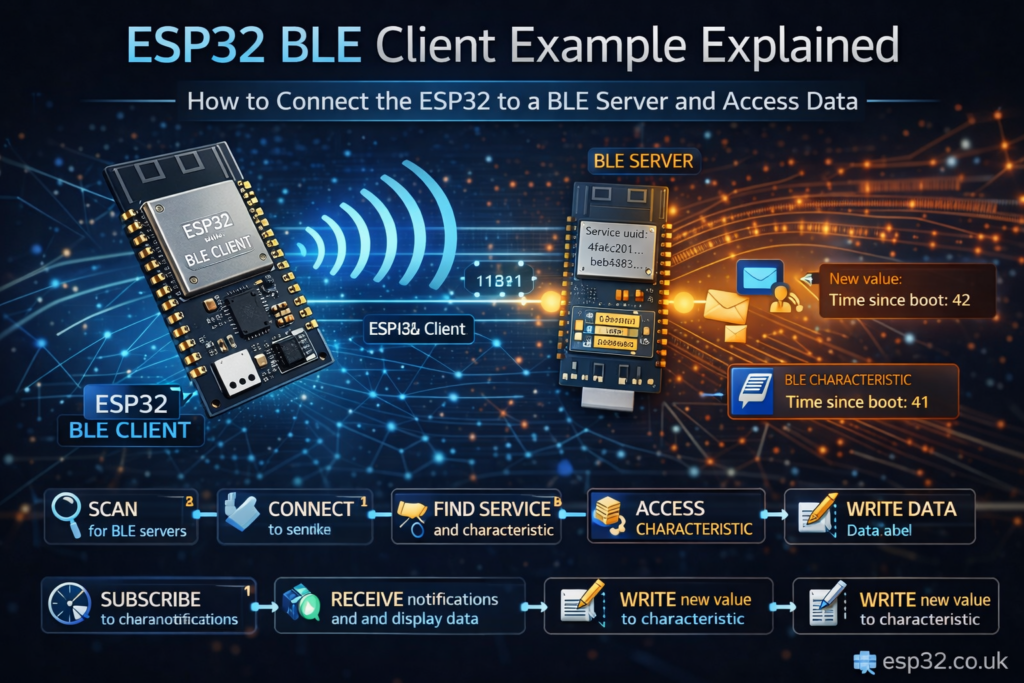
1. What this example does
At a high level, the sketch does the following:
- Defines the service UUID and characteristic UUID it wants to find
- Scans for nearby BLE devices
- Checks whether any device advertises that service
- Stops scanning and saves the matching device
- Connects to that device as a BLE client
- Finds the service and characteristic on the remote server
- Reads the characteristic value if readable
- Subscribes to notifications if supported
- Writes a new value to the remote characteristic once per second
So this is not just a scanner and not just a simple connection example. It is a full BLE client workflow.
2. Included library
The example starts with:
#include "BLEDevice.h"
//#include "BLEScan.h"
BLEDevice.h is the main header for the classic Arduino ESP32 BLE library. It pulls in the core BLE classes you need, including client, scan, service, characteristic, and advertised device support.
The commented-out BLEScan.h is not needed here because BLEDevice.h already gives access to scanning features.
3. Service UUID and characteristic UUID
The next part defines the target service and characteristic:
static BLEUUID serviceUUID("4fafc201-1fb5-459e-8fcc-c5c9c331914b");
static BLEUUID charUUID("beb5483e-36e1-4688-b7f5-ea07361b26a8");
These UUIDs tell the ESP32 exactly what kind of BLE server it is looking for.
serviceUUIDidentifies the remote BLE servicecharUUIDidentifies the characteristic inside that service
This is important because BLE devices can expose multiple services and multiple characteristics. The client needs a precise target.
In many Arduino BLE tutorials, these UUIDs match the companion BLE server example, so the client and server are designed to work together.
4. Global state variables
Next, the example defines several flags and pointers:
static boolean doConnect = false;
static boolean connected = false;
static boolean doScan = false;
static BLERemoteCharacteristic *pRemoteCharacteristic;
static BLEAdvertisedDevice *myDevice;
These control the sketch flow.
doConnecttells the main loop that a suitable device was found and a connection should now be attemptedconnectedtracks whether the ESP32 is currently connecteddoScantells the sketch whether scanning should restart laterpRemoteCharacteristicstores the remote characteristic pointer after discoverymyDevicestores the advertised device that matched the service UUID
This is a common Arduino pattern. The callbacks do quick event handling, then set flags, and the real action happens in loop().
5. Notification callback
The notification callback handles incoming notifications from the server:
static void notifyCallback(BLERemoteCharacteristic *pBLERemoteCharacteristic, uint8_t *pData, size_t length, bool isNotify) {
  Serial.print("Notify callback for characteristic ");
  Serial.print(pBLERemoteCharacteristic->getUUID().toString().c_str());
  Serial.print(" of data length ");
  Serial.println(length);
  Serial.print("data: ");
  Serial.write(pData, length);
  Serial.println();
}
If the remote characteristic supports notifications and the client subscribes successfully, this function runs whenever the server sends updated data.
The callback prints:
- the characteristic UUID
- the data length
- the raw received data
This is useful because BLE notifications are one of the main reasons to use BLE in the first place. Instead of constantly polling the server, the client can simply wait for updates.
6. Client connection callbacks
The sketch defines a client callback class:
class MyClientCallback : public BLEClientCallbacks {
  void onConnect(BLEClient *pclient) {}

  void onDisconnect(BLEClient *pclient) {
    connected = false;
    Serial.println("onDisconnect");
  }
};
This handles connection events.
onConnect() is empty in this example, but onDisconnect() is important. When the server disconnects or the link is lost, the sketch sets:
connected = false;
and prints a message.
That way, the rest of the code knows the ESP32 is no longer connected.
7. The main connection function
The most important function in the example is:
bool connectToServer()
This performs the full client-side connection and service discovery sequence.
7.1 Creating the client
BLEClient *pClient = BLEDevice::createClient();
Serial.println(" - Created client");
This creates a BLE client object.
7.2 Setting client callbacks
pClient->setClientCallbacks(new MyClientCallback());
This registers the callback class we just looked at.
7.3 Connecting to the server
pClient->connect(myDevice);
This connects to the advertised device that was found during scanning.
The comment explains something useful:
// if you pass BLEAdvertisedDevice instead of address, it will be recognized type of peer device address (public or private)
That means the library can correctly handle whether the peer uses a public or random/private BLE address.
7.4 Requesting a larger MTU
pClient->setMTU(517);
This tells the client to request the maximum possible MTU.
Why this matters:
- Default BLE MTU is usually 23 bytes
- Larger MTU allows larger payloads
- This can improve efficiency for reads, writes, and notifications
It does not guarantee the final MTU will become 517, because the server must also support it, but it is a good optimization step.
7.5 Discovering the service
BLERemoteService *pRemoteService = pClient->getService(serviceUUID);
This searches the server for the target service UUID.
If it fails:
if (pRemoteService == nullptr) {
  ...
  pClient->disconnect();
  return false;
}
That is good defensive coding. There is no point staying connected if the required service does not exist.
7.6 Discovering the characteristic
pRemoteCharacteristic = pRemoteService->getCharacteristic(charUUID);
This looks inside the service for the target characteristic.
Again, if it fails, the client disconnects and returns false.
7.7 Reading the characteristic
if (pRemoteCharacteristic->canRead()) {
  String value = pRemoteCharacteristic->readValue();
  Serial.print("The characteristic value was: ");
  Serial.println(value.c_str());
}
If the characteristic supports reading, the client reads the current value and prints it.
This is useful because it gives you an immediate snapshot of the server’s state when the connection is made.
7.8 Registering for notifications
if (pRemoteCharacteristic->canNotify()) {
  pRemoteCharacteristic->registerForNotify(notifyCallback);
}
If the characteristic supports notifications, the client subscribes.
From that point on, updates from the server will trigger notifyCallback().
7.9 Marking the connection as successful
connected = true;
return true;
If all steps succeed, the function sets the global state and returns success.
8. Scanning for the right BLE server
The next class handles advertised devices:
class MyAdvertisedDeviceCallbacks : public BLEAdvertisedDeviceCallbacks {
Its onResult() function runs every time the scanner sees a BLE advertisement.
void onResult(BLEAdvertisedDevice advertisedDevice) {
  Serial.print("BLE Advertised Device found: ");
  Serial.println(advertisedDevice.toString().c_str());
So every detected device is printed to Serial.
Then comes the important filter:
if (advertisedDevice.haveServiceUUID() && advertisedDevice.isAdvertisingService(serviceUUID)) {
This checks two things:
- The device is advertising a service UUID
- That service UUID matches the one we want
If both are true, the sketch assumes this is the correct server.
Then it does the following:
BLEDevice::getScan()->stop();
myDevice = new BLEAdvertisedDevice(advertisedDevice);
doConnect = true;
doScan = true;
That means:
- stop scanning
- save the device
- tell the main loop to connect
- remember that scanning may need to restart later
This is clean and efficient. The callback does not try to connect directly. It only sets up the next step.
9. What happens in setup()
The setup function initializes BLE and starts scanning:
void setup() {
  Serial.begin(115200);
  Serial.println("Starting Arduino BLE Client application...");
  BLEDevice::init("");
This starts Serial and initializes the BLE stack with an empty local device name.
Then it configures the scanner:
BLEScan *pBLEScan = BLEDevice::getScan();
pBLEScan->setAdvertisedDeviceCallbacks(new MyAdvertisedDeviceCallbacks());
pBLEScan->setInterval(1349);
pBLEScan->setWindow(449);
pBLEScan->setActiveScan(true);
pBLEScan->start(5, false);
Let’s break that down.
9.1 Registering scan callbacks
pBLEScan->setAdvertisedDeviceCallbacks(new MyAdvertisedDeviceCallbacks());
This tells the scanner which class should process detected BLE devices.
9.2 Scan interval and scan window
pBLEScan->setInterval(1349);
pBLEScan->setWindow(449);
These are low-level BLE scan timing parameters.
interval= how often scanning periods startwindow= how long the scanner actually listens during each interval
The window must be less than or equal to the interval.
A larger window means more listening time and a higher chance of finding devices, but it also uses more power.
9.3 Active scanning
pBLEScan->setActiveScan(true);
This enables active scanning.
That means the ESP32 does not just listen passively. It can also send scan requests to obtain additional data from advertisers.
This often makes device discovery more informative, but again costs more power.
9.4 Starting the scan
pBLEScan->start(5, false);
This starts scanning for 5 seconds.
The second argument controls whether scan results should be cleared after completion. Here it is set to false, meaning results are not automatically cleared.
10. What happens in loop()
The main loop handles the flag-based workflow.
10.1 Connecting when a matching device was found
if (doConnect == true) {
  if (connectToServer()) {
    Serial.println("We are now connected to the BLE Server.");
  } else {
    Serial.println("We have failed to connect to the server; there is nothing more we will do.");
  }
  doConnect = false;
}
If the scanner previously found a matching server, the loop now calls connectToServer().
If successful, it prints a success message. Either way, it clears the doConnect flag.
10.2 Writing to the characteristic when connected
if (connected) {
  String newValue = "Time since boot: " + String(millis() / 1000);
  Serial.println("Setting new characteristic value to "" + newValue + """);
  pRemoteCharacteristic->writeValue(newValue.c_str(), newValue.length());
}
Once connected, the example writes a new string once per second.
The written value is:
Time since boot: X
where X is the number of seconds since the ESP32 started.
This demonstrates that the client is not just reading and listening. It can also write data back to the server.
That is a very useful part of the example because many BLE tutorials never show the full two-way interaction.
10.3 Restarting scanning after disconnect
else if (doScan) {
  BLEDevice::getScan()->start(0);
}
If not connected but doScan is true, the sketch restarts scanning.
The comment in the original code is honest:
// this is just example to start scan after disconnect, most likely there is better way to do it in arduino
That is true. It works as a simple demo, but it is not the most elegant reconnection strategy.
10.4 Delay
delay(1000);
This delays one second between loop iterations.
11. How the full workflow looks
In plain English, the sketch behaves like this:
- Start scanning
- Print every advertised BLE device found
- Check whether any device advertises the target service UUID
- Stop scanning when found
- Connect as BLE client
- Discover service and characteristic
- Read current value if supported
- Subscribe to notifications if supported
- Write a new string to the characteristic every second
- If disconnected, start scanning again
That is why this is such a good example. It covers almost the full BLE client lifecycle.
12. Important assumptions in this example
This sketch assumes a few things.
12.1 The server advertises the service UUID
If the remote server does not advertise the service UUID in its advertisement packet, this scanner will never select it, even if the service actually exists after connection.
12.2 The characteristic supports the operations you want
The example checks:
canRead()canNotify()
but it does not explicitly check whether the characteristic is writable before calling:
pRemoteCharacteristic->writeValue(...)
In practice, the matching server example usually supports writes, so it works. But in a more robust project, you should also check write capability.
12.3 The server uses matching UUIDs
If the service UUID or characteristic UUID differs even slightly, discovery will fail.
13. Good things about this example
This example is strong because it demonstrates several important BLE client features in one place:
- scanning
- advertised service filtering
- connecting
- MTU negotiation
- service discovery
- characteristic discovery
- reading
- notifications
- writing
- reconnect logic
That is a lot more useful than tiny “hello world” BLE examples.
14. Weak points and limitations
Brutally honest, the example is useful but not perfect.
14.1 Memory leak risk
This line allocates dynamically:
myDevice = new BLEAdvertisedDevice(advertisedDevice);
In a simple demo that is fine, but in a long-running production system you would want tighter memory management.
14.2 No write capability check
The code writes to the characteristic without checking whether it is writable.
Safer code would check something like:
- canWrite()
- or write property support
before writing.
14.3 Reconnect flow is basic
Restarting scanning with:
BLEDevice::getScan()->start(0);
is simple, but not especially elegant. A better design might reset more state, clear pointers, and handle backoff timing.
14.4 Hardcoded UUIDs
This is fine for a demo, but real projects often need configurable UUIDs or a more flexible matching process.
15. How to improve it for real projects
If you want to turn this into something production-ready, here are the obvious upgrades.
15.1 Check write support
Before calling writeValue(), verify the characteristic supports writing.
15.2 Handle reconnection more cleanly
Instead of just restarting scanning forever, add:
- retry counters
- timeout handling
- reconnect intervals
15.3 Parse notification data properly
Right now notifications are just printed raw. In a real application, decode the received bytes into structured data.
15.4 Avoid unnecessary dynamic allocation
Manage myDevice more safely if the code runs for a long time.
15.5 Add RSSI filtering
If multiple devices advertise the same service, you may want to choose the strongest signal or a known address.
16. When to use this example
This example is ideal if you want the ESP32 to act as a BLE client for:
- another ESP32 BLE server
- a BLE sensor
- a smart peripheral
- a custom BLE control device
- a device that sends notifications and accepts writes
It is especially useful when paired with the standard ESP32 BLE server example because the UUIDs often match.
17. Final thoughts
The ESP32 BLE client example is one of the most practical BLE sketches in the Arduino ESP32 library because it shows real interaction, not just discovery.
It teaches the correct client-side sequence:
- scan
- identify
- connect
- discover
- read
- subscribe
- write
- recover after disconnect
Once you understand this example, you have the foundation needed for many real ESP32 BLE projects.