The Sensirion SGP40AliExpress price is one of the easiest ways to add VOC monitoring to Home Assistant with an ESP32AliExpress price and ESPHome.
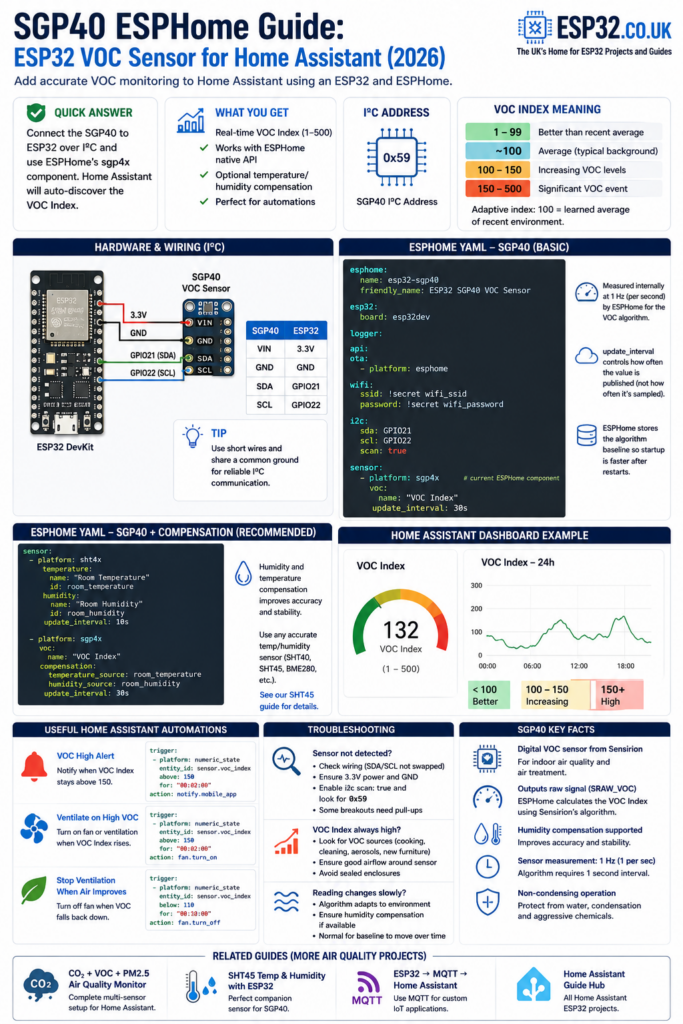
It connects over I²C and ESPHome handles the important part automatically: converting the sensor’s raw signal into Sensirion’s VOC Index.
Quick answer
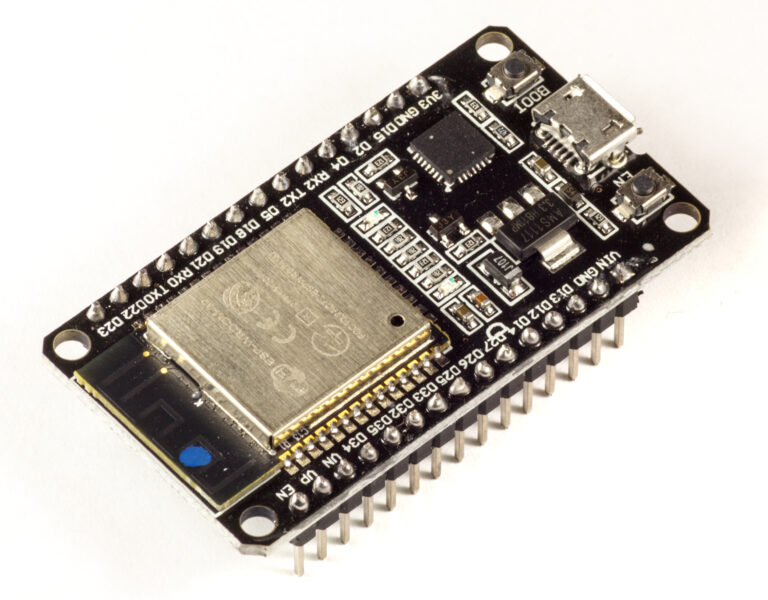
For a standard ESP32AliExpress price DevKit:
| ESP32AliExpress price | SGP40AliExpress price |
|---|---|
| 3.3V | VIN / VCC |
| GND | GND |
| GPIO21 | SDA |
| GPIO22 | SCL |
Then use ESPHome’s current sgp4x component:
sensor:
  - platform: sgp4x
    voc:
      name: "VOC Index"
Once the ESPHome device is added to Home Assistant, the VOC Index appears automatically through the native ESPHome integration.
The SGP40 uses I²C address 0x59. Sensirion specifies the sensor as a digital VOC sensor for indoor-air-quality and air-treatment applications.
The important thing to understand is that the SGP40 does not measure VOC concentration in ppm.
Instead, Sensirion’s algorithm produces a relative VOC Index from 1 to 500, where approximately 100 represents the average VOC conditions the sensor has learned from its recent environment.
What Is the SGP40?
The SGP40 is a metal-oxide gas sensor made by Sensirion for detecting changes in volatile organic compounds in indoor air.
VOCs can come from sources such as:
- cooking
- cleaning products
- perfumes
- paint
- solvents
- furniture and flooring
- adhesives
- human activity
- smoke and combustion products
The sensor does not identify individual chemicals.
Instead, it responds to a broad range of VOC gases and produces a raw signal called SRAW_VOC.
That raw signal is then processed by Sensirion’s Gas Index Algorithm to generate the much more useful VOC Index. Sensirion recommends providing the raw measurement to the algorithm once per second.
ESPHome performs that processing for you, which is why using SGP40 with ESPHome is considerably easier than implementing the complete sensor algorithm yourself.
What Does the SGP40 VOC Index Mean?
This is where a lot of SGP40 tutorials get it wrong.
The VOC Index is not an absolute air-quality score where a fixed number always represents the same concentration of pollutants.
It is adaptive.
Sensirion’s algorithm learns the normal VOC background in the room and maps the recent average to approximately 100.
A useful way to read it is:
| VOC Index | Meaning |
|---|---|
| 1–99 | VOC conditions are better than the recent average |
| ~100 | Typical recent VOC background |
| Above 100 | VOC levels have increased relative to the recent average |
| 150+ | Significant VOC event and a useful starting point for automation |
| Up to 500 | Very strong VOC event relative to the learned baseline |
Sensirion specifically gives VOC Index 150 as an example threshold for activating an air purifier. It is an example control point rather than a universal health limit.
VOC Index is not ppm
An SGP40 reading of 200 does not mean:
- 200 ppm
- 200 ppb
- 200 µg/m³
- AQI 200
It means the sensor is currently seeing substantially more VOC activity than its learned normal environment.
This relative behaviour is intentional.
For example, opening a window may drive the VOC Index below 100, while cooking, cleaning or spraying perfume can cause a sharp increase above 100.
SGP40 vs a CO₂ Sensor
The SGP40 is not a CO₂ sensor.
This distinction matters for indoor-air-quality projects.
A CO₂ sensor such as an SCD40/SCD41 measures carbon dioxide concentration.
The SGP40 measures changes in volatile organic compounds.
You can therefore have:
- high CO₂ but relatively low VOC
- low CO₂ but a large VOC spike
- both high at the same time
For a more complete Home Assistant air-quality station, combining CO₂ + VOC + particulate matter + temperature/humidity gives you much more information than any single sensor.
See our Home Assistant Air Quality Monitor guide for a multi-sensor setup.
Hardware Required
For the basic project you need:
- ESP32 development board
- SGP40 breakout board
- jumper wires
- USB cable
For better compensation, also add a temperature and humidity sensor such as:
- SHT40
- SHT41
- SHT45
- BME280
- another ESPHome temperature/humidity sensor
If you’re already using an SHT45, see our ESP32 SHT45 ESPHome and Home Assistant guide.
ESP32 SGP40 Wiring
The SGP40 uses I²C, so only four connections are required.
For a normal ESP32 DevKit:
| SGP40 | ESP32 |
|---|---|
| VIN / VCC | 3.3V |
| GND | GND |
| SDA | GPIO21 |
| SCL | GPIO22 |
GPIO21 and GPIO22 are the conventional I²C pins on the original ESP32, but ESP32 peripherals are flexible and other pins can be selected if required.
SGP40 I²C address
The SGP40 has a fixed I²C address:
0x59
Sensirion specifies support for standard-mode and fast-mode I²C at up to 400 kHz.
If ESPHome’s I²C scanner detects:
0x59
your ESP32 is communicating with the SGP40.
Complete ESPHome Configuration for SGP40
Current ESPHome uses the sgp4x sensor platform for both SGP40 and SGP41 devices. ESPHome detects which sensor is connected.
A complete basic configuration for an original ESP32 DevKit looks like this:
esphome:
  name: esp32-sgp40
  friendly_name: ESP32 SGP40 VOC Sensor

esp32:
  board: esp32dev

logger:

api:

ota:
  - platform: esphome

wifi:
  ssid: !secret wifi_ssid
  password: !secret wifi_password

i2c:
  sda: GPIO21
  scl: GPIO22
  scan: true

sensor:
  - platform: sgp4x
    voc:
      name: "VOC Index"
    update_interval: 30s
ESPHome’s current ESP32 configuration places the board under the esp32: component, while the current SGP40 implementation uses platform: sgp4x.
After compiling and installing the firmware, open the ESPHome logs.
You should see the SGP40 detected on the I²C bus and the VOC Index entity created.
Why ESPHome Uses sgp4x Instead of sgp40
Older tutorials may contain:
platform: sgp40
Current ESPHome uses:
platform: sgp4x
The sgp4x component supports both:
- SGP40 → VOC Index
- SGP41 → VOC Index + NOx Index
ESPHome automatically detects the sensor type.
For SGP40 you only need:
voc:
  name: "VOC Index"
You do not need to configure a NOx sensor.
Why update_interval Does Not Mean the SGP40 Is Sampled Every 30 Seconds
This is an important ESPHome detail.
Sensirion’s VOC algorithm requires the SGP40 to be driven at 1 Hz, meaning one measurement every second.
ESPHome therefore reads the SGP4x sensor internally once per second regardless of the configured update_interval.
The update_interval controls how often the calculated value is published to ESPHome/Home Assistant.
ESPHome’s documentation explicitly notes that the device continues to be sampled at 1 Hz while network updates can occur less frequently to reduce Wi-Fi traffic and power use.
So:
update_interval: 30s
does not break the VOC algorithm.
It simply sends the current VOC Index to Home Assistant every 30 seconds.
For most Home Assistant installations, 30–60 seconds is plenty.
SGP40 Temperature and Humidity Compensation
The SGP40 can compensate its raw measurement using the actual temperature and relative humidity of the air.
Sensirion supports humidity compensation directly in the measurement process, and ESPHome exposes this through the compensation: configuration.
If temperature and humidity sensors are not supplied, ESPHome can still operate the SGP40 using default compensation values.
However, if you already have a good temperature/humidity sensor in the same enclosure, providing the real measurements is preferable.
SGP40 + SHT45 ESPHome Configuration
A very good combination is:
The SHT45 provides temperature and humidity, while the SGP40 provides VOC sensing.
Because both use I²C, they can share GPIO21 and GPIO22.
Example:
esphome:
  name: esp32-air-quality
  friendly_name: ESP32 Air Quality Sensor

esp32:
  board: esp32dev

logger:

api:

ota:
  - platform: esphome

wifi:
  ssid: !secret wifi_ssid
  password: !secret wifi_password

i2c:
  sda: GPIO21
  scl: GPIO22
  scan: true

sensor:
  - platform: sht4x
    temperature:
      name: "Room Temperature"
      id: room_temperature
    humidity:
      name: "Room Humidity"
      id: room_humidity
    update_interval: 10s

  - platform: sgp4x
    voc:
      name: "VOC Index"
    compensation:
      temperature_source: room_temperature
      humidity_source: room_humidity
    update_interval: 30s
The current ESPHome SGP4x component expects the fields:
temperature_source:
humidity_source:
inside the compensation: block.
This replaces older examples that use different compensation syntax.
Adding SGP40 to Home Assistant
If your ESP32 is using the native ESPHome API, you do not need to manually create an MQTT sensor in configuration.yaml.
Once the device is added through the ESPHome integration, Home Assistant receives its entities directly.
You should see an entity named something similar to:
VOC Index
The exact Home Assistant entity ID depends on your device and existing entity names, but it may look like:
sensor.esp32_sgp40_voc_index
You can rename the entity in Home Assistant without changing the ESPHome configuration.
For more ESP32/Home Assistant projects, see our Home Assistant ESP32 guides.
Home Assistant VOC Index Gauge
A gauge works well for seeing short-term VOC events.
Replace the example entity with your own VOC Index entity:
type: gauge
entity: sensor.esp32_sgp40_voc_index
name: VOC Index
min: 0
max: 500
severity:
  green: 0
  yellow: 100
  red: 150
Home Assistant’s gauge card currently supports numeric severity thresholds directly in YAML.
There is one caveat:
do not interpret the colours as official health classifications.
The SGP40 VOC Index is adaptive.
The gauge is useful for making VOC events obvious, but 150 is better understood as an automation/action threshold than a regulatory air-quality limit.
Home Assistant VOC History Graph
The VOC Index becomes even more useful when you can see its history.
A typical day might show:
- baseline around 100
- spike while cooking
- reduction after opening windows
- another spike while cleaning
- gradual return toward the learned baseline
A history graph makes these patterns much easier to recognise than a single live number.
You can simply add your VOC Index entity to a Home Assistant history graph or statistics card.
Home Assistant Automation: VOC Alert
A notification when the VOC Index rises significantly above normal can be useful.
For example:
alias: VOC High Alert
triggers:
  - trigger: numeric_state
    entity_id: sensor.esp32_sgp40_voc_index
    above: 150
    for: "00:02:00"

actions:
  - action: notify.mobile_app_your_phone
    data:
      title: "VOC level increased"
      message: "The room VOC Index has been above 150 for two minutes."

mode: single
Current Home Assistant automation YAML uses triggers: and actions: with entries such as trigger: numeric_state and action:.
Waiting two minutes helps avoid notifications for very brief spikes.
Automatically Turn On Ventilation
If you have an extractor fan, ventilation system or smart relay controlled by Home Assistant, VOC monitoring can be used to automate ventilation.
Example:
alias: Ventilate on High VOC
triggers:
  - trigger: numeric_state
    entity_id: sensor.esp32_sgp40_voc_index
    above: 150
    for: "00:02:00"

actions:
  - action: fan.turn_on
    target:
      entity_id: fan.ventilation

mode: restart
Then switch it off again once VOC levels have remained lower:
alias: Stop VOC Ventilation
triggers:
  - trigger: numeric_state
    entity_id: sensor.esp32_sgp40_voc_index
    below: 110
    for: "00:10:00"

actions:
  - action: fan.turn_off
    target:
      entity_id: fan.ventilation

mode: restart
The gap between the ON and OFF thresholds prevents the fan constantly switching on and off around one value.
Why Is My SGP40 VOC Index Around 100 All the Time?
Often, that’s exactly what it should do.
The VOC Index algorithm continuously adapts to the environment.
A value around 100 represents the learned average VOC background, so the sensor naturally tends to return toward that region when conditions remain relatively stable.
The useful information is often the change.
For example:
Normal room:
95–110

Cooking:
180

Window opened:
70

Cleaning spray:
260
Those numbers are examples, not universal thresholds.
Different rooms and different VOC sources can produce different responses because the VOC Index measures changes relative to the recent environment.
Why Does the VOC Index Change After Opening a Window?
This is normal.
If outdoor air contains fewer VOCs than the learned indoor background, the VOC Index can fall below 100.
Sensirion specifically describes values below 100 as conditions with fewer VOCs relative to the recent average, with fresh air from an open window being one example.
This makes the SGP40 particularly useful for checking whether ventilation is actually reducing indoor VOCs.
Why Does Cooking Cause a Large VOC Spike?
Cooking releases a mixture of gases and vapours that can trigger the SGP40.
The VOC Index may therefore rise sharply during:
- frying
- baking
- boiling certain foods
- using cooking oils
- burning food
This does not mean the SGP40 has identified a particular chemical.
It simply detects that the overall VOC environment has changed significantly relative to its recent baseline.
Why Does Perfume or Cleaning Spray Trigger the SGP40?
Many perfumes, alcohol-based products, detergents and cleaning products release VOCs.
A strong temporary spike after using them is therefore expected.
This is actually a useful test to confirm that the SGP40 is responding.
Don’t spray anything directly onto the sensor.
Allow the VOC to disperse naturally through the room.
Does the SGP40 Need 24 Hours of Burn-In?
Not in the simplistic way this is sometimes described.
Sensirion specifies that the SGP40 can reliably detect VOC events in under 60 seconds after switch-on, while full specified sensor performance can take up to approximately one hour.
The 24-hour figure relates to the adaptive VOC Index history, not a requirement that the sensor is useless for its first 24 hours.
The algorithm uses recent history to learn the normal VOC background and continuously adapts as conditions change.
ESPHome also supports storing the algorithm baseline so that startup can be faster after a restart, and store_baseline currently defaults to true.
SGP40 Not Detected in ESPHome
If the sensor isn’t working, start with the I²C scanner.
Your configuration should contain:
i2c:
  sda: GPIO21
  scl: GPIO22
  scan: true
In the logs, look for:
0x59
If 0x59 does not appear, check:
- SDA and SCL aren’t swapped
- the sensor has power
- ESP32 and SGP40 share GND
- the breakout board accepts 3.3 V
- GPIO numbers match your ESP32 board
- connections aren’t excessively long
- the breakout actually contains an SGP40
The official SGP40 I²C address is 0x59.
SGP40 Readings Are Very High
A high VOC Index means current VOC conditions are substantially above the recent learned background.
Look for obvious sources:
- cooking
- cleaning
- aerosols
- perfume
- paint
- solvents
- new furniture
- glue
- alcohol
- smoke
Try opening windows and watch whether the VOC Index falls.
If the sensor remains unexpectedly high, also check its physical placement.
Avoid placing it:
- directly beside cleaning chemicals
- inside a sealed enclosure
- beside an alcohol dispenser
- directly over a cooker
- where it is exposed to condensation
Sensirion specifies the SGP40 for non-condensing operation and recommends protecting the sensor from unsuitable environmental exposure.
SGP40 Readings Change Slowly
Remember that two different things are happening:
The sensor itself responds quickly to changes.
The VOC Index algorithm also adapts to recent history.
Sensirion specifies a sensor response time below roughly 10 seconds for the 63% response point in its defined ethanol test, while the Gas Index Algorithm continuously learns the environmental background.
So a fast VOC event and the longer-term movement of the baseline are not the same thing.
SGP40 Raw Signal vs VOC Index
This distinction is important if you’re comparing ESPHome with Arduino examples.
The SGP40 hardware outputs:
SRAW_VOC
A raw digital measurement.
It does not directly output the final 1–500 VOC Index.
Sensirion’s Gas Index Algorithm must process the raw measurements to generate:
VOC Index
The ESPHome sgp4x component performs this processing automatically.
This is why Arduino code that simply calls a raw measurement function and publishes that number as a “VOC Index” is incorrect.
If you’re writing custom Arduino firmware, use Sensirion’s sensor driver together with the Gas Index Algorithm implementation rather than treating SRAW_VOC as the final value. Sensirion provides an Arduino Gas Index Algorithm library specifically for converting SGP40 raw signals into VOC Index output.
ESPHome or MQTT for SGP40?
For a normal Home Assistant project, I recommend:
ESPHome native API
It is the simplest setup.
You get:
- SGP40 support built in
- VOC Index algorithm handled automatically
- Home Assistant entities created automatically
- OTA updates
- logging
- optional temperature/humidity compensation
- no manual MQTT discovery configuration
If you’re building a broader system that specifically needs MQTT, there is nothing wrong with using MQTT.
But you don’t need MQTT simply to get an SGP40 into Home Assistant.
For a custom MQTT implementation, see our ESP32 MQTT to Home Assistant guide.
SGP40 vs SGP41
The SGP40 and SGP41 are closely related, and ESPHome supports both through the same sgp4x component.
The main difference is straightforward:
| Sensor | VOC | NOx |
|---|---|---|
| SGP40 | Yes | No |
| SGP41 | Yes | Yes |
ESPHome automatically detects whether an SGP40 or SGP41 is connected. The SGP41 can expose both a VOC Index and NOx Index, while the SGP40 provides the VOC measurement only.
Choose SGP40 if:
You mainly want VOC monitoring for:
- cooking
- cleaning
- general indoor air quality
- ventilation control
- Home Assistant automations
Choose SGP41 if:
You also want NOx monitoring.
For many normal residential Home Assistant projects, the SGP40 remains a simple and effective VOC sensor.
Is the SGP40 Good for Home Assistant?
Yes.
The combination of SGP40 + ESP32 + ESPHome works particularly well because ESPHome handles the parts that would otherwise require custom firmware:
- I²C communication
- 1 Hz sensor sampling
- Sensirion VOC algorithm
- baseline storage
- temperature/humidity compensation
- Home Assistant integration
ESPHome’s current SGP4x component handles the mandatory one-second sensor measurement cycle independently of the published update interval and supports stored baseline data and external temperature/humidity compensation.
That makes the SGP40 much more useful than simply reading its raw value with a generic Arduino library.
Best SGP40 ESPHome Configuration
For a simple installation:
ESP32 + SGP40
is enough.
For better environmental compensation:
ESP32 + SGP40 + SHT45
is the setup I would choose.
Use:
- GPIO21 → SDA
- GPIO22 → SCL
- SGP40 → VOC Index
- SHT45 → temperature + humidity
- ESPHome native API → Home Assistant
Then let Home Assistant handle:
- graphs
- alerts
- ventilation
- air purifiers
- long-term history
The result is a compact indoor-air-quality node with no custom C++ code and no MQTT configuration required.
SGP40 ESPHome FAQ
What is the SGP40 I²C address?
0x59.
What ESPHome platform does SGP40 use?
Current ESPHome uses:
platform: sgp4x
not the older sgp40 platform.
Does SGP40 measure CO₂?
No.
It is a VOC sensor.
Does SGP40 measure TVOC in ppm?
Not directly.
Its raw signal is processed into Sensirion’s adaptive VOC Index.
What does VOC Index 100 mean?
Approximately the average VOC environment learned from the recent history of the sensor.
Is a VOC Index below 100 good?
It means VOC conditions are currently lower than the sensor’s recent average.
It should not be interpreted as an absolute certification that the air is “safe”.
Is a VOC Index above 100 bad?
It indicates VOC levels have increased relative to the recent learned baseline.
The magnitude of the increase tells you how significant the event is.
Can SGP40 detect cooking fumes?
Yes, cooking frequently causes strong VOC events.
Can SGP40 detect perfume and cleaning products?
Yes. Many of these products release VOCs that can cause noticeable index spikes.
Should I use humidity compensation?
If a good temperature/humidity measurement is already available near the SGP40, use it.
ESPHome supports temperature and humidity sources directly.
Does the SGP40 need to run every second?
The Gas Index Algorithm requires a one-second sensor sampling interval.
ESPHome handles this automatically even if you publish the resulting VOC Index to Home Assistant less frequently.
Final Recommendation
For a Home Assistant VOC sensor, the SGP40 + ESP32 + ESPHome combination is simple, inexpensive and flexible.
The most important things to remember are:
- connect the SGP40 over I²C
- look for 0x59
- use ESPHome’s
sgp4xcomponent - use the VOC Index, not the raw SGP40 value
- understand that 100 represents the recent average, not a fixed pollution limit
- use temperature/humidity compensation when available
- let ESPHome handle the one-second sampling and Gas Index Algorithm
- use Home Assistant for graphs, alerts and ventilation control
For the simplest build, connect an SGP40 directly to an ESP32 and let ESPHome do the processing.
For a better complete indoor-air-quality node, combine it with an SHT45 temperature/humidity sensor and, if required, add dedicated CO₂ and particulate-matter sensors separately.
The key point is simple:
The SGP40 measures VOC changes. ESPHome turns them into a usable VOC Index. Home Assistant turns that index into something you can monitor and automate.